





iPhone Wi-Fi Disconnecting? Fix the Dropouts Step by Step

20/09/2026

8 Mins

An iPhone that drops its Wi-Fi connection every few minutes is usually fixable without a repair. Start by finding out whether the fault follows the phone or affects every device using your home internet connection.
When an iPhone keeps disconnecting from Wi-Fi during calls, streaming or setup, work through the simple checks first. Only reset settings after you’ve ruled out the router, your broadband connection and a temporary software problem.
The Short Version
- Test another device on the same Wi-Fi, then test your iPhone’s Wi-Fi connection on a different network.
- Restart both the iPhone and Wi-Fi router before changing settings.
- Turn Wi-Fi Assist off temporarily, then check cellular data usage and any VPN or security apps.
- Forget the saved network and reconnect with the correct password.
- Reset network settings if the problem continues across known-good Wi-Fi networks.
- Arrange a repair assessment if Wi-Fi fails everywhere after these checks.
If another phone, tablet or laptop also loses its network connection, the Wi-Fi router or broadband service is more likely, particularly if signal strength is weak.
Pinpoint Where the Connection Fails
Connected to Wi-Fi but no internet
Your iPhone can show a Wi-Fi connection yet have no usable internet connection. Try opening a few different websites or apps, then check another device on the same network.
If every device struggles, restart the router and check whether your provider has reported an outage. If only your iPhone loses access, move on to its saved network profile and installed apps.
Try standing close to the router, too. Poor signal strength through thick walls, metal appliances or several floors can look like an iPhone fault when coverage is simply limited.
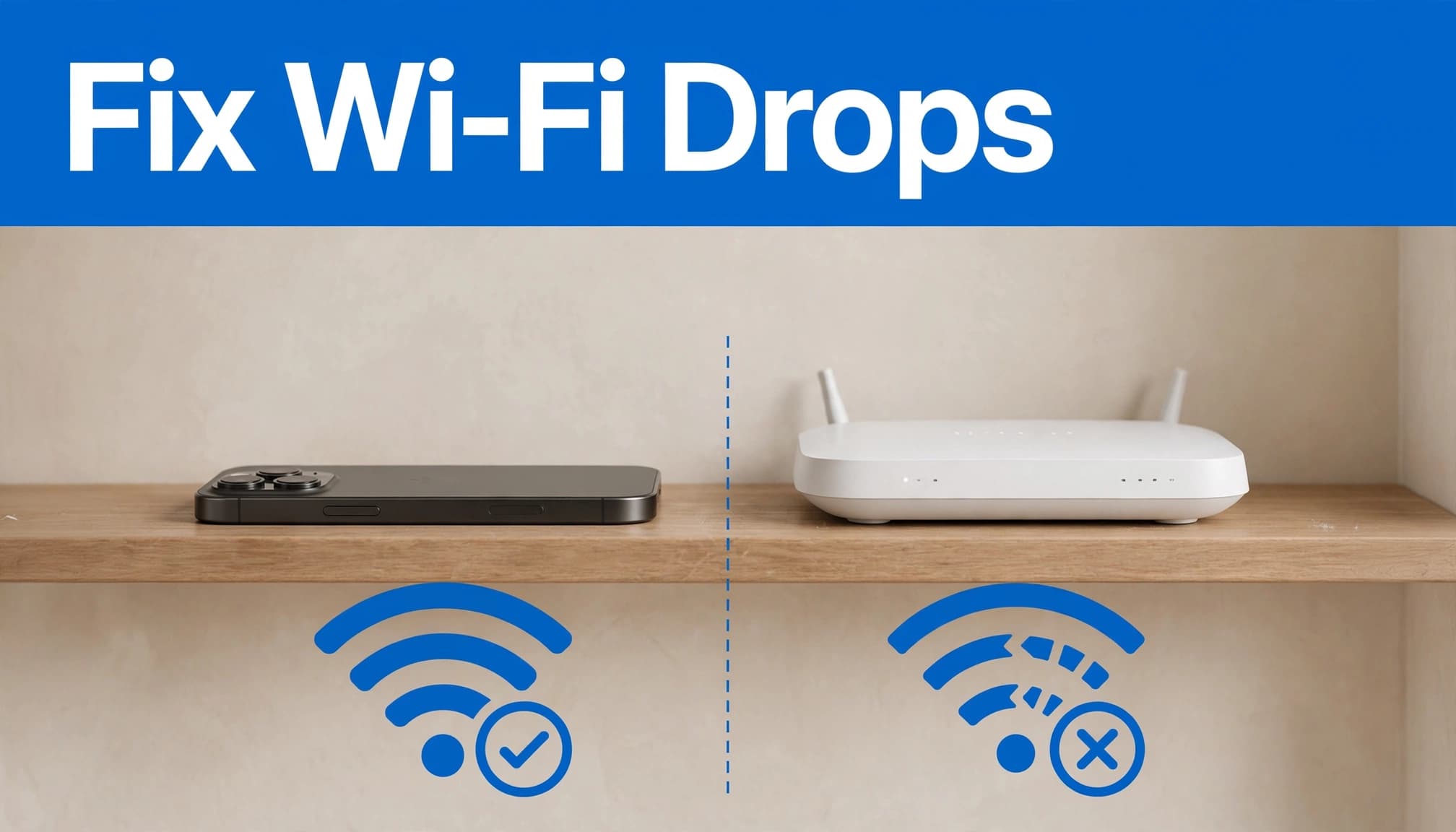
Drops only after the screen locks
An iPhone shouldn’t repeatedly abandon a stable home network merely because the screen turns off. However, this pattern gives you a useful test.
Connect to Wi-Fi, open a webpage, lock the phone for several minutes, then unlock it and try again. Repeat the same test on another trusted network. Compare the installed iOS version if the problem follows the phone. If the issue happens only at home, focus on the router. If it follows the phone everywhere, investigate its saved connection, VPN settings and software.
How to Fix an iPhone That Keeps Disconnecting From Wi-Fi: Quick Steps
- Open Settings > Wi-Fi and confirm Wi-Fi is switched on for a basic Wi-Fi connection.
- Check that Airplane Mode is off in Control Centre or Settings.
- Restart your iPhone, then restart the router by switching it off briefly and powering it back on.
- Test another device on the same Wi-Fi network.
- Test your iPhone on a different reliable network, such as a family member’s home Wi-Fi.
- Go to Settings > Wi-Fi, tap the information button beside your network, then select Forget This Network.
- Rejoin the network and enter the password again.
- If the problem remains, use Settings > General > Transfer or Reset iPhone > Reset > Reset Network Settings.
Apple’s official Wi-Fi troubleshooting steps use the same approach, starting with basic connection checks before moving to a network reset.
Before the final step, make sure you know your Wi-Fi passwords. A network settings reset removes saved Wi-Fi networks and other connection settings, so you will need to sign in again afterwards.
Check Settings That Can Change the Connection
Turn off Wi-Fi Assist as a test
Wi-Fi Assist can trigger automatic failover to cellular data when Wi-Fi is weak. Apps may keep loading, making the failed link less obvious while background network activity continues.
Go to Settings > Mobile Service > Wi-Fi Assist and turn it off temporarily. Then use the phone as normal and see whether the behaviour changes. This doesn’t repair a weak Wi-Fi connection, but it makes testing clearer and may reduce unexpected bandwidth usage on mobile data.
For a controlled comparison, test with Low Power Mode on and off. It isn’t automatically the cause of Wi-Fi dropouts, but comparing both settings can help isolate the behaviour.
Some iPhones may show a related label called Connectivity Assist. Apple has separate Connectivity Assist settings guidance, so use the wording shown on your own handset.
Pause VPN and security connections
A VPN app, privacy tool or work-managed network profile can affect how the iPhone reaches the internet. A network extension may also interfere, particularly after installing an app or joining an employer’s device management programme.
Temporarily disconnect the VPN, then test Wi-Fi again. If you use a work phone or a business VPN, ask your IT team before removing profiles or deleting anything.
DuckDuckGo and Google Fi VPN are examples of services that may add network extensions. They aren’t automatically the cause, but disabling one connection at a time is a sensible way to isolate a conflict.
Forget the Network and Reset the Profile
Remove a corrupted saved network
A saved Wi-Fi network can occasionally retain incorrect connection details. Forgetting it clears the stored network profile without affecting your photos, apps or messages.
Open Settings > Wi-Fi, tap the information button next to the network name, choose Forget This Network, then reconnect. Check the password carefully, particularly if your router has a mix of letters, numbers and symbols.
If the router has been replaced recently, this step often matters. The network name may look familiar while the security settings behind it have changed.
Reset Network Settings when simpler fixes fail
If your iPhone Wi-Fi disconnecting problem happens across several networks, reset Network Settings. Use Settings > General > Transfer or Reset iPhone > Reset > Reset Network Settings.
This removes saved Wi-Fi passwords, mobile network settings, VPN settings and APN settings. It clears parts of your network configuration, but doesn’t erase personal data. Take a screenshot of important network details before you begin.
A full factory reset is rarely the sensible next move for Wi-Fi alone. First, troubleshoot iPhone Wi-Fi disconnections with the lower-risk steps, then install any available iOS update in Settings > General > Software Update. This is a lower-risk step, but it won’t repair a hardware fault.
Fix Problems on the Router Side
Restart and update the router
Restarting your Wi-Fi router clears many short-lived broadband and local-network faults. Once it is back online, reconnect your iPhone and test it near the router. A DHCP lease may have temporarily assigned an unsuitable local address.
If your router’s app or settings page shows an update for the router firmware, apply it when you have time for a brief interruption. Router makers change their menus, so follow the instructions for your exact model rather than altering advanced network configuration at random.
Check signal range and congestion
Many home routers provide both 2.4 GHz and 5 GHz Wi-Fi. The 5 GHz band can be quicker nearby, while 2.4 GHz often maintains better signal strength through walls. Letting the router manage this automatically is usually best, although separating the networks can help with testing if you know how to change them safely.
If the issue occurs at the same time each evening, channel congestion or a broadband fault may be involved. Contact your internet service provider when several devices disconnect, or when the router’s status light shows that its network connection has changed during the dropouts.
What We See on the Bench at Used Mobiles 4U
Wi-Fi faults that point to the handset
Our technicians test Wi-Fi, Bluetooth devices, mobile signal and normal calling before resale. A phone can look spotless yet still have a fault that appears only after extended use.
If a Wi-Fi connection drops on several reliable networks after a network settings reset and iOS update, the handset needs closer assessment. A persistent fault can survive ordinary settings changes when the underlying network profile is affected.
Battery health matters for day-to-day reliability, although it does not prove a Wi-Fi fault. During software checks, confirm the iOS version. If you are wondering how to check battery health on a refurbished iPhone, look in Settings > Battery > Battery Health & Charging.
Checks worth making before resale or repair
A common example we see is a phone with several minor issues at once, such as quick battery drain, unstable Wi-Fi and an unreliable charging port. Repairing one part may be sensible. Paying for several separate jobs on an older phone often is not.
When deciding whether to repair or replace an old iPhone, test it on more than one network and back it up first. If you are also checking whether an iPhone is unlocked, look in Settings > General > About for Network Provider Lock. “No SIM restrictions” relates to mobile networks, not home Wi-Fi.
What refurbished Grade A means usually concerns cosmetic condition. It should never replace proper functional testing. Our refurbishment process includes connectivity checks, secure data wiping and a minimum 85% battery health standard on eligible phones.
Frequently Asked Questions
Why does my iPhone disconnect from Wi-Fi every few minutes?
Start by checking whether other devices lose their Wi-Fi connection at the same time. If they do, the router or broadband network connection may be at fault. Restart the router and speak to your broadband provider if the problem continues. If only the iPhone is affected, forget the network, test without a VPN app and reset Network Settings if needed.
Can Low Power Mode cause Wi-Fi dropouts?
Low Power Mode can change background activity, but don’t assume it’s the cause of repeated Wi-Fi disconnections. Turn it off temporarily while testing, then compare the results on another network.
How do I transfer data to a new iPhone safely?
Back up the old phone before you start. Keep both devices on charge and connected to stable Wi-Fi during transfer, then keep the previous handset for several days until you’ve checked photos, messages, apps and authentication codes.
Is a refurbished iPhone as good as new?
A properly tested refurbished iPhone can be a dependable daily phone, but it’s still pre-owned. Check battery condition, Wi-Fi, cameras, Face ID, charging and the return terms. Our phone warranty and repair support explains the cover available on eligible devices.
A Stable Connection Is Worth Testing Properly
iPhone Wi-Fi disconnecting is often caused by a saved network, router issue or VPN conflict, rather than a failed iPhone. Test methodically, beginning with another device and another network. Check for an iOS update, then reset the phone’s connection settings only when simpler checks haven’t worked.
If the fault follows the phone across multiple networks, its network connection may need repair or replacement. Consider how long a used iPhone is likely to last after repair, then Browse Refurbished iPhones if a tested replacement makes better sense. Before you sell, back up your data and wipe the iPhone properly.
Written by James Waterston, 24 years in the mobile phone industry from customer service through to Sales Director of a global repair and recycling company. Now running Used Mobiles 4U for over 8 years.
LinkedIn profile
Looking for a refurbished phone?
Shop professionally tested refurbished iPhones and Samsung phones with 18 month warranty, 30 day returns and free UK delivery.
Browse Refurbished Phones



