





MacBook Pro Dock Guide 2026: What to Look for Before Buying

26/09/2026

9 Mins
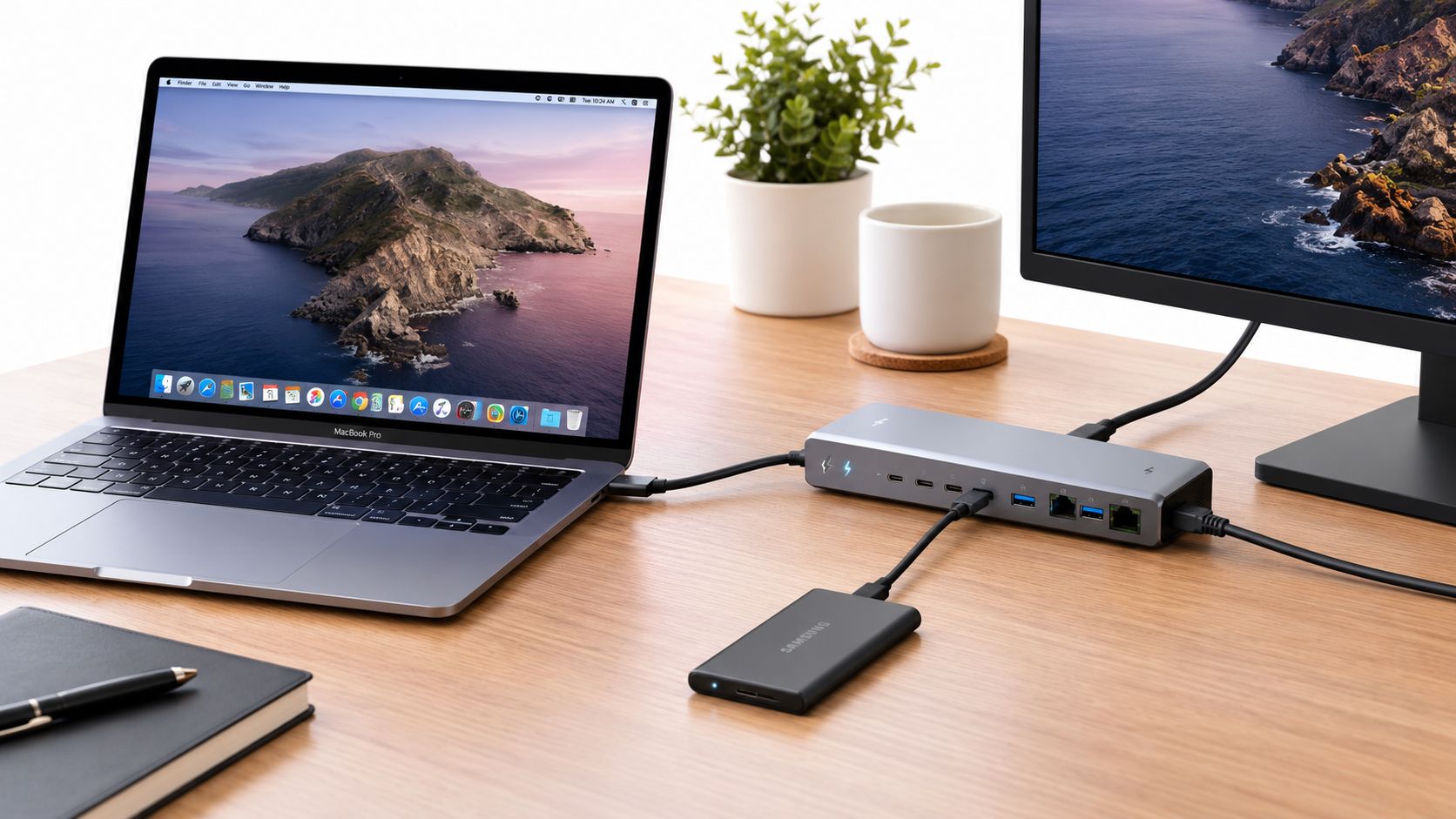
You don't buy a MacBook Pro dock just for extra ports. You buy it to stop cable chaos, keep the laptop charged under load, and make sure your monitors wake up when you need them.
The catch is that plenty of docks look right on paper and still miss the mark in real use. The wrong one leaves you with a weak charge, a dead external display, or a setup that only works until the laptop gets busy.
The Short Version
A good MacBook Pro dock matches your chip, your power needs, and your monitor setup. Miss any one of those and you're usually heading for a return.
- Check the laptop first. Apple's MacBook Pro line already includes three Thunderbolt 4 or 5 ports, HDMI, MagSafe 3, SDXC, and a headphone jack, so some buyers only need a USB-C expansion hub, not a full dock. Apple's UK MacBook Pro page
- Treat charging as a deal-breaker. A 16-inch MacBook Pro really wants proper high-wattage passthrough, and lower-powered docks can let the battery drift down while they're still connected. Gadget Scout's UK dock guide
- Match the display limit to the chip. The dock can't override the Mac's own external-display ceiling, especially on base M-series machines. Apple Support UK
- Buy for the kit you already own. If your monitor needs HDMI, DisplayPort, or an adapter, check that before you choose a dock, not after. Apple Support on external displays
- Start with the right category. If you're shopping through our MacBook range, keep your current model and ports in mind before you add more hardware you may not need. Used Mobiles 4 U MacBook category
For most UK buyers, the best dock is the one that fits the laptop's real limits, not the one with the longest spec sheet. If you only need charging and one screen, keep it simple. If you want dual monitors and proper power delivery, you need to be much stricter.
Thunderbolt and USB-C Explained Simply
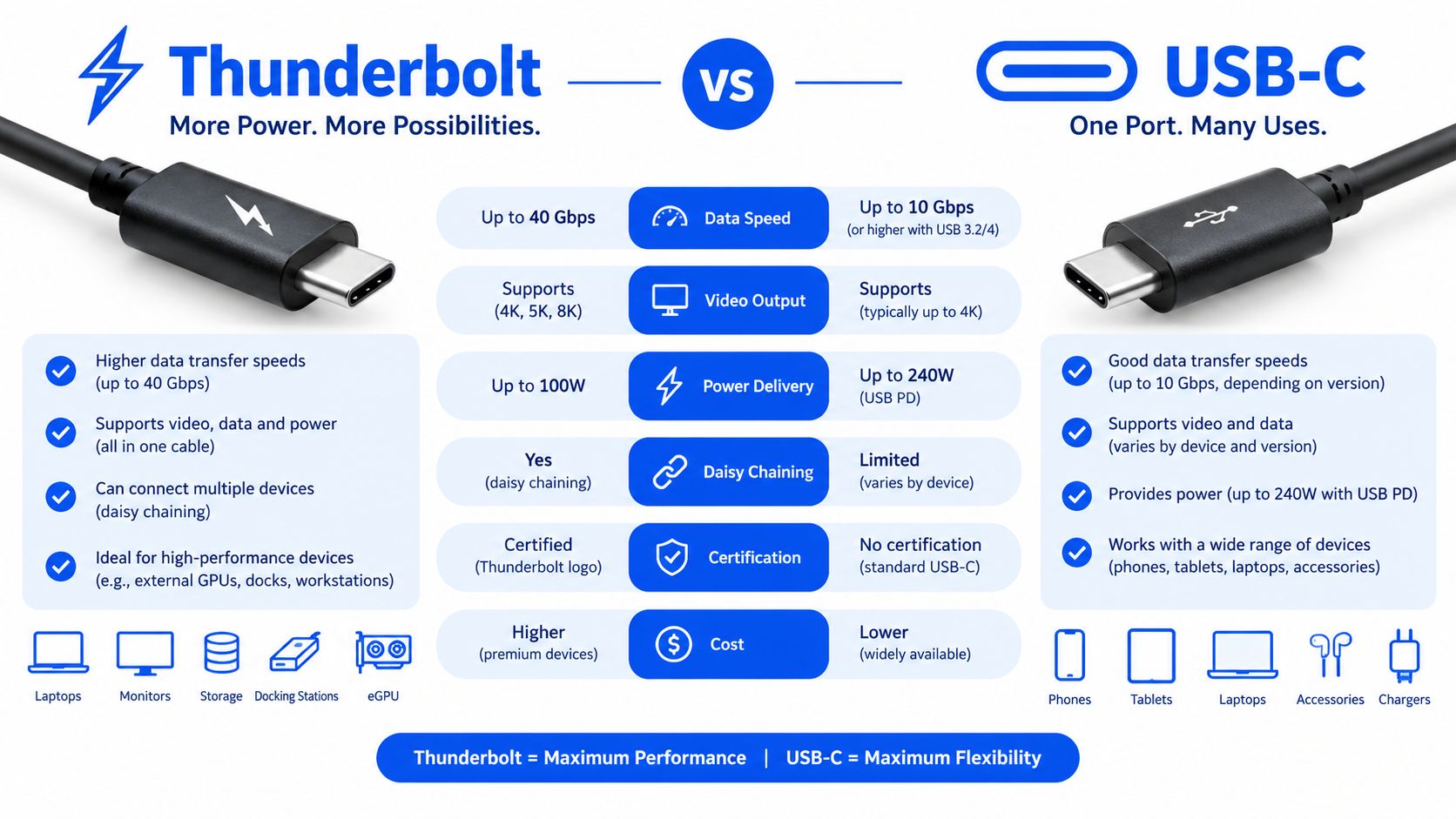
A lot of listings blur USB-C and Thunderbolt, and that's where people get caught out. USB-C is the connector shape, but Thunderbolt is the faster, more capable standard that can move video, data, and charging traffic at the same time.
A Thunderbolt 4 dock commonly gives you 40Gbps host bandwidth and can drive up to dual 4K displays at 60Hz on supported MacBook Pro models. That's a practical ceiling for many setups, but it only works if the Mac itself supports the display layout you want. Belkin UK
What the label should tell you
A cheap USB-C hub is often fine for charging, a mouse, a memory stick, and maybe one display. A real Thunderbolt dock is the better choice when you want multiple high-resolution monitors, external storage, and wired networking without the whole thing slowing down.
Practical rule: if the listing doesn't clearly say Thunderbolt and doesn't spell out video support, assume it may only be a basic hub.
The newer Thunderbolt 5 class docks lift the headroom further, with 80Gbps baseline bandwidth and display traffic that can rise to 120Gbps. That gives more breathing room for multi-monitor work, fast storage, and networking, but the laptop still decides how many screens it will run. iVANKY UK
For buyers comparing accessories across the Apple ecosystem, the same habit applies when you're looking at a phone or tablet too. A device's port type and charging behaviour matter just as much as the headline name, including options like a refurbished USB-C iPhone range.
Compatibility by Chip and Model
Premium docks are where money gets wasted. Buyers expect triple screens, then find the laptop itself sets the limit.
The chip matters more than the dock
Current UK Apple guidance says M4 MacBook Pro models can connect up to two external displays, M4 Pro models up to three, and M4 Max models up to four. Apple also states supported models can handle up to 8K at 60Hz or 4K at 240Hz over HDMI.
That is the part buyers miss. A dock does not raise the Mac's native display limit. If the chip only supports a certain number of monitors, that is the ceiling.
The base models need special care
UK-facing guidance still has to explain that base M-series MacBooks can be restricted to one external display, while Pro and Max variants support more. Smart Gear Outlet notes that the base M5 MacBook Pro is limited to two external displays, while M5 Pro can support three over a single Thunderbolt connection.
That means two buyers can purchase the same dock and get completely different results. One gets a clean dual-monitor desk. The other gets one screen and frustration.
A dock is a bridge, not a workaround for the laptop's own display rules.
Intel MacBook Pro models can be more flexible in some setups, but the monitor path still needs checking. Intel machines, base Apple silicon models, and the Pro or Max chips do not behave the same way, even when the dock box looks identical on the shelf.
A common mistake is reusing an old monitor setup from a previous Windows laptop and assuming the dock will sort everything out. It usually does not. The screen may need a different cable, a different adapter, or a laptop chip that supports more than the base model does.
Power Delivery and the 140W Requirement
Power is the hidden problem. Many docks look capable because they offer plenty of ports, but the setup still fails if charging falls behind the laptop's demand.
Why wattage matters in daily use
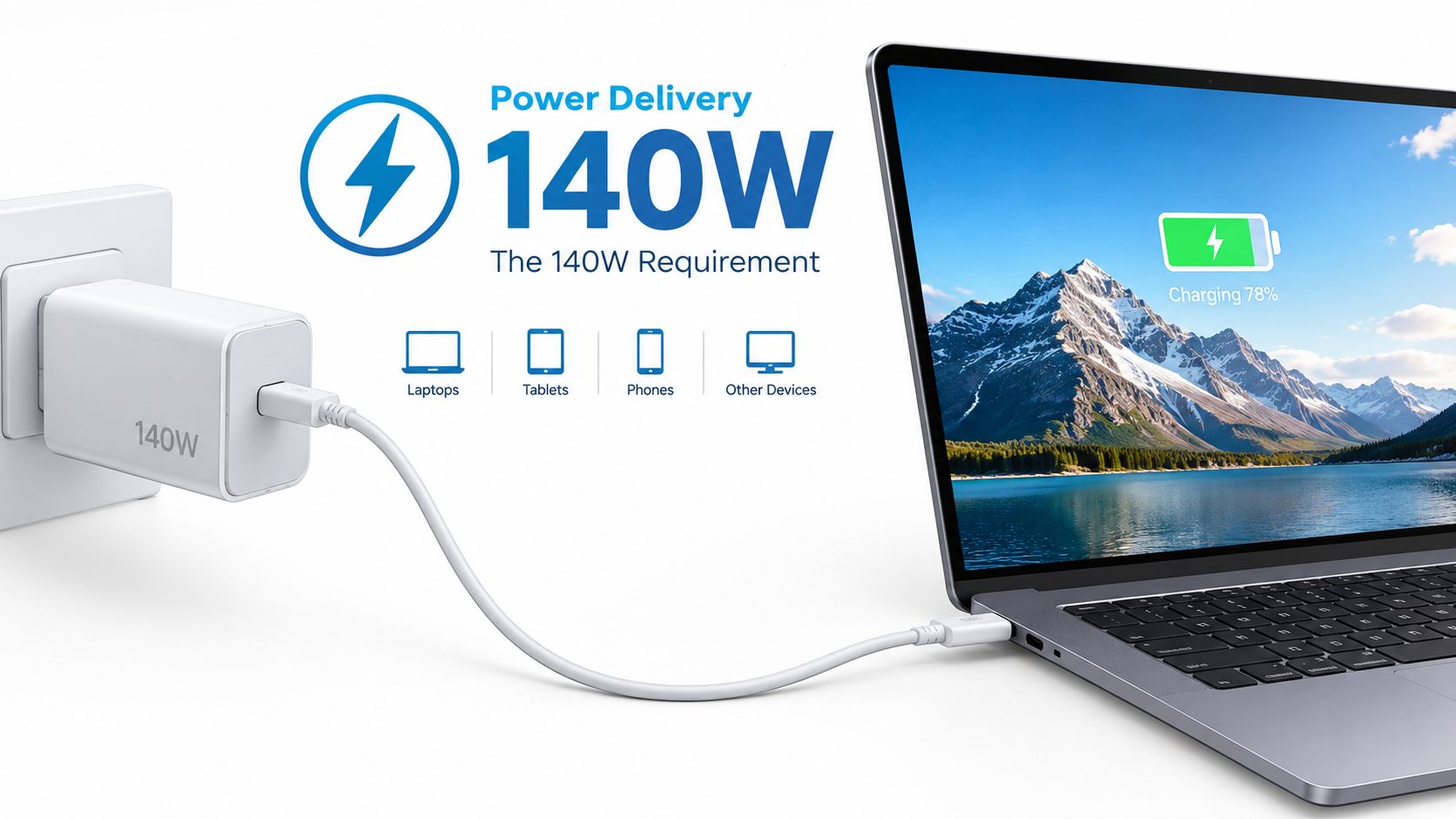
A 16-inch MacBook Pro is the clearest test case. Apple's 140W power adapter is part of the reason that model is often paired with higher-output docks, because lower output can leave the battery creeping down even while the machine is plugged in. A 140W power adapter charging a MacBook Pro laptop showing a battery status of 78 percent.
That matters more than port count for heavy work. Video editing, large file transfers, external drives, and dual monitors all raise the load on the dock. If the dock cannot supply enough power under that load, the Mac starts drawing from its own battery anyway.
What to check before you buy
- Find the original charger wattage. Use the power adapter your MacBook Pro shipped with as the baseline.
- Look for pass-through charging, not just “charging support”. The wording is often used loosely.
- Match the dock to your workload. Light desk use and sustained work do not ask for the same output.
- Watch bigger machines closely. The 16-inch model is where underpowered docks usually show their limits first.
Bench note: if a dock feels warm and the battery still drops during a heavy session, the power delivery is already behind.
Read the charging spec alongside the rest of the setup. A dock with decent output can still be a bad fit if high-draw peripherals are sharing the same connection or if the monitor chain pulls more power than the dock can handle.
Our Experience Refurbishing and Repairing at Used Mobiles 4U
We see the same pattern with docks that we see with phones and laptops. The wrong accessory gets bought first, then the customer discovers the problem only after the setup is on the desk.
One thing we regularly notice is that buyers underestimate how much power a larger MacBook Pro wants under load. Another is that they buy for port count and forget the monitor input, which is why the dock appears “faulty” when it's really just mismatched.
What our technicians look for
At the bench, we check for loose ports, unstable connections, overheating, and inconsistent display handshakes. If a dock wobbles with light cable movement or drops a monitor after sleep, it doesn't belong in a working setup.
We also check whether the dock is doing real work or just pretending to. That means testing charging stability, data transfer behaviour, and whether the display output holds up after reconnects and power cycles. Our refurbishment process matters because accessory faults are often intermittent, not obvious.
Repair shop truth: a dock can look clean and still fail when the laptop asks more of it.
Grade differences matter too. A cosmetically tidy dock isn't much use if the ports are worn or the internal board runs hot. On the other hand, a visibly used unit can be perfectly sensible if the ports are tight and the outputs are stable.
We usually advise repair or replacement based on the cost of uncertainty. If the dock keeps dropping a monitor or can't deliver the right wattage, replacing it is usually the cleaner move.
Choosing the Right Dock for Your Setup
The right choice depends on what you're plugging in, not on the marketing badge. If you only need to tidy one desk, a simple USB-C hub can be enough. If you're building a serious workstation, be stricter.
A useful rule of thumb is to look at your weakest link first. If your display still needs HDMI or DisplayPort and you haven't checked the cable, the dock won't solve that for you. If your laptop has enough ports already, you may only need one clean expansion point.
A practical comparison many buyers make is against all-in-one hubs, such as the DigiDevice 12-in-1 USB-C docking station. That kind of product suits buyers who want more functions in one box, but it still needs to be checked against the Mac's chip limits and charging needs.
If you're the type who wants everything in one desk setup, you may also be pairing the Mac with a phone you keep on charge beside it. In that case, a handset like the Samsung Galaxy S20 5G – Cosmic Grey – 128GB – Like New can sit nicely in the same routine, since it's a refurbished Samsung S20 5G with an eight-core Exynos 990 processor, a 5000mAh battery, and a triple-lens camera.
Connecting and Troubleshooting
Start with one cable path, then add the rest. Plug in the dock, connect the monitor, then add storage and network one by one. That makes faults easier to isolate when a MacBook Pro wakes a dock but not a display.
Display trouble often starts with the monitor, cable, or adapter. If a screen stays dark after sleep, power-cycle the display first, then reconnect the dock and MacBook Pro in that order. If you change adapters and nothing appears, the problem is usually the adapter standard, for example a passive HDMI adapter on a DisplayPort-only screen, not the dock itself. Apple Support notes that a properly connected external display should be detected automatically, so a blank screen usually means the chain is not matched correctly. Apple Support
Basic checks that save time
- Use the right cable path. Match the monitor input, then add the correct adapter if the dock does not offer it directly.
- Check the input on the monitor itself. The display may be on the wrong source.
- Reseat the Thunderbolt connection. A cable can look fully seated and still misbehave.
- Test one display at a time. That shows whether the dock, cable, or screen is the weak point.
- Keep old adapters in view. Reused adapters are often where failures hide.
If you are working through a stubborn setup, the fastest next step is often a broader hardware check. Our device issues and troubleshooting guide helps separate a dock fault from a cable, port, or display problem.
Final Verdict and Buying Advice
A MacBook Pro dock is worth buying if it solves a real desk problem. It's not worth buying if you're hoping it will override your Mac's chip limits or compensate for weak charging.
For most UK buyers, the safest route is simple. Choose a dock that matches your MacBook Pro model, delivers enough power for your size of machine, and supports the exact monitor input you already own. If you're not sure, buy from a UK seller with warranty and returns, because the wrong dock is only useful until the return window closes.
If you want a tidy workstation, a proper dock can make daily use easier and cleaner. If you only need one extra port and some charging, a lighter hub may be the smarter spend.
Used Mobiles 4 U sells professionally tested refurbished tech and can help if you're matching a MacBook Pro with the right cables, chargers, or replacement device. If you're comparing setups or upgrading your desk, visit Used Mobiles 4 U to look at the current range and check what fits your workflow best.
Written by James Waterston, 24 years in the mobile phone industry from customer service through to Sales Director of a global repair and recycling company. Now running Used Mobiles 4U for over 8 years.
LinkedIn: https://uk.linkedin.com/in/james-waterston-9039a21a
Looking for a refurbished phone?
Shop professionally tested refurbished iPhones and Samsung phones with 18 month warranty, 30 day returns and free UK delivery.
Browse Refurbished Phones



