





Why Your iPhone Camera Shows a Black Screen

27/09/2026

5 Mins
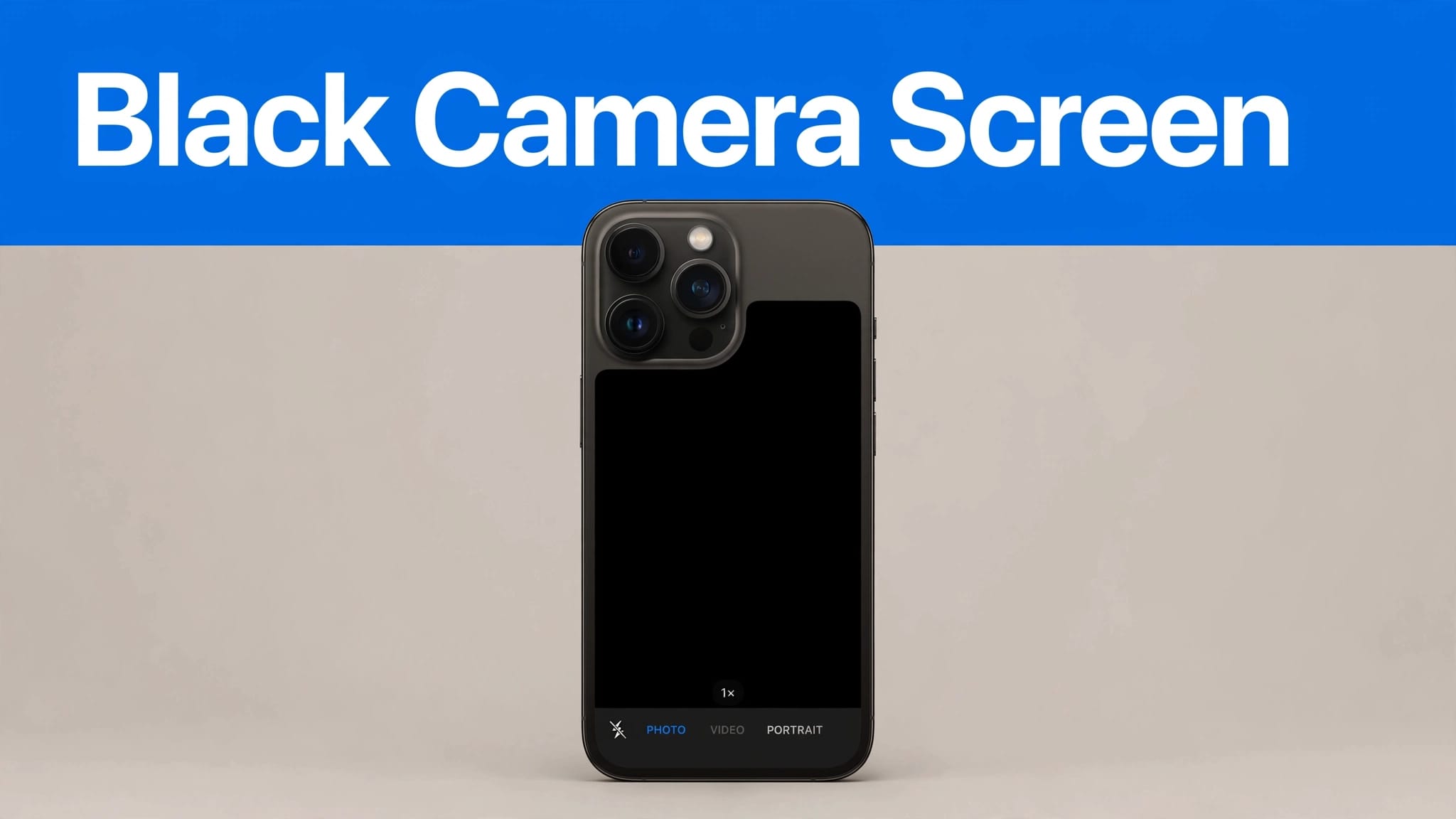
An iPhone camera black screen can be caused by a temporary software glitch, but it may also point to a damaged camera. If you can still see the Camera app’s controls, your display is working; the black screen issue is with the missing preview.
We’d start by testing both cameras before changing settings or booking a repair. That one check can save you a lot of guesswork.
The Short Version
- If the picture returns after you close Camera or restart the iPhone, a temporary software glitch is likely.
- Compare the front and rear camera views across several apps. If one stays black, it may indicate a hardware fault that needs a professional check.
- If the fault began after a drop, liquid exposure or other physical damage, back up your data before arranging a repair.
How to fix an iPhone camera black screen: quick steps
Work through these troubleshooting steps in order. Stop when the picture returns, then take a photo and record a short video to confirm the fix.
- Remove the case and inspect the camera lens. Check for a case lip, film or accessory covering a camera. Wipe the outer glass gently with a clean microfibre cloth. Apple’s camera troubleshooting advice starts with removing anything that might interfere.
- Switch cameras. In Camera, tap the camera-switch button. Check the front and rear camera views for a picture. If your iPhone has more than one rear lens, test the available zoom options too.
- Close and reopen the camera app. Open the app switcher and swipe Camera away, then launch it again. On an iPhone with a Home button, double-press the button to open it.
- Restart the iPhone. Turn it off normally, then turn it back on. If it’s frozen, follow Apple’s force-restart instructions for your device rather than guessing a button sequence.
- Try another camera app. Test FaceTime or another app you already use. If the fault appears only in a third-party app, check its app permissions in the camera settings at Settings > Privacy & Security > Camera, then update that app.
- Check for an update to your operating system. Go to Settings > General > Software Update. Install an available iOS update, then retest both cameras.
- Back up before further action. If the picture remains black, save your data to iCloud or a computer. Don’t perform a factory reset before backing up and getting a diagnosis, especially if the problem followed physical damage.
What the test results tell you
One app fails, but Camera works
If Apple’s camera app takes normal photos while a third-party app shows black, start by checking app permissions and updates. The app may have frozen or lost camera access. Reinstalling it may help, but first check whether this would remove data stored only in the app.
VoiceOver is sometimes suggested as a camera fix. We wouldn’t turn off an accessibility feature you rely on without a clear reason, as it isn’t a reliable cure for a faulty camera. If the iPhone itself keeps freezing, our device issues troubleshooting advice covers other basic checks.
One camera fails in every app
A black front-facing camera view with a working back camera, or the reverse, narrows the fault. First inspect the camera lens. Then note whether it fails in both photo and video modes.
If the black preview remains after you restart the iPhone and appears in multiple apps, a hardware fault needs assessment. A technician can check the camera module, camera sensor and connections. The logic board may also need professional assessment, but a black preview alone doesn’t identify the failed component. Physical damage, such as a crack, bent frame or recent drop, makes prompt inspection more important.
What We See on the Bench
One thing we regularly notice is that cosmetic condition doesn’t prove camera health. A tidy phone can still struggle to focus or switch cameras. Equally, a mark on the outer lens doesn’t necessarily explain a completely black preview.
Our checks go beyond opening Camera. We switch between front and rear, take photos, record video and check focus. We check camera module operation and connections rather than assuming which part has failed. We also test Face ID, charging and the frame, because other damage can change the repair decision. If you’ve recently bought a used handset, our refurbished iPhone inspection guidance explains which checks matter on arrival.
A black preview after a drop is a reason to test the whole phone, not order a camera part on a hunch. It doesn’t prove a logic board fault.
When to repair the camera or replace the iPhone
Get a diagnosis before authorising parts
If software checks fail, ask Apple or a reputable repairer to identify the cause before recommending a part. Get a quote for the complete job. A camera module replacement may be appropriate, but shouldn’t be assumed before inspection. A deeper fault, such as a logic board problem, needs professional confirmation. Ask what part will be fitted, what testing follows and what repair cover applies.
On supported iPhones, a replacement component can also produce a Parts and Service History notification. An alert doesn’t automatically mean the camera is faulty. Our explanation of iPhone replacement-part notifications can help you ask the repairer the right questions.
Compare the whole phone, not just the camera
We’d usually favour repair when the camera is the only serious fault and the battery, charging, Face ID and frame are sound. If you also have physical damage, liquid damage or several failing parts, compare the full repair quote with a tested replacement.
If the black screen issue appeared soon after purchase, contact the seller before arranging independent work. The symptom alone doesn’t confirm a hardware fault, so check the applicable returns or warranty terms and note which cameras and apps fail. Don’t use a factory reset as a substitute for diagnosis, especially before backing up or contacting the seller. Avoid opening the handset while that route is still available.
Frequently asked questions
Can a software update cause a black camera view?
A fault may appear after an iOS update, but timing alone doesn’t prove the operating system caused it. Restart, test both cameras in more than one app and check for another software update before assuming the camera needs replacing. If only one app is affected, check its app permissions.
How long does a professional camera repair take?
There isn’t a dependable standard time. Diagnosis, part availability and any additional damage determine the work required, which may involve the camera module. Ask the service centre for an estimate after it has inspected your iPhone, including time for a final test in the camera app.
Conclusion
A black Camera preview is frustrating, but the first checks are simple: remove obstructions, switch cameras and restart. Compare apps, and check app permissions if only one fails. The pattern of failure matters more than a single black screen.
If the fault persists across apps, back up your data and have the camera module assessed. For an otherwise dependable iPhone, repair may make sense; several faults can make replacement the better value.
Written by James Waterston, with 24 years in the mobile phone industry. He has run Used Mobiles 4U for over eight years.
Looking for a refurbished phone?
Shop professionally tested refurbished iPhones and Samsung phones with 18 month warranty, 30 day returns and free UK delivery.
Browse Refurbished Phones



