





Why Is Your iPhone Personal Hotspot Not Working?

09/10/2026

8 Mins

An iPhone hotspot that isn’t working is usually caused by unavailable mobile data, hotspot sharing being switched off, or incorrect settings on the device trying to connect. Check the hotspot option before suspecting a hardware fault.
A laptop or iPad can connect to your personal hotspot but still have no internet access, which needs a different fix. First check whether the setting is missing, the connection fails, or the device connects without an internet connection.
The Short Version
- First, check that the iPhone itself can browse using mobile data with Wi-Fi switched off.
- Turn on the ‘allow others to join’ setting, then keep the Personal Hotspot screen open while connecting.
- Forget the saved personal hotspot on the other device and enter the Wi-Fi password again.
- If the option is missing, ask your network provider to check your account and settings before resetting anything.
How to Fix Your iPhone Hotspot: Quick Steps
Work through these checks in order. We recommend making a backup before deeper troubleshooting, particularly if you later consider restoring the phone.
- Open Settings > Mobile Service and check that mobile data is on. Menu labels or support instructions may instead refer to cellular data. Turn Wi-Fi off briefly, then open a webpage in Safari.
- Go to Settings > Personal Hotspot, or find it within Mobile Service. Switch on Allow Others to Join.
- Keep that settings screen open while you connect devices. On your iPad or MacBook, enable Wi-Fi and choose the iPhone’s name.
- Check the Wi-Fi password under Settings > Personal Hotspot > Wi-Fi Password. Enter it exactly as shown.
- If the personal hotspot connection fails, forget the saved connection on the other device, then reconnect.
- Toggle airplane mode on the iPhone, wait briefly, then switch it off. Check that mobile data reconnects before trying again.
- Restart both devices normally. Only use a force restart if a device is unresponsive. Check Settings > General > About for a carrier update, and note the iOS version if you need to troubleshoot further. You can also check Settings > General > Software Update, without assuming it will fix the fault.
For Apple’s connection methods and proximity advice, see its Personal Hotspot connection guidance. During testing, keep both devices close together.
When Personal Hotspot Is Missing or Greyed Out
A missing or greyed-out hotspot option needs a different approach from a password error. Start with the mobile connection and account rather than repeatedly changing Wi-Fi settings.
Check the active SIM or eSIM
Open Settings > Mobile Service and confirm that the intended line is enabled and its cellular plan is active. If you use two lines, check which one provides mobile data.
After transferring data to a new iPhone, don’t assume the SIM or eSIM activation is complete. Test a call and mobile browsing separately. Check that your data plan has remaining data, as tethering permission is a separate check.
You can also check whether your iPhone is unlocked. In Settings > General > About, Network Provider Lock should show “No SIM restrictions” on an unlocked handset. However, being unlocked doesn’t establish that your account supports tethering.
Ask the provider before changing APN settings
Contact EE, O2, Vodafone, Three or your network provider. Ask whether your account supports tethering, has data remaining, or faces restrictions from the wireless carrier. Check whether any restrictions apply to the mobile network, and ask if a carrier update is recommended.
If Mobile Data Network appears in settings, don’t copy APN settings from an unrelated website. Ask your provider whether anything needs changing. Those fields may be unavailable, and incorrect entries can disrupt mobile data as well as the hotspot.
When Another Device Cannot Find or Join the Hotspot
If Safari works over mobile data, the next checks focus on the local Wi-Fi link used to connect devices to your personal hotspot. This helps avoid blaming the mobile network for a local Wi-Fi problem.
Make the hotspot discoverable
Keep Settings > Personal Hotspot open whilst the other device searches. Check that the option to allow others to join is enabled, and turn Wi-Fi and Bluetooth on for both devices during testing.
Apple advises keeping devices within 10 metres. For diagnosis, place them beside each other rather than across the house.
If your iPhone offers Maximise Compatibility, try to maximize compatibility by enabling it and reconnecting. Treat this as a test, not a guaranteed fix. It won’t repair an unavailable mobile internet connection.
The network name normally matches the iPhone’s name, which you can find under Settings > General > About > Name.
Clear an incorrect password or saved connection
An “incorrect password” message doesn’t always mean you’ve mistyped the current password. The connecting device may still have an old Wi-Fi password saved.
Forget that network on the iPad or Mac, then select it again. On an iPad, open Settings > Wi-Fi, tap the information button beside the network and choose Forget This Network.
If necessary, change the iPhone’s hotspot password to a new, strong password using ordinary letters and numbers. Remember that changing it disconnects other devices, which will need the new password too.
When the Hotspot Connects but Has No Internet
A Wi-Fi symbol only confirms the local link, not that the iPhone has an internet connection.
Disconnect the joining device temporarily and test Safari on the iPhone with Wi-Fi off to check mobile data. If pages won’t load there either, focus on coverage and your provider account.
Move somewhere with better reception on the mobile network and try again. Signal strength bars alone don’t confirm usable speeds, particularly when the network is busy.
Check your remaining allowance through your provider’s app or account. Ask about tethering allowances or speed restrictions rather than assuming your tariff includes unrestricted sharing. You can also ask whether a carrier update is available.
If the iPhone browses normally, temporarily disconnect a VPN on the joining device, provided it isn’t a managed work connection. Pause large downloads, then test a second device: one failed MacBook connection doesn’t establish a personal hotspot fault.
Reset Network Settings Only After the Basic Checks
The option to reset network settings is a reasonable later step for persistent failures. We don’t use it first because it removes saved details and creates extra setup work.
Prepare before resetting
Make sure you know your Wi-Fi passwords and have access to any necessary VPN or network configuration details. If the iPhone belongs to your employer, speak to its IT team first.
This reset doesn’t erase your photos or apps, but it does change network settings. That can include Wi-Fi connections, mobile settings and VPN or APN configuration.
For wider symptoms, such as unreliable home Wi-Fi alongside hotspot failures, our common device troubleshooting steps help you separate network problems from other faults.
Use the correct reset option
Follow Settings > General > Transfer or Reset iPhone > Reset > Reset Network Settings. Enter your passcode and confirm.
Take care to select Reset Network Settings, not Erase All Content and Settings. The latter removes your content and needs separate preparation.
Afterwards, reconnect to mobile data, enable Personal Hotspot and test again. Apple’s Personal Hotspot troubleshooting steps confirm this reset path.
Troubleshooting USB Tethering to a Computer
A wired USB tethering test helps distinguish Wi-Fi trouble from a cable or port problem. However, charging alone isn’t a useful test.
Check whether the Mac recognises the iPhone
Use a known-good data cable, connect directly to the Mac and unlock the iPhone. Respond to the trust prompt if one appears.
Check whether Finder recognises the handset. If it doesn’t, try another cable and USB port before investigating the internet connection.
If Finder sees the phone but sharing still fails, check the Mac’s Network settings for the iPhone USB connection. Keep personal hotspot enabled while testing, and note any error message before seeking help.
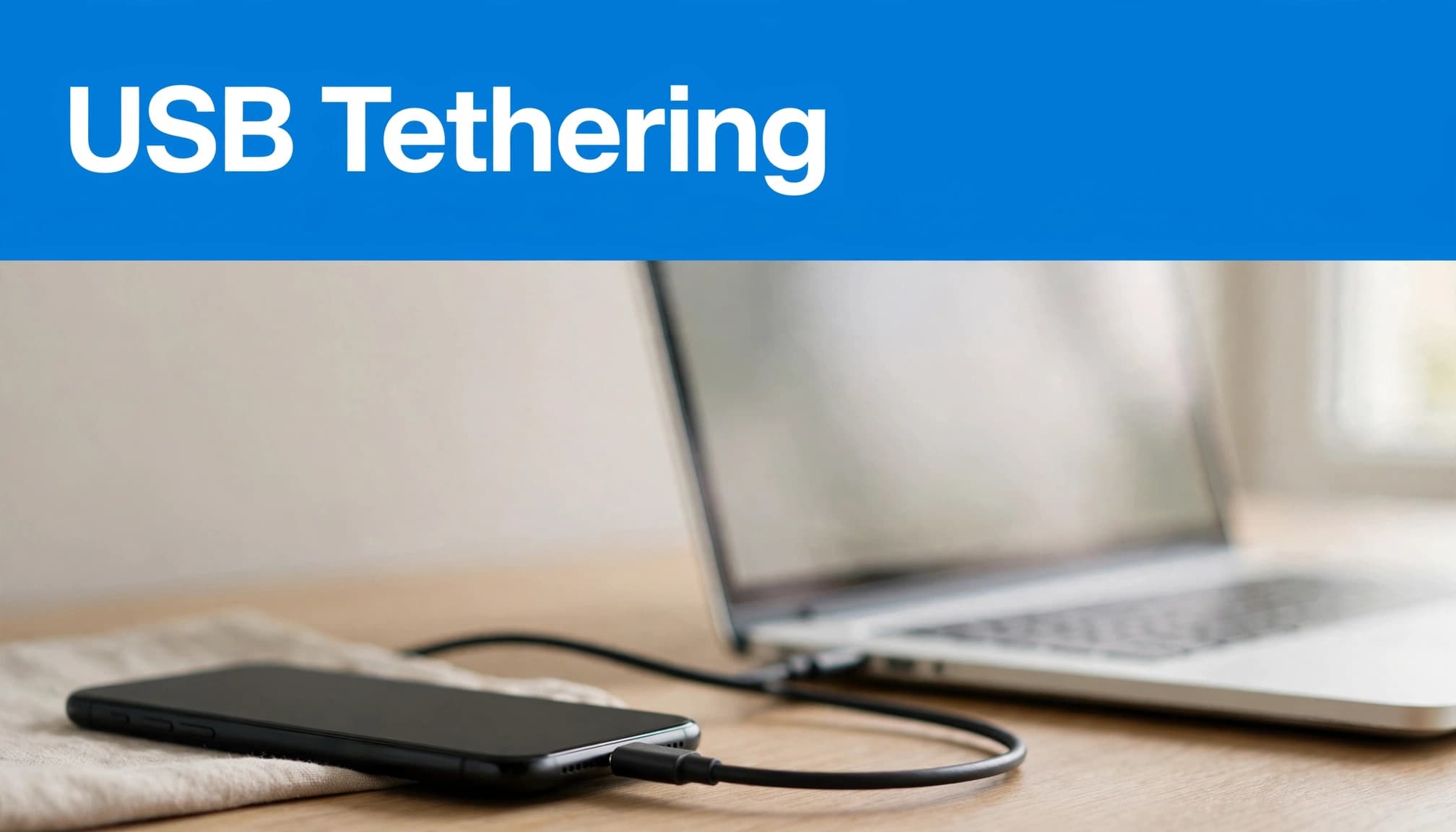
Separate cable problems from software problems
Some cables supply power without providing a dependable data connection. Try a lead you’ve already used successfully for a backup or photo transfer.
The same distinction applies when connecting an iPhone to Windows: check whether the computer recognises the handset before treating the problem as failed internet sharing.
A rising battery percentage proves that power reaches the phone. It doesn’t prove that the cable and port can transfer data.
Repeated disconnections, excessive heat or a plug that only works at an angle need investigation. Avoid forcing the connector or repeatedly bending the cable to maintain contact.
Bench Checks at Used Mobiles 4U
On the bench, we check mobile signal, Wi-Fi, SIM recognition and wired data transfer separately. Passing one test doesn’t mean a phone has passed the others.
We regularly find that a tidy-looking handset can still have debris in its charging port. Cleaning may remove packed lint, but it can’t repair worn contacts.
When checking a refurbished iPhone’s condition before resale, include mobile browsing, personal hotspot sharing and computer recognition. Cosmetic grades, including Grade A, need the seller’s explanation; appearance alone doesn’t establish connectivity.
We also check battery behaviour, as repeated shutdowns can interrupt testing. You can inspect Battery Health under Settings > Battery, although menu wording varies.
If a fault persists, check the seller’s warranty and returns terms before arranging a repair. Keep a record of which connections work and which fail.
Frequently Asked Questions
Does a hotspot fault mean the iPhone needs replacing?
A personal hotspot fault doesn’t necessarily mean the iPhone needs replacing. We’d finish the settings, account and connection checks first. Replacing a phone won’t resolve a provider restriction or a saved password problem on your MacBook.
A repair assessment makes more sense when testing reveals physical damage, unstable mobile reception or repeated wired disconnections across known-good cables. We weigh that alongside the phone’s battery condition and other faults before recommending repair or replacement.
Should the iPhone be factory-reset to fix its hotspot?
We wouldn’t start there. A force restart is different from a factory reset, and neither is guaranteed to fix the issue. A factory reset removes your content, whilst a network reset targets connection settings without erasing photos and apps.
If support later recommends restoring the handset, back up first and confirm that you can access your Apple Account. Don’t wipe an old iPhone before selling or replacing it until you’ve verified your data and account access on the replacement.
Fix the Connection Before Replacing the Phone
We recommend checking mobile data first, then tackling the symptom you actually have. Missing settings, failed Wi-Fi joining and broken USB recognition point to different checks.
Record which connections work and which fail, using these troubleshooting tips. If the steps don’t help, share your results with your network provider or the seller. A confirmed hardware fault deserves a repair assessment; one failed hotspot connection doesn’t justify replacing an otherwise dependable iPhone.
Written by James Waterston, with 24 years in the mobile phone industry, including customer service and Sales Director responsibilities at a global repair and recycling company. He has run Used Mobiles 4U for over eight years.
Looking for a refurbished phone?
Shop professionally tested refurbished iPhones and Samsung phones with 18 month warranty, 30 day returns and free UK delivery.
Browse Refurbished Phones



