





Why Is My iPhone Alarm Not Making a Sound?

16/10/2026

4 Mins
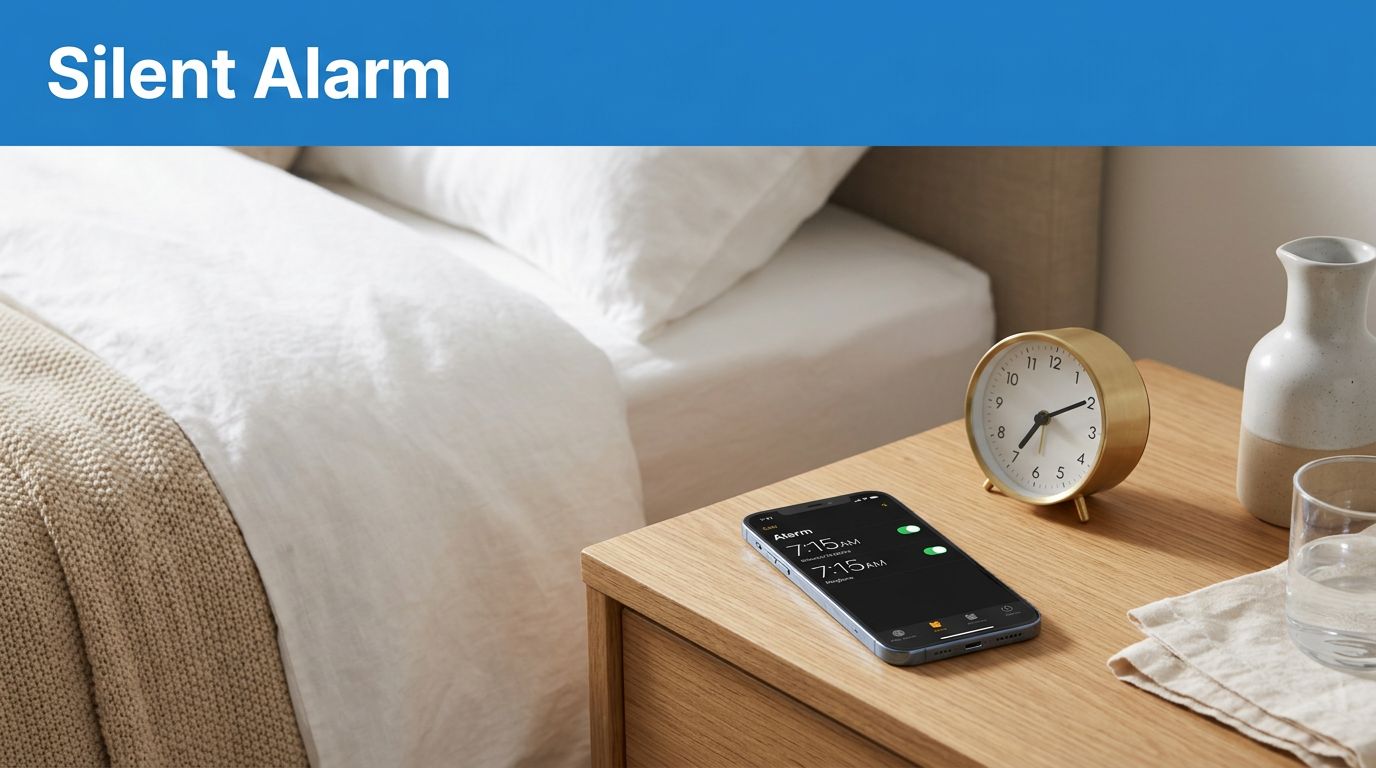
If your iPhone alarm isn’t sounding, first check whether its tone is set to None or its alert volume is too low. We recommend checking those two settings first, before suspecting a speaker fault.
Work through the checks below, then test the alarm before bedtime.
The short version
- A standard Clock alarm uses ringtone and alerts settings, not media volume adjusted for videos.
- Silent mode and do not disturb don’t normally silence Clock alerts.
- A Sleep Schedule alarm has separate sound and level settings.
iPhone alarm not sounding? Quick steps to fix it
- Open Settings > Sounds & Haptics. Raise Ringtone and Alerts, which controls standard alarm volume separately from media volume. Turn off Change with Buttons so accidental side-button presses can’t lower it.
- Open the Clock app, go to Alarms, select the affected one, then tap Sound. Choose a built-in ringtone as the selected alarm sound, rather than None, and save your changes. A vibration-only setting won’t produce an audible tone. For testing, choose a ringtone instead of a song.
- Open Settings > Face ID & Passcode > Attention Aware Features and temporarily switch it off. Apple’s Attention Aware guidance explains that looking at the screen may lower alert volume. Check this if an alarm becomes unexpectedly quiet.
- Disconnect headphones, AirPods and speakers through Settings > Bluetooth. Standard Clock alarms should still play through the iPhone speaker with headphones connected. Disconnecting accessories is a troubleshooting test, not a claim that they normally mute the speaker. Silent mode doesn’t normally stop standard Clock alarms.
- Restart your iPhone, then install pending updates under Settings > General > Software Update. Back up first. Restart once more to test it. If the issue continues, delete the affected entry and create a fresh one in Clock. Our general device troubleshooting guide covers broader troubleshooting checks.
Check Sleep Schedule and Apple Watch settings
Silent switch and silent mode settings
The silent switch is separate from alarm loudness, and silent mode won’t normally stop one. A low Ringtone and Alerts slider can make it almost inaudible, even with silent mode on; the silent switch doesn’t control volume.
Apple’s Clock alarm instructions confirm that the sound remains available during Do Not Disturb or another Focus. Review Settings > Focus to see which mode runs overnight, but don’t assume Focus is the cause.
Sleep Schedule settings need a separate check
Open Clock > Alarms > Sleep | Wake Up > Change to inspect the wake up alarm’s sound. You can also manage your schedule through Health > Browse > Sleep.
A scheduled wrist alert can reach you overnight. However, wearing an Apple Watch shouldn’t automatically mute a separately created iPhone Clock alert. If only your wrist vibrates, check whether the alert came from Sleep Schedule or a separate phone alert before changing settings.
Test the alarm and speaker separately
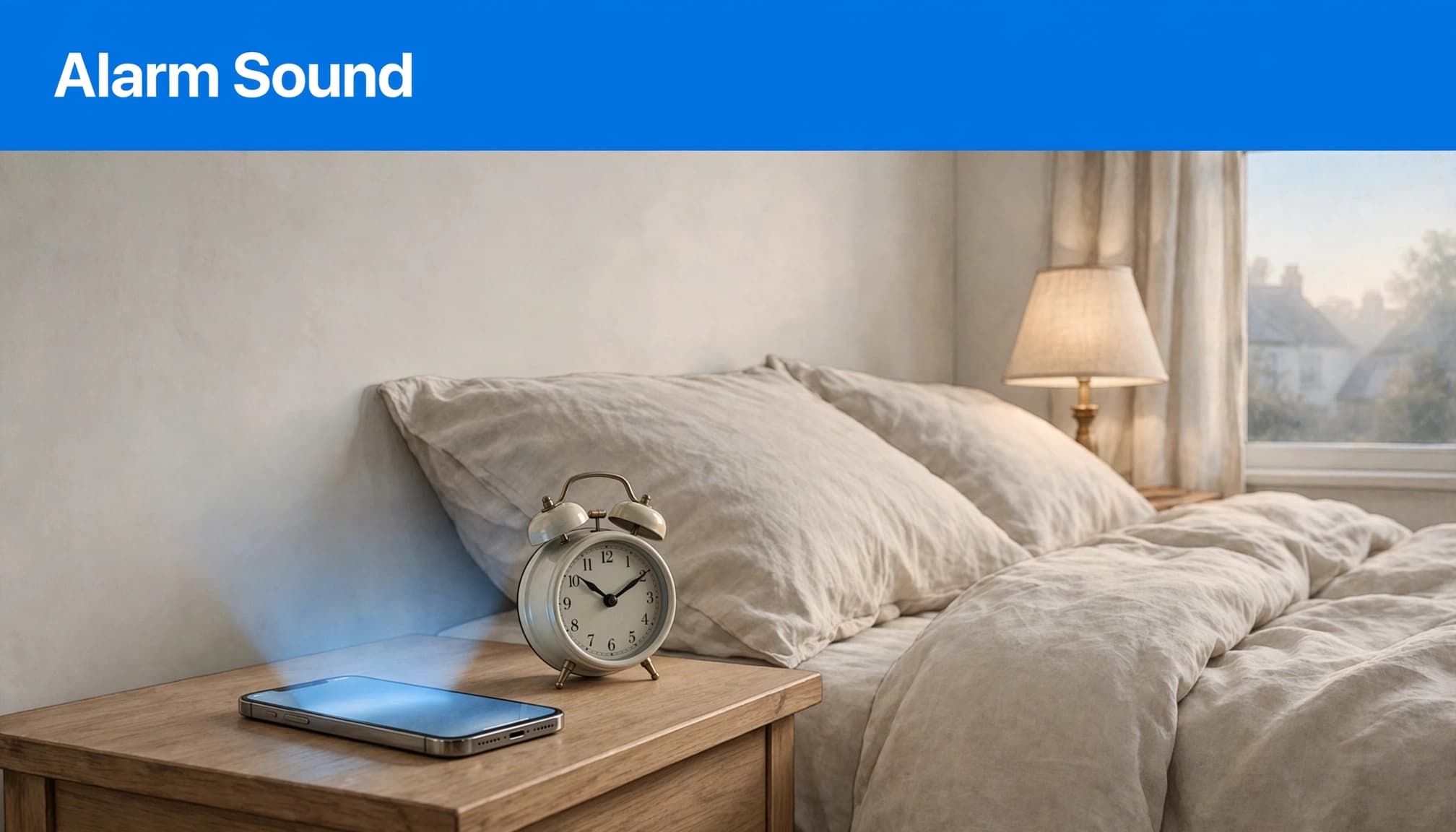
Run a realistic bedside test
Create a standard Clock alarm one or two minutes ahead. Choose a built-in tone, disconnect bluetooth accessories such as AirPods, and lock the phone. Put it where it normally sits overnight, then assess the volume from your usual sleeping position.
First, test without touching or looking directly at the screen. Afterwards, repeat with your usual overnight accessories connected. This helps separate an alarm-setting issue from a wider speaker problem.
A message on screen proves it triggered. It doesn’t prove that an audible tone was selected or loud enough.
Compare the alarm with other audio
Play music through the phone speaker, preview a ringtone and replay a Voice Memos recording. Listen for distortion or crackling as well as missing sound.
If every sound is weak, remove any case covering the speaker openings and inspect them for lint. Avoid sharp tools or liquids. If the handset switches off overnight, our iPhone charging troubleshooting guide addresses that separate problem. A powered-off iPhone won’t make a sound.
What We Check Before Resale
For this symptom, we’d check whether the alarm is caused by its settings or a wider audio fault before recommending repair. Our practical checks include speaker playback, a recorded voice memo and a test call. A working earpiece alone doesn’t prove the loudspeaker works properly.
Check whether the physical buttons reliably adjust the volume. Loose or inconsistent buttons need attention, particularly when Change with Buttons is enabled.
These checks matter when accepting a used handset, too. Our second-hand iPhone inspection checklist covers speakers, microphones and other functions that cosmetic condition can’t establish.
Frequently asked questions
Why is the alarm silent with the volume at maximum?
Check the selected tone and whether silent mode is on. Sleep Schedule and a standard Clock setting use different controls. If other audio works, recreate the affected setting and restart the phone as a final check.
Does a silent alarm mean the iPhone needs replacing?
No. We wouldn’t recommend replacing an otherwise working phone before testing its settings and loudspeaker. If several types of audio fail, a repair assessment makes more sense than repeatedly changing settings.
Fix the settings before replacing the phone
Set the selected tone and volume, then test it under realistic overnight conditions.
Until it sounds reliably, use a separate backup alarm for anything you can’t afford to miss. A silent alarm alone isn’t a reason to replace an otherwise working iPhone.
Looking for a refurbished phone?
Shop professionally tested refurbished iPhones and Samsung phones with 18 month warranty, 30 day returns and free UK delivery.
Browse Refurbished Phones



