





How to Reset Lenovo Tablet Safely in the UK

21/10/2026

10 Mins

You're staring at a Lenovo tablet that's frozen mid video, looping on the logo, or sitting ready to hand to your child with your Google account still signed in. The right fix depends on what you're trying to achieve. Restart it first for a simple freeze, and only factory reset it when you want your apps, accounts and files gone.
Quick Answer for Lenovo Tablets
If the screen's frozen but you want to keep everything, do a soft restart first. If you want the tablet wiped back to how it left the factory, that's a factory reset, and it deletes personal data. Knowing how to reset a Lenovo tablet safely starts with picking the right level, not jumping straight to the nuclear option.
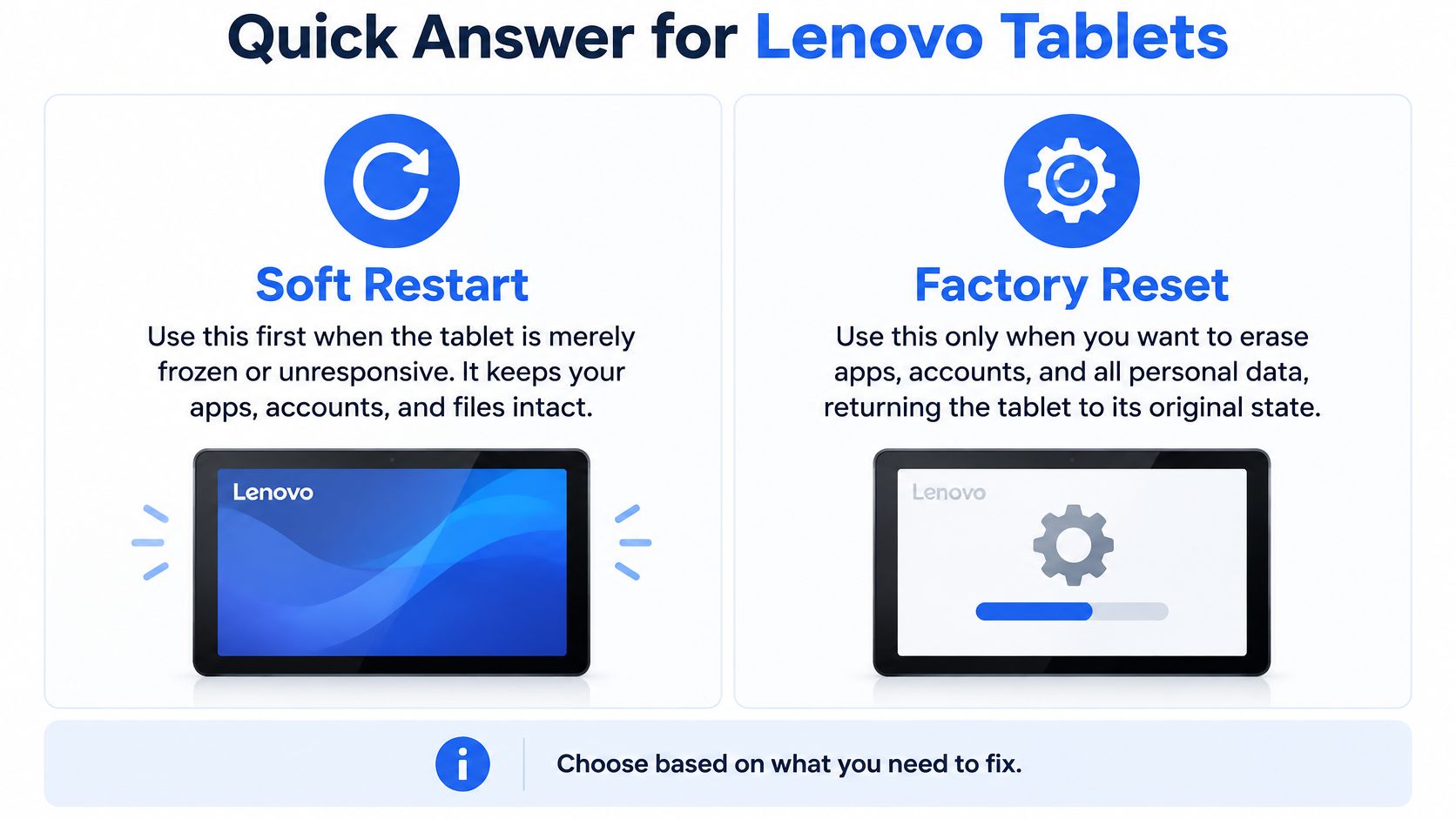
- Soft restart: Hold Power and choose Restart, or force it off and on again if it's unresponsive. Nothing's deleted, so use this for a one off freeze or sluggish app.
- Network reset: Clears saved Wi-Fi and Bluetooth pairings only. Try it when the tablet won't stay connected but everything else works.
- App preferences reset: Restores app defaults and permissions without deleting your files. Useful when notifications or default apps have got tangled.
- Factory reset: Erases apps, settings and locally stored files from internal storage and returns the tablet to its manufacturer default state, as set out in Lenovo UK guidance on resetting Android tablets. Use it for a clean start, persistent software faults, or preparing the tablet for someone else.
Many users who come to us after a failed reset didn't need one. They needed a restart, or they'd already wiped photos they meant to keep. If you're moving to a replacement device at the same time, sort your files first using our guide to transferring data to a new phone, then work through the preparation below before you tap anything irreversible.
Practical rule: If you can't list what you'll lose, you're not ready to reset.
Prepare Your Tablet Before Resetting
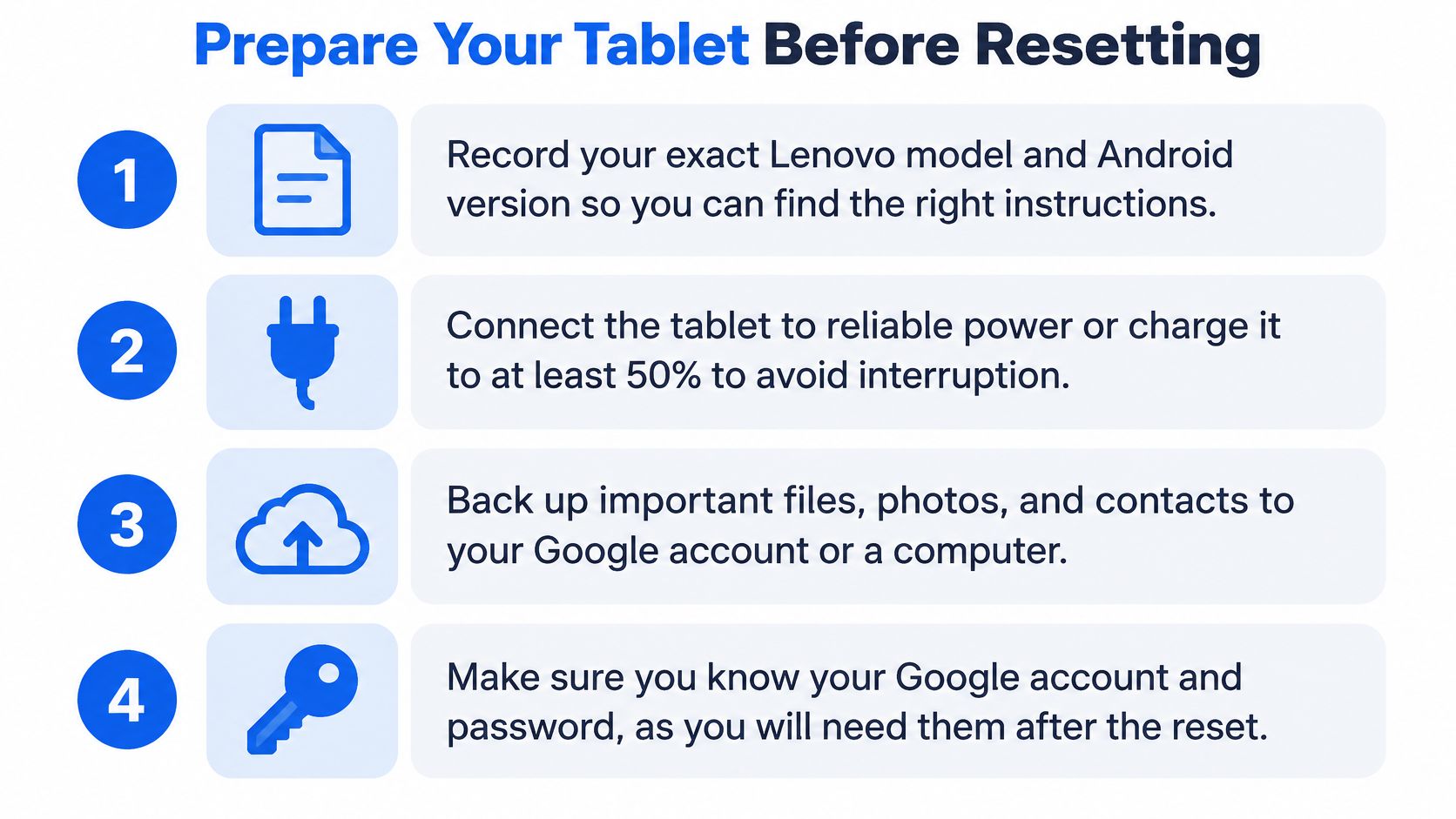
Don't touch Reset options until you've done this bit. A factory reset is data destructive, not a tidy up, and there's no undo button once the wipe starts.
Record the Exact Model First
Write down the full model name and Android version from Settings, About tablet. Menu wording and button combinations vary between models and software releases, so a guide written for a Smart Tab M10 won't always match an older Tab 2 on screen. That one note saves a lot of guessing later, especially if Settings stops opening and you need Recovery mode.
Back Up, Then Open the Backup
Copy photos, contacts, downloads and anything stored only on the tablet to your Google account, a computer or another device. Then open a few files from the backup location. We regularly see customers who backed up an empty folder, or backed up to the tablet itself, which defeats the point entirely. If you're clearing the device before selling or recycling it, understanding what data destruction actually involves helps you judge whether a standard reset is enough for your situation.
Charge It and Keep It Plugged In
Lenovo recommends at least 30% battery charge or keeping the tablet connected to power during the reset, and we'd go further and leave it plugged in throughout. A tablet that dies mid wipe can end up stuck before setup, turning a simple job into a bench repair. Use a known good cable and charger, not the frayed one from the sofa arm.
Sort Accounts While It Still Works
If the tablet's going to another person, remove your Google account and turn off the screen lock while you can still get into Settings. This is the step people skip, and it's the one that causes the account prompt headache covered later on. Keep your Google password, any PINs and the charger to hand until you've seen the welcome screen with your own eyes.
How to Factory Reset Lenovo Tablet Quick Steps
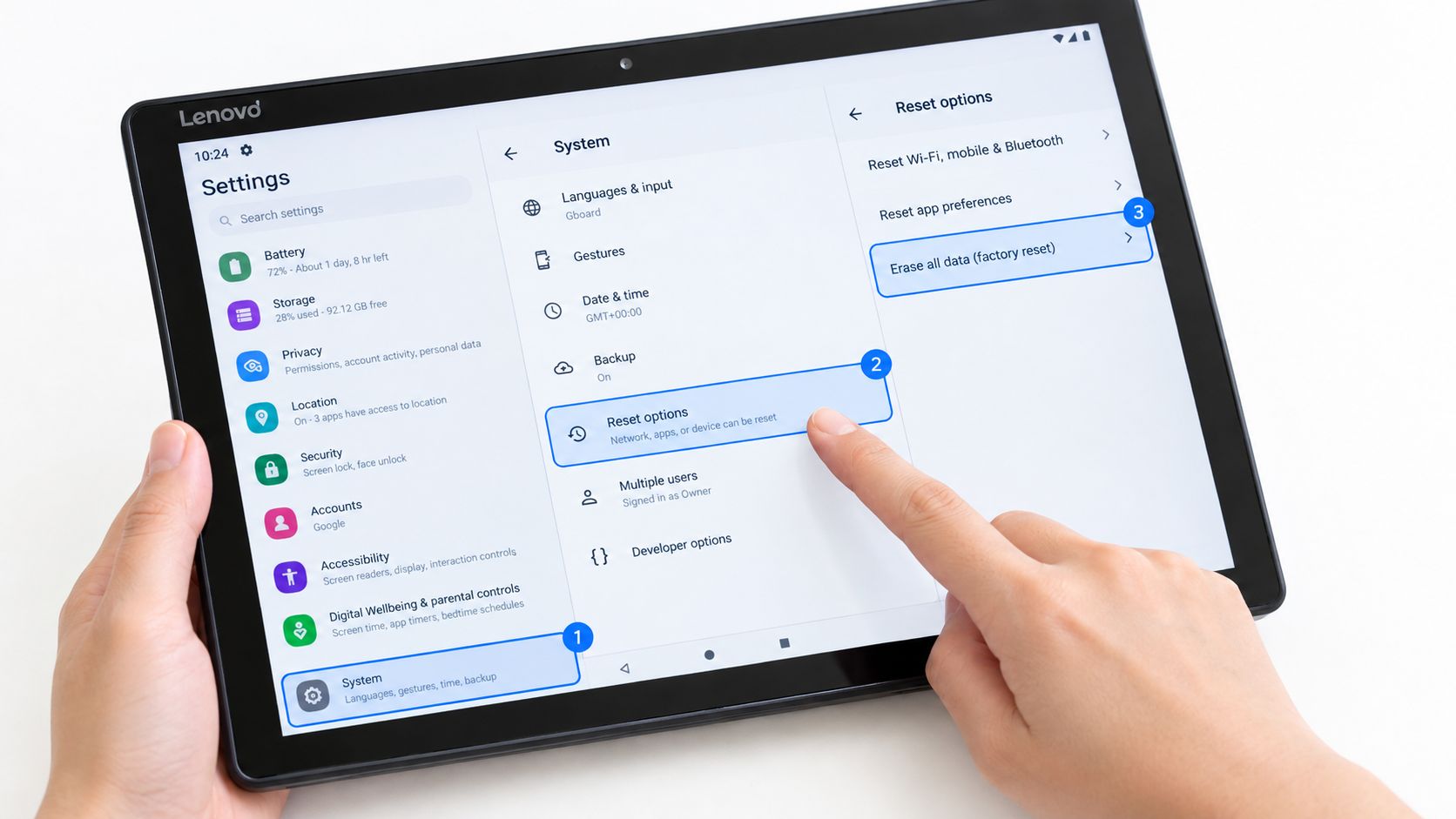
This route needs a working tablet you can access. On a functioning Smart Tab M10 or P10, for example, the path runs through Settings and System, and Lenovo's Smart Tab reset instructions warn plainly that all data is lost afterwards. Labels shift slightly between Android versions, so look for equivalent wording rather than giving up if one menu name differs.
- Plug the tablet in and confirm your backup opens on another device or account.
- Open Settings from the app drawer or the gear icon in the notification shade.
- Tap System, or General settings on models that use that label instead.
- Tap Reset options. You'll usually see separate entries for resetting Wi-Fi and Bluetooth, resetting app preferences, and erasing all data. They aren't interchangeable.
- Choose Erase all data (factory reset). Read the list of what's being deleted, because it names the accounts and storage that will go.
- Tap Erase all data to confirm, then confirm again on the final prompt. Enter your PIN or pattern if asked. This second confirmation is the point of no return.
- Leave the tablet alone while it wipes and restarts. Don't hold buttons, don't unplug it, and don't assume it's failed because the logo sits there a while.
- Check you land on the Android welcome screen, the language and setup page a new owner would see. That's your proof the reset completed.
What the Confirmation Screens Are Telling You
Each prompt exists because the wipe can't be paused or partially reversed. If a screen only mentions network settings or app preferences, you're in the wrong option for a full clean start. Back out and pick the erase all data entry instead. Conversely, if you only wanted to fix Wi-Fi, stop here, because pressing on will delete far more than the fault required.
After the Restart
Either run through setup yourself with your own account, or leave it at the welcome screen if it's being handed over. Don't add your Google account back just to test it and then reset again unless you have to. Every extra sign in is another account you'll need to remove cleanly before someone else can use the tablet without friction.
Use Recovery Mode When Settings Will Not Open
A locked, boot looping or completely unresponsive tablet can't use the Settings route. Recovery mode is the fallback, and it wipes the same user data, so anything you haven't backed up already is almost certainly gone. Button combinations differ by model, so check the instructions for your exact tablet first. The sequence below follows Lenovo's documented Android tablet recovery procedure.
- Switch the tablet off completely and leave it connected to power if the battery's low.
- Hold the Power button for about one second, then, without releasing Power, hold both Volume Up and Volume Down as well.
- When the Lenovo logo appears, release Power but keep holding both volume buttons until Recovery mode shows on screen.
- Use the volume keys to highlight Wipe data/factory reset, since the touchscreen usually won't work in this menu.
- Press Power to select it, then confirm the wipe when prompted.
- Wait for the menu to return, then highlight Reboot system now and press Power again.
- Give it time to restart. Lenovo puts this at approximately two minutes before the Android setup page appears on documented models.
If Recovery Will Not Appear
Stop after a couple of careful attempts. Repeatedly mashing buttons or trying random combinations from forums won't help and can leave you unsure what state the tablet's in. A stuck volume button, for instance, can prevent the combination registering at all, and that's a hardware fault, not user error. Check the buttons click properly, confirm you have the right sequence for your model, and get it assessed if the menu still won't load.
Don't keep pressing buttons while a wipe is running. Patience fixes more resets than force does.
One caution worth repeating. Wipe cache partition, which you'll see listed separately in recovery and troubleshooting menus, is not the same job. Clearing cache doesn't remove your accounts or files, so it won't prepare a tablet for sale, whatever a quick video suggests.
What We Check Before Refurbishing Lenovo Tablets
Before we erase any tablet that comes across the bench, we work out whether the fault is software at all. Resetting a tablet with a failing battery or a damaged charging port just leaves you with an empty tablet that still doesn't work.
Our technicians often see these checks change the decision:
- Charging behaviour: Does it charge steadily on a known good cable, or cut out when the connector moves? Unstable power makes any reset risky.
- Battery condition: A tablet that drops charge quickly under light use, or shuts down while showing charge remaining, needs battery assessment first.
- Storage pressure: A nearly full tablet can stall, freeze and fail updates in ways that look like serious software faults. Freeing space sometimes settles it without a wipe.
- Buttons and touchscreen: Power and volume buttons must register cleanly for Recovery mode, and dead spots on the display won't be cured by erasing data.
- Cameras, speakers and connectivity: These get tested before and after any reset, following the same structured approach as our 10 step refurbishment check, so a pre existing fault isn't mistaken for reset damage.
A common example we see is a family tablet that freezes when a couple of games and a video app run together. One thing we regularly notice is that storage is nearly full and the battery is tired, so it slows under load. A soft restart and a clear out can be the sensible first step, with repair advice if the battery is the problem. Jumping straight to a factory reset would delete the children's game progress and photos while fixing neither cause.
Cosmetic grade matters to the decision too. Heavy scratches, a lifted screen edge or a worn charging port all affect what a used tablet is worth and whether money spent on repair makes sense against replacing it. We don't pretend there's a single answer for every Lenovo model. Condition, parts availability and what you use it for decide it, and an honest assessment beats wiping first and hoping.
Common Reset Problems and Used-Device Checks
The reset finished, the welcome screen appeared, and then the tablet asked for the previous owner's Google account. That isn't a broken tablet. It's Factory Reset Protection doing its job, requiring the previously linked account to authenticate during setup even though local data has been erased. The previous owner may need to sign in before the handover can continue, which is awkward if they've already posted the tablet to a buyer.
A completed reset also isn't the same as a guaranteed clean wipe. Academic research into Android factory resets has found that some devices leave recoverable traces in credential-bearing partitions and internal storage, the same concern behind Lenovo's Smart Tab warning that a reset may not remove everything. Treat a standard reset as a strong practical step, not a certificate of secure sanitisation for sensitive data.
Verify the Handover Properly
- Remove accounts first: Take off the Google account and screen lock while the tablet still opens normally, then reset through Settings.
- Finish at the welcome screen: After reboot, setup should start at language selection without demanding your credentials.
- Test before it leaves you: If an account prompt appears, resolve it while the previous owner is present. The same diligence applies when buying, as our guide to checking if a refurbished phone is in good condition explains for handsets.
When Menus or Setup Do Not Behave
If your menu labels don't match any guide, check the exact model and Android version rather than forcing a similar sounding option. If the tablet won't charge well enough to attempt a reset safely, this phone not charging repair guide covers the cable, port and battery checks we'd run through first. And if setup never returns after a wipe, or Recovery mode won't load despite the correct buttons, stop and get professional help. Repeated wipe attempts on a tablet with a hardware fault rarely improve the outcome.
Reset Repair or Replace Lenovo Tablet
Our verdict is straightforward. Soft restart first for an isolated freeze. Use a network or app reset for a narrow fault. Save the factory reset for when you want a clean tablet or you're preparing it for a new user, and only after your backup is verified and accounts are removed.
Pause instead if the tablet can't hold charge, a button's stuck, the display's faulty, or your photos exist nowhere else. Resetting won't repair hardware, and it will still delete your data while failing. If repair doesn't make economic sense, a tested replacement can be the calmer route. That's how we approach it at Used Mobiles 4U, with professionally tested devices, clear grading, an 18-month device warranty, 12-month battery cover and 30-day returns on eligible purchases. For anyone replacing a handset at the same time, the Refurbished iPhone 15 128GB Black – Excellent is a fully tested, ready-to-use option with 128GB storage in Excellent condition, suited to work, travel and everyday use.
Knowing how to reset a Lenovo tablet properly is mostly about preparation and verification, not button sequences. Do those two parts well and the reset itself is the shortest step in the whole job.
Written by James Waterston, 24 years in the mobile phone industry from customer service through to Sales Director of a global repair and recycling company. Now running Used Mobiles 4U for over 8 years.
If your Lenovo tablet turns out to need more than a reset, or you'd rather hand the whole job to someone else, browse the tested, SIM free refurbished phones and selected tablets at Used Mobiles 4 U, each clearly graded and data wiped before resale. You'll get UK based support, warranty cover on eligible devices and honest advice on whether repair or replacement makes better sense for you.
Looking for a refurbished phone?
Shop professionally tested refurbished iPhones and Samsung phones with 18 month warranty, 30 day returns and free UK delivery.
Browse Refurbished Phones



