





Laptops with 1TB SSD: Is the Extra Storage Worth It?

26/10/2026

11 Mins

A 1TB SSD is worth paying for only when the laptop will hold large files locally. Most students, office workers and families are better served by 512GB with a replaceable drive. That's the counterintuitive part with laptops with 1TB SSD storage. The bigger number on the listing often matters less than drive health, usable space and whether you can swap the drive later.
The Short Version
The right capacity is set by your files, not by the number on the listing. The Techyest UK laptop buying guide treats 512GB as a practical starting point, with 1TB earning its keep for large game libraries, video projects, photography collections or other substantial local files. Windows, recovery partitions and pre-installed software all take a share of the advertised capacity, so usable space always lands below the figure on the box.
An SSD gives quicker startup and app loading than a mechanical hard drive because it uses flash memory rather than moving parts. Capacity is a separate question. Twice the nominal space only helps when your files need the room, so check how full your current drive is before paying for the upgrade.
- Buy 1TB: when local files are large and constant.
- Confirm replaceability: before paying extra for any configuration, since a replaceable 512GB drive leaves an upgrade path open.
- Use external storage: as backup or overflow, rather than for active work.
What 1TB Really Gives You Day to Day
A drive sold as 1TB never appears as 1TB once the operating system reads it. Manufacturers label capacity in decimal units: 1TB means 1,000,000,000,000 bytes. Operating systems report capacity in binary units, where one displayed gigabyte is 1,073,741,824 bytes rather than a round billion. Work the maths: divide 1,000,000,000,000 by 1,073,741,824 and you get roughly 931GB shown before a single partition or system file takes anything. Run the same calculation on other sizes and a 512GB drive displays about 476GB, while a 2TB drive displays about 1.82TB.
Where the Missing Space Goes
The operating system sits on the drive, alongside a recovery partition, updates, pre-installed software, cached files and temporary working space. All of that is standard practice, and it means you should plan around usable space rather than the headline number on the listing.
Practical rule: keep roughly 10 to 20 per cent free so the SSD has room to organise itself and write performance stays consistent.
Check a machine you already own before deciding. On Windows, use Settings > System > Storage. On macOS, use System Settings > General > Storage. If the current drive is nowhere near full and most files are synced, a larger drive won't change your day. If you are already sitting near the limit with files you need kept locally, the extra capacity earns its price.
Gamers feel the shortfall most, because Windows, launchers and the free-space headroom above all come out of the same pot before the first game installs. Our guide to refurbished gaming laptops covers models where that working space matters. A laptop with a 1TB SSD gives noticeably less than 1TB for your own files once the system is installed, so judge it by what is left, not what the box says.
Storage Type, SSD Health and Replaceability
Capacity is the easiest part of a listing to read and often the least useful. The storage type decides speed in large transfers, whether the drive can be replaced, and what happens when it fails. I'd check that before paying a premium for 1TB.
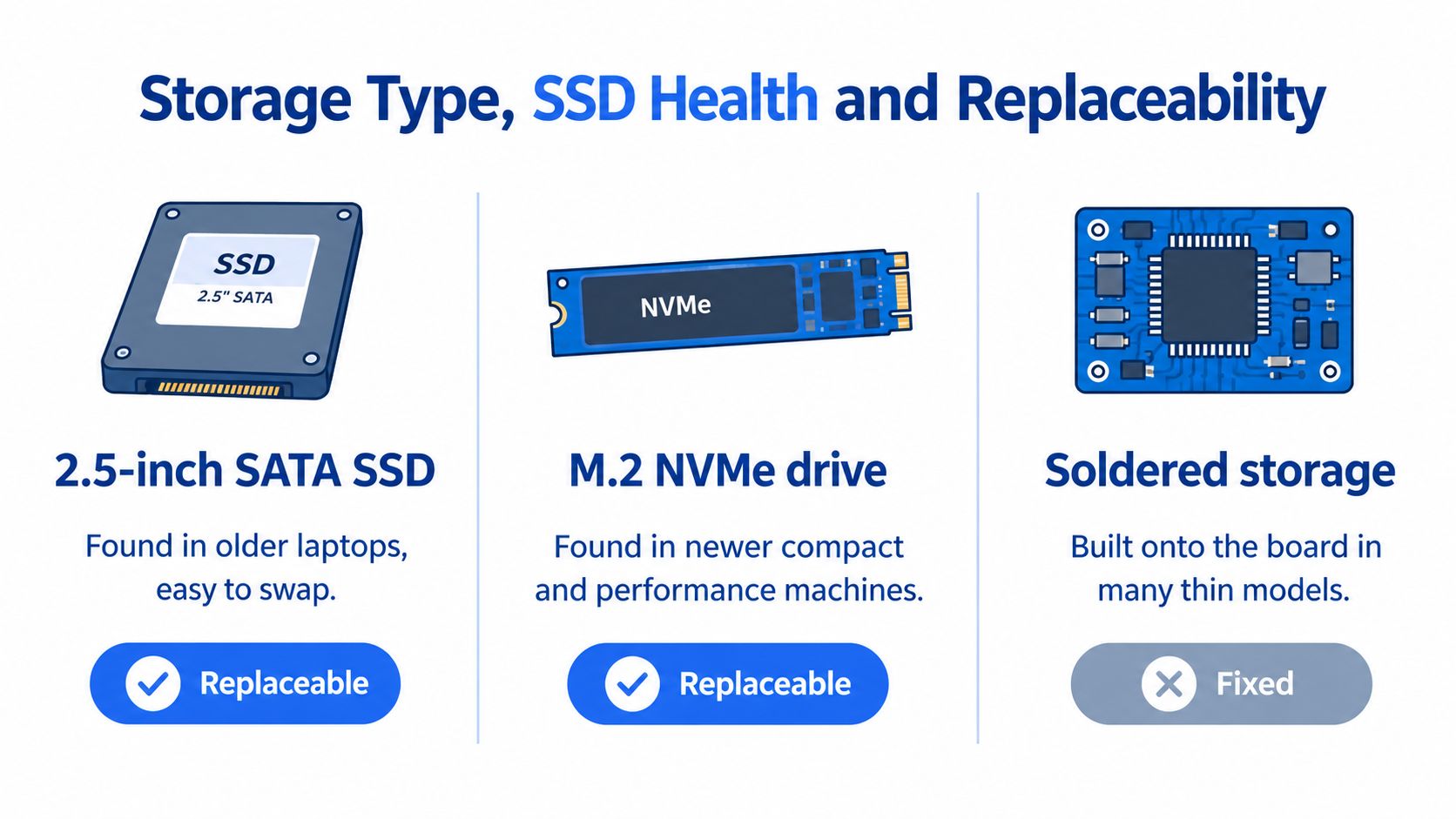
These formats aren't interchangeable. A fast NVMe drive helps only where the laptop supports NVMe, and a 2.5-inch SATA drive can't fit a design built only for M.2. Check the service manual or the existing drive rather than guessing from the laptop's age.
Speed Figures in Real Life
The Kingston 1TB NVMe listing quotes a PCIe Gen3 drive at up to 3,400 MB/s read and 2,800 MB/s write, while a comparable PCIe 4.0 model can reach roughly 6,000/5,000 MB/s. Those are sequential figures for large, continuous transfers. They are not a promise that Word, Chrome or Teams will feel twice as fast.
Everyday work depends more on random access, processor speed, memory, thermal limits and power management. Moving from SATA to NVMe usually feels more meaningful than moving between modern NVMe generations. A Gen4 drive in a Gen3 slot runs at the slot's lower limit, so don't pay for a label the laptop can't use. Long, sustained writes can also push a drive into thermal throttling once its cache is exhausted, which is why a boxed speed rarely holds through a full backup or video export.
Older machines can still suit focused work if their storage and limits are understood. This account of older MacBooks for offline work in 2026 is a useful reminder to judge the whole machine, not just drive size.
Health Data Matters More Than Capacity
Ask the seller for SSD health percentage, power-on hours, total host writes and SMART error status. CrystalDiskInfo or the drive manufacturer's utility can show this information. A vague statement that the laptop has been tested isn't the same as giving you the figures.
A 1TB label tells you how much the drive held when new. It tells you nothing about how hard the previous owner used it.
TBW, or terabytes written, is a warranty and endurance rating rather than a guaranteed failure point. Consumer 1TB NVMe drives typically carry ratings in the hundreds of terabytes, with random access figures quoted in the hundreds of thousands of IOPS. Workload pattern, NAND type, temperature, firmware and write amplification all affect actual service life, so treat the rating as a ceiling rather than a countdown.
Before resale, verify a secure data wipe. A quick format leaves recoverable data behind, so look for a proper sanitisation pass or a manufacturer's secure-erase tool. If the seller can't say how the drive was erased, assume it wasn't.
The Listing Checklist
- Exact model: confirm it, don't rely on a generic family name.
- Interface: check SATA, M.2 NVMe and the supported PCIe generation.
- Replaceable or soldered: get a direct answer before ordering.
- Usable capacity: separate the marketed figure from space shown by the system.
- Battery health: ask for it alongside SSD health, not instead of it.
- Warranty and returns: confirm what's covered and for how long.
If the seller's own health data looks poor, walk away or negotiate hard. A cheap 1TB drive with heavy wear isn't a bargain if replacement means a new board or a difficult repair.
Is 1TB Worth It Over 512GB Plus External Storage?
The money question is real. A UK-facing storage comparison reported a £325 difference for a 1TB MacBook Air configuration over 512GB, while a 1TB Samsung T7 external SSD cost £184, implying a £141 saving from buying less internal storage. Those figures show why buyers ask, but they don't settle the decision.
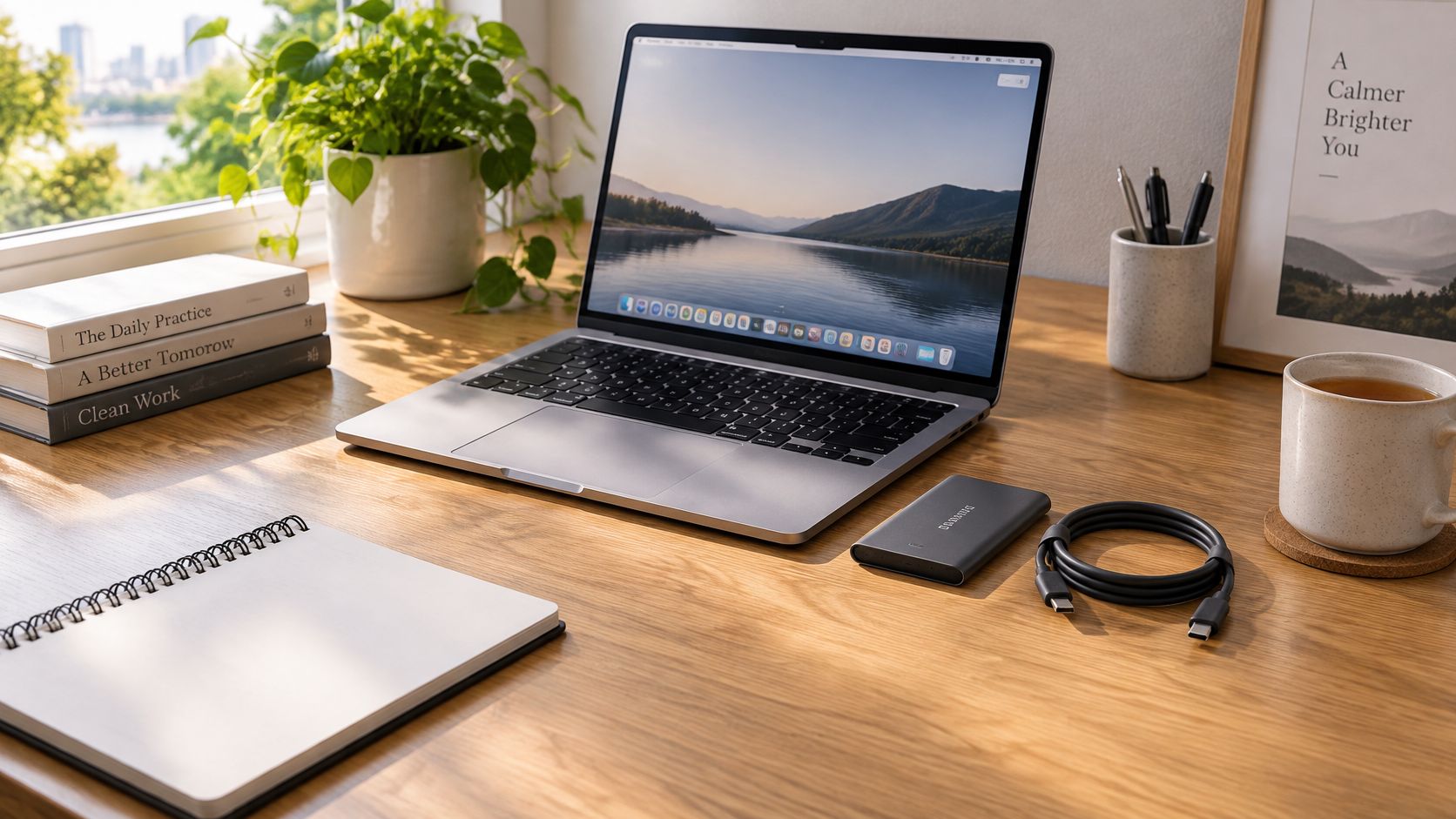
External storage only saves money if you'll carry it, plug it in and keep the right files on it. It's also a poor home for active editing projects and awkward for a game library you use away from a desk. The comparison above doesn't answer replaceability, editing speed, system space or whether a student or hybrid worker will tolerate another device.
Choose 1TB internal if:
- Large local files: they're constant, not occasional.
- Soldered storage: you can't change your mind later.
- Offline or travel use: the laptop must work without a dock or extra drive.
Choose 512GB plus external if:
- Replaceable drive: a later internal upgrade remains possible.
- Cloud-based files: most work syncs rather than staying local.
- Office-based use: an external backup can stay at your desk.
My recommendation is firm. For a non-upgradeable laptop with heavy local storage, buy 1TB. For most mixed users, a 512GB machine with a replaceable drive and a separate external backup is the better long-term buy. If you're weighing Apple configurations, check current MacBook Air prices against storage rather than assuming the larger model is better value.
Our Experience Refurbishing This Model at Used Mobiles 4U
On the laptops we refurbish, battery wear is usually the first thing that affects daily use. That's why battery health is checked and reported before anything is listed. A generous SSD won't help a machine that needs its charger by lunchtime.
One thing we regularly notice is that the storage figure gets all the attention while hinges, keyboards and charging ports decide how the laptop feels. Older business machines often show wear in those areas first. Buyers notice a loose hinge or shiny, unreliable keys much sooner than a small difference in drive speed.
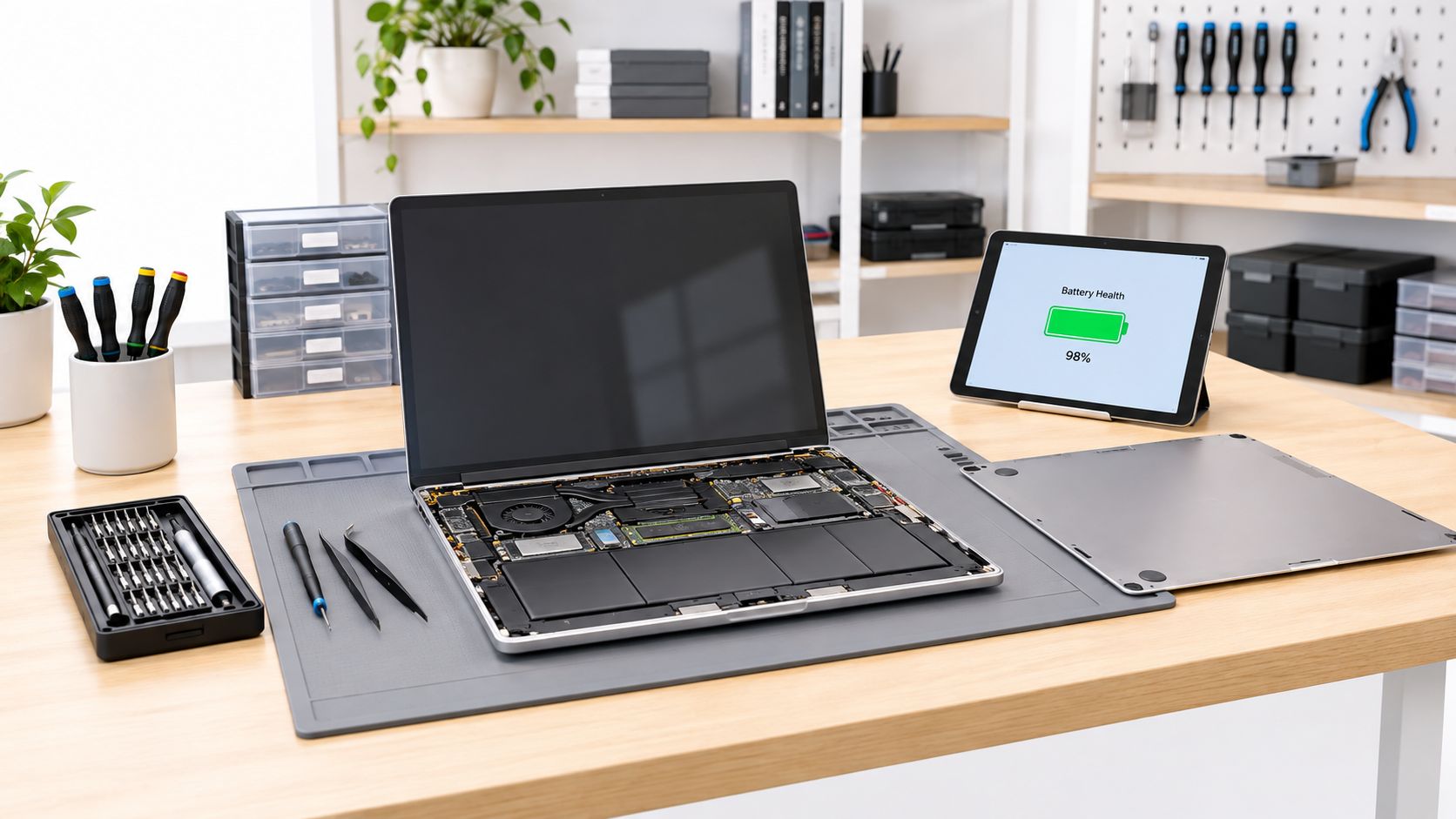
SSDs usually pass our checks, but we still read the health data. A drive can present normally and still carry a heavy write history from its previous owner. We also see machines arrive nearly full, which means a secure wipe and clean reinstall before resale, not a quick deletion of visible folders.
Our technicians often see dust build-up and fan wear on heavy-use laptops. Poor airflow can cause throttling that looks like a slow drive. Cleaning and testing under load matters because a short desktop check won't expose it.
What We Commonly See
- Battery wear: the most common limit on everyday usefulness.
- Keyboard and hinge wear: especially on older business machines.
- Nearly full drives: previous owners rarely leave sensible free space.
- Dust and fan noise: heat makes performance drop under sustained work.
- Charging faults: worn ports or tired chargers can mimic battery failure.
Repair versus replace depends on construction. A battery swap on a sound chassis is usually sensible. A failed soldered SSD on an otherwise good machine can make replacement more practical because the repair route is limited and costly in labour.
A common example we see is a buyer asking for 1TB for family photos, then finding the preferred thin laptop has fixed storage. At that point the choice isn't upgrade later. It's buy enough now or choose a different model, which is why our refurbished MacBook Air UK listings need the exact configuration checked before ordering.
In our experience, a 512GB model with a replaceable drive is often the calmer purchase than a 1TB soldered model with unknown history. You can plan an upgrade, replace a worn drive and avoid paying today for space you may never use.
Budget Picks by Use Case
Prices vary by grade, storage, battery health, cosmetic condition, warranty and availability, so treat budget levels as a guide to what to aim for rather than fixed sums. The same model name can hide very different processors, memory, screens and drive types, and two machines sharing a badge can take completely different upgrade routes.
At the lower end, chasing 1TB rarely makes sense if it means accepting a worn battery and tired keyboard. A business ultraportable with honest grading and a replaceable drive is easier to live with and cheaper to refresh later. Mid budget is where the local media question matters most. If the family photo library or an active video project lives on the machine, 1TB earns its price; if files sit in the cloud, 512GB leaves money for better condition or a longer warranty. At higher budget, cooling matters as much as capacity, because sustained editing exposes weak fans and throttling quickly.
Start with the exact configuration when browsing refurbished laptops, then compare battery and SSD health rather than the badge. Model family alone tells you nothing about the storage interface inside.
Upgrading Later Only Works in the Right Machine
- Replaceable M.2 slot: confirm access and physical size.
- Correct interface: the existing machine must support the replacement drive.
- Sensible cost: the upgrade should cost clearly less than changing machine.
MacBook Air and MacBook Pro models with M-series chips have soldered storage, so capacity has to be right at purchase. A refurbished MacBook Air configured at 256GB will stay at 256GB for its whole life, and if your files already exceed that, the cheaper configuration becomes the expensive mistake. On a business laptop with a socketed drive, the same decision reverses: a 512GB machine can grow later, so paying for 1TB up front is a choice rather than a necessity.
Confirm the Order Before You Pay
Treat checkout as the last inspection. A 1TB listing only makes sense when the space left after the operating system, recovery files and your working folders is still enough for the files you keep local, and when the machine gives you a way out later through a replaceable drive or enough headroom that replacement is not needed.
Before paying, copy these fields from the listing and the seller's health report into one note:
- exact model and configuration, including the stated SSD capacity
- usable storage after the system partition, if shown
- SSD health status or percentage, plus whether the drive is removable
- battery health and condition grade
- warranty length, battery cover and returns window
- a screenshot or saved copy of the listing and storage specification
That paperwork turns a mismatch into a return, repair or refund instead of a debate. If capacity, grade or health is not as described, keep the note and photos of what arrived.
The Which? guide to second-hand and refurbished laptops explains that under the Consumer Rights Act 2015 goods must be of satisfactory quality, fit for purpose and as described, online purchases carry a 14-day cancellation period beginning when the order is received, and a full refund is generally available if faulty goods are rejected within 30 days of taking ownership. After those first 30 days, the remedy usually shifts towards repair or replacement; an automatic refund is no longer the default. A retailer warranty sits beside those rights, so read the claim route as well as the number of months.
Check the health report before you check the colour. Cosmetic grade is visible in photos, drive wear usually isn't.
If the report leaves fields blank, ask for them before paying or choose another machine. For tested refurbished MacBook Air, MacBook Pro and Lenovo stock with live grading and health details, browse Used Mobiles 4 U; if an older laptop is being replaced, selling it through Sell Your Tech can offset the cost of the storage you will actually use.
Looking for a refurbished phone?
Shop professionally tested refurbished iPhones and Samsung phones with 18 month warranty, 30 day returns and free UK delivery.
Browse Refurbished Phones



