


iPhone Touchscreen Not Responding: Data-Safe Checks

04/11/2026

7 Mins

If your iPhone touchscreen isn’t responding, disconnect accessories, clean and dry the screen, then try a force restart. These checks don’t erase your data, but liquid exposure, a lifting display or loose glass need professional attention first.
We recommend leaving resets until last, especially when your photos aren’t backed up. Start with the symptoms, then choose the least destructive next step.
The short version
- If the whole screen has frozen, try a force restart using the buttons.
- When touch fails only whilst charging, disconnect the charger and test again.
- A dead strip, phantom touches or failure after a drop needs inspection if basic checks don’t help.
- Back up whenever touch returns. Avoid Restore unless you’re prepared for the phone to be erased.
How to check an unresponsive touchscreen: quick steps
Follow these steps in order, stopping if you find physical damage.
- Disconnect chargers, wired headphones and other Lightning or USB-C accessories.
- Inspect the phone for cracks, a bent frame, liquid exposure or a screen lifting away from the housing.
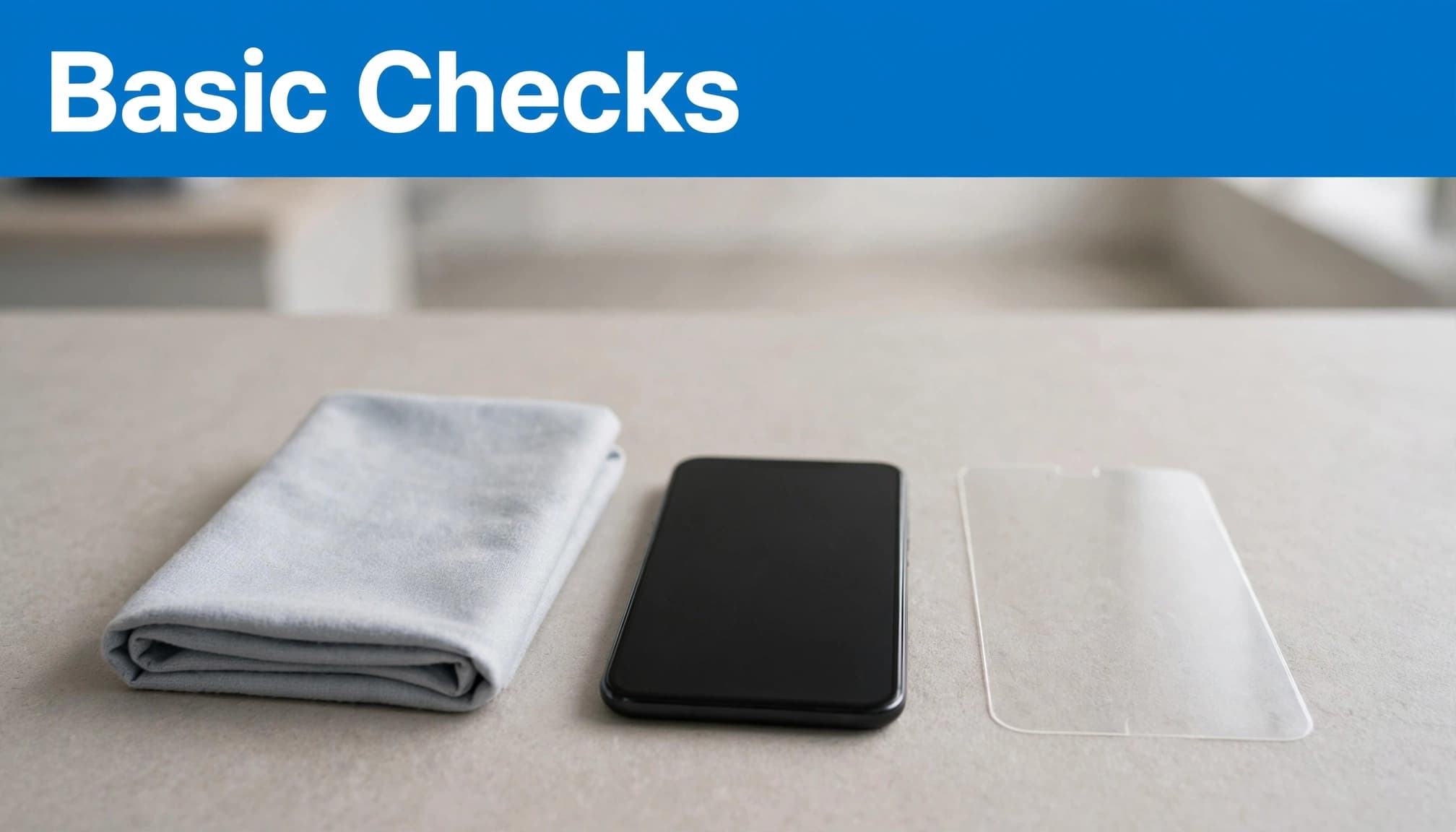
- Remove the case and, if the glass is intact, remove the screen protector.
- Wipe the display with a dry microfibre cloth, dry your hands and test again.
- Let a hot phone cool naturally, then force restart it using the correct buttons below.
- If touch returns, back up immediately. Then address app problems or install an iOS update before considering repair.
Don’t repeatedly enter your passcode whilst phantom touches are selecting random numbers. Lock the screen with the side button instead.
Force restart using the physical buttons
To restart iPhone without erasing stored data, use the button sequence for your model below. A force restart can clear a frozen system, but it won’t repair damaged glass, connectors or display components.
iPhone 8, SE (2nd generation), X and later
This sequence covers iPhone 11 through 15 and later generations too. Quickly press and release Volume Up, then quickly press and release Volume Down.
Next, hold the Side button until the Apple logo appears, then release it. Keep holding through a black screen; the logo can take around 20 seconds to appear.
Don’t hold both volume buttons together. The order matters.
iPhone 7 and 7 Plus
Hold Volume Down and the Side button together until the Apple logo appears. Then release both buttons and allow the phone to finish starting.
If touch works briefly before failing again, back up during that usable window. A temporary recovery doesn’t establish whether the underlying fault is software or hardware.
iPhone 6s, SE (1st generation) and earlier
Hold the Home button and Side or Top button together until the Apple logo appears. Release both when you see it.
Apple’s force-restart guidance also covers phones with black screens. If yours shows no image, the problem may involve power or the display rather than touch alone.
Rule out protectors, accessories and overheating
Test the screen without external interference
A damaged protector, trapped moisture or a tight case can interfere with normal use. Test the bare, clean screen before fitting another protector.
Don’t peel away a protector that’s holding shattered glass together. Stop using a display that’s shedding fragments.
Apple’s screen troubleshooting advice includes disconnecting both Lightning and USB-C accessories. Older Lightning accessories deserve attention, but either connection can be involved. If touch works unplugged, try a different cable, charger and socket.
Let a hot phone cool naturally
Unplug it, remove its case and leave it out of direct sunlight for 15 to 30 minutes. Don’t use a fridge, freezer or hairdryer.
If touch still works, Airplane Mode or Low Power Mode can reduce activity. Neither is accessible through normal taps when the entire screen is unresponsive. Once the phone has cooled and touch responds, Low Power Mode can limit background activity while you back up or troubleshoot.
Apple documents a force restart rather than a separate force-shutdown command. Some guides suggest holding power again after the logo appears, but this isn’t a dependable shutdown method across models. Don’t rely on it for overheating or liquid exposure.
Update iOS without erasing the phone
Separate an app fault from a system fault
If Settings and the Home Screen respond but one app doesn’t, close and reopen that app. Then install its update through the App Store.
Before deleting an app, consider its locally stored files and sign-in requirements. Reinstallation can remove data that hasn’t synced.
When touch works, use Settings > General > iPhone Storage to review storage pressure. For an iOS update, open Settings > General > Software Update.
A computer update uses Finder on macOS Catalina 10.15 or later. Older Macs use iTunes; Windows uses Apple Devices, or iTunes where Apple Devices isn’t installed.
Use Recovery mode when Trust can’t be confirmed
A completely unresponsive touchscreen can’t approve a new “Trust This Computer” prompt. Recovery mode provides a route to reinstall iOS without that normal confirmation.
Connect the iPhone to the computer. Use its restart button sequence, but keep holding past the Apple logo until the recovery screen appears.
That screen shows a cable and computer; older versions may show an iTunes symbol. In the computer window, choose Update first, following Apple’s recovery-mode instructions.
Update attempts to reinstall iOS whilst retaining your data. Restore erases it. If a download takes over 15 minutes and the phone exits Recovery mode, let the download finish, then enter Recovery mode again.
Recovery mode doesn’t unlock your personal data or create a backup. Choosing Update and choosing Restore have different consequences.
Back up before considering a factory reset
We wouldn’t erase a phone simply because one screen area has stopped responding. A reset can’t reconnect a damaged cable or repair an impact-damaged display.
If touch returns, use Settings > your name > iCloud > iCloud Backup > Back Up Now. Alternatively, make a computer backup if the phone can unlock and authorise the connection.
Automatic iCloud backups normally need the phone connected to power and Wi-Fi, with its screen locked. Aim for a successful backup within the previous 24 hours before considering an erase.
An older backup remains usable, but anything added afterwards may be lost. Being plugged in overnight doesn’t prove a backup completed, particularly when iCloud storage is full.
If you have no usable backup, explain that before authorising repair or replacement. Data recovery and restoring phone functionality are separate jobs.
Touchscreen checks before resale
Identify the pattern without pressing harder
Our refurbishment testing process includes touch response, brightness and display defects. Cosmetic condition alone doesn’t establish whether a screen works properly.
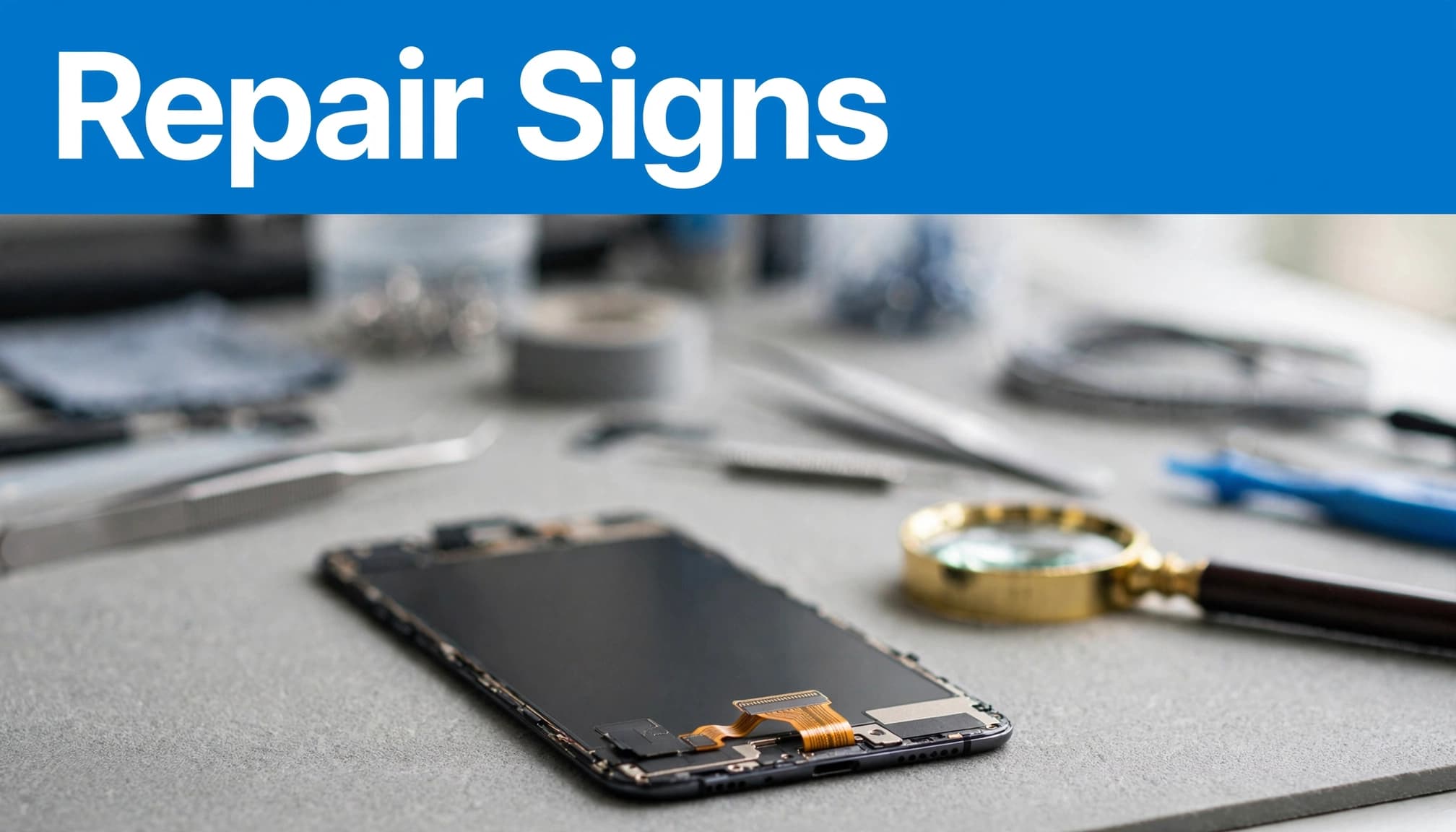
If touch partly works, draw continuous lines across a blank note using Markup. Repeat across different areas and rotate the phone. A consistent missing strip across apps points towards a display-related fault.
Report whole-screen failure, dead zones, phantom touches, excessive pressure needed or touch that returns only briefly after restarting. Don’t press harder to compensate.
Leave component diagnosis to a technician
Possible faults include a damaged digitiser, a loose or damaged display-flex connection, or water damage around touch-control circuitry. On OLED models, impact damage can affect the touch layer and display assembly together.
A technician’s diagnostic can distinguish a digitiser fault or display-flex problem from a touch IC or logic board fault, but symptoms alone can’t identify the failed component. Water damage can affect the logic board or touch-control circuitry, and may be hidden around connectors without obvious external signs.
After liquid exposure, disconnect cables and don’t charge the phone. Avoid rice and external heat. Likewise, a lifting display needs inspection because battery swelling is one possible cause.
Repair costs and when replacement makes sense
Compare the complete repair, not a headline price
There isn’t one UK price for an unresponsive touchscreen. A screen assembly, damaged connector and logic-board repair involve different work. Ask whether a screen repair is possible or a complete screen replacement is needed. The fault and technician’s diagnosis determine the right work.
Apple’s iPhone repair service offers repair or replacement routes. Warranty, AppleCare cover, accidental damage and the diagnosis affect the charge.
For a phone bought from us, start with our warranty and repair process before commissioning outside work. Our 18-month device warranty covers manufacturing defects and hardware failure during normal use.
For paid repairs, request a complete quotation covering VAT, labour, panel type, calibration, resealing and repair warranty. Apple or a reputable independent repairer is preferable to opening a newer iPhone yourself.
Judge the rest of the phone too
We favour repairing an isolated screen fault when the frame is straight and battery life, charging and Face ID remain dependable.
Replacement deserves more consideration when the phone also needs battery or charging-port work. A new screen can’t correct a bent housing, and liquid exposure can complicate the diagnosis.
For a phone over four years old, we’d treat a bill above half its working value as a reason to compare replacement carefully. That’s a review point, not a fixed rule.
Include every necessary repair in that comparison. Repairing before selling rarely returns every pound spent.
If replacement makes better financial sense, you can Browse Refurbished iPhones without committing to another repair first.
Frequently asked questions
Why does touch still fail after restarting?
A restart clears a temporary freeze, but hardware damage remains. Persistent dead zones, repeated phantom touches or problems following a drop need inspection rather than repeated resets.
A fault confined to one app needs app troubleshooting first.
What happens if Apple replaces the phone?
A replacement handset won’t automatically contain the original phone’s data. You’ll need to restore an available backup during setup.
Our guide to transferring data to another iPhone explains the options. A direct transfer may be impractical when the old screen can’t approve prompts.
Choose the least destructive next step
Start with reversible checks, then a force restart and an update where appropriate. Keep data protection ahead of factory resets.
If dead zones, phantom touches or impact-related faults remain, contact Apple Support or a reputable repairer. Repair an otherwise dependable phone; compare replacement when several faults make the complete bill poor value.
Looking for a refurbished phone?
Shop professionally tested refurbished iPhones and Samsung phones with 18 month warranty, 30 day returns and free UK delivery.
Browse Refurbished Phones