


Why Is Your iPhone Stuck on Preparing an iOS Update?

11/11/2026

4 Mins

An iPhone stuck on “Preparing Update” is usually processing downloaded files, short of storage, or struggling with the update package. It doesn’t automatically mean the phone is faulty.
We recommend checking power and storage first, then restarting and downloading the update again if preparation won’t finish. The screen you’re seeing determines the safest next step.
The Short Version
- Keep the iPhone plugged in and charge it to at least 50%.
- Aim for 10 to 15 GB of free storage.
- Retry stalled downloads on reliable Wi-Fi.
- Leave a progress bar that is moving alone.
- Back up before recovery or restore attempts.
How to Fix a Stuck iOS Update: Quick Steps
These steps apply while you can still open Settings, before the Apple logo appears.
- Back up through Settings > [your name] > iCloud > iCloud Backup > Back Up Now. Alternatively, use a computer. Our second-hand iPhone setup guide explains how to protect data during setup.
- Connect a reliable charger and let the battery reach at least 50% before retrying.
- In Settings, check available storage space under General > iPhone Storage. We suggest 10 to 15 GB free as working headroom, not a universal Apple minimum. Our iPhone storage guide covers space-saving options.
- Temporarily disconnect your VPN under General > VPN & Device Management.
- Check General > Software Update > Beta Updates. Turn beta updates off unless you deliberately use them. For older beta profiles, follow Apple’s beta removal guidance; don’t remove workplace management profiles.
- To delete the update, open General > iPhone Storage, select the downloaded iOS package and tap Delete Update, if listed.
- Power the phone off and back on, then return to General > Software Update to download a fresh package and reinstall update files.
Deleting the downloaded package doesn’t erase your photos or apps. However, don’t attempt these steps once the Apple logo appears.
Match the Fix to the Stuck Screen
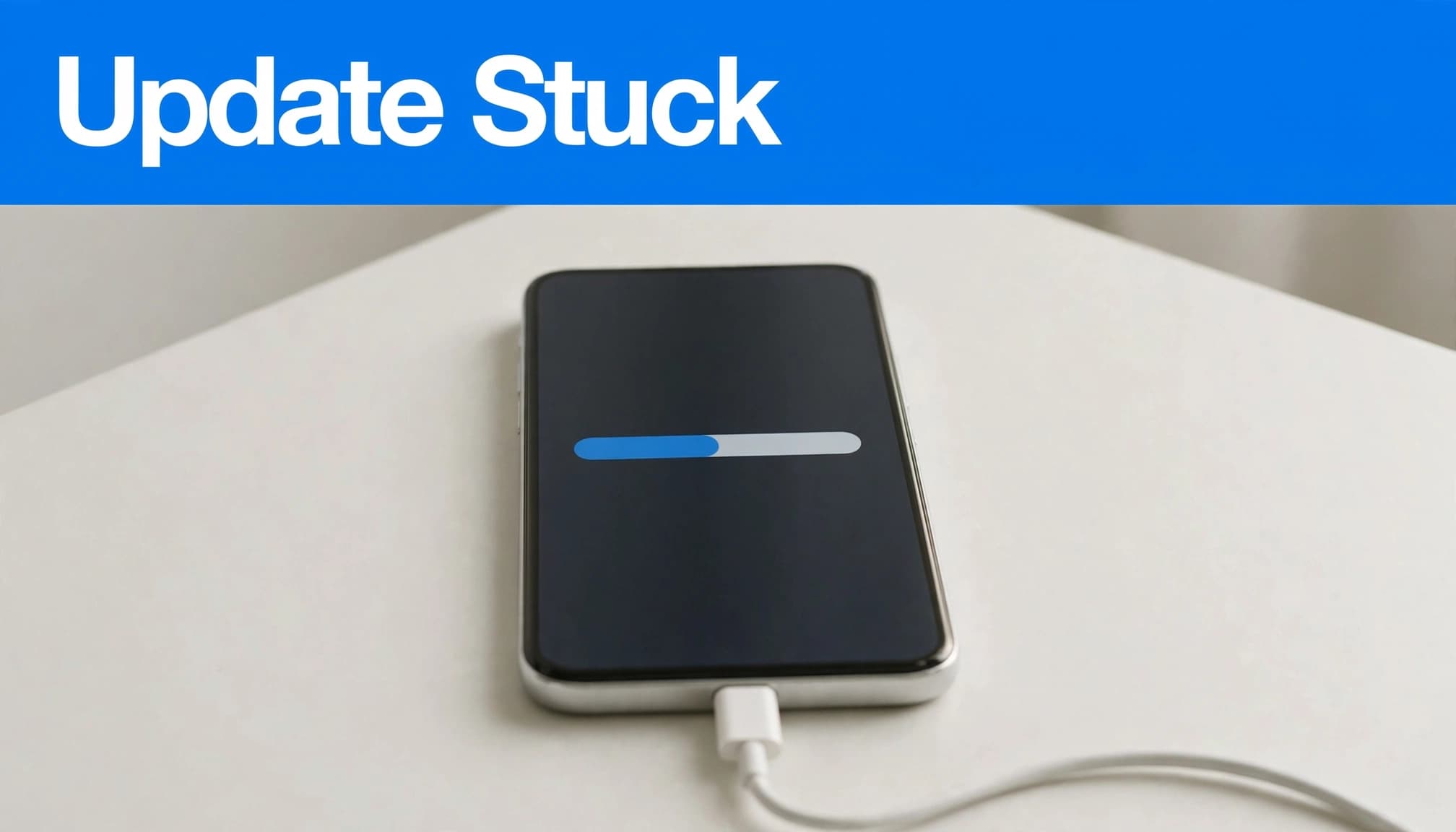
“Update Requested” or “Downloading”
These stages depend on your connection and Apple’s update service. Toggle Aeroplane Mode on and off, reconnect to Wi-Fi, or try another trusted network. Mobile data may work where your device, network and update settings permit it.
Apple’s System Status page can identify published service interruptions. A stalled request alone doesn’t prove a widespread iOS bug.
“Preparing Update”
The iPhone is preparing downloaded files for installation. Large packages and limited storage can prolong this stage, so keep it powered.
Apple’s published guidance offers no single official response setting a universal deadline for this stage. If it remains unchanged for several hours, power the phone off and on, then use the deletion-and-download steps above. Avoid repeatedly restarting a device that still responds and appears to be working.
Apple Logo With a Progress Bar
Allow at least an hour for a major update if progress continues. Even slow movement means you should leave it connected.
Apple’s frozen-logo guidance gives a one-hour no-movement threshold for backup restoration or device migration, rather than every wireless update. If an ordinary update stays completely frozen for several hours, use the button sequence described below.
Restart Safely, Then Try a Computer
Force Restart Without Erasing Data
On Face ID iPhones, press and quickly release Volume Up, press and quickly release Volume Down, then press and hold the Side button until the Apple logo appears. Older Home-button iPhones may require a different sequence.
A force restart doesn’t intentionally erase data. However, repeated interruptions during installation aren’t a sensible troubleshooting routine.
Update Through Finder or Apple Devices
If wireless updating keeps failing, connect with a known-good data cable. Use Finder on a modern Mac or Apple Devices on Windows.
Select the iPhone, open General, then choose Check for Update and follow the prompts. Apple’s iPhone update instructions cover available update routes. Don’t disconnect the cable during installation.
If necessary, use recovery mode. On Face ID iPhones, repeat the button sequence but keep holding Side until the connect-to-computer screen appears. Choose Update first when offered; Restore erases the iPhone. If recovery updating fails, seek Apple support before accepting data loss.
What We Check on the Bench at Used Mobiles 4U
Our refurbishment checks include charging and battery behaviour. A phone accepting power doesn’t prove its port can maintain a computer data connection. Therefore, a known-good data cable matters when switching to a computer update.
We also separate software problems from physical faults. Intermittent charging, unexpected shutdowns or a cable that works only at an angle deserve investigation.
A single failed update isn’t a reason to replace an otherwise dependable phone. If freezing continues outside updates, our iPhone freezing troubleshooting guide covers broader checks.
Frequently Asked Questions
How Long Should an iOS Update Take?
There’s no fixed duration. Download speed, package size and device processing all matter. Watch for progress rather than assuming a delay proves failure.
Historical Reddit reports about iOS 17.4.1 mentioned stalled requests and a draining battery, but those anecdotes don’t establish the cause of a different update failure.
Should Third-Party Repair Software Be the Next Step?
We recommend Apple’s methods first. Tenorshare ReiBoot appeared in an individual Reddit recommendation, but that doesn’t establish a guaranteed data-preserving fix.
Older computer setups may use iTunes instead of Finder or Apple Devices.
A Stalled Update Usually Needs Troubleshooting First
Start with power, storage and a reliable connection. Then retry the downloaded package before considering recovery.
Protect your backup throughout. If computer updating also fails, get the fault assessed before restoring or replacing a phone that may still be serviceable.
Looking for a refurbished phone?
Shop professionally tested refurbished iPhones and Samsung phones with 18 month warranty, 30 day returns and free UK delivery.
Browse Refurbished Phones