


Phone Not Recognising SIM Card: How to Fix It

23/11/2026

10 Mins
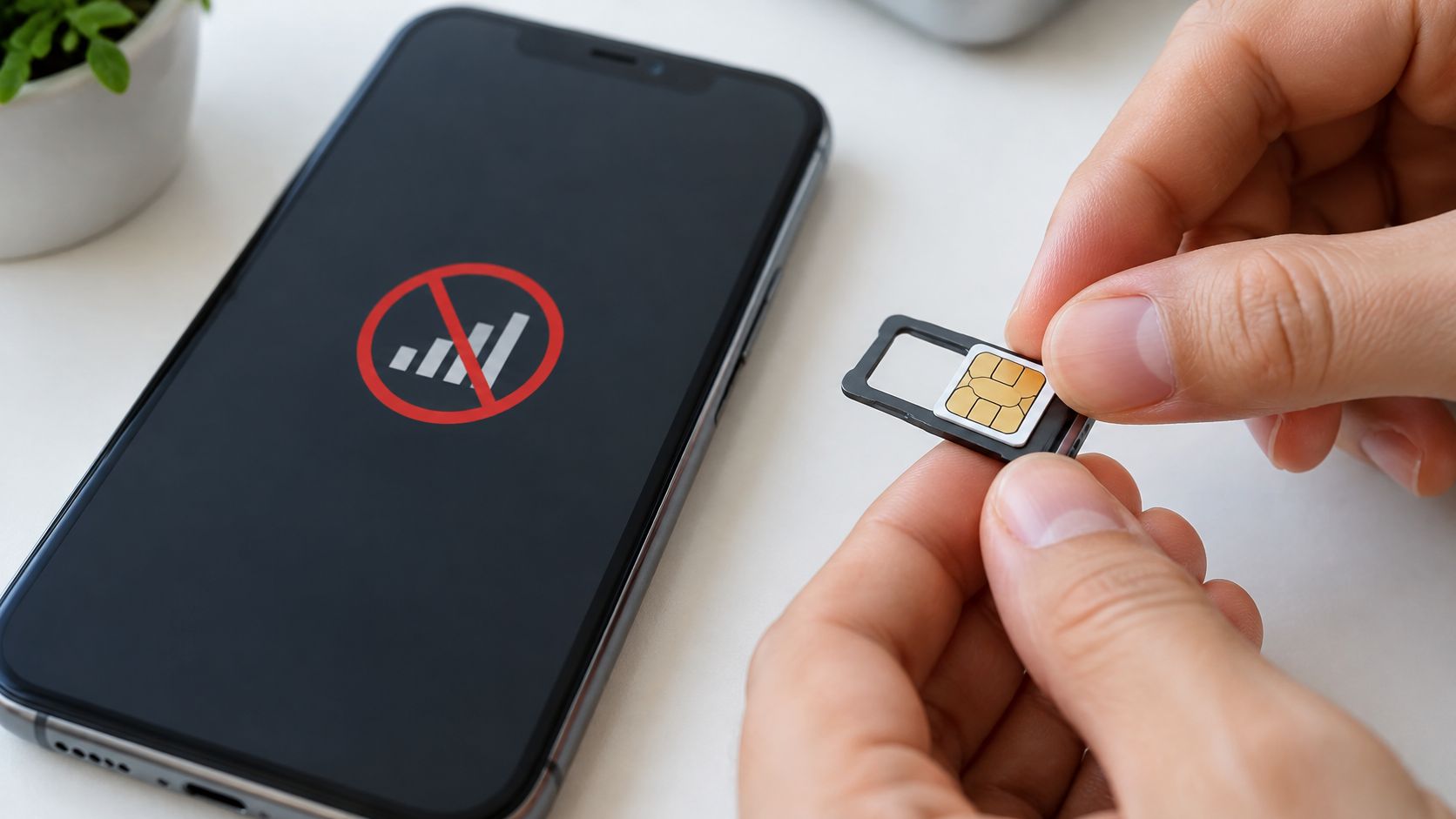
You’ve put your SIM back in, restarted the phone, and it still won’t make a call. A phone not recognising a SIM card needs a card-and-tray check first, but if it detects the SIM and shows no service, the account, network or handset compatibility needs checking instead. Test your SIM in another compatible phone before paying for a repair or replacement.
Where the Fault Usually Sits and How to Tell
No SIM or SIM not detected points towards a card-reading problem, so start with the card, tray and contacts. Emergency calls only or No service after detection points towards network registration, account status or compatibility, although the message alone isn’t a final diagnosis.
The short version
- Card not detected: Check seating, cleanliness and physical damage.
- Card detected, no connection: Check the account and network compatibility.
- Don’t buy parts yet: Cross-test the card and handset first.
Match the symptom to the first check
- No SIM or SIM not detected: A poorly seated card, dirty contacts or damaged tray is the first layer to investigate. Reseat and wipe the card, then test it in another phone.
- Emergency calls only after detection: The account may be inactive or the SIM may not be registering. Contact the provider using another phone or Wi-Fi.
- SIM works in one phone only: Investigate the suspect handset’s reader, tray or network lock. Try a known-working UK SIM in it.
- Calls, texts and data suddenly stop: Account deactivation, an outage or SIM-swap fraud needs ruling out. Contact the network straight away.
- Wi-Fi works but mobile data doesn’t: Check mobile-data settings, supported bands and network generation. If calls also fail, confirm the handset’s 4G Calling support.
- Liquid exposure and a damaged card or tray: Corrosion or reader damage is possible. Stop using the phone and arrange an inspection.
- No SIM after forcing the tray: Suspect misalignment or bent contacts. Stop inserting it and arrange a repair check.
Write down the exact message and whether your card works elsewhere. The distinction between older network capability and current service also matters, as Ofcom’s telecoms update explains; a network-generation problem isn’t the same as an unreadable card.
If your iPhone detects its SIM but cannot connect, our [iPhone no-signal guidance](https://usedmobiles4u.com/iphone-sos-no-signal/) helps narrow that separate fault.
How to Run the SIM Isolation Test – Quick Steps
You need a SIM ejector tool, a dry lint-free cloth and access to a compatible, unlocked handset. This controlled test is more useful than repeatedly restarting the same phone with the same card.
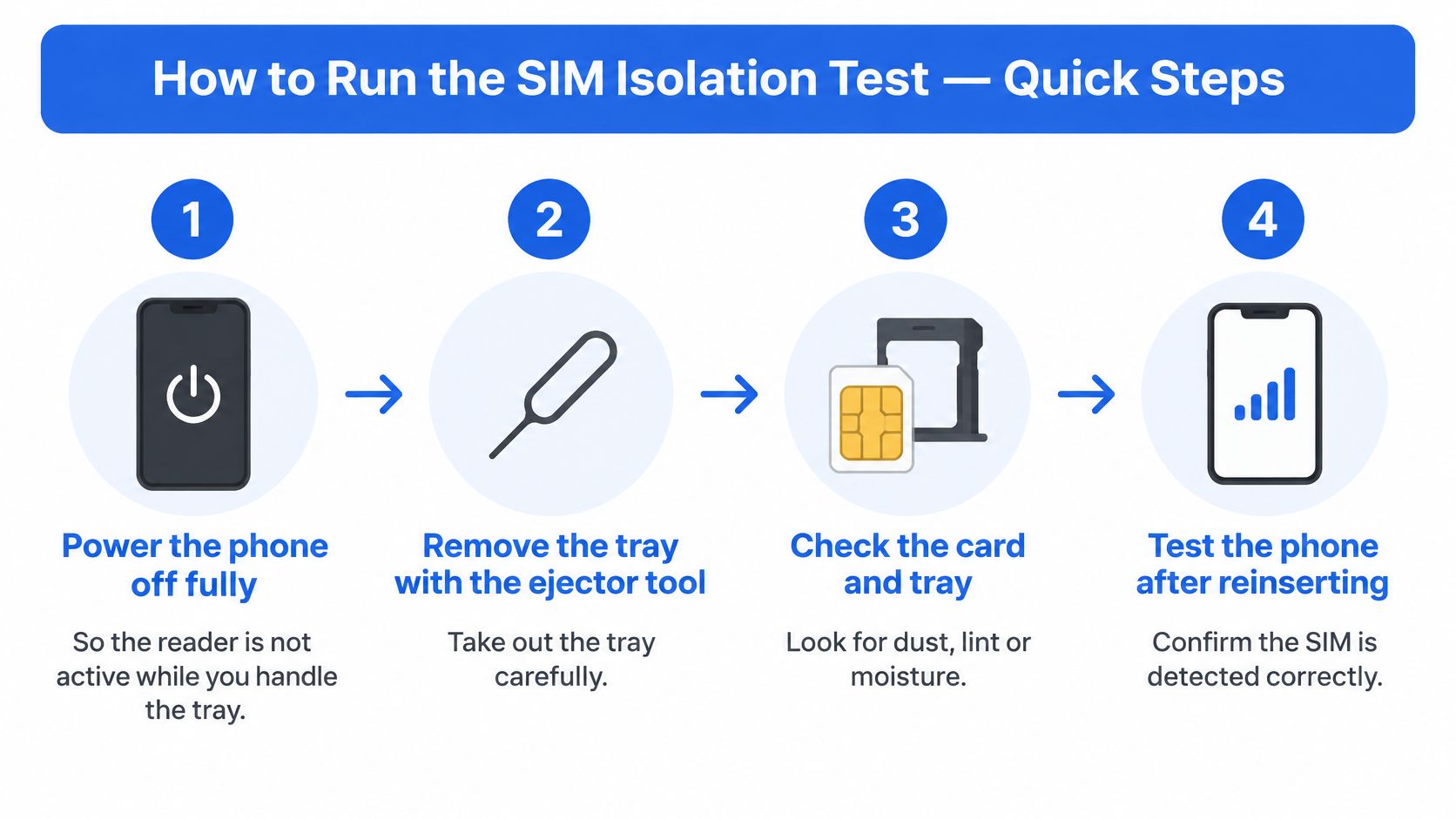
- Switch the phone off fully. Wait until it has shut down before handling the tray. Don’t just lock the screen.
- Remove the tray carefully. Use the proper ejector hole, not a nearby microphone opening. Check the card and tray under good light for lint, cracks, distortion or moisture.
- Wipe the SIM gently. Hold it by its edges and use a dry lint-free cloth across the contact surface. Don’t scrape it or put cleaning tools inside the reader.
- Reseat and restart. Match the SIM’s cut corner to the tray and make sure it lies flat. The tray should return flush without force.
- Try your SIM in the other handset. Confirm that handset is unlocked and compatible with your network. Successful detection and connection show the card and account can work, but don’t prove your original phone supports the same service.
- Try a known-working UK SIM in the suspect phone. Use a card you’ve just confirmed works elsewhere. If the suspect phone cannot detect that card either, the handset needs further investigation.
- Record both results. Note the message, automatic or manual network selection, and IMEI. Find the IMEI under Settings > General > About on iPhone, or Settings > About phone on Samsung, with Status information available on some versions.
What the result actually proves
[Ofcom’s mobile faults guide](https://www.ofcom.org.uk/phones-and-broadband/service-quality/mobile-faults-guide/) recommends wiping and reinserting the SIM and trying it in another unlocked device. The important part is testing in both directions, rather than treating a single successful test as the whole answer.
Bench rule: Use the ejector tool only to release the tray. Never poke metal tools into the reader or try to straighten internal contacts yourself.
Avoid liquids, abrasive cleaners and repeated tray forcing. Don’t factory-reset the handset before the cross-test, and back up your data before any later reset that could erase it.
A passed handset test means the known-working SIM is detected and registers on the network. If that happens but your original card still fails, concentrate on that card, its activation or its account rather than buying a reader repair.
Network Settings to Check Before Blaming the Card
Settings checks are most useful when the handset can see the SIM. They won’t straighten a bent tray or repair a broken contact, so don’t spend an afternoon changing menus if every card remains undetected.
- Network mode: On Samsung, open Settings > Connections > Mobile networks > Network mode and select an automatic option that includes LTE or 5G. On iPhone, look under Settings > Mobile Service > Mobile Data Options > Voice & Data; labels can also appear as Cellular or Cellular Data Options.
- 4G Calling: On Samsung, check Settings > Connections > Mobile networks for a VoLTE calls option. On iPhone, look within the selected line’s Voice & Data settings. A missing switch doesn’t automatically mean unsupported service, because some networks manage it automatically.
- Carrier information: Connect an iPhone to Wi-Fi and open Settings > General > About. Accept a carrier settings update if offered, and check that SIM and carrier details appear.
- Network reset, last: On iPhone, use Settings > General > Transfer or Reset iPhone > Reset > Reset Network Settings. On Samsung, use Settings > General management > Reset, then the relevant mobile-network reset option.
Know what a reset removes
Reset options differ by software version. An iPhone network reset removes saved Wi-Fi connections and passwords and can reset VPN settings; newer Samsung phones may separate mobile-network resets from Wi-Fi and Bluetooth resets. Read the confirmation screen, save connection details and back up first.
The service available depends on the handset, SIM and plan together, as [Ofcom’s Mobile Matters report](https://www.ofcom.org.uk/siteassets/resources/documents/research-and-data/telecoms-research/mobile-matters/2025/mobile-matters-2025.pdf?v=400314) explains. Changing a preferred network mode cannot add hardware or provider support that the phone lacks.
Finish by making a call, sending a text and testing mobile data with Wi-Fi switched off. If calling works but internet access doesn’t, use our [mobile-data troubleshooting guide](https://usedmobiles4u.com/phone-mobile-data-not-working/) rather than assuming the reader is faulty.
SIM Compatibility, 3G Switch-Off and eSIM Cases
Unlocked isn’t the same as compatible with every network feature. A working card in another handset proves less than buyers sometimes expect, particularly with imported Android variants, older phones and overseas roaming SIMs.
[Ofcom’s switch-off guidance](https://www.ofcom.org.uk/phones-and-broadband/coverage-and-speeds/3g-switch-off) explains that providers set their own shutdown timetables and contact affected customers. Check the exact model, not just the Galaxy family name or the presence of a SIM slot.
Compatibility cases and the right action
- 3G-only phone or SIM: The handset, card or both may need upgrading. [Ofcom’s device-supplier advice](https://www.ofcom.org.uk/phones-and-broadband/coverage-and-speeds/advice-for-iot-and-third-party-device-suppliers) specifically says a SIM that can work only on 3G needs upgrading before the relevant shutdown. A replacement SIM won’t turn a 3G-only phone into a 4G phone.
- Calls or data fail on a 4G handset with an older SIM: Check SIM provisioning and network compatibility. Failed calls can indicate missing VoLTE support, while failed data needs its own settings and coverage checks.
- Overseas SIM in an older phone: O2 began withdrawing 2G access for inbound roaming services from 1 October 2025, as [Ofcom’s roaming guidance](https://www.ofcom.org.uk/phones-and-broadband/coverage-and-speeds/advice-for-iot-and-third-party-device-suppliers?language=en) explains. Confirm 4G roaming support; consider a compatible handset or local SIM.
- eSIM activation fails: Confirm that the exact model supports eSIM, the plan permits it and the handset isn’t network-locked. Give the provider the EID and ask whether the activation profile has already been used or needs replacing.
- Wrong-size physical SIM: Ask your current provider for the correct size; most providers do this free of charge. Don’t force a cut-down card or loose adapter into the tray.
A network-compatible SIM and a handset capable of making calls on that network are separate requirements. Check both before spending money.
Our [explanation of SIM-free phones](https://usedmobiles4u.com/sim-free-phones-meaning/) covers the network-lock distinction. For a separate need, such as keeping work and personal numbers apart, BubblyPhone explains how to [add a second line without SIM](https://bubblyphone.com/blog/2-phone-numbers-on-one-cell-phone); that isn’t a repair for a failed reader or inactive mobile account.
Our Experience Refurbishing This Model at Used Mobiles 4U
There isn’t one specific model behind this fault. A Samsung Galaxy, another Android handset and an iPhone can display similar symptoms while needing different repairs, so we assess the individual device rather than assume the model name supplies the diagnosis.
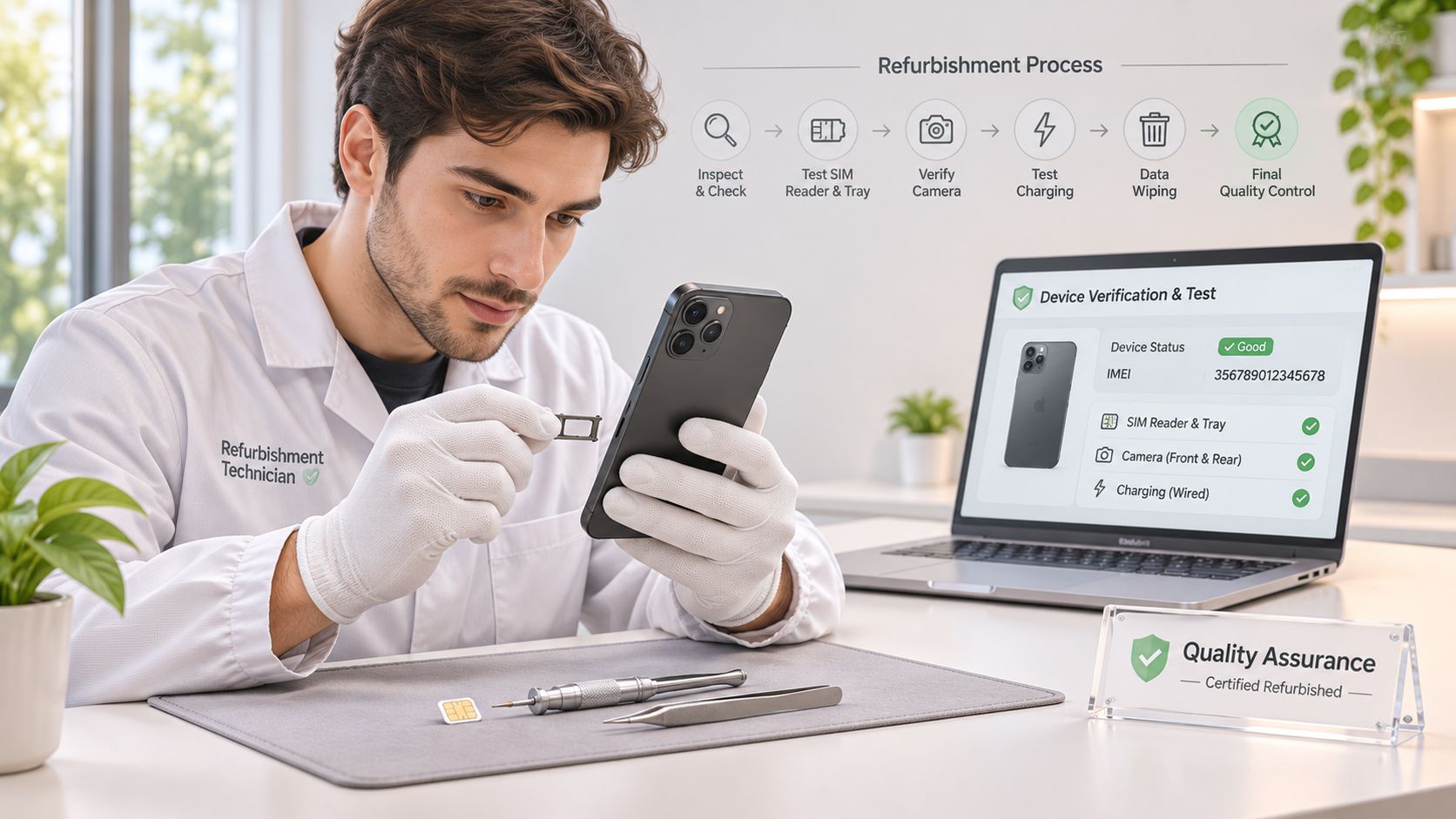
Every phone we prepare is professionally checked for performance, battery health and functionality. Our structured refurbishment process includes device-status checks, functional testing, secure data wiping, cosmetic grading and final quality control before listing.
What the bench assessment needs to establish
We can include IMEI and network-status verification in the initial status check. That matters because replacing a physical part won’t resolve an account restriction or a barred handset, and an apparently tidy phone still needs functional testing.
For a SIM fault, the practical inspection should establish whether the tray sits square, the card makes consistent contact and a known-working card is detected. Charging and camera checks also matter to the buying decision: repairing one fault offers poor value if other essential functions remain unreliable.
Buying advice: Cosmetic grading describes visible wear. It isn’t a substitute for a working SIM reader, charging port or camera.
Our grade labels describe appearance, not permission for functional faults. A lower cosmetic grade should mean accepting visible wear, not accepting a phone that drops its SIM connection.
What We Commonly See
These are useful fault patterns to check, not a diagnosis to apply without testing:
- Debris around the tray: Inspect for pocket or bag lint before considering replacement parts.
- A distorted tray or contacts: Look for evidence of a forced card or poorly fitting adapter. A tray replacement and an internal connector repair are different jobs.
- Only one slot working: On a dual-SIM model, test each supported slot separately and check whether the line is enabled.
- A provider restriction: Separate a network lock from a card that physically cannot be read.
- An old or inactive SIM: Confirm the card’s current service before blaming the handset.
A realistic repair decision
Say you buy a used Android phone and it displays No SIM during setup. Your card works in a family member’s handset, but that doesn’t yet justify returning the phone or ordering a reader: the next useful test is another working card in the suspect handset.
If both cards fail and the tray sits crooked, a technician should inspect the seating before quoting for internal work. If the tray is sound, the investigation moves towards the reader, its connection or software, without pretending those faults all have the same repair cost.
We check battery health alongside functionality because a successful SIM repair doesn’t make a tired battery better. Heavy frame wear, damaged ports and poor battery performance all affect whether keeping the handset makes sense compared with another tested phone.
Devices that don’t meet our functional, battery or condition standards may be repaired and retested or removed from sale. That’s the distinction buyers should care about: not simply whether someone has fitted a replacement part, but whether the complete handset passes afterwards.
Repair or Replace Once You Know the Cause
Repair a sound handset with an isolated, economical fault. Replace an obsolete or heavily damaged one. If the provider identifies an account or SIM problem, resolve that before buying another phone, because replacement hardware may change nothing.
Choose a repair if
- The fault is clearly identified: A technician can distinguish a damaged tray from reader or board-level damage.
- The rest of the phone tests well: Battery, charging, display and cameras still justify keeping it.
- The quote makes sense: Compare the complete repair cost and warranty position with a suitable tested replacement.
Choose a replacement if
- Network support is missing: Avoid spending on a handset that cannot provide the calling service your provider requires.
- Several faults need attention: Reader damage alongside liquid damage, a poor battery or a damaged frame can make repair poor value.
- You need dependable everyday use: Don’t keep paying for temporary fixes to an unreliable handset.
Our [repair-versus-refurbished cost guide](https://usedmobiles4u.com/iphone-repairs-v-refurbished-iphones-the-costs-explained/) helps frame that comparison. A cheap quote isn’t automatically good value if it leaves the original cause unresolved.
Every phone we sell is tested, SIM-free and has a minimum 85% battery health. For a phone not recognising a SIM card, the sensible verdict is to identify the faulty layer first, then pay only for the solution that addresses it.
Written by James Waterston, 24 years in the mobile phone industry from customer service through to Sales Director of a global repair and recycling company. Now running Used Mobiles 4U for over 8 years. [Connect with James on LinkedIn](https://uk.linkedin.com/in/james-waterston-9039a21a).
Used Mobiles 4 U offers professionally tested, SIM-free refurbished phones with clear grading and UK support. If testing shows your handset needs replacing, visit Used Mobiles 4 U to compare a suitable replacement and check its SIM requirements before buying.
Looking for a refurbished phone?
Shop professionally tested refurbished iPhones and Samsung phones with 18 month warranty, 30 day returns and free UK delivery.
Browse Refurbished Phones