


Forgot Your iPhone Passcode? Recovery and Data Risks

13/11/2026

7 Mins

If you’ve forgotten your iPhone code, Apple’s standard recovery methods erase the device before you can use it again. The exception is Passcode Reset on iOS 17 or later, which can preserve your data after a recent passcode change.
We recommend checking that exception and your existing backups before erasing anything. Start with the least destructive option, because recovering access and recovering your saved data are separate problems.
The Short Version
- If you changed your passcode within 72 hours, try your previous passcode through Passcode Reset first.
- Otherwise, erase from the lock screen if your iPhone meets Apple’s requirements. This deletes its data and settings.
- If the lock-screen option isn’t available, restore using a Mac or Windows PC. This also erases the phone.
Your screen passcode and Apple Account password are different credentials. Knowing your account password helps with erasure and activation, but it doesn’t reveal the forgotten passcode.
What Can Be Saved Before an Erase
Backups and iCloud syncing protect different things
With an existing iCloud or computer backup, you can restore from backup after erasure, subject to its date and contents. Anything saved after that backup may be missing.
Meanwhile, information already synced with iCloud can return when you sign into the same Apple Account. For example, photos stored through iCloud Photos return through syncing rather than the device backup.
We recommend looking at your existing cloud content from another signed-in device before proceeding. Seeing some photos there doesn’t prove every photo on the locked phone has uploaded.
When there’s no backup
Outside the recent-passcode exception, a forgotten iPhone passcode reset removes locally stored content. If a photo, recording or file exists only on the locked iPhone, erasing it means losing that copy.
A locked phone may prevent you from making a fresh backup because you can’t unlock it or approve a computer connection. Don’t assume plugging it into a familiar computer will save everything.
A restore can make the iPhone usable again, but it cannot recreate files that were never backed up or synced.
If those files are irreplaceable, pause before authorising an erase.
Try the 72-Hour Passcode Reset First
Who qualifies for this option
Apple’s 72-hour Passcode Reset applies on iOS 17 or later when you recently changed your passcode. You must remember the previous code and act within 72 hours of changing it.
This route lets you set another passcode without erasing your content. It won’t help if you’ve forgotten a code you’ve used for months. It also won’t work if you previously chose to expire the old passcode immediately.
Enter the previous passcode
After five incorrect attempts, the unavailable screen offers Forgot Passcode? when the feature is available. Wait for any displayed timer, then tap Forgot Passcode? > Enter Previous Passcode.
Enter the old code and follow the prompts to create a new one. The previous code provides this recovery opportunity once.
We’d try this before any erase option. However, don’t keep guessing unrelated codes, because further failures can extend the lockout.
How to Erase a Locked iPhone: Quick Steps
To reset iPhone using this route, confirm that your device meets the requirements for the lock-screen erase procedure: iOS 15.2 or later, Find My already enabled, an active Wi-Fi or mobile connection, and your Apple Account password. Erasing deletes all data and settings, so establish what you can recover first.
For an eSIM on iOS 16 or earlier, contact your network provider for a replacement setup QR code before starting.
- After several failed passcode attempts, wait for the iPhone Unavailable, Device Unavailable or Security Lockout screen.
- Tap Forgot Passcode? on iOS 17 or later. On iOS 15.2 and iOS 16, the option is labelled Erase iPhone or Erase Device.
- Choose Start iPhone Reset, or the equivalent Start Reset prompt shown.
- Enter your Apple Account password to authorise the reset.
- Tap Erase iPhone and allow the process to finish.
- Set up the phone again, create a new passcode and restore an available backup.
On iOS 17 or later, you can choose whether to keep or delete the eSIM. Keeping it is generally the practical choice when you’re retaining the phone and mobile service.
If Forgot Passcode? doesn’t appear, the required connection or Find My setting may be missing. Older software can also explain its absence. Move to computer recovery rather than repeatedly guessing the code.
Restore With a Mac or Windows PC
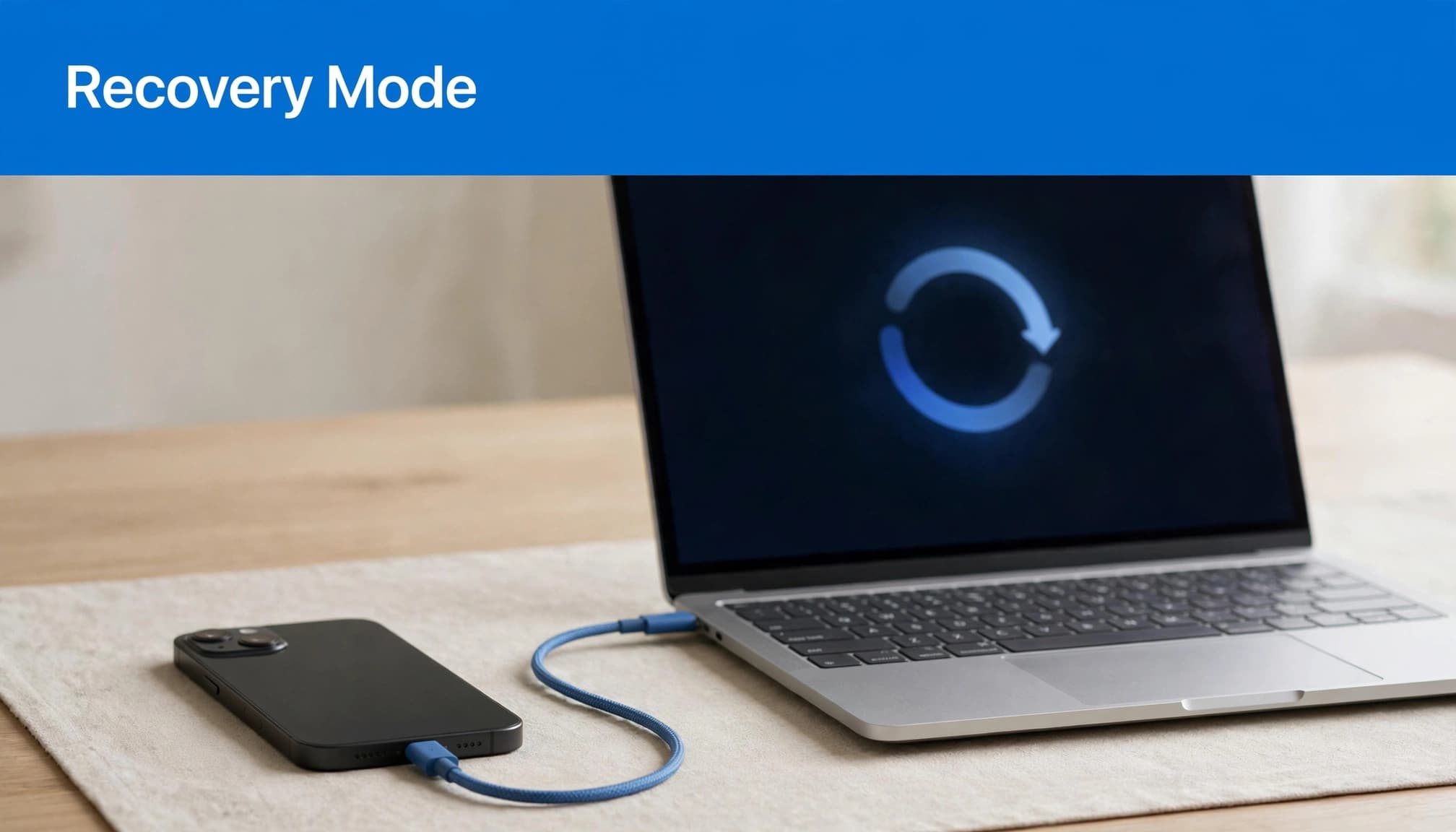
You’ll need a Mac or Windows PC, a suitable charging cable, internet access and up to 60 minutes. Apple’s computer recovery instructions provide the restore route when lock-screen erasure isn’t available.
This method doesn’t require Find My to be enabled or the iPhone itself to be online.
- Turn off the iPhone. Connect the cable to the computer, but leave the phone disconnected initially.
- Connect the iPhone whilst holding its recovery button. Use the side button for Face ID iPhones and glass-backed Home-button iPhones; Volume down for metal-backed iPhones with a touch-sensitive Home button; Home for older iPhones with a mechanically clicking Home button.
- Keep holding past the Apple logo until the computer-and-cable image appears.
- Open Finder on a Mac, or Apple Devices on Windows. Older supported setups use iTunes. Select the iPhone and choose Restore, rather than Update.
- Let the software download and restore finish. If downloading takes over 15 minutes and recovery mode closes, finish the download, then repeat the recovery-mode connection.
- When the Hello screen appears, disconnect the iPhone and set it up again. Restore your backup when prompted.
Restore removes the forgotten passcode by erasing the device. Update alone doesn’t remove it.
If the buttons don’t respond, Apple says the phone may need service. Also distinguish a forgotten code from an unresponsive iPhone touchscreen: a display fault can stop you entering a code you still know. We wouldn’t erase valuable data before considering that difference.
Apple Account Problems and Activation Lock
If the account password is missing
Without the Apple Account password, you can’t complete Apple’s lock-screen erase flow. We recommend recovering the account before erasing, because you may need it again during setup.
Use another trusted, signed-in Apple device to reset the password where possible. Otherwise, Apple’s account recovery process provides a route when normal password-reset options aren’t available.
Computer recovery can erase a locked iPhone without entering that password first. However, it doesn’t remove Activation Lock, so erasure may leave you at another ownership prompt.
If it asks for the previous owner’s account
A setup screen requesting someone else’s Apple Account means the ownership handover isn’t complete. The previous owner must remove the device from their account properly.
Don’t buy a locked handset on a promise that the password will follow later. If you’ve already bought it, ask the seller to resolve the lock or arrange a return.
A Hello screen alone isn’t proof that Activation Lock has been removed. The ownership check can appear after the phone connects during setup.
What We Check Before Resale
We treat secure data wiping and successful activation as separate requirements. Our preparation also includes functional testing, because a loose charging port or unreliable Wi-Fi can interrupt recovery and setup.
Before paying for a repair, separate the actual fault from the forgotten code. A battery replacement or new screen won’t recover a passcode. However, repairing a faulty touchscreen may help when you already know the correct code.
We wouldn’t replace an otherwise working iPhone solely because you’ve forgotten its passcode. Restore access first, then assess its battery, charging and other faults separately.
If you later decide to sell, follow the proper data-wiping steps before trade-in. Remove your account through the authorised process, and confirm your replacement has the data you need before erasing the old phone.
Frequently Asked Questions
What happens after ten incorrect passcode attempts?
The iPhone can erase itself after ten consecutive incorrect attempts if Erase Data is enabled. That setting is off by default, so ten failures don’t automatically wipe every iPhone.
Apple’s passcode settings guidance explains this protection. Other failed attempts cause lockouts and waiting periods, which is another reason to stop random guessing.
Will an iCloud backup bring back photos and apps?
It can restore backed-up data and settings, whilst apps generally download again. Photos synced through iCloud Photos return separately after you sign into the same account.
However, a backup can’t contain changes made after it was created. Some apps also have their own recovery requirements, so don’t assume every chat or authenticator entry will return automatically.
Can Apple or a repair shop recover the forgotten code?
There isn’t a standard Apple service that retrieves your existing passcode. Outside the eligible previous-passcode option, the supported recovery routes erase the device.
We’d avoid services promising guaranteed access to all your locked data. A repairer’s ability to fix hardware doesn’t give them your encryption credentials.
Choose the Route That Preserves the Most Data
Try the recent-passcode option first, then check what your backups and cloud syncing can recover. Try lock-screen erasure next, followed by computer recovery if needed.
The main risk is unrecoverable local data, not damage to the iPhone. Once you regain access, create a fresh backup before transferring data, selling the phone or arranging repairs.
If your aim is to unlock iPhone access, recovery is usually the next step. A forgotten passcode alone doesn’t mean the handset needs replacing.
Looking for a refurbished phone?
Shop professionally tested refurbished iPhones and Samsung phones with 18 month warranty, 30 day returns and free UK delivery.
Browse Refurbished Phones