





How Long Do MacBooks Last: A Realistic UK Guide

15/10/2026

10 Mins

A well-kept MacBook usually lasts 7 to 10 years in total, but only about the first 5 to 7 years usually include current macOS and security support. After that, it can still work for lighter tasks, but it's no longer the kind of machine I'd trust for everyday banking, client data, or anything sensitive.
If you’re staring at a used MacBook listing and wondering if it’s a sensible buy, the answer isn’t really about age on its own. It comes down to three separate lifespans, hardware, software support, and security support, and they don’t all end at the same time.
How Long MacBooks Actually Last in Real Use
A MacBook doesn’t die the day Apple stops updating it. In workshop terms, a well-kept machine can keep doing useful work for years after that, but the job it’s safe for changes.
Quick view for buyers
- Physical life: Often stretches to around 7 to 10 years if the chassis, battery, keyboard and storage stay healthy.
- Software support life: Usually the first 5 to 7 years, when macOS compatibility is still current enough for normal use.
- Security support life: The point where an older Mac still boots, but no longer feels right for sensitive work.
That’s the framework I’d use when judging any second-hand MacBook. A laptop can still open Chrome, Word and Mail while quietly falling behind on security and app support, and that gap matters more than most sellers admit.
For a broader repair perspective, the same logic applies to any ageing laptop, including advice from Houston Mac repair specialists who break lifespan down into condition, support and repairability rather than just age.
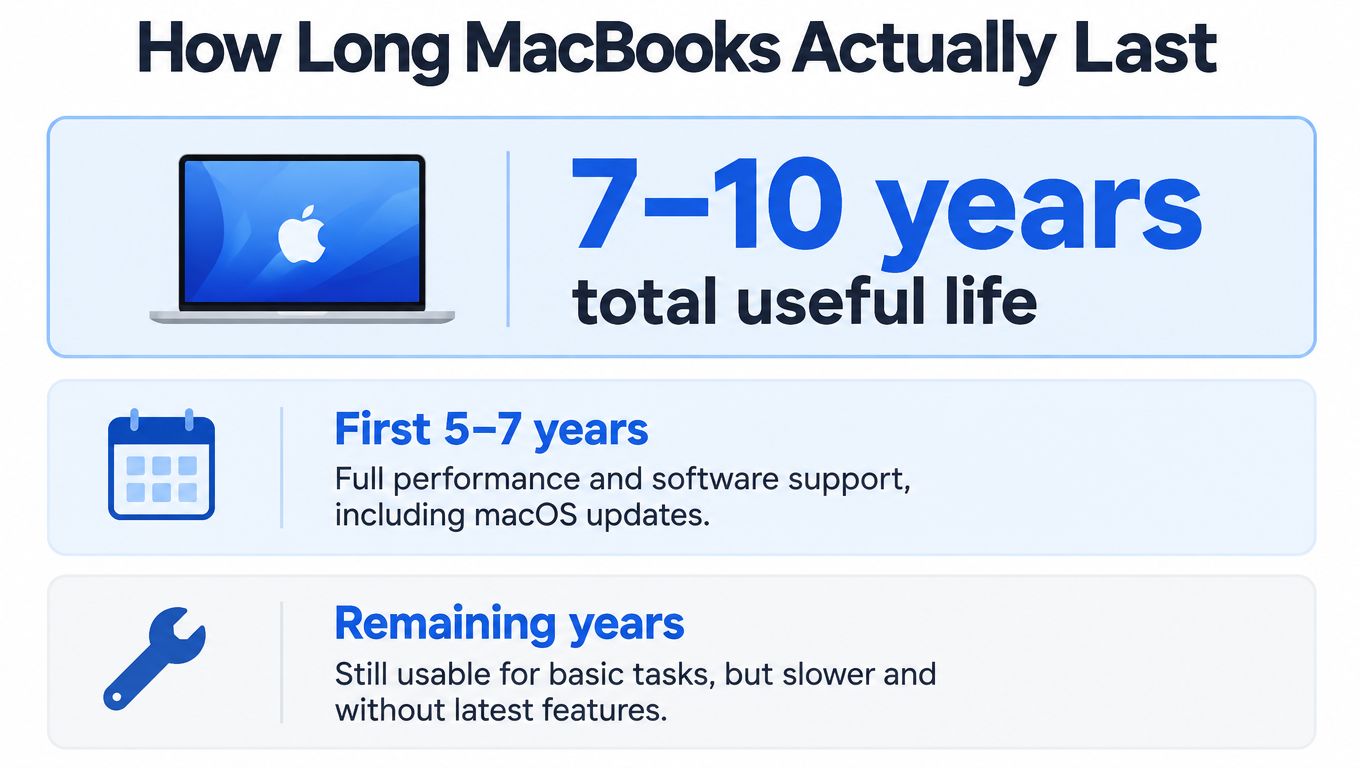
In plain English, the machine is not “finished” when macOS updates stop, but it is moving out of the safe zone for primary use. If you only need a browsing laptop for home or schoolwork, that can still be fine. If it’s your main work machine, especially for accounts or customer records, the bar is higher.
Practical rule: treat a MacBook as three different products at once, a piece of hardware, a supported operating system, and a security-sensitive device.
Apple’s Support Window and What It Means for Buyers
Apple’s repair policy gives you the clearest official milestone. Mac products can generally receive service and replacement parts for at least **5 years** after Apple stops distributing the model for sale, with some Macs supported for up to **7 years**, and Mac laptops may qualify for battery-only repair for up to **10 years** if parts are still available ([Apple support](https://support.apple.com/en-gb/102772)).
That matters because a used MacBook’s value is tied to whether it can still be repaired sensibly, not just whether it turns on. A three-year-old MacBook is usually still in the comfortable part of its life, a six-year-old one needs closer inspection, and a nine-year-old model is drifting into “fine for light use, awkward for anything serious” territory.
What age means in the real world
A newer MacBook usually has the advantage on support, battery life and app compatibility. By contrast, an older Intel model may still look clean and feel fast enough for a while, but that can hide a shorter remaining runway for updates and repairs.
The big turning point is Apple silicon, which began with the M1 generation in 2020. Current UK compatibility information shows macOS 27 supports MacBook Air and MacBook Pro models with Apple silicon from 2020 onwards ([Apple macOS compatibility](https://www.apple.com/uk/os/macos/)). Intel models need checking one by one rather than being assumed to carry on indefinitely.
That’s why I never price a MacBook like a generic laptop. Model year matters, but processor generation, battery condition and whether the machine is still in the latest supported group matter more. A tidy old listing can still be poor value if the support window is almost done.
Battery Cycles and Why They Matter More Than the Model Year
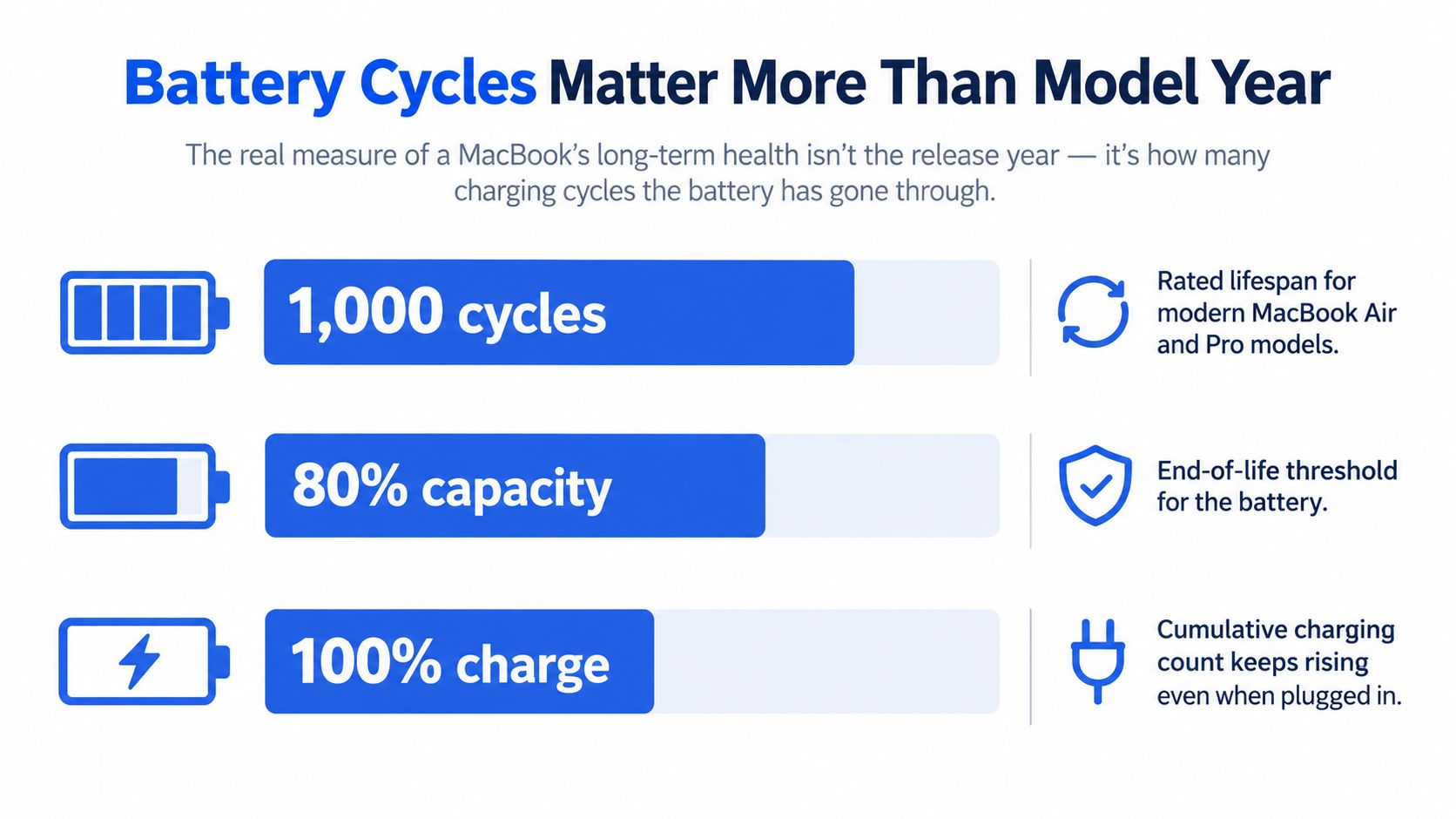
The battery is usually what ends a MacBook’s comfortable life first. Apple says Mac laptop batteries are designed to retain up to **80%** of their original full-charge capacity at the model’s maximum cycle count, and many modern MacBook Air and Pro models are rated for **1,000 cycles** ([Apple battery guidance](https://support.apple.com/en-gb/102888)).
A cycle isn’t just one plug-in. It’s cumulative. If you use 50% one day and 50% the next, that’s one cycle, so a light user can keep a battery healthy for much longer than someone who drains it hard every day.
How to judge the battery properly
On a used MacBook, I’d always check the cycle count and maximum capacity before I’d look at the seller’s description. A model year alone tells you almost nothing about whether it will still hold charge properly.
Here’s the simple way to check it in macOS:
- Open Apple menu, then choose About This Mac.
- Click System Report or More Info, depending on the version.
- Go to Hardware and then Power.
- Read the Cycle Count and Condition.
- Look for a warning such as Service Recommended.
A rough real-world guide helps. At one full cycle every two days, **1,000 cycles** is about **5.5 years**. At one cycle per working day, it’s closer to four years. That’s why a heavily used office Mac can feel tired well before the chassis looks old.
A low cycle count, stable charging and no battery warning tell you more about remaining life than the year on the box ever will.
If you’re comparing a MacBook with a refurbished phone, the same thinking applies. Battery health is a device-level fact, not a marketing label, and you can check our guide on how battery health numbers affect daily use for the same kind of practical approach.
Software Support and the Real Security Risk
This is where people get caught out. A MacBook can still boot, still open apps and still feel “fine” long after Apple stops supporting it, but that doesn’t mean it’s a good choice for sensitive work.
Functional life and supported life are different things. A machine that still handles web browsing and streaming can become a poor choice for banking, business admin or personal data once it falls off the current security list.
What to check before you buy
Apple’s current compatibility list is the fastest way to rule a device in or out. If you’re looking at an Apple-silicon MacBook Air or MacBook Pro from 2020 onwards, that’s the safest direction for future support. Intel models need model-by-model checking because they don’t all age the same way ([Apple macOS support](https://support.apple.com/en-gb/100100)).
Before you commit, check four things. The model identifier, the latest supported macOS version, the battery cycle count, and whether the apps you actually need still support that macOS release. If any of those are weak, a cheap price can turn into an expensive mistake.
A common example we see is a buyer choosing an older MacBook because it still feels quick enough in the shop, then discovering their banking app, design software or admin tools no longer like the installed macOS. That’s not a hardware failure, but it still makes the laptop a bad buy.
For a wider look at update support and why it changes buying decisions, our refurbished phone update guide at Used Mobiles 4 U’s iPhone update support page covers the same basic decision logic in a mobile context.
If the machine can’t stay current enough for the apps you rely on, it may still be usable, but it’s no longer the right primary laptop.
Maintenance Habits That Add Years to a MacBook
Most MacBooks don’t fail from one dramatic event. They wear down through heat, bad charging habits and neglect. The good news is that the habits that help are boring, cheap and easy to repeat.
What actually helps
- Keep airflow clear: Don’t use a MacBook on a bed, sofa or cushion for long periods. Heat is one of the quickest ways to shorten battery and component life.
- Stop the hot-bag habit: Don’t shove a warm laptop into a soft bag and forget it. Trapped heat is rough on the battery and the internals.
- Charge with intent: Leaving it plugged in at high charge for weeks isn’t ideal for everyday battery health.
- Update macOS when supported: Ignoring updates for years is a bad trade, especially on a machine you still use for accounts or online access.
- Back up before repair: If something starts acting odd, save your files before you hand it over.
I also tell customers to use the built-in battery tools rather than guessing. Check battery status in macOS, look for warnings early, and don’t wait until the machine is barely lasting a commute.
For the first 30 days with a new-to-you MacBook, keep the routine simple. Test the charger, speakers, keyboard, trackpad, webcam and ports. Watch how quickly the battery drops during normal use. If it runs hot doing nothing much, that’s a warning, not a quirk.
One thing we regularly notice is that careful storage matters as much as charging. A clean, cool machine with sensible daily habits will usually age better than a dusty one that gets abused but has a lower cycle count on paper.
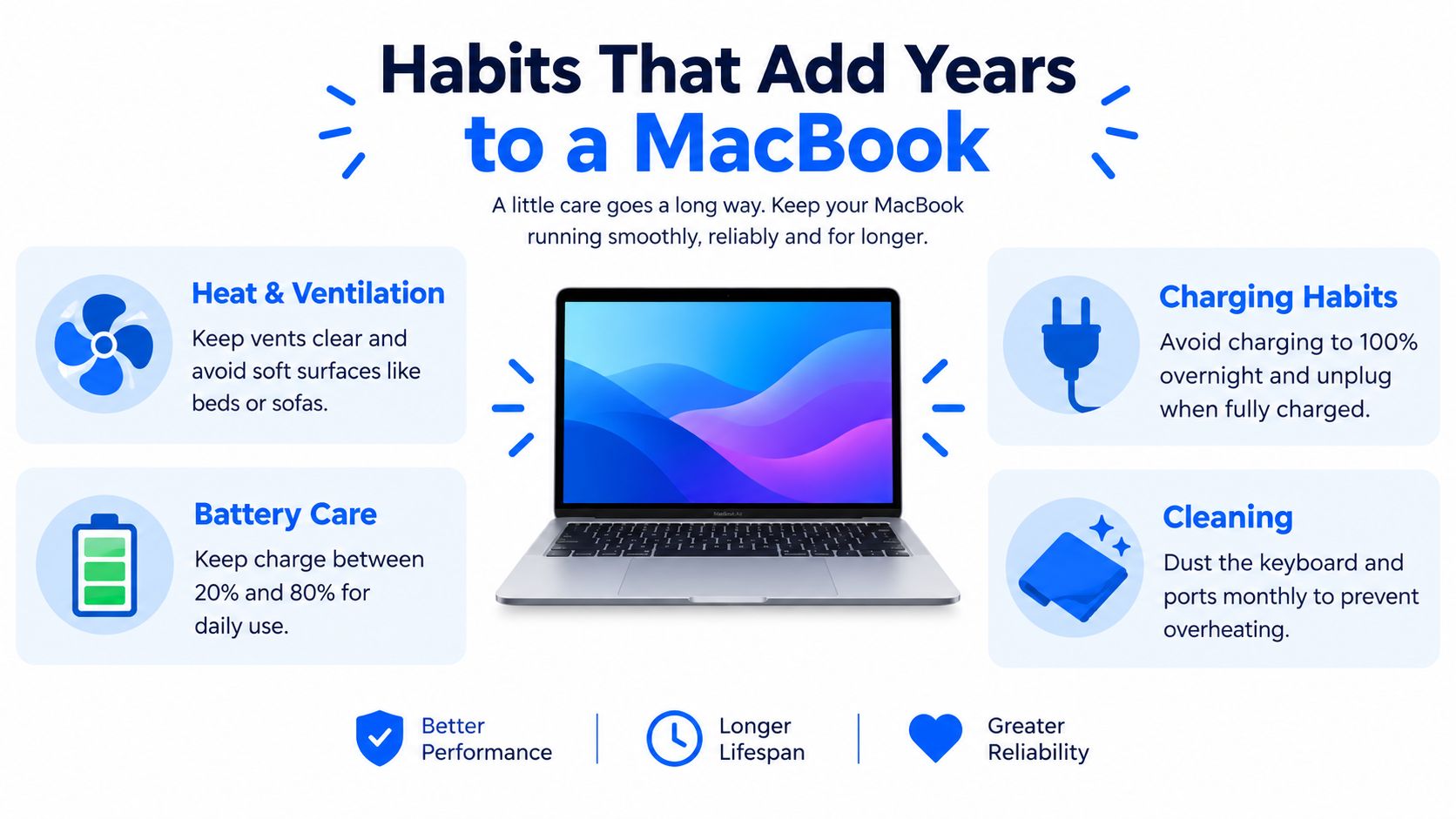
Good battery habits don’t make an old MacBook new again, but they do slow down the decline you can feel every day.
Our Experience Refurbishing MacBooks at Used Mobiles 4U
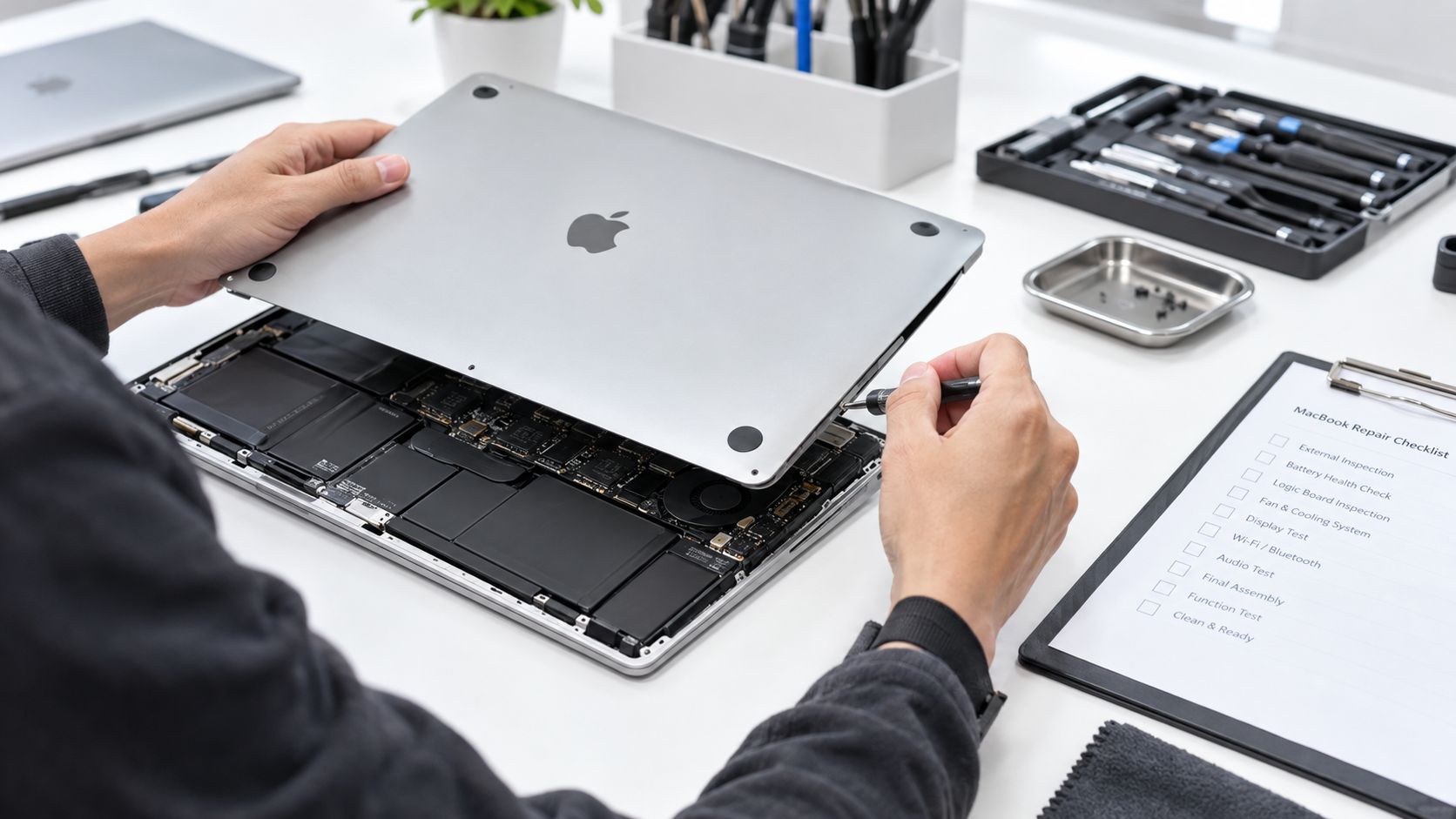
A proper refurbishment starts with testing, not cleaning. Our technicians work through a structured 50-step process, then separate a machine into three outcomes, keep it, grade it down, or repair what can be repaired before sale.
What turns up most often
Battery wear is the obvious one, but it’s rarely the only issue. On older Intel-era Airs, we often see tired batteries, worn keyboards, hinge wear and the occasional SSD or liquid-damage sign that wasn’t mentioned in the listing.
We also see the difference between cosmetic grades very clearly on unibody chassis models. Some machines look clean from a distance but show shine on the palm rest, scuffs around the corners or lid wear that tells a very different story once you handle them properly.
One thing we regularly notice is that a MacBook can look “nearly new” in photos and still fail a hands-on test on the battery, keyboard or ports.
That’s where repair versus replace comes in. A battery swap is often sensible if the rest of the machine is solid. If you’re looking at hinge issues, liquid indicators, keyboard faults and a tired battery all at once, the economics change quickly.
Compared with a similar refurbished Windows laptop at the same price, a MacBook often wins on resale strength and build consistency, but only if the model is still in a sensible support window. If it’s too old, the Mac advantage shrinks fast.
Read more about our standards in our refurbishment process. A properly tested unit should arrive clean, charged, accurately graded and ready for real use, not just turned on for a quick photo.
UK Consumer Rights, Warranty and What to Check Before You Buy
Buying refurbished in the UK gives you legal protection that a private sale doesn’t. GOV.UK says faulty goods must be repaired or replaced, and within the first **6 months** the seller generally has to provide a repair or replacement unless it can prove the fault wasn’t there when you bought it ([GOV.UK consumer rights](https://www.gov.uk/accepting-returns-and-giving-refunds)).
The Consumer Rights Act also gives you a **30-day** short-term right to reject faulty goods for a refund, and that legal right sits alongside any warranty rather than being replaced by it ([UK Government guidance](https://www.gov.uk/government/news/biggest-overhaul-of-consumer-rights-in-a-generation)).
What a decent seller should tell you
- Battery health: Not just “good condition”, but real battery information where available.
- Cosmetic grade: Clear grading so you know whether you’re buying tidy, used or heavily marked.
- Cycle count: Useful on MacBooks, because it tells you more than a sales description.
- Known repair history: Especially if the keyboard, battery or screen has already been changed.
- What the warranty covers: You need to know whether it covers the device, the battery, or both.
That’s why a written warranty matters, but it doesn’t override your statutory rights. It should sit on top of them, not instead of them. If a listing is vague about battery condition or repair history, I’d treat that as a warning sign rather than a small omission.
For buyers comparing cover across refurbished devices, our warranty information page is a useful benchmark for what a proper seller should make clear before you pay.
When to Keep, Repair or Replace Your MacBook
If your MacBook is **4 to 6 years old** and still getting the support it needs, I’d usually keep it and plan for a battery later rather than rushing into a replacement. If it’s a **6 to 8-year-old** machine, the decision gets tighter, and you should weigh battery cost, storage health and compatibility against a newer refurbished Apple-silicon model.
Once you get into very old bargain territory, the safer move is often to spend a bit more on a supported model. A machine that looks cheap on day one can be expensive once you factor in a battery, possible keyboard work and the fact that it may already be outside the security window.
For anyone comparing repair costs against replacement, a practical outside view can help. This guide on how to decide laptop repair vs replacement is a useful framework, even if you’re not trying to rescue the exact same machine.
Keep it if: it still runs the latest supported macOS for your model, the battery is healthy enough for your day, and the ports, keyboard and screen are all fine.
Repair it if: the only real problem is the battery, or one obvious fault on an otherwise solid MacBook.
Replace it if: support is ending, the battery is tired, and you rely on it for work or anything sensitive.
If you’re buying or replacing, a refurbished MacBook can be a sensible middle ground. Just make sure the model, battery state, warranty and software support all line up before you spend.
If you want a tested, clearly graded MacBook rather than guessing from photos, Used Mobiles 4 U lists refurbished devices with battery and condition checks, UK support and warranty cover. Take a look at [Used Mobiles 4 U](https://usedmobiles4u.com) if you want a practical replacement, or if you’d like help judging whether your current MacBook is worth keeping, repairing or swapping now.
Written by James Waterston, 24 years in the mobile phone industry from customer service through to Sales Director of a global repair and recycling company. Now running Used Mobiles 4 U for over 8 years. LinkedIn
Meta description: How long do MacBooks last? A UK guide to battery health, macOS support, security risk, repairs, warranty and when to keep or replace.
Looking for a refurbished phone?
Shop professionally tested refurbished iPhones and Samsung phones with 18 month warranty, 30 day returns and free UK delivery.
Browse Refurbished Phones



