





How to Check MacBook Battery Health the Right Way

12/10/2026

10 Mins
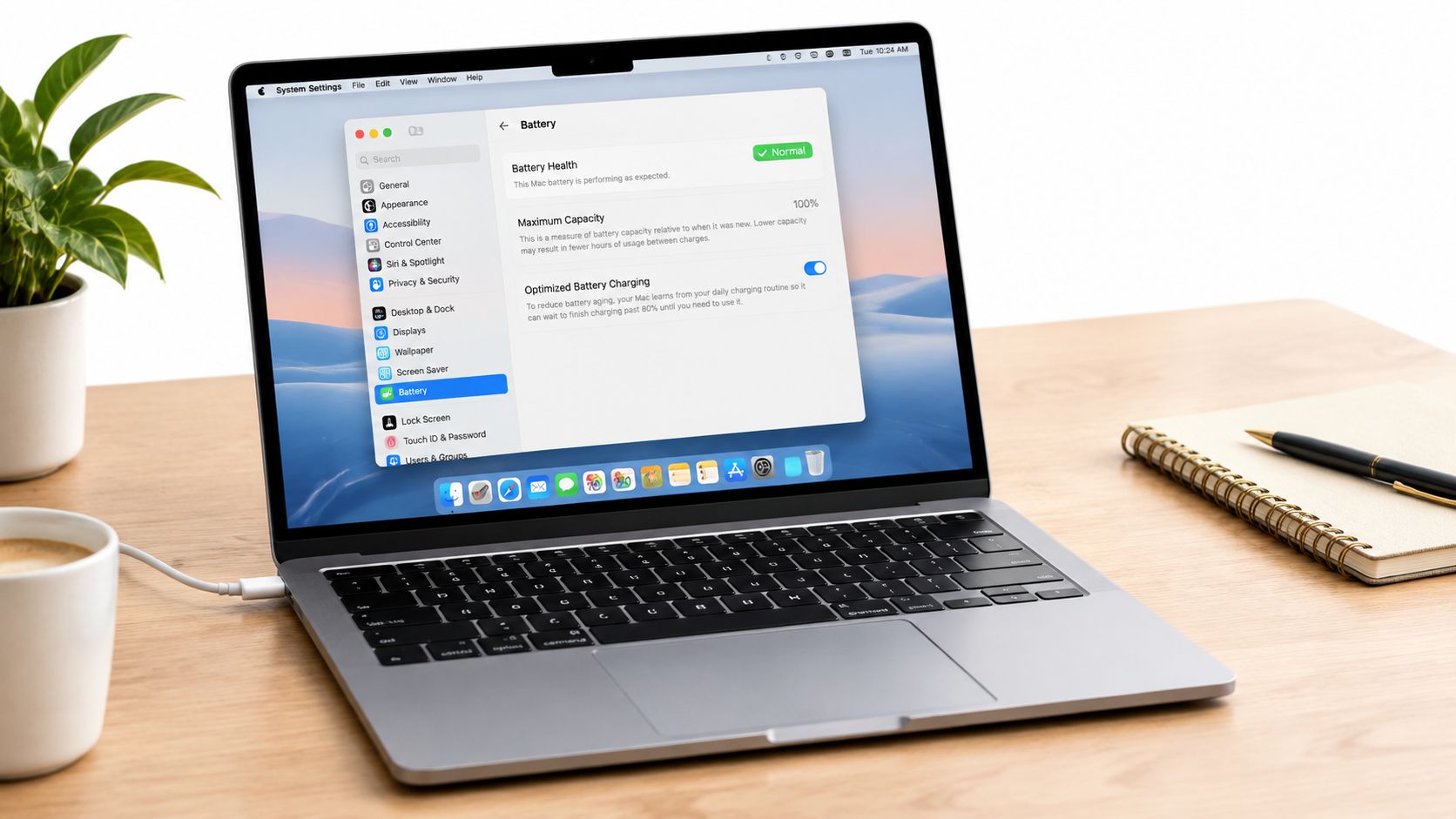
You've probably got a MacBook in front of you right now and you're trying to work out if the battery is still decent or on its way out. Check it the right way and you'll know whether you can live with it, need a repair quote, or should walk away from the purchase.
Quick Answer
- Start in System Settings, then Battery, then Battery Health.
- “Normal” means macOS hasn’t flagged a fault, not that the battery is like new.
- Check Cycle Count in System Information for the real usage picture.
That’s the fastest reliable way to check MacBook battery health. If the label says Service Recommended, treat it as a warning, not a death sentence.
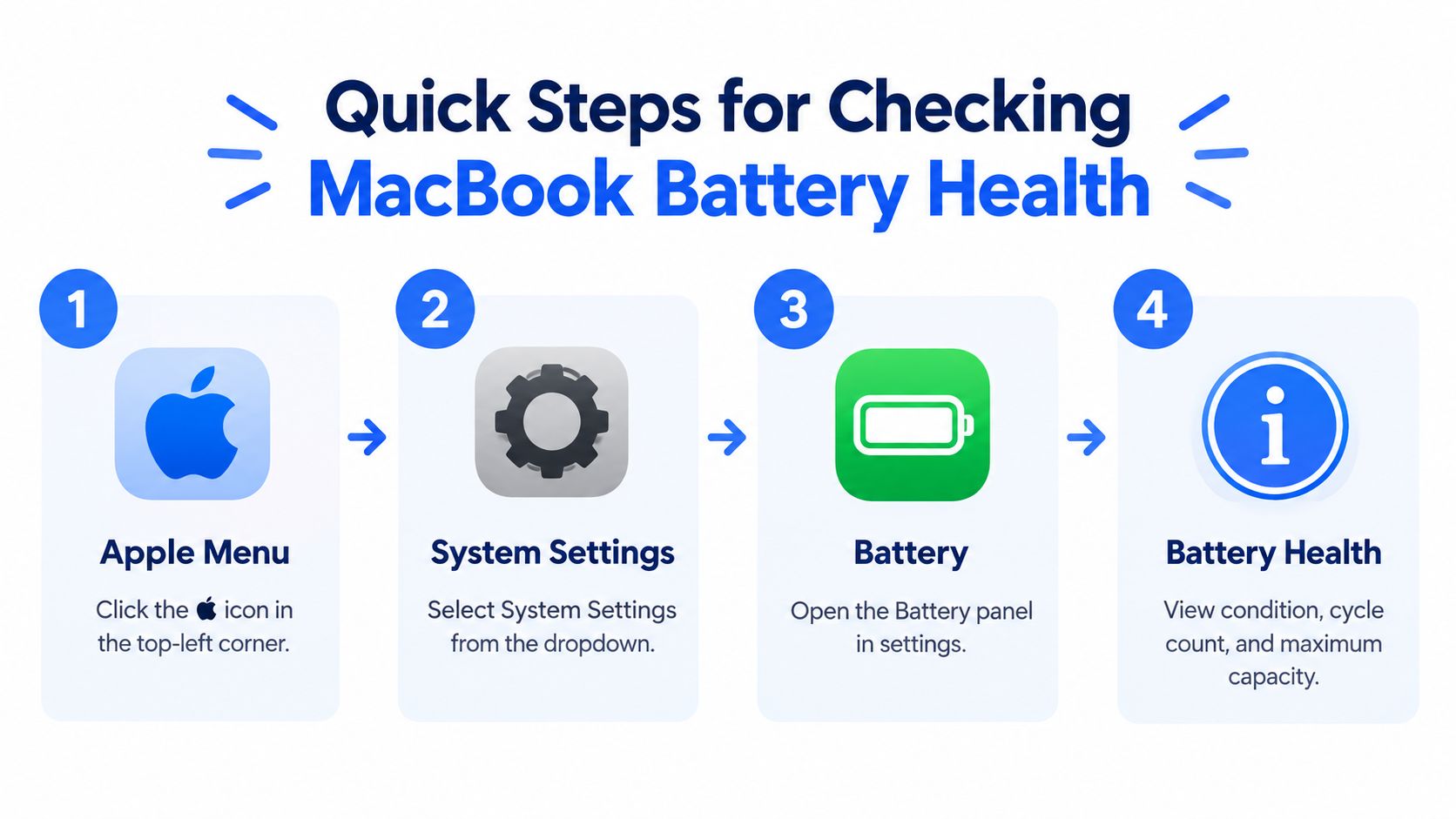
Quick Steps for Checking MacBook Battery Health
On a modern MacBook, the quickest useful check is simple. Click the Apple menu, open System Settings, go to Battery, then inspect Battery Health. If you see Normal, macOS hasn’t detected a battery problem. If you see Service Recommended, the battery is holding less charge than when new or may not be functioning normally, so don’t brush it off.
Normal is not the same as new. A used MacBook can show a normal status and still have noticeably less runtime than it did when it left the factory.
Practical rule: treat the battery status as a health flag, not a buying decision on its own. You still need cycle count and a real runtime check.
Older Macs may not show Battery Health in settings, and that’s where the fallback matters. Hold the Option key, click the Apple menu, open System Information, then go to Hardware and Power. If you’re buying a used MacBook, that second check is the one that stops you relying on a neat-looking battery percentage alone.
Before you go deeper, it’s smart to compare your own reading with a proper pre-purchase checklist like the one in our day-one device testing guide. A battery check should be part of a wider inspection, not a one-click verdict.
If Battery Health changes after an update or starts behaving oddly, check it again after the system settles. Battery readings are useful because they’re built into macOS, but they’re only the first layer of the job.
Reading Cycle Count and Maximum Capacity in System Information
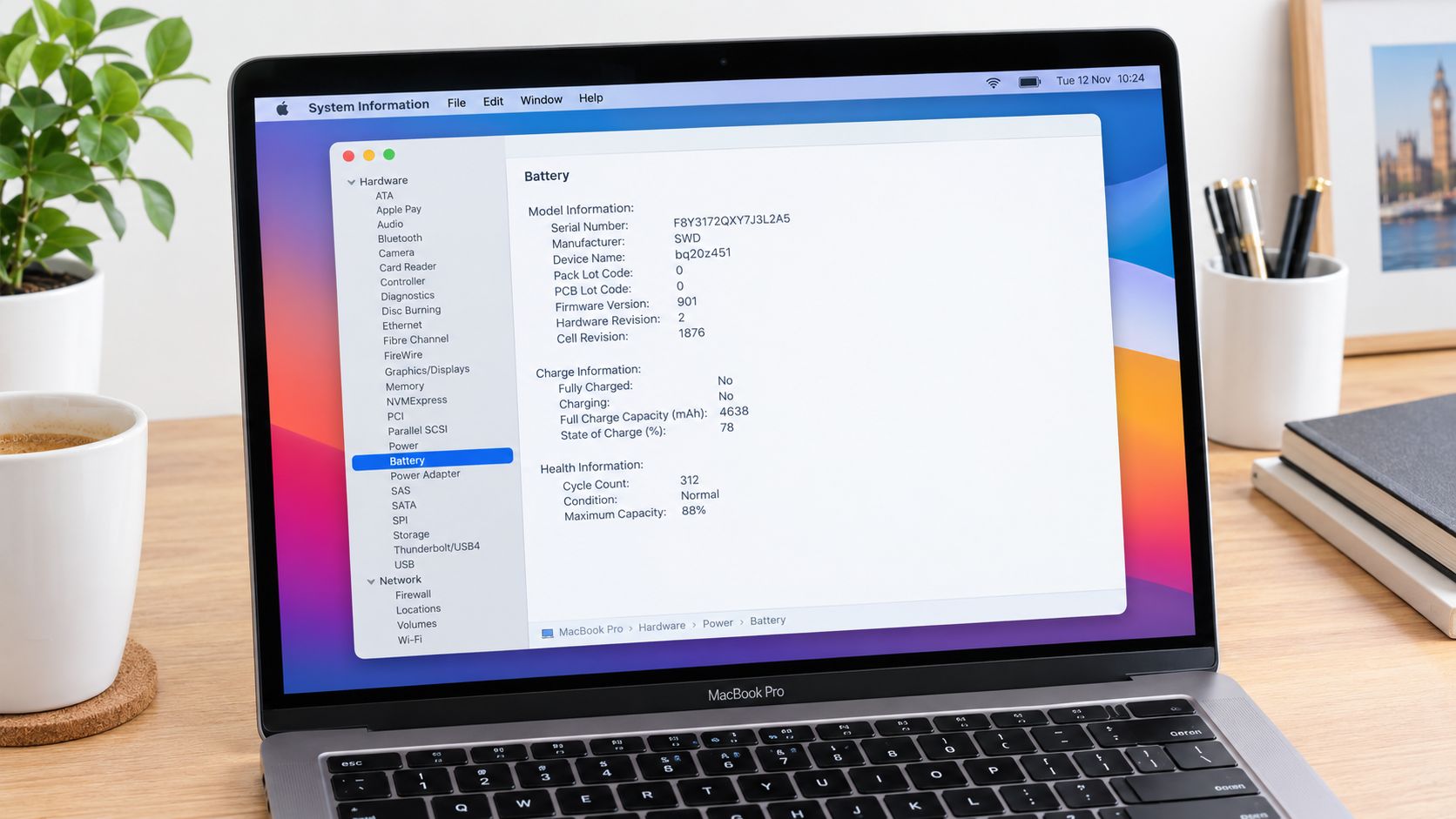
Now go after the numbers that actually matter. Hold Option, open the Apple menu, choose System Information, then follow Hardware to Power. That screen gives you the battery’s Cycle Count, plus other useful fields such as full charge capacity and condition, which is why I always want it before I sign off a used MacBook.
A charge cycle is not one plug-in. It’s the point where the battery’s total usage adds up to 100% of its original capacity, even if that happens across several sessions. A Mac that drains 50% one day and 50% the next has used one cycle, not two.
Apple says Mac notebook batteries are designed to retain up to 80% of original capacity at their model-specific maximum cycle count, and the limit varies by MacBook model. Apple lists 1,000 cycles for many newer MacBook, MacBook Air and MacBook Pro models, while some older MacBooks are rated at 500 cycles Apple battery cycle guidance.
The cycle number only means something when you compare it with the exact model. A low count can still hide a fault, and a higher count can still be fine if the battery is behaving normally.
That’s why I always read the battery three ways together: Battery Health status, cycle count, and maximum capacity if the Mac shows it. A low cycle count with Service Recommended points to a fault. A higher cycle count with Normal usually means an aged but still workable battery.
If you’re checking a seller’s claims, ask for a dated screenshot from System Information and make sure the model identity matches the machine in front of you. If you’re the owner and the battery figure looks inconsistent after a restart, that’s a warning sign you shouldn’t ignore. If you want a second reference point for battery replacement history on iPhone devices, our battery replacement history guide shows the same principle in another form.
What the MacBook Battery Labels Actually Mean
The labels are more useful than a lot of sellers make out, but only if you read them properly. Normal means macOS hasn’t flagged the battery as abnormal. It does not mean the pack still gives factory-fresh runtime.
Service Recommended means the battery’s charge-holding ability is lower than when new or it may not be functioning normally. Apple says the Mac can usually still be used at that point, which is why I don’t panic when I see it. I do, however, stop pretending it’s an excellent buy unless the price reflects the wear.
How I read the other labels in the workshop
- Replace Soon: The battery has aged enough that runtime is clearly slipping. It can still be usable, but I’d budget for replacement.
- Replace Now: The battery has crossed into serious wear. The machine may still boot and work, but I’d treat it as a repair-first buy.
- Service Battery: This is the one that worries me most. It can point to a fault beyond ordinary wear, so I’d want a hands-on inspection before trusting it.
Older systems may show those legacy messages in the battery menu instead of Battery Health. That doesn’t change the decision. The label still tells you whether you’re looking at simple ageing or a battery that’s behaving badly.
A common example we see is two MacBooks with the same label and completely different value. One has a tired battery but otherwise clean internals and solid runtime on charger. The other shuts down early, runs hot and feels wrong in the hand. Same wording, different buying decision.
If the laptop still meets your needs plugged in, a weaker label doesn’t automatically make it unusable. It just means you should decide with open eyes, not on a glossy seller description.
Bench Checks Our Technicians Run Beyond the Software Report
Software reports are useful, but I never stop there. On the bench, our technicians run a controlled runtime check with the charger disconnected, then note the starting charge, brightness, workload and elapsed time. A repeatable workload, like web video or office documents, tells you far more than staring at a battery icon for five seconds.
That test is deliberately simple because real-world use is messy. Screen brightness, browser tabs, CPU load, temperature and whether the machine uses Apple silicon or Intel hardware all change the result. So I don’t claim a neat pass mark from one run, I look for consistency.
What gets checked while the machine is actually running
One thing we regularly notice is that the battery label can look fine while the laptop behaves badly under load. Sudden shutdowns, abnormal heat, a trackpad that no longer clicks normally, or a battery that drops fast in front of your eyes all push the machine into a different category. At that point, the software line on screen is no longer enough.
We also verify the serial and model identity inside System Information, because the battery story only matters if the machine itself matches what’s being sold. Third-party tools can misreport design capacity, so I’d rather rely on Apple’s own readout first and only use extras as supporting data.
Bench note: if the battery reading and the physical behaviour don’t line up, trust the behaviour. A MacBook that heats badly or shuts down early is telling you something the menu screen can’t.
If you’re buying from a local repair shop, ask how they test before resale. A sensible route is one that combines diagnostics, inspection and parts replacement where needed, like choosing a trusted local repair rather than guessing from a percentage alone. For a look at our own workshop process, see our 10-step refurb check.
Swollen lithium-ion batteries are a separate issue, and I treat them seriously. UK government guidance says lithium batteries account for approximately 48% of UK waste fires, more than 200 annually, so a damaged battery should be isolated and taken to a proper household recycling centre or approved battery or electrical collection route, not thrown in general waste [UK government guidance on transporting small mixed waste electrical equipment](https://www.gov.uk/government/publications/carriage-of-dangerous-goods-guidance-note-26/transporting-small-mixed-waste-electrical-equipment).
Repair, Reuse or Recycle Based on the Result
Once you’ve read the battery, make the decision properly. If the status is Normal and the runtime suits your day, keep using it. If the cycle count and capacity show predictable decline, get a repair quote. If the laptop is otherwise sound, securely erase it and resell or donate it. Only use approved recycling when repair or reuse doesn’t make sense.
That last point matters more than most people realise. Green Alliance says nearly 40% of laptops taken to recycling are likely fit for reuse, the UK reuses only around 14% of electrical and electronic equipment compared with 53% sent for recycling, and separate UK research found almost 50% of devices arriving at household reuse and recycling centres were functional or needed only light repair [Green Alliance report](https://green-alliance.org.uk/wp-content/uploads/2025/01/Making-the-connection.pdf).
- Keep using it: Choose this if Battery Health is normal and you’re happy with the unplugged runtime.
- Repair it: Choose this if the Mac is otherwise good, but the battery clearly isn’t delivering sensible day-to-day use.
- Resell or donate it: Choose this if the Mac is reliable, clean and only needs a proper wipe before it changes hands.
- Recycle it: Choose this only when the machine is damaged, unsafe or too costly to save.
A weak battery doesn’t automatically mean the machine is scrap. A lot of MacBooks are worth repairing, especially if the rest of the hardware is tidy and the model still suits the person who’ll use it. That’s why a quick check makes the right call possible.
If you’re unsure whether repair stacks up, get a quote from a repairer who actually handles MacBooks day in, day out. The right decision is usually obvious once someone who knows the platform has looked at the battery, the age of the machine and the rest of the hardware.
Our Experience Refurbishing MacBooks at Used Mobiles 4U
Our technicians see the same pattern again and again. Cosmetic grade and battery health are two separate questions, and buyers often mix them up. A MacBook can look clean from the outside and still need battery work, or it can look scruffy and run perfectly well for years.
One thing we regularly notice on older Air and Pro models is that battery wear rarely travels alone. Trackpad feel, charging behaviour, heat and the way the machine holds up under load usually tell the story before the badge on the lid does. That’s why we’re strict about checking battery health alongside the rest of the device, not instead of it.
What we look for before a MacBook goes back out
- Battery health and cycle count: We want the battery to meet our standards before sale, and eligible refurbished stock is kept to a minimum 85% battery health.
- Parts replacement logic: If a battery is the only weak point and the rest of the machine makes sense, replacement is often the sensible move.
- Heavy-use markers: We mark units down when they show obvious wear, awkward charging behaviour or signs that the battery and chassis have both had a hard life.
- Data and status checks: We secure-wipe devices, verify they’re SIM-free where relevant, and make sure the hardware behaves as expected.
Our eligible refurbished stock comes with 18-month warranty cover and 12-month battery cover, which matters because battery confidence is part of the value, not an afterthought. We also keep the process clean and predictable, so the buyer knows the device has been tested rather than just cleaned up for photos. You can see how that fits into our refurbishment process.
We also see that the right MacBook isn’t always the newest one in the room. Some buyers need a solid used MacBook Air for everyday work, while others want a Pro because they’d rather have a tougher chassis and a bit more headroom. I won’t overstate it, but I will say this, if the battery health, grade and warranty line up, a refurbished MacBook can make far more sense than chasing the cheapest random listing.
Verdict and Frequently Asked Questions
Checking MacBook battery health takes seconds and costs nothing, which is exactly why you should always do it. My verdict is simple, read the status, check the cycle count, and make the buying or repair decision from those together. A single percentage on its own is not enough.
Does “Normal” mean the battery is healthy? It means macOS hasn’t flagged a problem. It doesn’t mean the battery is new.
What if Battery Health is missing? Use System Information through the Option key path, or accept that the Mac may not support the display.
How often should I check it? Check before buying, after delivery, and again if battery behaviour changes.
What if a fault shows up soon after purchase? GOV.UK says goods can be repaired or replaced within six months if they’re faulty, unless the trader can prove the fault wasn’t there when sold [GOV.UK returns and refunds guidance](https://www.gov.uk/accepting-returns-and-giving-refunds).
If you want a used MacBook that’s already been tested properly, look through the MacBook range, compare it with other refurbished devices, or use the trade-in route if your current machine has become more battery pain than value.
Written by James Waterston, 24 years in the mobile phone industry from customer service through to Sales Director of a global repair and recycling company. Now running Used Mobiles 4U for over 8 years.
LinkedIn: James Waterston on LinkedIn
Used Mobiles 4 U tests devices, grades them clearly and backs eligible stock with warranty cover, battery cover and secure data wiping. If you’re checking MacBook battery health before you buy, sell or repair, browse the current range and support pages at Used Mobiles 4 U to find the right next step.
Looking for a refurbished phone?
Shop professionally tested refurbished iPhones and Samsung phones with 18 month warranty, 30 day returns and free UK delivery.
Browse Refurbished Phones



