

iPhone Apps Not Downloading? Fix App Store Problems

16/11/2026

7 Mins

iPhone apps not downloading usually comes down to a connection problem, full storage, a stalled download or an Apple Account billing restriction. Start with checks that won’t erase your data, rather than resetting the phone or paying for repair software.
A failed installation alone doesn’t mean your iPhone needs replacing. We recommend working through these fixes in order, then trying to download apps again after each one.
How to fix failed app downloads: quick steps
These checks cover the most common causes without erasing your iPhone.
- Tap a paused app icon to resume it, then close and reopen the App Store.
- Restart iPhone, then try downloading again.
- Test your wireless network and mobile data separately to identify a connection problem.
- Open Settings > General > iPhone Storage and free up space.
- Resolve payment alerts under Settings > [your name] > Payment & Shipping.
- Allow app installations in Screen Time and review your account’s country or region.
- Back up your iPhone, then install any compatible update under Settings > General > Software Update.
After each check, try to download apps again before moving on.
If an error message appears, keep its wording. “Verification Required” needs a different response from an app that requires a newer iOS version.
Restart the download, App Store and iPhone
Resume a paused or stuck download
Tap an app icon labelled “Paused” to resume it. You can also touch and hold a downloading app, then choose Prioritise Download if that option appears.
After transferring data to a new iPhone, apps may still be downloading in the background. Keep the phone connected to power and a reliable wireless connection. Our second-hand iPhone setup guide covers the wider setup process.
If an icon is dim or shows a white grid, restart before deleting anything. Deleting an existing app can remove local files or saved progress. Apple’s app download troubleshooting guidance covers these stalled installations.
Close the App Store and restart
On an iPhone without a Home button, swipe up from the bottom and pause. With a Home button, double-click it. Find the App Store preview, swipe it upwards, then reopen the store.
If that doesn’t help, restart the phone. On Face ID models, hold the Side button and either Volume button until the power-off slider appears.
On models with a Home button, hold the Side or Top button instead. Drag the slider, wait until the phone switches off, then hold the Side or Top button until the Apple logo appears.
Check Wi-Fi and mobile data separately
Compare two connections
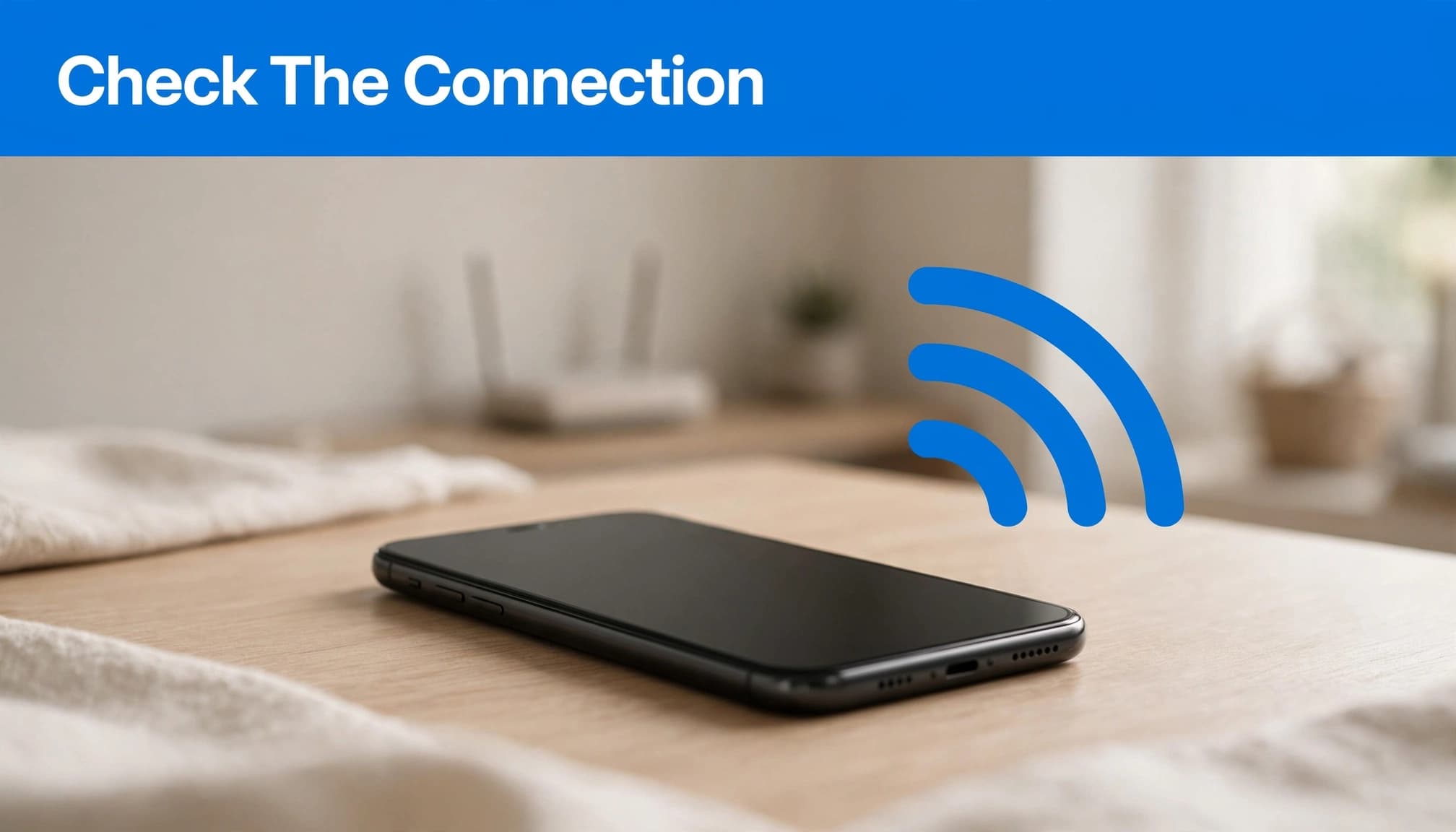
Open a fresh webpage in Safari. If it won’t load, check the wider internet connection before focusing on the App Store.
Next, turn Wi-Fi off and try mobile data, provided your allowance permits it. Under Settings > Mobile Service or Mobile Data, make sure the App Store has permission to use mobile data.
If downloads work on one connection but fail on the other, focus on that network. Public Wi-Fi may require a browser sign-in before downloads work.
Reconnect to the Wi-Fi network
First, briefly enable Airplane Mode, then turn it off and reconnect. If necessary, restart your router and wait for its connection to return.
To rejoin your wireless network, open Settings > Wi-Fi, tap the information button beside your network, then choose Forget This Network. Reconnect using its password.
Have that password ready before forgetting the network. If you use a personal VPN, temporarily disconnect it and retry; don’t remove work-managed settings without permission.
Free up space in iPhone storage
Open Settings > General > iPhone Storage. The storage bar shows used space against total capacity, whilst the list below shows each app’s usage.
An app needs enough storage space to download and install, and its listed download size may not show how much free room the process requires.
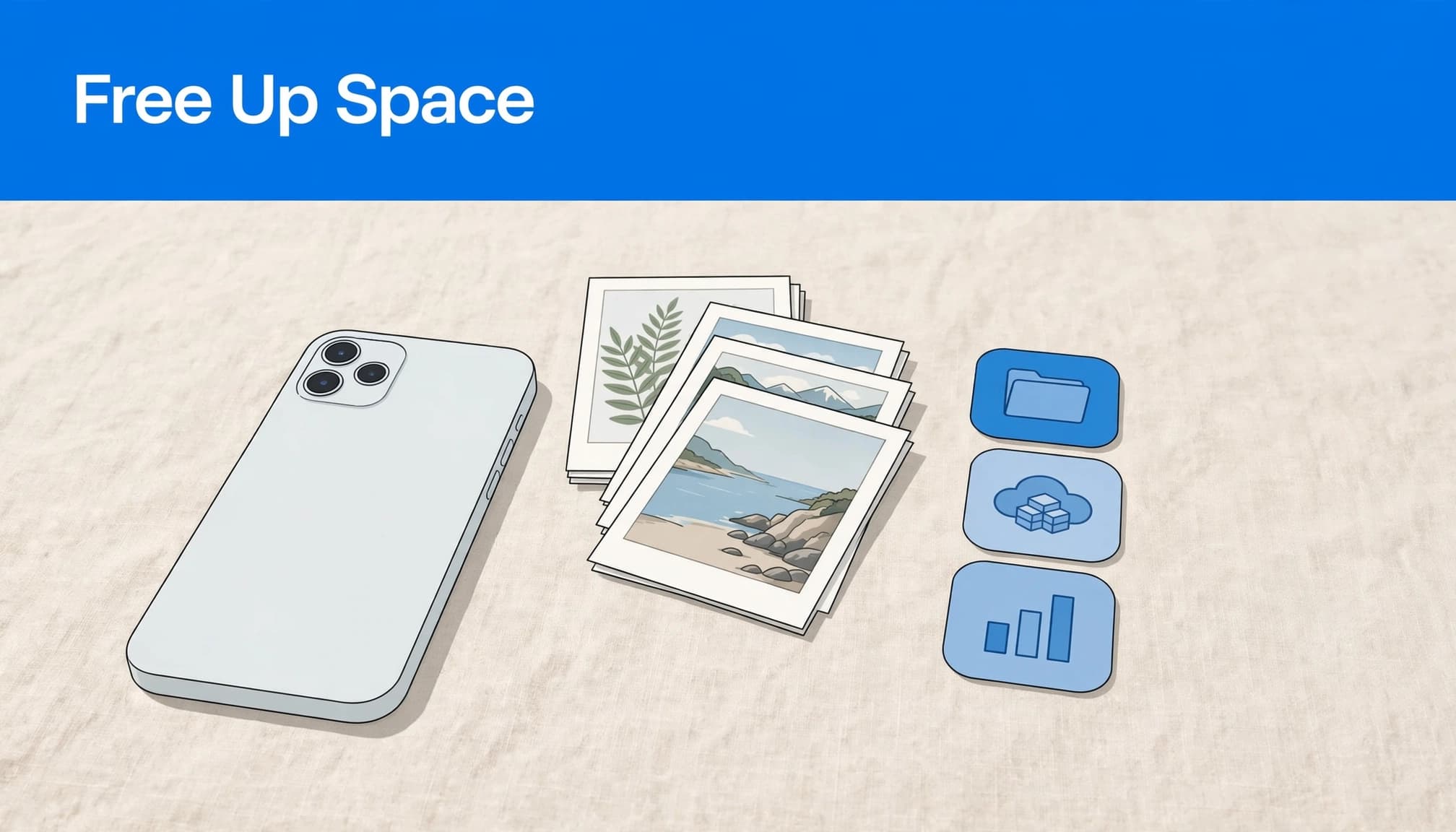
Tap an app you rarely use. Offload App keeps its documents and data whilst removing the app itself. Delete App removes the app and its associated local data.
Start with replaceable downloads, such as saved films, rather than important photos or messages. Our guide to managing iPhone storage explains the options.
Buying more iCloud storage doesn’t increase the phone’s physical capacity. Also, deleting photos with iCloud Photos enabled deletes them across your synced devices, so don’t use that as a casual space-saving step.
Check billing, restrictions and account region
Resolve payment and verification alerts
Apple may require a valid payment method, even for a free app. Open Settings > [your name] > Payment & Shipping, then update expired card details or correct an inaccurate billing address.
An unpaid purchase or failed subscription payment can also block downloads. Open Settings > [your name] > Media & Purchases > View Account > Purchase History to find an unpaid order, then update the payment method or follow the payment prompt.
Apple’s guidance on declined App Store payments explains account and payment-method problems. Removing a card doesn’t clear an outstanding balance.
Allow installations and review the region
Open Settings > Screen Time > Content & Privacy Restrictions > iTunes & App Store Purchases. Set Installing Apps to Allow. A parent or organiser may need to enter the Screen Time passcode.
For region settings, open Settings > [your name] > Media & Purchases > View Account > Country/Region. Use Change Country or Region only if the setting genuinely needs correcting.
Don’t switch countries simply to obtain one app. Existing subscriptions, account credit and payment requirements can affect a region change. An app may also be unavailable locally or removed by its developer.
Update iOS and check app compatibility
Back up before installing an update
Open Settings > [your name] > iCloud > iCloud Backup > Back Up Now. You can also back up using Finder on a Mac, Apple Devices on Windows, or iTunes on older setups.
For an available iOS update, connect the iPhone to power and Wi-Fi. Go to Settings > General > Software Update and choose Download and Install, or Update Now, when offered.
If a computer update is necessary, Apple’s Finder update instructions cover that route. We wouldn’t erase the phone as an early troubleshooting step.
Read the app’s minimum iOS requirement
Open the app’s App Store page and scroll to Information > Compatibility. Compare its required iOS version with Settings > General > About > iOS Version.
If your iPhone can’t install the required version, restarting won’t fix that limitation. Our guide to iPhone software support explains how support affects older devices.
This matters when judging how long a used iPhone will remain useful. Battery replacement can improve running time, but it can’t extend iOS compatibility.
Reset network settings only after simpler checks
First, open Settings > General > Date & Time and enable Set Automatically. An incorrect date or time can interfere with secure connections.
If downloads still fail across otherwise working connections, try Settings > General > Transfer or Reset iPhone > Reset > Reset Network Settings.
This removes saved wireless networks and passwords and resets mobile, VPN and APN settings. It doesn’t erase your photos or apps.
Write down the Wi-Fi password first. Afterwards, reconnect and retry one download. Avoid choosing Erase All Content and Settings, which is a different, destructive option.
What We Check Before Resale
Our resale checks include Wi-Fi, mobile signal, charging and touch response. A clean display alone doesn’t establish that a phone works properly.
For download problems, we separate account access from hardware. If Safari, streaming and other internet services work, an App Store-only failure doesn’t justify replacing the battery or charging port.
On a second-hand phone, check Settings > [your name] > Media & Purchases for an unfamiliar Apple ID. Apps installed using a previous owner’s account may request their password when updating. Don’t ask for or use their password.
If the main Apple Account isn’t yours, the seller needs to remove it properly. Our second-hand iPhone buying checks explain why account ownership matters.
Persistent Wi-Fi failure across several networks, especially alongside wider connectivity faults, deserves technical assessment. Whether to repair or replace an old iPhone should depend on that diagnosis, not one stalled download.
Frequently asked questions
How do you update apps on an iPhone?
Open the App Store and tap your photo or account button. Tap App Updates if shown, then Update beside an app or Update All.
On older iOS versions, scroll down the account page to pending updates instead. Apple’s manual app update instructions describe the process. If an update stalls, use the same connection, storage and billing checks above.
How do you clear the App Store cache?
There isn’t a dedicated Clear Cache button for the App Store in iPhone Settings. We recommend closing and reopening the store, then restarting the phone if it still won’t respond.
Clearing Safari’s history doesn’t clear App Store data. You don’t need to erase your phone or install a paid repair tool simply to refresh the store.
Fix the cause before replacing the phone
Most download problems call for a connection, storage or account fix before any repair discussion. One failed download isn’t evidence of a worn-out iPhone.
Work through the checks in order and protect your data before deleting apps or changing software. If problems continue across multiple networks and services, seek a technical diagnosis before spending money on replacement hardware.
Looking for a refurbished phone?
Shop professionally tested refurbished iPhones and Samsung phones with 18 month warranty, 30 day returns and free UK delivery.
Browse Refurbished Phones