





Why Is My iPhone Not Vibrating for Calls or Alerts?

18/10/2026

7 Mins

An iPhone not vibrating for calls or alerts often has a disabled setting. Its alert pattern may be set to None, or Focus may be silencing notifications. A system-wide vibration setting can also stop every buzz, even when other controls look correct.
Check the vibration settings before assuming the vibration motor has failed. Start with the settings checks, then try software troubleshooting if vibration still doesn’t work.
The Short Version
- Select “Always Play” while troubleshooting.
- Turn on Settings > Accessibility > Touch > Vibration.
- Choose a haptic pattern for Ringtone and Text Tone.
- Disable Focus or Do Not Disturb temporarily, then arrange a test call.
- If nothing vibrates, restart, update and consider a settings reset before arranging a repair.
How to Restore iPhone Vibration: Quick Steps
Follow these checks in order. Stop once calls and alerts vibrate normally.
- Open Settings > Sounds & Haptics > Haptics and select Always Play. On older software, turn on Vibrate on Ring and Vibrate on Silent instead.
- Go to Settings > Accessibility > Touch and turn on Vibration.
- Open Ringtone > Haptics and select a vibration pattern rather than None. Repeat under Text Tone.
- Open Control Centre > Focus and turn off any active Focus, including Do Not Disturb.
- If your phone has a Ring/Silent switch, move it between modes. Lock the screen and ask someone to call you.
- Restart the phone. If needed, back it up, then install a software update through Settings > General > Software Update.
- For a final software check, go to Settings > General > Transfer or Reset iPhone > Reset > Reset All Settings.
Back up before the final step. The reset keeps personal content but changes system preferences. Don’t select Erase All Content and Settings, which wipes the device.
Set Haptics for Ring and Silent Mode
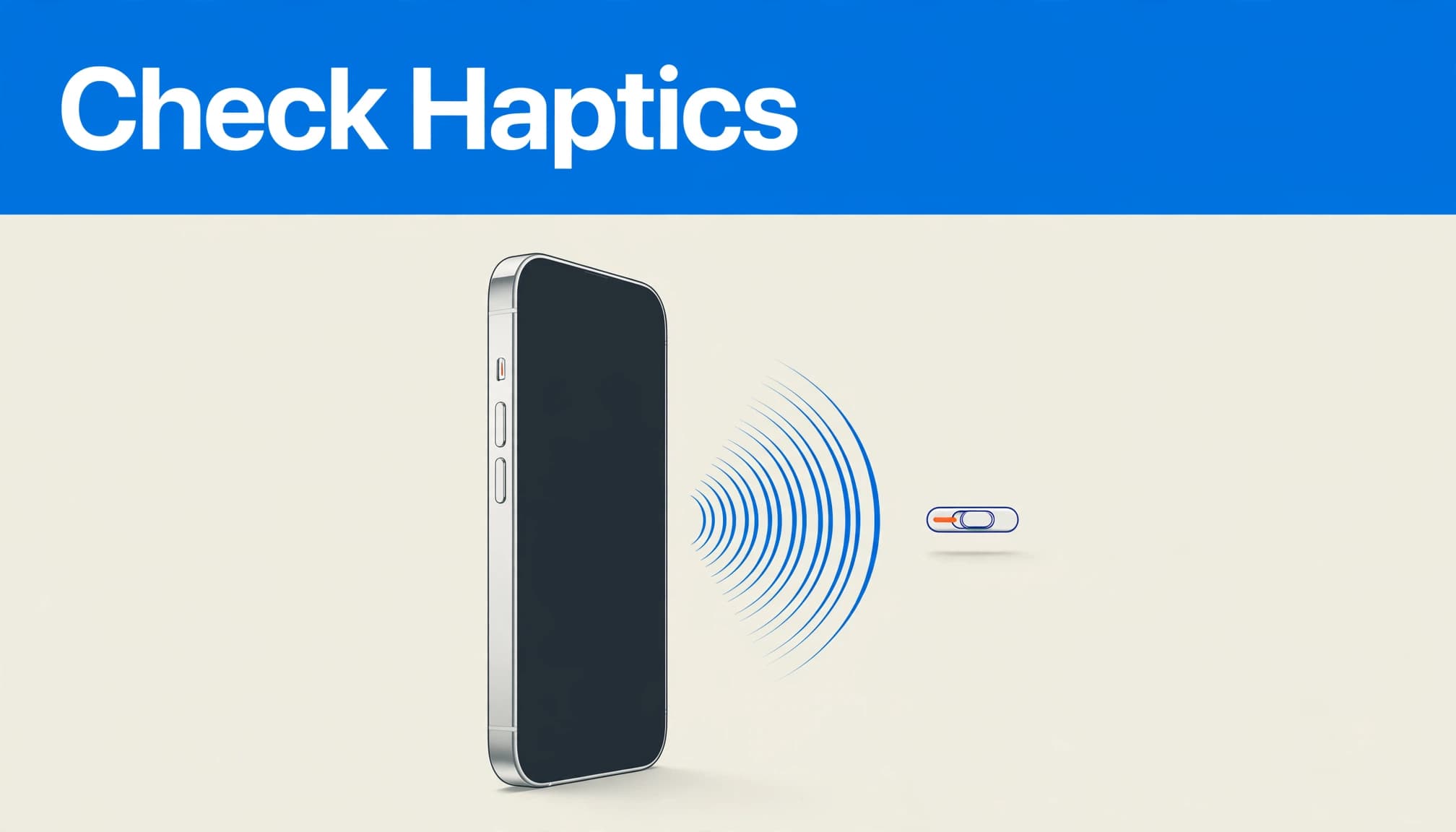
Choose the right behaviour for your software
On iOS 26, go to Settings > Sounds & Haptics > Haptics. Always Play enables calls and alerts in both ring and silent mode.
Play in Silent Mode limits alerts to that setting. Don’t Play in Silent Mode prevents them whilst silent, and Never Play disables them for calls and alerts.
Older iOS versions use different labels, including Vibrate on Ring and Vibrate on Silent. Enable both while testing. Apple’s sounds and vibration guidance explains the current controls.
Test the switch or Action button correctly
With a physical Ring/Silent switch, move it to silent and back to test the setting. Orange showing beside the switch means the phone is on silent.
On phones with an Action button, check its assigned function in Settings rather than assuming it controls the ringer.
A missing buzz when switching modes doesn’t prove hardware failure. The global Vibration setting can prevent feedback, so test a selected vibration pattern too.
Check the Vibration Toggle and Alert Patterns
These controls sit in separate menus, so check both settings.
Turn on the system-wide vibration setting
Go to Settings > Accessibility > Touch > Vibration and switch on the Vibration toggle.
This master control is separate from individual alert patterns. When it’s off, the phone won’t vibrate, even if Sounds & Haptics is configured correctly.
Apple’s system-wide vibration warning explains that disabling this control also affects vibrations for earthquake, tsunami and other emergency alerts. Don’t use it as a routine way to silence everyday notifications.
Select a pattern rather than None
Open Settings > Sounds & Haptics > Ringtone > Haptics, then tap a built-in pattern to preview it.
Choose a vibration pattern rather than None for the affected Ringtone. Repeat under Text Tone and any other alert category. Older software may call this menu Vibration.
If only one person’s calls fail to vibrate, open their contact, tap Edit, then check their Ringtone and Text Tone settings.
The system-wide Vibration toggle and each alert’s selected pattern are separate controls. A tone set to None can leave that alert without vibration.
Check Focus, Notifications and Apple Watch
If a pattern preview works but incoming alerts don’t vibrate, notification settings deserve attention before repair.
Disable Focus for a controlled test
Open Control Centre, tap Focus and switch off the active mode. Do Not Disturb, Sleep and other Focus modes can silence calls and notifications unless you’ve allowed them.
Also inspect Settings > Focus for schedules that reactivate automatically. Otherwise, vibration may return during testing and disappear again at bedtime or work.
Test with the screen locked and a normal incoming call. Then send a text separately, because calls and messages have different alert settings.
Investigate an app-only problem separately
When calls vibrate but one app doesn’t, the vibration hardware is responding.
Open Settings > Notifications > the affected app. Check Allow Notifications and the available sound settings, then inspect notification controls inside the app itself.
If you wear an Apple Watch, some notifications may arrive on your watch instead of your locked iPhone. That routing can explain missing phone alerts without indicating a fault.
Our device troubleshooting guidance covers wider problems if other functions are also behaving unpredictably.
Restart, Update and Reset in That Order
Software troubleshooting makes sense after checking the controls. Repeatedly changing unrelated settings makes the fault harder to isolate.
Restart before trying a force restart
First, turn the iPhone off and back on normally. This doesn’t erase your data.
If the phone is unresponsive or the problem continues, a Force Restart can help. For iPhones running iOS 26, press and quickly release Volume Up, then Volume Down. Next, hold the Side button until the Apple logo appears.
Keep holding through the power-off screen. Older Home-button designs can require different button combinations, so this sequence isn’t universal across every historical iPhone.
Update, then reset settings if necessary
Back up through Settings > your name > iCloud > iCloud Backup > Back Up Now. Then open Settings > General > Software Update and install an available update.
If vibration still fails, use Settings > General > Transfer or Reset iPhone > Reset > Reset All Settings.
This resets system preferences without deleting photos, apps, messages or other personal data. However, expect to configure settings such as Wi-Fi connections, privacy preferences and Apple Pay cards again.
Don’t confuse this with a factory erase. Turning off System Haptics, sometimes suggested in iOS 26 troubleshooting videos, isn’t required to restore call vibration. That control affects feedback during system interactions, not incoming-call vibration.
On the Bench at Used Mobiles 4U
Our refurbishment checks cover vibration alongside touch response, cameras, microphones, speakers, charging and biometric unlocking. A tidy screen alone doesn’t establish that a handset works properly.
We also inspect the housing. Uneven screen gaps, a lifted panel or a phone that rocks on a flat surface deserve closer attention. These signs can accompany impact damage or poor previous repairs, although they don’t identify the cause of missing vibration by themselves.
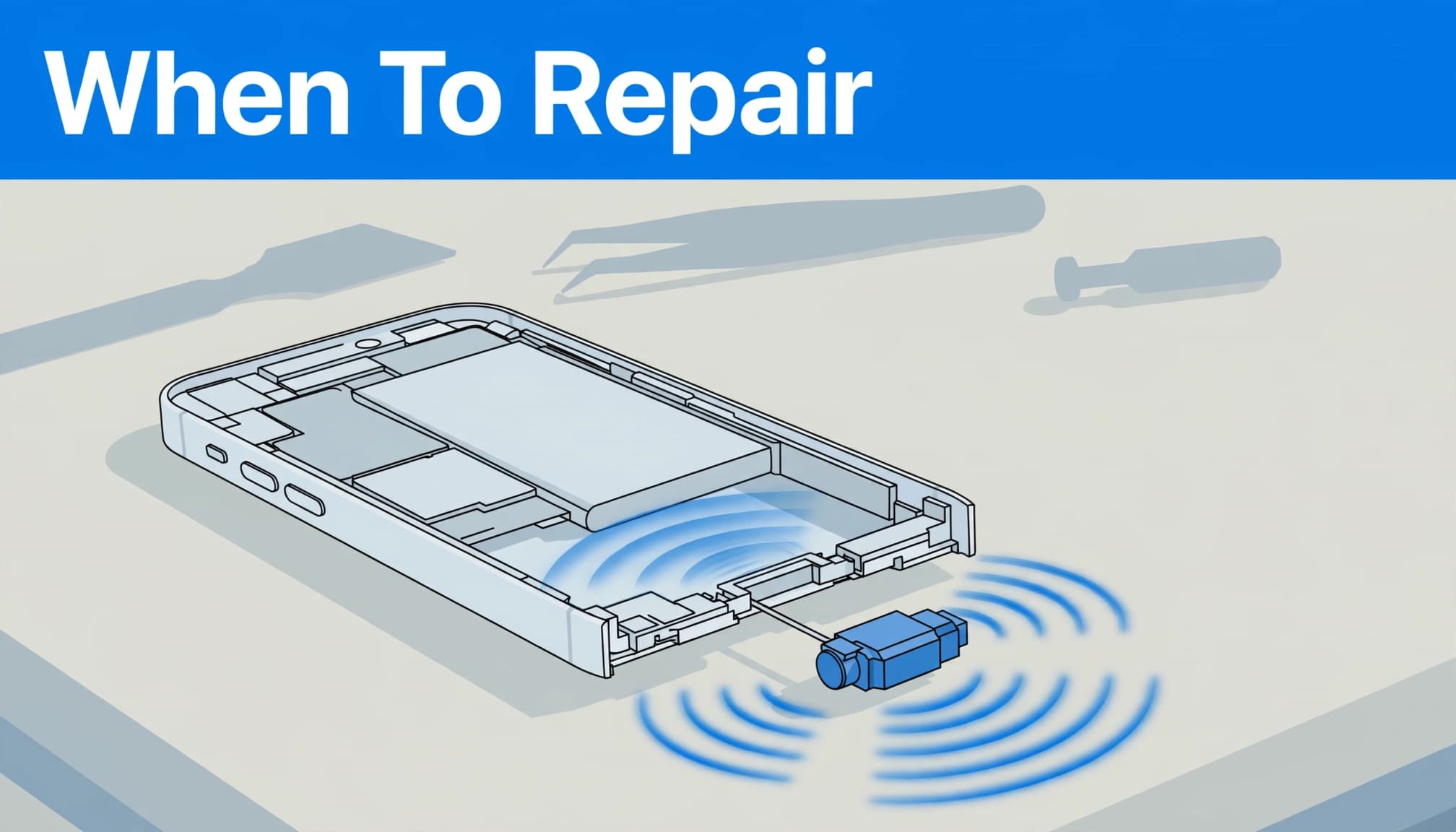
After software checks, a technician can assess the Taptic Engine, the iPhone’s vibration motor, and its connections before arranging iPhone repair. Don’t open the handset simply to investigate a missing buzz.
If the phone was recently purchased, contact the seller before authorising outside repair. Keep your order number, IMEI and a short description of the fault. State whether pattern previews work and whether calls, texts or every vibration are affected.
That information is more useful than describing the phone as “silent”.
When to Repair or Replace an iPhone
If vibration is the only fault and the battery, charging and other functions remain dependable, iPhone repair is worth considering.
Compare the full quotation with the phone’s overall condition. A weak battery, unreliable charging or structural damage can make replacement more sensible than paying for several repairs.
Back up before sending the phone away. Apple Support offers diagnostic and service options, with contact routes depending on the issue and availability. Phone or chat may be offered; don’t assume email support is available for every case.
If you have a refurbished handset, ask the seller what the warranty covers before paying for repair.
If replacement makes more sense, Read Our Refurbished iPhone Buying Guide for condition and battery checks. You can also Browse Refurbished iPhones once you’ve established that settings aren’t the cause.
Frequently Asked Questions
Why has vibration suddenly stopped?
A changed haptics setting or active Focus or Do Not Disturb can explain a sudden change. If every pattern preview still fails after a restart, investigate software or hardware.
How can an iPhone vibrate whilst on silent?
To vibrate on silent, choose Settings > Sounds & Haptics > Haptics > Always Play or Play in Silent Mode. Enable Accessibility > Touch > Vibration, turn on the Vibration toggle, and choose a haptic pattern for your Ringtone.
Will Reset All Settings delete photos or apps?
No. It resets preferences but keeps personal content. Back up first, and avoid Erase All Content and Settings unless you intend to wipe the phone.
Does an excellent cosmetic grade guarantee working vibration?
No. Cosmetic grading describes appearance. Functional testing must establish whether vibration, charging, cameras and other features work. Report missing vibration promptly rather than accepting it as normal second-hand wear.
Restore Vibration Before Replacing the Phone
Start with haptics permissions and alert patterns, then test with Focus disabled. These checks can distinguish a settings problem from a possible vibration motor fault.
If vibration remains absent after restarting, updating and resetting settings, arrange an iPhone repair assessment. One repairable fault doesn’t automatically mean you need a replacement, but repeated resets won’t fix failed hardware.
Looking for a refurbished phone?
Shop professionally tested refurbished iPhones and Samsung phones with 18 month warranty, 30 day returns and free UK delivery.
Browse Refurbished Phones



