





Why Is My iPhone Storage Full After Deleting Photos?

18/09/2026

5 Mins
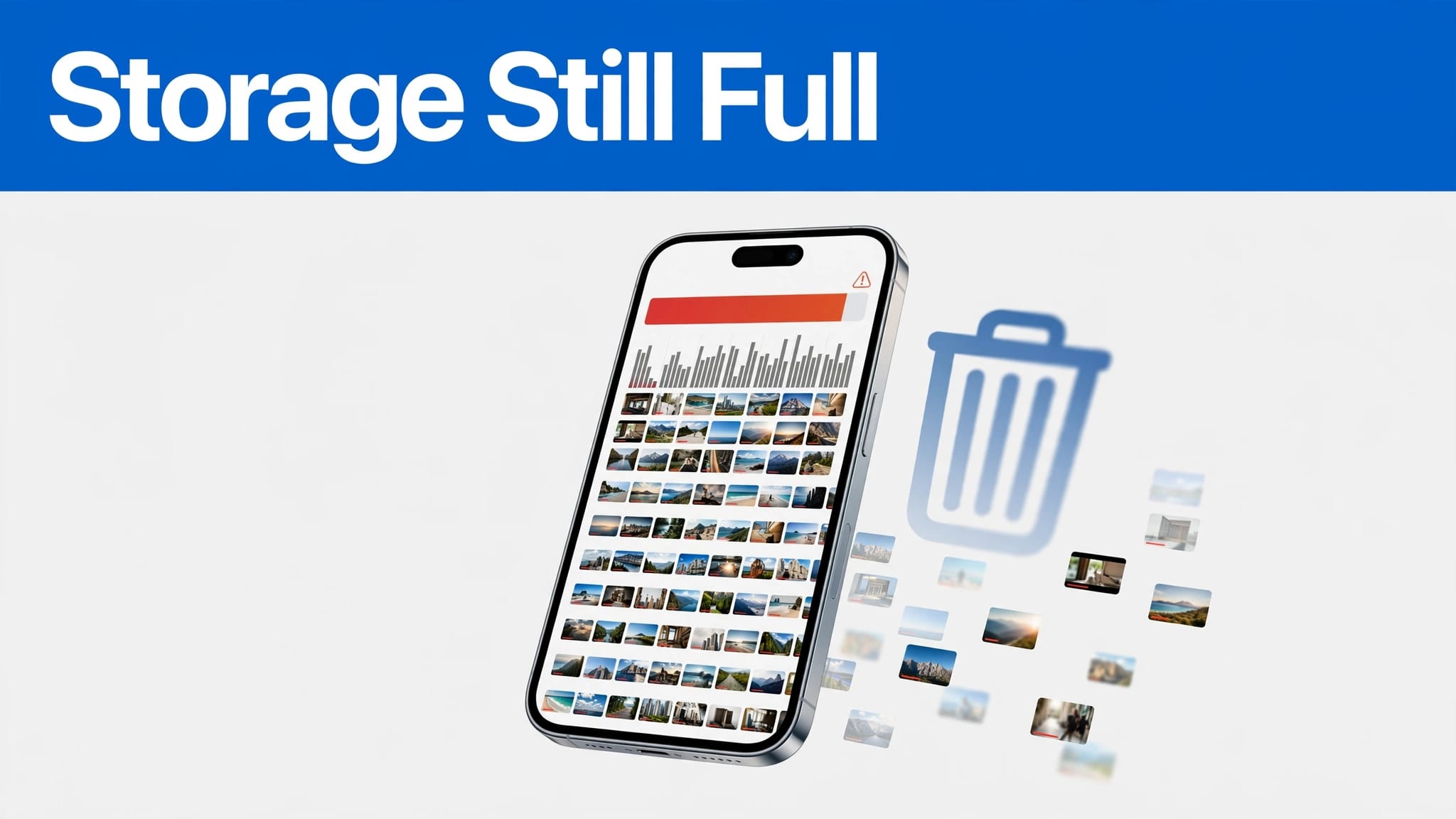
If your iPhone storage full warning remains after you delete photos, those files may still sit in Recently Deleted, or another category is using the space. Messages attachments, app downloads and System Data often take more room than people expect.
For better storage management, check the storage breakdown before deleting anything else. It stops you losing photos without fixing the actual problem.
In Plain English
- Deleted photos stay in recently deleted for up to 30 days unless you remove them permanently.
- iCloud is cloud storage, while your device storage is built into the handset. They’re separate.
- Offloading an app removes the app but keeps its documents and data.
- Video files, WhatsApp media, offline downloads and text messages commonly fill space after the camera roll is cleared.
A nearly full iPhone can struggle with updates and backups, so leave some storage space instead of filling every last gigabyte.
Why Storage Can Stay Full After You Delete Photos
Deleted photos may still be recoverable
When you delete photos, they move to a recovery folder first. Open Photos > Albums > Recently Deleted, unlock the album if prompted, then choose Select and Delete All. Apple confirms that photos and videos can remain there for 30 days, so emptying Recently Deleted is often the quickest fix.

iCloud Photos does not expand your handset
Cloud storage can keep original photos online whilst smaller copies remain on the phone. Go to Settings > your name > iCloud > Photos and select Optimise iPhone Storage, if it is available.
This reduces local photo storage over time, but it needs Wi-Fi, power and some free room to work. It doesn’t expand your device storage. Apple’s guidance on using Optimise Storage explains the difference between online originals and space-saving copies on your iPhone.
How to Clear Your iPhone’s Storage: Quick Steps
First, open Settings > General > iPhone Storage. The coloured bar and app list show what is taking up the most room. Follow these steps in order:
- Empty the recently deleted album in Photos, then restart the iPhone.
- Review the largest apps in the storage list and remove downloads you no longer need.
- Tap an unused app and choose Offload App to offload unused apps while keeping its documents and data.
- Open Messages in the storage list and review text messages with large attachments, including old videos and voice notes.
- Check streaming apps for offline downloads, including films, programmes, playlists and podcasts.
- Turn on Optimise iPhone Storage if you use the photo optimisation setting.
- Leave the phone connected to Wi-Fi and power for a while, with enough storage space available for the figures to refresh.
Offloading is useful when you may reinstall an app later. If you can’t remember an app’s purpose, check the App Library first. Deleting the app removes its related data, so check it doesn’t hold files you need. The Optimise iPhone Storage setting can optimize iPhone storage when cloud copies are available.
These steps provide a repeatable approach to everyday file management. If low storage is also making the phone sluggish, our guide on how to free up iPhone storage to prevent freezing has further checks.
Check Messages, Downloads and System Data
Large attachments hide in old conversations
A long thread of text messages can contain years of images, GIFs, PDFs and videos. In Settings > General > iPhone Storage > Messages, review text messages and the Documents and Data categories, where shown. Delete large attachments you recognise, rather than removing whole conversations by mistake.
Also check WhatsApp, Netflix, Spotify, Apple Music, Podcasts and Maps. Offline downloads are handy on the Tube or when travelling, but they remain on the phone until you remove them inside the relevant app.
System Data can rise and fall
System data includes caches, logs, temporary files and app cache data. It can increase after an update, heavy web use or repeated media downloads, then reduce later.
We wouldn’t chase every megabyte here. Restart the phone, install a software update if the iOS storage list allows it, and recheck the figure the next day. A huge category that never falls may need a backup and restore.
What We See on the Bench at Used Mobiles 4U
One thing we regularly notice is that 64GB iPhones can feel cramped soon after setup. iOS, app updates, videos and chat media leave far less breathing room than the number on the box suggests.
A common example we see is a phone with only a modest photo library but several gigabytes in WhatsApp, Messages and offline downloads. Before resale, our technicians check storage, battery health, cameras, Face ID, charging and data transfer. A tidy-looking handset still needs enough usable space for your routine.
When buying second-hand, storage deserves the same attention as condition. Our used iPhone buying checklist covers what to check when buying a second-hand iPhone, including battery health and capacity.
When a Backup and Reset Makes Sense
If nothing obvious is left to delete and System data remains unusually high, a factory reset may be worth considering after less destructive checks. To backup iPhone data safely, use Settings > your name > iCloud > iCloud Backup > Back Up Now, or create an encrypted computer backup through Finder on a Mac or iTunes on a Windows PC.
Only erase the phone after confirming the backup has completed, as this removes the handset’s contents. Then go to Settings > General > Transfer or Reset iPhone > Erase All Content and Settings, and restore from backup. Our guide on backing up and resetting your iPhone before selling also applies when you need a safe reset for storage problems.
Frequently Asked Questions
Can Google Photos replace iCloud Photos?
Google Photos can hold a copy of your images, but it doesn’t increase the iPhone’s built-in capacity. Confirm your photos have uploaded, then check for duplicate photos before removing local copies carefully. Keep a second backup before bulk deletion.
Is it better to repair or replace an old iPhone with low storage?
Storage can’t be upgraded inside an iPhone. External storage can hold selected files, but it won’t increase the phone’s built-in capacity. Repair makes sense when a phone has one clear fault and enough capacity for your needs. Constant file management may suggest that your handset no longer suits your routine.
How much storage should a replacement iPhone have?
For light calls, messages and cloud-first use, 64GB can still work. We find 128GB is a more comfortable choice for many people, especially if you take regular photos, use WhatsApp or keep offline media.
Keep Storage Headroom for Everyday Use
An iPhone storage full alert after deleting photos usually points to Recently Deleted, downloaded content or app data, rather than a fault. Sensible storage management starts with checking the largest category, then using cloud photo syncing as a helper, not extra internal memory.
If your current phone no longer suits your storage needs, Browse Refurbished iPhones with enough capacity for how you use it now, not how often you hope to clear files.
Written by James Waterston, 24 years in the mobile phone industry from customer service through to Sales Director of a global repair and recycling company. Now running Used Mobiles 4U for over 8 years.
Looking for a refurbished phone?
Shop professionally tested refurbished iPhones and Samsung phones with 18 month warranty, 30 day returns and free UK delivery.
Browse Refurbished Phones



