





How to Connect Bluetooth Headphones to Laptop in 2026

25/10/2026

10 Mins

Switch on Bluetooth on your laptop, put the headphones into pairing mode, then select their name from the device list. Choose them as the sound output in Sound settings to finish connecting them.
The surprising part is that headphones can show as connected while the laptop still plays through its speakers. That's why learning how to connect Bluetooth headphones to a laptop means checking the sound output, not just waiting for a pairing message.
The Short Version and What to Check First
- Bluetooth available: Check that the laptop has built-in Bluetooth or a compatible USB Bluetooth adapter.
- Headphones charged: Charge them before troubleshooting an unreliable connection.
- Phone disconnected: Temporarily switch off Bluetooth on a nearby phone or tablet they've used before.
- Devices close together: Keep the headphones beside the laptop during setup.
- Correct name: Check the model name so you don't select another nearby device.
Switched on isn't the same as discoverable. Headphones need to enter pairing mode before a laptop can find them. Hearing the normal power-on sound doesn't confirm they're ready.
The control varies by manufacturer. Commonly, you hold the power or pairing button for 5–7 seconds, until a flashing light or voice prompt confirms discovery mode, following the headphones' own instructions. The Bluetooth SIG's discovery and pairing guide explains the sequence of discovery, selection and connection.
Don't keep holding the button indefinitely if nothing changes. Check the manual for your exact headphones, particularly earbuds that use a charging-case button rather than a control on the earpieces.
Practical rule: Confirm pairing mode before changing anything on the laptop. Otherwise, you're asking Windows or macOS to find a device that isn't advertising itself.
Use the Windows steps below for a Windows laptop. For a MacBook or Linux machine, use the appropriate menu guidance further down.
How to Pair Bluetooth Headphones on Windows, Quick Steps
Keep the headphones next to the laptop and disconnect them from other devices first. Then work through the connection and sound checks as one job.
- Put the headphones into pairing mode. Look for the manufacturer's discovery light or listen for its pairing prompt, rather than assuming that power-on is enough.
- Enable Bluetooth on the laptop. Open Start > Settings > Bluetooth & devices and switch Bluetooth on.
- Start a device search. Open Devices > Add device > Bluetooth. Windows should begin looking for discoverable devices nearby.
- Select the exact headphone name. Wait for the connection confirmation. Don't choose a similar-looking entry just because it appears first.
- Set the listening output. Open Settings > System > Sound, then choose the headphones under Output.
- Test playback and, if needed, the microphone. Play a short video or some music. For calls, check Input as well and select the supported headset microphone.
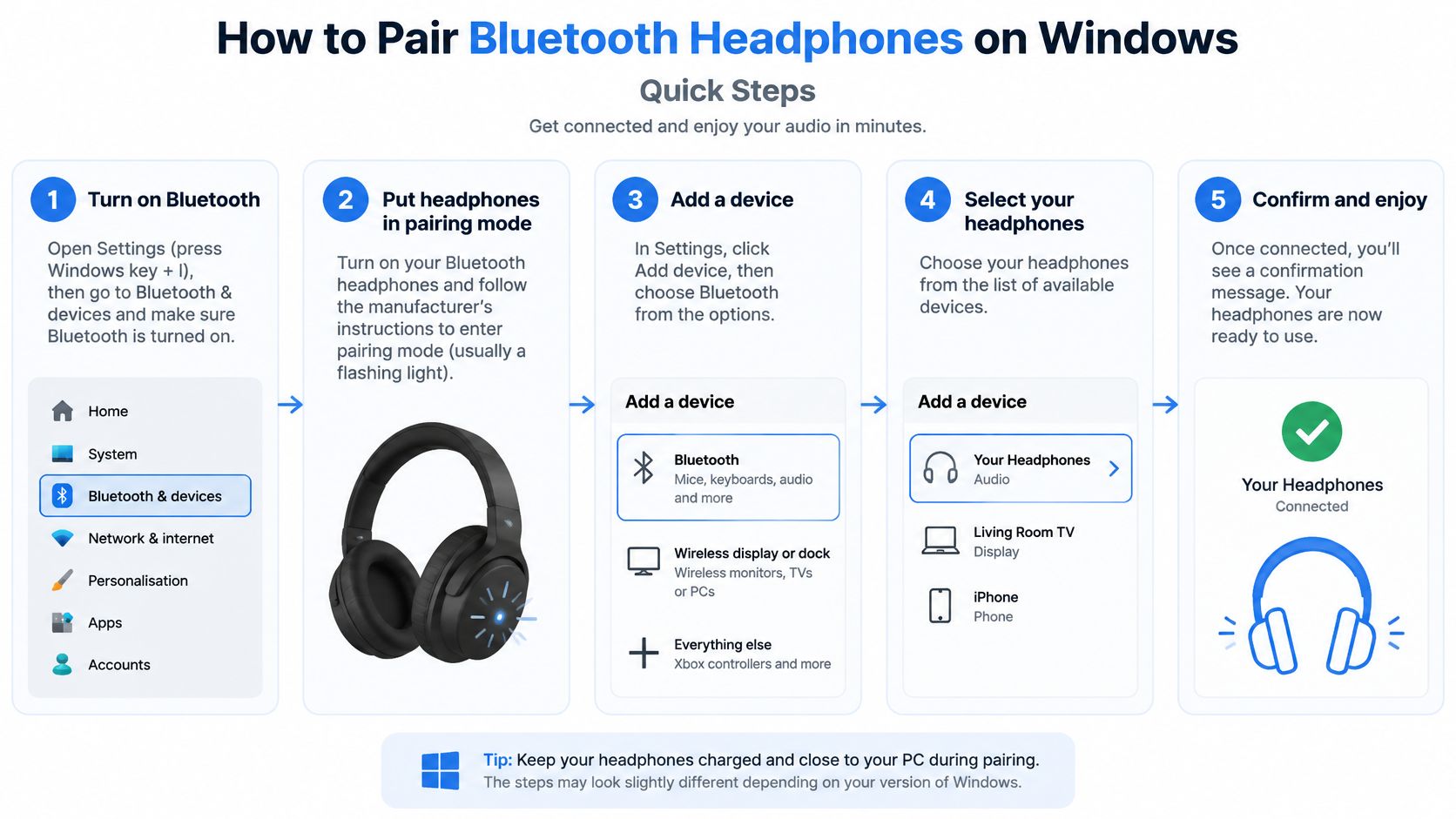
Windows menu differences
On Windows 11, there's also a quick-settings route. Select the Network, Sound or Battery area beside the clock, open the Bluetooth control, then choose Manage Bluetooth devices. With the headphones discoverable, select them under New devices, following Microsoft's Bluetooth pairing instructions.
On Windows 10, the settings wording differs: look under Settings > Devices > Bluetooth & other devices, then choose Add Bluetooth or other device > Bluetooth. The underlying job is the same, so there's no benefit in searching for a Windows 11 label that your laptop doesn't use.
If you're replacing an old pairing, removing the headphone entry doesn't erase documents, photos or application settings. It does mean you'll need to add the headphones again on that laptop.
Confirm the result before stopping
Leave the sound test running briefly rather than closing Settings as soon as the connection succeeds. Check that the audio is coming from the headphones, then open the application you intend to use.
A browser video confirms listening works; it doesn't confirm a meeting application has selected the right microphone. Check that application separately before an important call.
If the headphones never appear during the device search, stop repeating the same menu path. That's a discovery problem, and the next checks should concern pairing mode, a competing connection or the laptop's Bluetooth adapter.
Why Headphones Pair but Stay Silent
Paired means the laptop recognises the headphones. It doesn't prove your application is using them. Windows or macOS can retain the built-in speakers as the listening device, while a meeting application can have its own separate choice.
Start with the symptom you have. Changing drivers for an application-only problem adds work without addressing the setting responsible.
Symptom, likely cause and first fix
Sony's UK headphone troubleshooting guidance distinguishes connection from sound routing and recommends checking both Windows Sound settings and the application's output choice.
Consider a typical setup: your headphones work with your phone, Windows lists them as connected, but a meeting still plays through the laptop. Select the headphones inside the meeting application before assuming the Bluetooth hardware has failed.
A successful connection message is a checkpoint, not an audio test.
If the phone keeps reclaiming the headphones, leave its Bluetooth switched off while you complete laptop setup. If the saved laptop connection then refuses to work, remove that entry and pair again.
For problems that also affect an Apple handset, our iPhone Bluetooth troubleshooting guide helps separate a phone-side fault from a laptop-only issue.
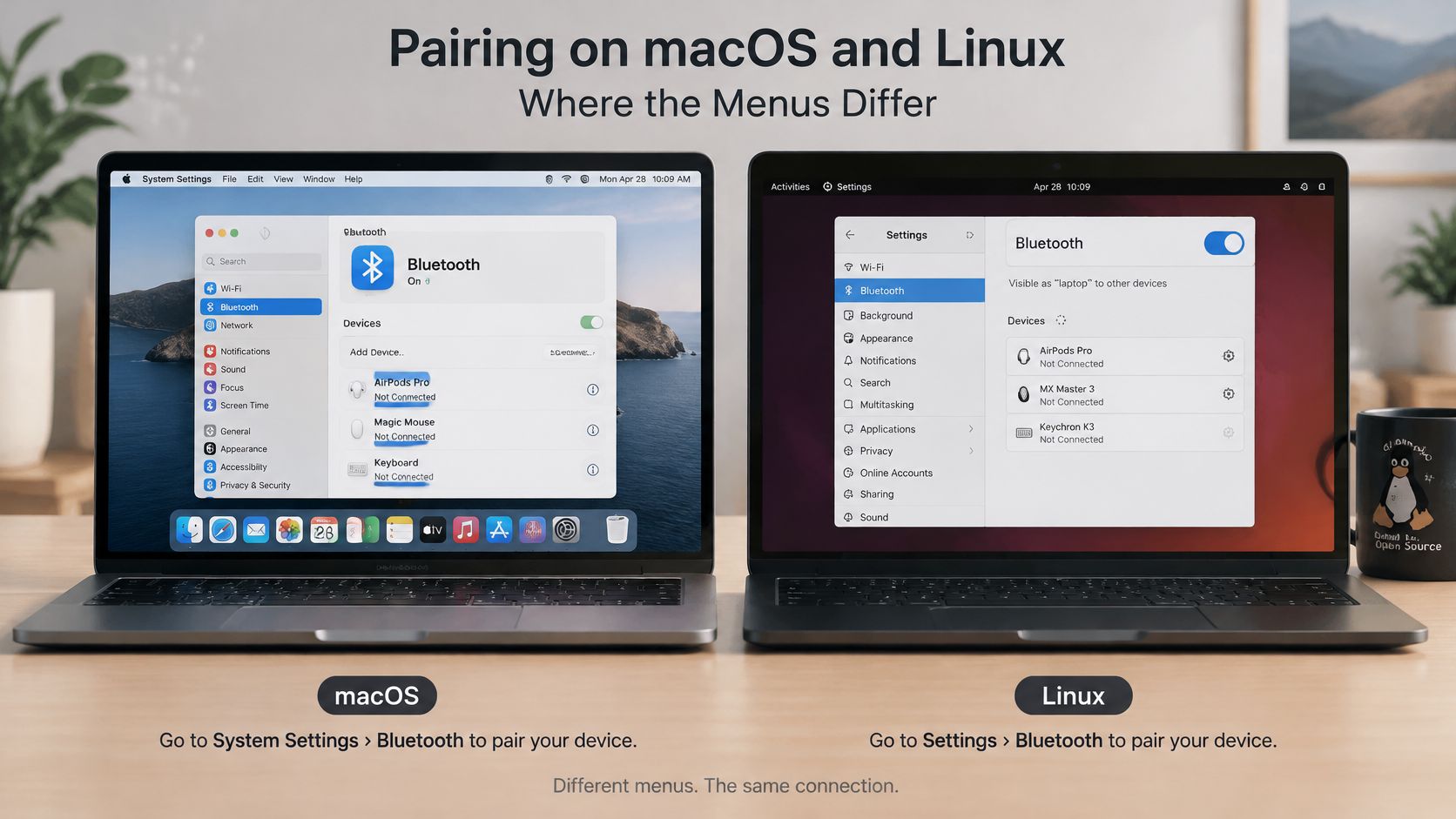
Pairing on macOS and Linux Where the Menus Differ
macOS and Linux place Bluetooth and sound controls in separate menus. Pair the headphones first, then set the audio output where the operating system expects it.
Connect headphones to a MacBook
- Activate pairing mode using the headphones' documented control.
- Open Apple menu > System Settings > Bluetooth and confirm Bluetooth is enabled.
- Select the headphones and click Connect. Approve any confirmation or enter the displayed number and press Return.
- Open System Settings > Sound > Output and choose the headphones.
- For calls, check Sound > Input and select the headset microphone if you intend to use it.
Follow Apple's UK Bluetooth connection guidance for the connection controls. macOS manages sound output and microphone input separately, so selecting headphones for listening does not automatically select their microphone.
For a Mac you're considering, check the tested condition of the specific refurbished MacBook Air rather than assuming its model name guarantees every connection works.
Linux needs distribution-specific checks
Use the desktop's Bluetooth settings to find and connect the headphones. Then open the sound panel and choose them as the output device. In GNOME and KDE Plasma, the labels and menu layout differ, but the output selector is the key check.
If the headphones pair but do not appear in the output list, open the audio server's device list and check whether the headphones are detected as an audio output. Also check the desktop sound panel's output selector. If the audio server does not list them, check your distribution's documentation for its Bluetooth audio service before installing packages or copying commands from an unrelated guide.
Keep the checks in order: confirm the connection, select the headphones as output, then investigate the audio service only if they are missing from the output choices. For either operating system, use the symptom lookup above when the connection is active but sound is missing.
Fixing Drops, Codecs and Driver Problems
For intermittent dropouts, first move the laptop away from USB 3 ports and connected USB 3 devices, which can interfere with Bluetooth in the 2.4 GHz band. If the connection still cuts out, check which codec and audio profile the laptop and headphones support before changing drivers. The Bluetooth SIG's functionality guidance explains why a Bluetooth version number alone does not confirm a device's supported audio features.
Codecs and profiles you will meet on a laptop
For conventional Bluetooth Classic stereo playback, look for Advanced Audio Distribution Profile, or A2DP. It identifies the stereo-audio function required for listening. A codec, such as SBC or AAC, describes how audio is encoded; support must match across the laptop and headphones.
Work through recovery in order
- Update the Bluetooth driver: Use Device Manager or the laptop manufacturer's support page for the exact model.
- Rebuild the pairing: Remove the saved headphones, restart Bluetooth, then pair them again.
- Reset the headphones if necessary: Follow the manufacturer's instructions rather than guessing a button combination.
- Check adapter compatibility: If the built-in Bluetooth is missing or faulty, choose a USB adapter with suitable operating-system support, drivers, connector and audio profiles.
If sound drops only when the laptop is plugged into a USB 3 device, test with that device disconnected or move the Bluetooth adapter farther away. If that does not resolve it, check whether the active playback device and supported codec match the headphones. Change one thing at a time so you can identify what fixes the fault.
Resetting headphones may erase saved connections, so you might need to reconnect your phone afterwards. It does not require a factory reset of the laptop. For Windows, Microsoft's connection recovery guidance recommends checking power, battery charge and range, then switching the headphones off and on and refreshing the Bluetooth connection.
Our Experience Refurbishing This Model at Used Mobiles 4 U
At Used Mobiles 4 U, we check Bluetooth performance on the actual laptop, because a clean case and a product grade cannot confirm that wireless audio works. During assessment, we verify that the radio appears in Device Manager, check for warning icons, then connect a reference headset and test playback and microphone operation.
What condition should tell you
- Battery health: We assess battery condition as part of grading. If it is weak, include that in the repair or replacement decision rather than treating it as a headphone-compatibility fault.
- Cosmetic grade: The grade describes visible condition. Bluetooth performance needs its own functional test.
- Heavy-use signs: Worn keys, damaged hinges or a compromised lid call for closer inspection. They can indicate that other functions also need checking.
- Parts replacement: We replace a battery or other faulty component when assessment supports it, then retest the laptop. A failed connection by itself does not establish that the wireless module is faulty.
Our refurbishment process describes the testing, grading and quality-control checks used to assess devices. For a buyer, the practical check is simple: test the function you're buying the device to perform.
A compatible Bluetooth adapter can be a sensible option if the laptop otherwise meets your needs. If the display, keyboard and battery also need work, compare the full repair proposal with the cost and condition of a tested replacement.
When comparing similar laptops, working built-in Bluetooth saves a port and avoids carrying a separate adapter. An adapter may still suit you if the laptop's condition and price make the extra device worthwhile.
What Buyers Usually Ask Us
- Is Bluetooth worth checking before buying used? Yes, ask the seller to demonstrate it or confirm the Bluetooth hardware is present. Settings can't enable a radio that isn't fitted.
- Can my headphones serve my phone and laptop? Check the headphone manufacturer's multi-device specification rather than assuming simultaneous connections. Disconnect the phone during diagnosis so you're testing one connection at a time.
- Will my existing headphones work? Check compatible stereo-audio support and test them with the actual laptop where possible. A specification sheet is useful, but playback is the better final check.
- Why did they work previously? A saved connection or driver problem can require fresh pairing or a driver update. A useful hypothetical example is a student whose headphones reconnect to their nearby phone, leaving the laptop unable to take over.
- Should I replace them immediately? Not if the fault occurs only on one laptop. Establish whether playback fails elsewhere before spending money.
Decide Whether to Fix, Adapt or Replace
A Teams call on a train puts a laptop and headset through a more useful test than pairing alone: check that speech stays clear and the connection holds in the setting where you need it. The right decision depends on which device the fault follows.
- Fix the laptop settings first if the headphones play normally elsewhere. Start with the check for the specific symptom, rather than resetting every setting.
- Add a compatible USB adapter if Bluetooth is missing or the laptop's internal radio has failed, and the laptop otherwise meets your needs. Check that the adapter supports your headphones before buying.
- Investigate replacing the headphones if they fail with different devices, will not hold a useful charge or remain unreliable after the manufacturer's reset procedure.
- Consider replacing the laptop if several unrelated faults make further repairs difficult to justify. Our guide to how long MacBooks last can help you assess that wider decision.
Match the remedy to the fault. If the headphones work with another device, replacing them is unlikely to solve a laptop-side problem. If they fail across devices, an adapter will not address the cause.
Written by James Waterston, who has worked in the mobile phone industry for 24 years, from customer service to Sales Director at a global repair and recycling company. He has run Used Mobiles 4 U for over 8 years. Connect with James on LinkedIn.
Used Mobiles 4 U offers refurbished laptops and smartphones, clear condition grading and UK-based support. Visit Used Mobiles 4 U to compare suitable devices and ask what has been tested before choosing a replacement for your current setup.
Looking for a refurbished phone?
Shop professionally tested refurbished iPhones and Samsung phones with 18 month warranty, 30 day returns and free UK delivery.
Browse Refurbished Phones



