


iPhone Screen Won’t Rotate? Checks to Try First

08/11/2026

4 Mins
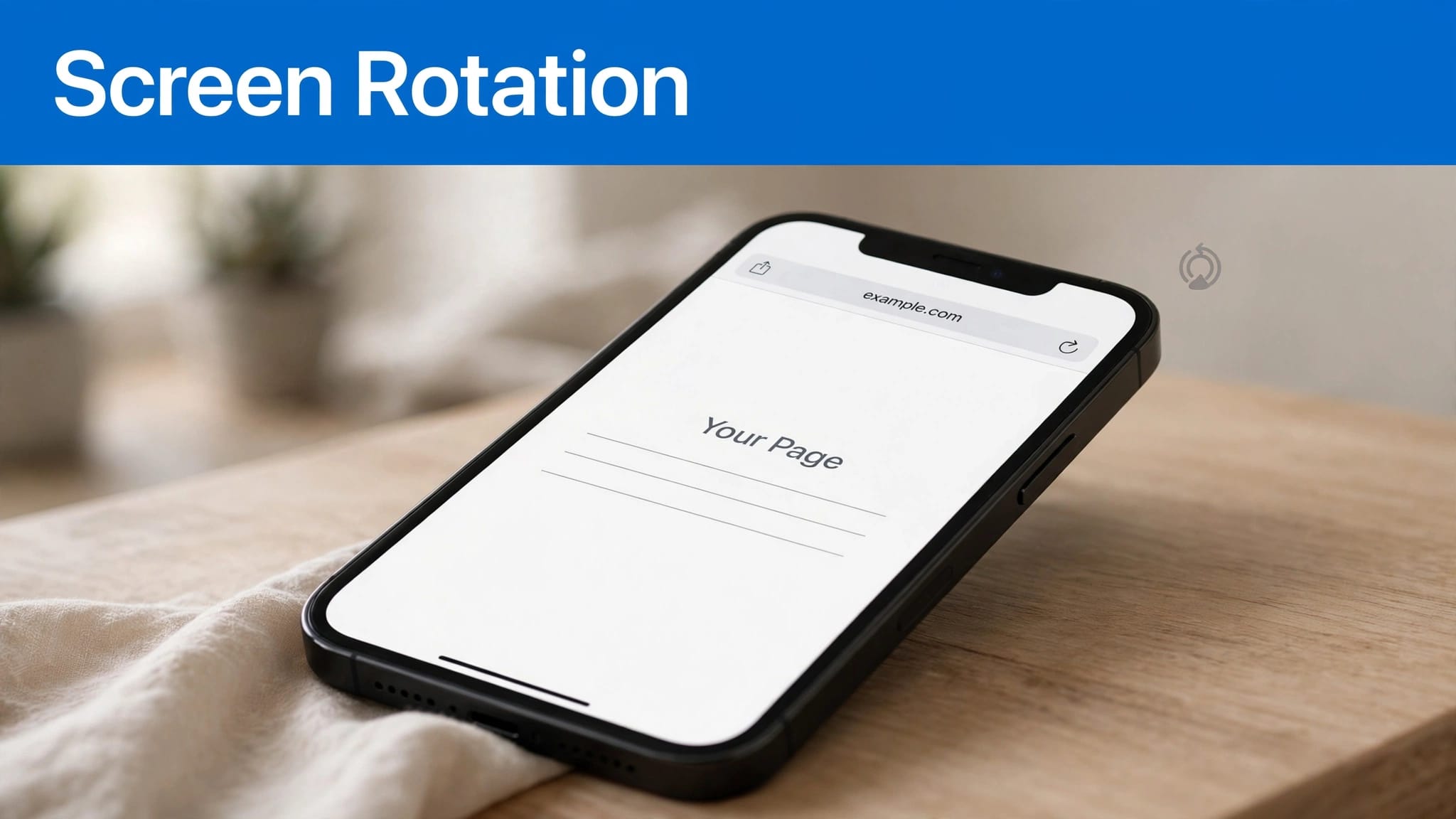
If your iPhone screen won’t rotate, first switch off Portrait Orientation Lock, then test Safari or Photos. Some software only supports portrait mode, so a screen that stays upright doesn’t automatically mean your phone needs repairing.
We recommend working through the checks below before resetting anything. Start with that control, because it’s the quickest setting to rule out.
The Short Version
- Switch off the padlock-and-arrow control in Control Centre.
- Test multiple built-in tools, because the Home screen and platforms such as TikTok normally stay upright.
- Reopen the affected program, restart the phone, and treat a system reset as a last resort.
How to Fix iPhone Screen Rotation: Quick Steps
- Open Control Centre by swiping down from the top-right corner on a Face ID iPhone. With a Home button, swipe up from the bottom.
- Tap the padlock with a circular arrow until the message reads “Portrait Orientation Lock: Off”.
- Close Control Centre, open Safari or Photos, and turn the phone sideways whilst holding it upright.
- If only one program fails, close it through the app switcher and reopen it.
- Restart the iPhone, then test the orientation again.
- Install available software updates and check Settings > General > Software Update.
- If nothing helps, back up before considering Settings > General > Transfer or Reset iPhone > Reset > Reset All Settings.
Check the Lock, Then Test the App
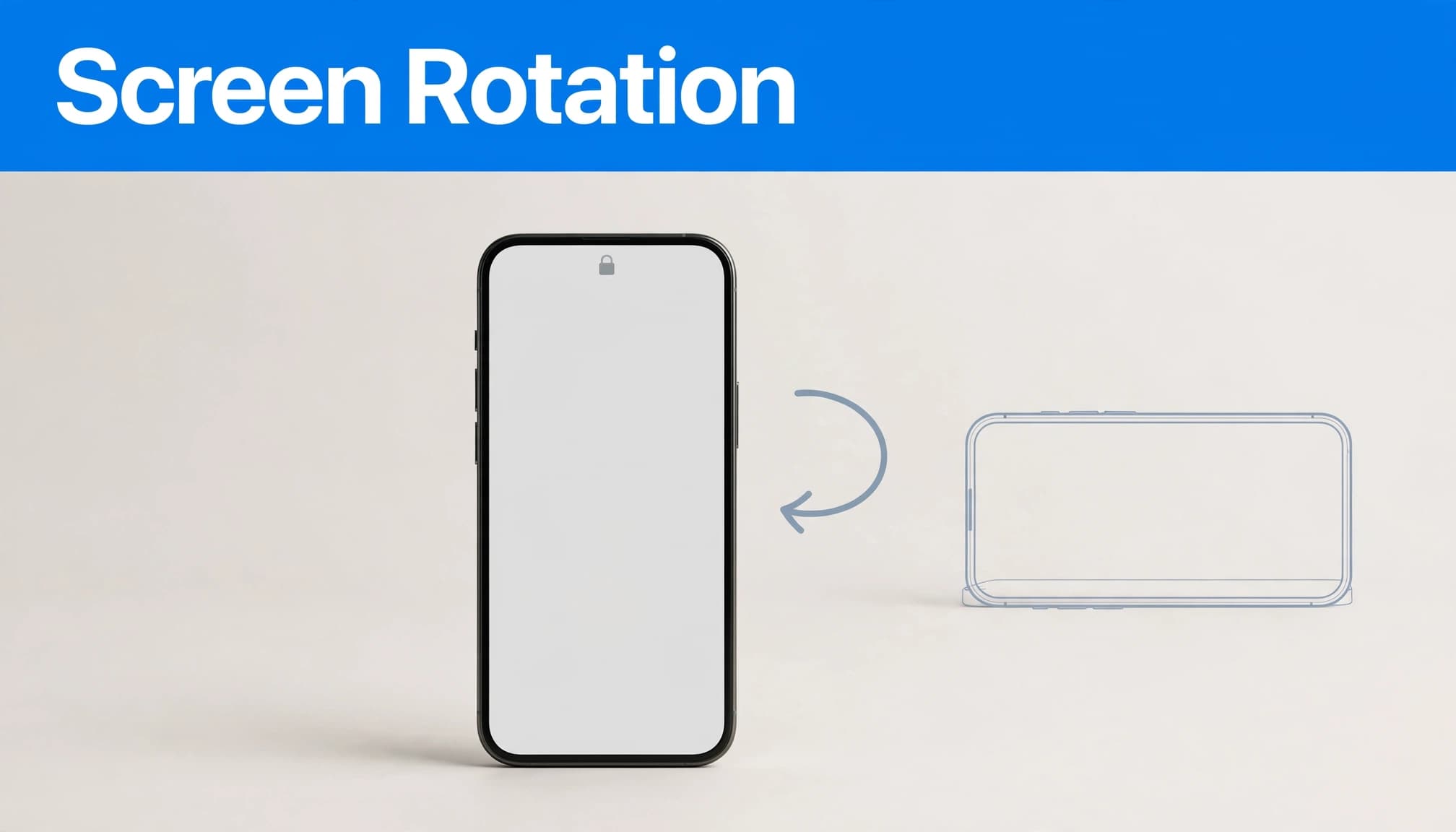
Restore a Missing Rotation Control
Portrait Orientation Lock prevents compatible software from changing orientation when you turn the handset. However, the control may have moved or been removed from a customised Control Centre.
On iOS versions with editable controls, tap the plus sign, choose Add a Control, then add the orientation control. Apple’s Control Centre customisation guide covers how these controls work.
Also hold the phone upright rather than flat on a table when testing. This gives it a clear change in orientation.
Close an App That Has Stopped Responding
Safari, Photos and YouTube are useful for testing. The Home screen isn’t reliable, and vertically restricted software isn’t a reliable test, as Apple’s screen rotation guidance explains.
If another tool turns correctly, focus on the one that doesn’t. On a Face ID iPhone, swipe up from the bottom and pause halfway to open the app switcher. Swipe the preview upwards to close it, then reopen it.
With a Home button, double-press the button to reach the same switcher. For a recently purchased handset, our day-one iPhone checks cover other useful functional tests.
Restart Before Resetting Settings
Restart Without Erasing Anything
For a Face ID iPhone, press and hold the Side button and either Volume button until the power-off slider appears. Drag the slider, wait around 30 seconds, then hold the Side button until the Apple logo appears.
On most Home-button iPhones, hold the Side button to reach the slider. Some older models use a Top button instead.
A normal restart doesn’t erase your photos, downloaded media or stored preferences. We recommend trying it before resetting anything because it’s less disruptive.
Choose Reset All Settings Carefully
Back up to iCloud or a computer first. Then follow Settings > General > Transfer or Reset iPhone > Reset > Reset All Settings.
Simply opening the Reset menu changes nothing. You must select the individual reset option and confirm it.
Reset All Settings keeps your data and media, but resets preferences such as network configurations, privacy permissions and location permissions. It also removes Apple Pay cards, so expect some setup afterwards.
“Erase All Content and Settings” wipes the device. It’s a different option and isn’t needed for routine troubleshooting.
We wouldn’t wipe an iPhone before selling it, transfer everything to another handset, or replace it simply because the display refuses to turn.
Repair-Bench Checks at Used Mobiles 4U
Our refurbishment checks cover more than visible cracks. We test touch response, brightness, Face ID, cameras and charging, because a display that lights up can still have other faults.
If taps stop registering rather than the screen simply refusing to turn, our checks for an iPhone touchscreen not responding cover the data-safe steps to try before a screen replacement.
However, an orientation fault alone doesn’t establish that the screen needs replacing. We recommend ruling out software glitches and device options before paying for parts.
Non-genuine replacement displays can have poorer visual quality or fail to work correctly. Our guide to genuine iPhone parts explains the repair-history checks that help put those concerns in context.
Apple-certified screen repairs use genuine Apple parts. For genuine replacement batteries and power adaptors, we recommend an Apple Store or Apple Authorised Service Provider.
If the problem persists across supported software, arrange a professional assessment. Avoid opening the phone as an exploratory fix: careless screen removal can damage the front sensor assembly and leave Face ID unavailable.
Where testing identifies several faults, compare repair and replacement costs. A weak battery, bent frame and unreliable charging change that decision more than cosmetic grade.
Common Rotation Questions
Can an iPhone Lock in Landscape Mode?
Portrait Orientation Lock locks the screen upright. iOS doesn’t provide a universal landscape-lock switch; any additional orientation controls depend on the individual developer.
Should a Persistent Fault Trigger a Warranty Claim?
If a recently bought phone still won’t rotate across supported software after these checks, contact the seller’s support team. Explain which programs you tested and which troubleshooting steps you completed. Warranty coverage depends on the fault and the applicable terms.
Rule Out Settings Before Paying for Repairs
When an iPhone screen won’t rotate, we recommend starting with the lock and a compatible built-in tool. Restarting comes next, whilst Reset All Settings belongs near the end.
If those checks fail, get the phone assessed before authorising a screen replacement. An orientation fault on its own isn’t a sound reason to replace an otherwise dependable iPhone.
Looking for a refurbished phone?
Shop professionally tested refurbished iPhones and Samsung phones with 18 month warranty, 30 day returns and free UK delivery.
Browse Refurbished Phones