


Why Is My iPhone Speaker Muffled During Calls?

09/11/2026

5 Mins

A muffled iPhone speaker during calls usually points to a blocked receiver, trapped moisture, incorrect audio routing or a call connection problem. A damaged speaker is also possible, but we recommend comparison tests before paying for repairs.
If you can hear music clearly but callers sound distant, start by separating the ear speaker from the loudspeaker.
The Short Version
- Raise the volume during an active call and disconnect Bluetooth accessories.
- Remove anything covering the receiver, then inspect it for debris.
- Compare normal calls, speakerphone and recorded audio before assuming hardware damage.
How to Fix Muffled iPhone Calls: Quick Steps
These checks don’t erase your data. Back up your iPhone before arranging repairs.
- Check call volume and routing. During a connected call, press Volume Up. Tap Audio and select iPhone rather than connected earbuds or a car system.
- Turn off Silent mode using the Ring/Silent switch so orange isn’t showing. On an iPhone with an Action button, check Settings > Action Button to see whether it’s assigned to Silent mode. If it is, use the Action button to turn it off; otherwise, use the Ring/Silent switch.
- Open Settings > Focus > Do Not Disturb and turn it off. Check Do Not Disturb in Control Center too. Open Control Center by swiping down from the top-right corner; UK devices may label it Control Centre. Silent mode and Focus affect alerts, rather than normally muffling an established call, but these checks help with wider sound problems.
- Go to Settings > Sounds & Haptics, or Sounds on older software. Move the Ringtone and Alerts slider back and forth, then check that the Ringtone and Alerts slider isn’t set too low. Apple’s speaker troubleshooting guidance says a dimmed speaker button can indicate that service is needed.
- Open Settings > Accessibility > Audio/Visual. Centre the Left/Right balance slider. Temporarily turn off Mono Audio and, where available, Phone Noise Cancellation to compare results.
- Restart iPhone normally, then repeat your call. Remove the case, protective films and screen protector if they obstruct the receiver or speaker opening.
- Play an alternating left/right stereo test video at moderate volume. Then make a speakerphone call and compare it with a normal call.
- If muffling remains after the cleaning and drying checks below, contact Apple Support or an Apple Authorised Service Provider.
What the Call and Speaker Tests Reveal
Compare the receiver and bottom speaker
The narrow receiver above the screen handles calls when you hold the phone to your ear. Speakerphone uses a different audio arrangement, so clear speakerphone sound alongside muffled ear-level calls points towards the receiver area.
On stereo-capable iPhones held upright, the left channel normally plays through the ear speaker and the right through the bottom speaker. Orientation can change the mapping. Keep the balance centred using Apple’s audio adjustment settings.
Separate reception from hardware faults
Compare distorted sound across ordinary calls, app calls and recordings. If ringtones and recordings sound clear but calls crackle or have static, test another caller and location. Crackling or static that varies with location or signal points to a network or reception issue rather than a blocked speaker.
A FaceTime call over reliable Wi-Fi provides another comparison. You can also use it to check call audio on an iPad. If the other person struggles to hear you instead, follow our iPhone call microphone checks.
Clean or Dry the Openings Safely
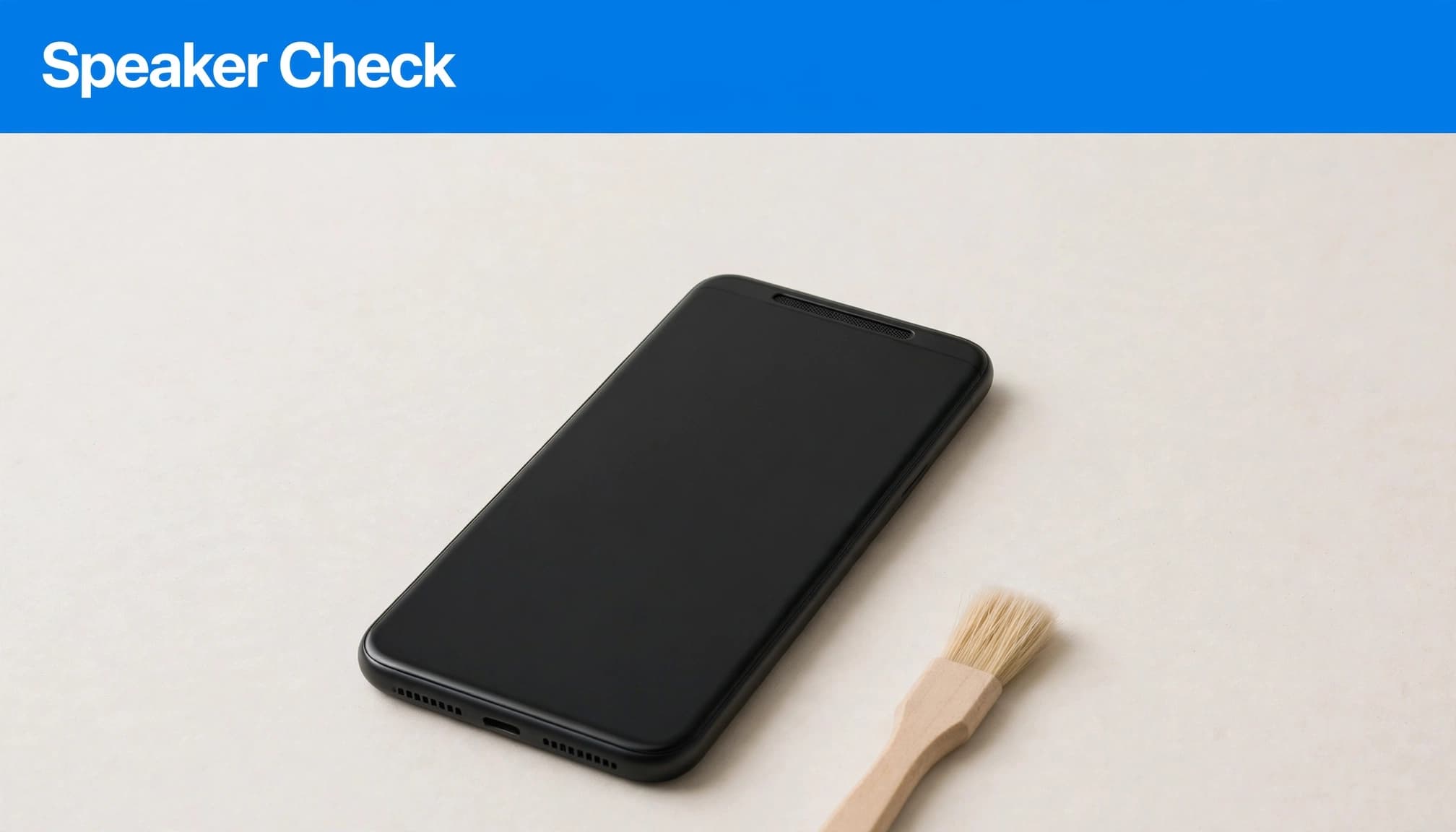
Remove obstructions gently
Switch the iPhone off and inspect the speaker opening and speaker grill under good light for dust and debris. A badly aligned screen protector can partly cover the receiver.
Use a small, clean, dry, soft-bristled brush to sweep gently across the surface. Don’t press or scrape the speaker grill, push bristles into the mesh or dig with a pin. Avoid cotton buds because they can leave fibres behind.
Stop if debris won’t lift easily. Pressing harder risks damaging the mesh or pushing dirt further inside.
Let moisture evaporate
Trapped water or steam can temporarily obstruct sound through the speaker mesh and cause muffled audio. Leave the phone in a dry, well-ventilated area and let it dry completely.
Don’t apply heat, use compressed air or insert objects into the openings. Compressed air can force material further inside. Apple’s water-resistance guidance explains precautions after liquid exposure. Drying can clear trapped moisture, but it cannot repair corrosion or damaged components.
Clear audio after drying doesn’t prove that liquid caused no internal damage.
What We Check Before Resale
Our refurbishment checks cover speakers, microphones and mobile signal alongside Face ID, charging and battery behaviour. Dust and everyday grime can make a handset sound worse than it is, so cleaning and retesting come before component replacement.
We also inspect screen fit and previous repair work. Disturbance around the front sensor assembly can affect the earpiece, proximity sensing or Face ID. A lifted display or uneven gap deserves professional assessment.
For repair-or-replace decisions, we consider the whole phone. An isolated speaker fault is a different proposition from liquid damage combined with weak battery life and charging trouble.
If you’re assessing a recent purchase, our second-hand iPhone buying checks explain the wider functional tests. Cosmetic grading alone doesn’t establish audio condition.
Frequently Asked Questions
Why is there no sound when the volume is up?
The volume buttons control different sound levels depending on what you’re doing. Raise call volume during a connected call, then check whether Bluetooth has redirected the audio. A loud ringtone doesn’t prove that the receiver works.
What if only one calling app sounds muffled?
Compare that app with ordinary calls and another recording or playback app. If the fault stays within one app, investigate its connection and software before arranging hardware work. Our device troubleshooting guidance covers this comparison approach.
Repair Only After Isolating the Fault
We recommend checking call routing, comparing calls and cleaning gently before assuming speaker failure. If muffling persists across several tests, it may point to hardware failure rather than a temporary obstruction or routing issue. Contact Apple Support, an Apple Authorised Service Provider or an authorized repair shop for an assessment.
Back up your data before service. Repair makes more sense when the rest of the handset is healthy; several faults can make replacement the better-value choice.
Looking for a refurbished phone?
Shop professionally tested refurbished iPhones and Samsung phones with 18 month warranty, 30 day returns and free UK delivery.
Browse Refurbished Phones