


iPhone iCloud Backup Stuck? Fix It Without Losing Data

15/11/2026

7 Mins
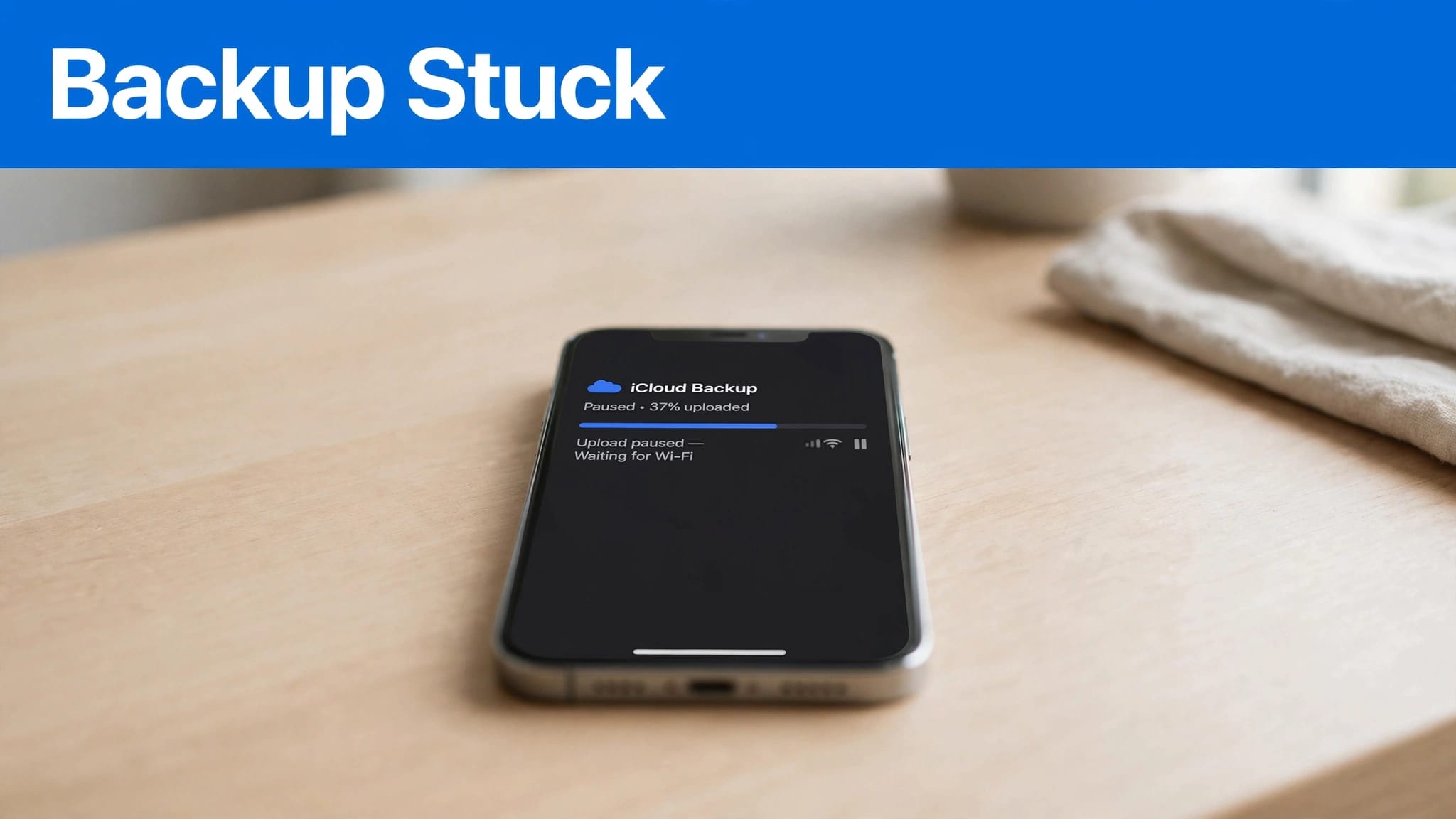
When an iPhone iCloud backup is taking forever, the usual causes are a poor internet connection, not enough room in your account, a large upload or a temporary software problem. A restore can also pause on “estimating time remaining”, but it needs different troubleshooting because it’s downloading data.
We recommend starting with reversible checks, rather than deleting backups or resetting your phone. First, establish whether you’re backing up, restoring or waiting for photos to sync.
The Short Version
- Keep the iPhone connected to a reliable connection and power.
- Check Apple’s service status and compare available iCloud space with the next backup size.
- Allow a slow backup time to finish before cancelling it.
- Don’t erase either phone while your only usable data remains on it.
Why an iCloud Backup Gets Stuck
Backup, restore and syncing are different
A backup uploads your iPhone’s information to iCloud. A restore downloads an existing backup during setup. Meanwhile, iCloud Photos synchronises your photo library separately when enabled.
A paused message in Photos doesn’t prove the whole iPhone backup has failed. Check Settings > your name > iCloud > iCloud Backup for its status.
If you’re moving devices, our guide to transferring iPhone data safely explains the available routes.
A changing estimate isn’t reliable progress
Backup duration depends on upload speed, file count and device condition. A large first backup can take considerably longer than subsequent backups.
The estimated time can increase while iOS works out what needs uploading. Instead, note the last successful backup time, any error message and whether the status changes after a sustained period on power and Wi-Fi.
How to Fix a Stuck iCloud Backup: Quick Steps
Follow these steps in order. If the phone is restoring rather than backing up, use the restore section below before cancelling anything.
- Connect the iPhone to a charger and stable Wi-Fi. For automatic overnight backups, leave the screen locked.
- Check Apple System Status for an iCloud Backup or account-service interruption.
- Open Settings > your name > iCloud > Storage > Backups > this iPhone. Compare Next Backup Size with the room available in your iCloud account. Older versions use Manage Account Storage.
- If an upload remains unchanged after sufficient waiting, open iCloud > iCloud Backup and tap Cancel Backup if shown.
- Restart the iPhone normally, then install any available update through General > Software Update.
- Return to iCloud Backup > Back Up Now to start a manual backup. Stay on Wi-Fi until it finishes.
Cancellation isn’t the first move for a large backup that’s still progressing. The checks below help distinguish a slow upload from a failed one.
Check Apple’s Services and the Wi-Fi Connection
Rule out an Apple service interruption
Open Apple System Status and look for iCloud Backup and relevant account services, including Apple ID and iCloud Account and Sign In. Apple may change service names.
A green indicator means the service is available. If Apple reports an interruption, repeated resets won’t resolve it.
When the indicators are green, continue with local checks. Service availability doesn’t measure your router, broadband upload speed or available account space.
Test another network before resetting settings
Move nearer the router and pause other large uploads. If possible, try another trusted network to check whether your internet connection has better upload performance. A connection that streams video successfully can still upload slowly.
An iCloud restore needs a network connection rather than cellular data. To prevent Wi-Fi Assist switching ordinary traffic to mobile data, open Settings > Mobile Service (sometimes Mobile Data or Cellular), scroll down and disable Wi-Fi Assist.
If connectivity remains unreliable, use Settings > General > Transfer or Reset iPhone > Reset > Reset Network Settings. This removes saved network settings, so have your Wi-Fi password ready and rejoin afterwards.
Check iCloud Storage Before Deleting Anything
Compare the next backup with available space
Space on your iPhone and in iCloud are separate. Having room on the handset doesn’t mean your iCloud account has enough space.
In Settings > your name > iCloud > Storage > Backups > this iPhone, let Next Backup Size finish calculating. On some iOS versions, the account-space option is labelled Manage Storage.
Old device backups can take up room needed for a new upload. You can delete old backups if you’re certain you won’t need them, but keep your latest usable backup.
You can also disable selected apps in this device’s backup settings. Read the confirmation carefully: excluding an app can remove its existing backed-up information.
Handle photos and app libraries carefully
Photos and videos can take up substantial space, but they aren’t always part of the device backup. When iCloud Photos is enabled, that library syncs separately.
If you export photos to a computer, open representative files before removing anything. A thumbnail or an incomplete transfer isn’t a safe replacement.
Deleting a photo while iCloud Photos is enabled also deletes it from iCloud and your other synced devices.
Check large app libraries too. WhatsApp videos can make its separate chat backup much larger. We wouldn’t clear browser history or delete treasured photos merely to make a progress bar move.
Restart and Update Before Changing Accounts
If storage and connectivity look sound, restart the iPhone normally. A force restart is only necessary when the handset won’t respond.
Next, open Settings > General > Software Update and choose the available download and installation option. Keep the phone powered during the update.
For an “upload paused” message, switch off Low Power Mode temporarily. Search for it if its location differs on your iOS version. First establish whether the message belongs to Photos, an app or iCloud Backup.
Signing out and back into iCloud is a later troubleshooting option, not our first recommendation. It can interrupt syncing and requires your Apple Account password, formerly called your Apple ID password. Don’t sign out mid-restore or while important information exists only on the phone.
If an iCloud Restore Is Stuck on Estimating Time Remaining
Allow time without assuming a fixed deadline
Restore duration depends on backup size, connection quality and the apps and media downloading afterwards. FoneGeek quotes one to four hours per GB, but that’s a third-party estimate, not an Apple timetable.
Several hours without an obvious change doesn’t automatically mean failure. Keep the phone on power and Wi-Fi, especially if apps or photos are still appearing.
For slow backups, Apple’s backup troubleshooting guidance recommends allowing 24 hours on power and Wi-Fi. That guidance concerns backups, not a guaranteed restore duration.
Stop a restore only as a deliberate later step
Before restoring, the backup-selection screen shows available backups with dates and sizes. Choose the appropriate backup and check the destination phone’s capacity.
If a restore repeatedly fails after network and software checks, Apple’s restore troubleshooting guidance is the appropriate next reference.
To stop an ongoing restore, open Settings > your name > iCloud > iCloud Backup > Stop Restoring iPhone, then confirm Stop.
Don’t stop it because an estimate looks unhelpful. Keep the source phone untouched until you can access the information you need on the replacement.
Bench Checks at Used Mobiles 4U
Separate a transfer problem from a hardware fault
Our technicians check charging reliability and Wi-Fi connectivity before resale because both matter during setup. A phone that disconnects from power or repeatedly restarts needs a different investigation from one showing a slow upload.
If it keeps shutting down, inspect Settings > Battery > Battery Health & Charging, or Battery Health where shown. Read any service or performance message alongside Maximum Capacity.
We wouldn’t recommend replacing an otherwise working iPhone solely because one cloud backup stalls. If it also drops Wi-Fi across several networks or shuts down unexpectedly, repair assessment makes more sense than repeated resets.
Make a computer backup before considering an erase
Use Finder on a Mac or Apple Devices on Windows as an alternative. Apple’s backup-method comparison explains the differences. Choose encryption if you need supported sensitive information, and keep the encryption password safe.
If the computer doesn’t recognise the handset, our charging-port troubleshooting advice explains why cable data capability matters.
Erasing removes the phone’s data. Only consider Settings > General > Transfer or Reset iPhone > Erase All Content and Settings after making a usable backup and exhausting safer fixes.
A factory reset can’t increase available iCloud space or repair a faulty connection.
Frequently Asked Questions
How can a completed backup be confirmed?
Open Settings > your name > iCloud > iCloud Backup and check the date and time of the last successful backup. Being plugged in overnight doesn’t prove the backup completed.
Before selling, follow our guidance on wiping your old phone safely after protecting your data.
Does WhatsApp need a working iCloud backup to transfer?
WhatsApp’s direct iPhone-to-iPhone transfer can move chats locally without an iCloud backup. We still recommend using its separate Settings > Chats > Chat Backup > Back Up Now option as a safety net.
Keep the old handset untouched for several days afterwards. Open older chats, photos and voice notes on the replacement before erasing the source.
Fix the Cause Before Replacing the Phone
A stuck iCloud backup usually calls for checks on connectivity, available iCloud space and software before any destructive action. Backup uploads, device restores and photo syncing need separate diagnoses.
Start with power, Wi-Fi and the backup-size comparison. If those checks don’t resolve it, protect your data with a computer backup before considering an erase. A stalled upload alone isn’t a reason to replace your iPhone.
Looking for a refurbished phone?
Shop professionally tested refurbished iPhones and Samsung phones with 18 month warranty, 30 day returns and free UK delivery.
Browse Refurbished Phones