


Mac Air Second Hand Buyer’s Guide 2026

02/11/2026

12 Mins

The cheapest second-hand MacBook Air is often the dearest one to own. Buy one only when macOS support, fixed memory and battery health will last the years you need; a tidy lid cannot rescue a machine that runs out of support or charge mid-course.
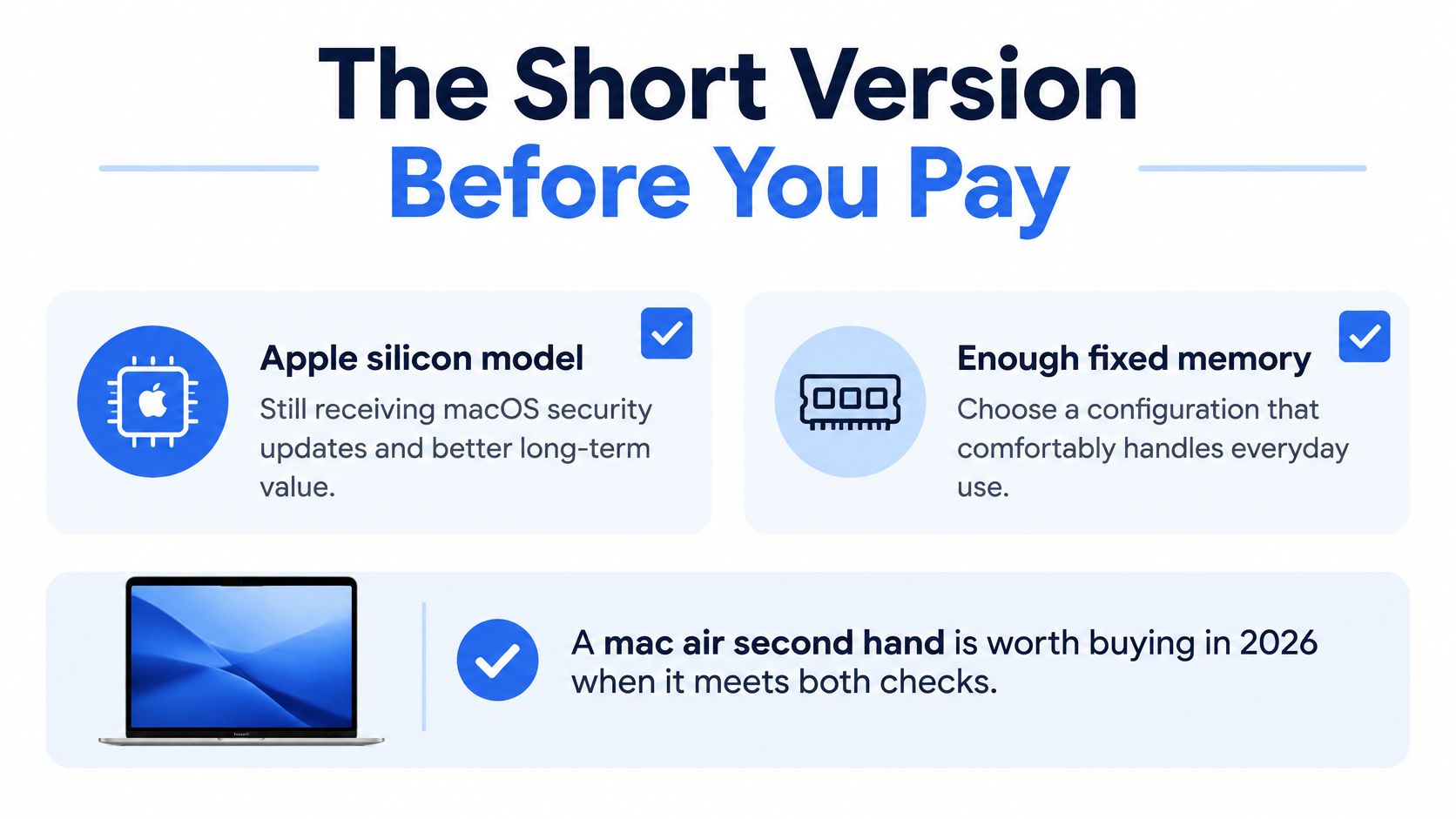
The Short Version Before You Pay
- Start with Apple silicon. An M1 or later Air is the practical starting point for study, browsing, office work and video calls. Check current macOS compatibility before paying.
- Buy enough memory. Choose 16GB when browser tabs, calls and documents regularly stay open together. You can't add memory later.
- Leave storage headroom. Treat 256GB as tight when applications, photos and downloaded coursework share the drive.
- Reject unresolved faults. Walk away from Activation Lock, a swollen battery, liquid damage or a seller who won't let you inspect the machine.
- Put condition grades last. Chip, memory, storage and useful software life matter more than a nearly spotless case.
Which Air Generation Is Worth Buying
Second-hand MacBook Air generations and who they suit in 2026
Our preference for most buyers is an Apple-silicon Air with enough memory, rather than a better-looking Intel machine. Apple's MacBook Air information supports the distinction between chip generations and configurations, but the individual listing still needs checking.
The confusing comparison is an Intel Air and an M1 Air advertised under the same model year. Open Apple menu > About This Mac, then check the hardware details in System Information against the advert.
An older Intel Air can still start promptly, play a video and look perfectly serviceable. That doesn't make it a sound general-purpose work purchase. Heat under sustained work and restricted software compatibility matter more than whether a seller can demonstrate a browser opening.
Buy usable software life, not just working hardware
Check the exact model against Apple's macOS compatibility guidance, then check the requirements of your university, employer and essential applications. Compatibility with a particular macOS release isn't a promise of a fixed number of future supported years.
Ask yourself how long you need the machine to remain useful. A laptop for occasional household admin has different demands from one expected to carry you through a course or run business software every working day.
The cheapest Air in the listing is often the dearest if macOS support, fixed memory or a tired battery runs out during the years you actually need it.
For memory, light email, documents and streaming are different from coding, photo editing or keeping several demanding applications open. More memory gives those workloads breathing room. For storage, leave room for updates, working files and temporary downloads rather than planning to keep the drive almost full.
A concrete example of an older configuration is the Apple MacBook Air 13" (2014) – i5, 128GB – Silver – Very Good. The listing confirms an Intel i5, 128GB storage, Silver finish and Very Good grade, and it is listed in stock. That combination is a limited-use buy: 128GB is tight once macOS, applications and working files share the drive, and the Intel platform has a shorter useful software life than Apple silicon.
Choose M1 or M2 if:
- Value comes first. Your applications are ordinary, and current compatibility meets your needs.
- Configuration wins. You can afford more memory without stretching for a newer chip.
Choose M3 or M4 if:
- The price gap is sensible. You want newer hardware and have checked the exact configuration.
- Your workload justifies it. You're paying for useful headroom, not merely a later date on the advert.
Battery Cycles Against Real Daily Use
Hold Option, open the Apple menu, choose System Information, then select Hardware > Power. That's the useful starting point, rather than the seller's description of the battery as good.
Apple's cycle-count guide lists a maximum cycle count of 1,000 for recent Air models including M1, M2 and M3, while the Mid-2009 Air is listed at 500. Match the limit to the exact machine rather than applying one number to every MacBook.
A cycle means using a total of the battery's full capacity, not plugging the charger in. Partial discharges accumulate. Someone who charges frequently hasn't necessarily used more cycles than someone who regularly runs the battery down.
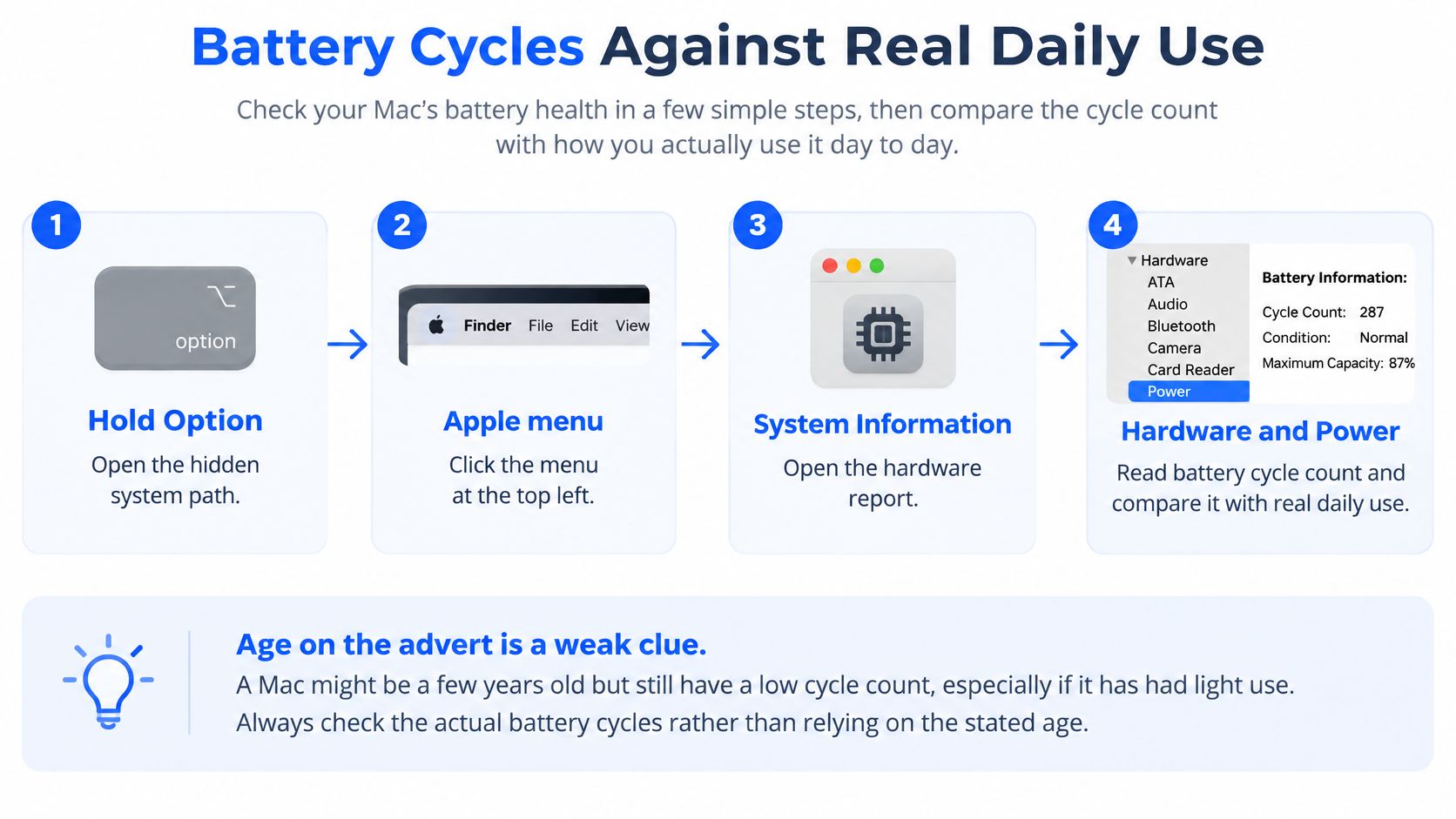
How to check battery cycles, Quick Steps
- Identify the machine. Open Apple menu > About This Mac and note the model and chip.
- Open the hardware report. Hold Option, open the Apple menu and choose System Information.
- Find the battery information. Select Hardware > Power.
- Read the condition as well as the count. Look for a service warning and check maximum capacity where available.
- Try ordinary unplugged work. Run the applications you'd normally use, watching for rapid drops, shutdowns or unusual heat.
- Make a buying decision. Accept normal behaviour, negotiate for a documented repair need, or decline a machine with unresolved faults.
Reading these details doesn't erase anything. If you're assessing your own Mac before repair, however, back up your files before handing it over.
Translate the reading into a decision
A low cycle count doesn't cancel out poor runtime. Calendar ageing, a defective cell or an earlier replacement can make the number less reassuring than it first appears.
Likewise, a high count isn't proof that the laptop will shut down tomorrow. It means you should judge the remaining capacity and likely repair requirement, rather than pricing it as an untouched battery.
Buy when condition, charging and unplugged behaviour agree with the listing. Negotiate when the machine is otherwise suitable but needs a properly costed battery replacement. Avoid swelling, unexpected shutdowns, intermittent charging or a seller who dismisses a service warning without investigating it.
Apple's headline battery figures are controlled tests, not promises for your working day. Video calls, bright screens, photo work and busy browsers can produce very different results, as the test conditions on Apple's technical specifications make clear.
Give an unplugged trial enough time to reveal a pattern. Check sleep and wake too: a machine that behaves normally while awake but loses substantial charge asleep still needs attention.
Our MacBook battery-health guide helps you interpret the readings. Battery replacement should follow the manufacturer's repair procedures and be handled by a trained technician, not treated as a casual experiment with a damaged cell.
What We Check Before Resale
A trustworthy listing should describe a functional laptop, not just an attractive shell. We test and grade devices in-house and securely wipe them before resale. The checks need to distinguish ordinary cosmetic wear from faults that will interrupt daily use.
- Power and charging. Check startup, charger detection, stable operation on mains and battery, and charging through the appropriate connections. A charging symbol alone doesn't establish that the socket is reliable.
- Keyboard and trackpad. Test every key, the backlight where fitted, clicks, gestures and consistent pointer movement. Sticky keys and intermittent presses are faults, not cosmetic grading.
- Display. Use plain light and dark backgrounds to look for bright spots, lines, pressure marks and uneven illumination. Move the lid gently through its normal range to check for flickering.
- Ports and wireless. Connect suitable accessories to the ports and test Wi-Fi. A port that charges but won't recognise an accessory hasn't passed a complete functional check.
- Calls and sound. Test speakers, camera and microphone together. A student shouldn't discover an unusable microphone during an online class.
- Temperature and mechanics. Listen for abnormal fan behaviour on Intel machines and inspect hinges, casing and port surrounds. Dents deserve attention when they affect fit or operation.
- Ownership and data. Confirm Find My and Activation Lock are cleared, complete secure data wiping, and check that setup doesn't demand a previous owner's credentials or unexpected organisational enrolment.
Read grades as descriptions of appearance
Names such as Like New, Excellent, Very Good and Good should describe visible wear, not different standards of basic functionality. Always read the seller's definitions and the notes for the actual unit.
A clean lid can sit above a tired battery. A scuffed corner can belong to a machine that types, charges and runs properly. Polished keys, loose hinges and damage around frequently used connections deserve closer inspection, but none tells the whole story alone.
Bench rule: Inspect the part that does the work, not just the surface that photographs well.
Our refurbishment-check overview explains the wider process behind preparing devices for resale. For businesses maintaining existing equipment, Networking2000's laptop maintenance advice for small businesses provides a useful maintenance resource, rather than a reason to replace hardware automatically.
A typical buying trap is a student laptop with an appealing headline price but little multitasking headroom, cramped storage and a worn battery. Read those limitations together. Each may be manageable separately, but the combination can make the machine unsuitable for a busy term.
Our Experience Refurbishing This Model at Used Mobiles 4 U
An Air that no longer holds charge is not automatically a bad buy. The repair decision depends on what else is wrong with it, and that is where a cheap listing often turns expensive. A tired battery, a damaged port and software the machine can no longer run are separate problems. Add them together and the lowest purchase price can become the dearest route to a laptop you can rely on for the years you need it.
At Used Mobiles 4 U, refurbishment covers assessment, repair where it is worthwhile, and an honest description of what remains. A replacement battery will not fix an intermittent keyboard. Cleaning a keyboard will not prove the charging connection is sound. The unit has to make sense as a whole machine before any single part justifies the spend.
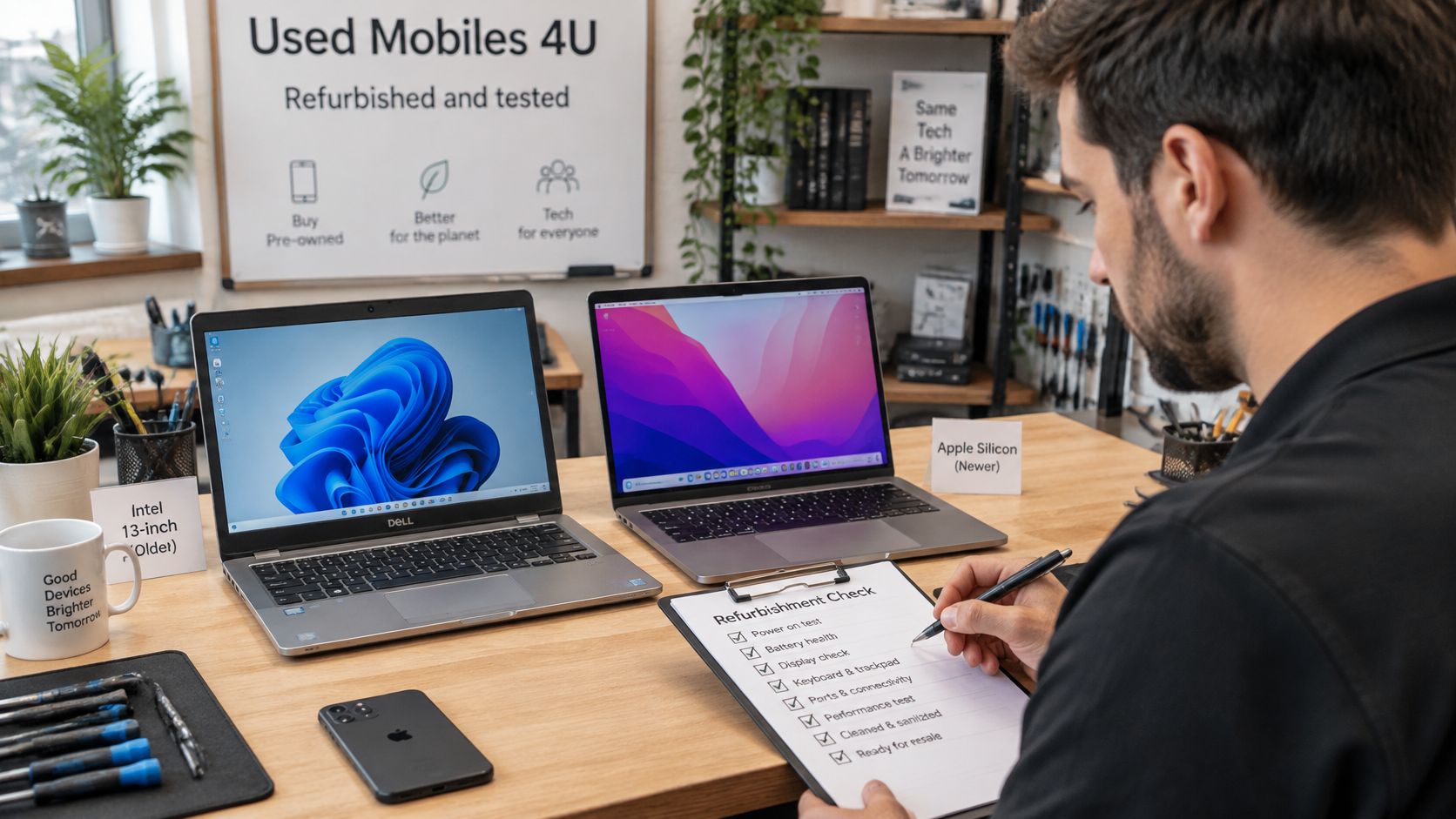
A realistic repair-or-replace scenario
You own an Air that handles documents and calls comfortably, but its unplugged time no longer covers your commute. The display, keyboard, charging and software compatibility all remain sound. A battery assessment is the sensible first step, provided the rest of the machine has enough working life left to justify the cost.
Now add an intermittent keyboard and a damaged charging connection. Your work applications also need software the machine cannot run. A new battery alone leaves you with a laptop that still fails the job. I would favour the repair in the first case and question further spending in the second. The calculation is total reliable use against total outlay, not the appeal of a familiar machine.
Several faults change the decision quickly. An older Intel Air needing extensive work can cost more than moving to a suitable Apple-silicon model, especially when fixed memory or macOS support is already close to the limit. That is the trap behind a low asking price: the machine may run today but not through the period you need it.
Secure data wiping is a separate part of resale preparation. If you are replacing an Air, keep a verified backup before erasing it and remove your own account ties rather than passing those problems to the next owner.
Where to Buy Safely and What Prices Mean
Start with the seller, then compare the price. Who sold the laptop affects how straightforward it will be to resolve a problem.
A refurbished specialist should explain testing, grading and returns. A private listing needs closer scrutiny because a friendly conversation isn't a repair commitment.
Where to buy a second-hand MacBook Air
Compare like with like: chip, memory, storage, battery condition, disclosed marks and warranty terms. A higher cosmetic grade doesn't necessarily justify paying more than you would for a better-configured machine.
Our MacBook Air price guide offers further buying context, but there's no useful universal price without the specification and condition.
A large unexplained gap below comparable machines is a reason to investigate, not proof of a bargain or a scam. Request clear photographs, hardware details and battery information. If the seller won't explain the difference, leave it.
Ask how a fault is reported, who arranges return transport and whether battery deterioration is addressed by the written warranty. Keep the answers with your order confirmation.
Fault Rights and Online Returns
Faulty goods and inaccurate descriptions
A used laptop bought from a UK trader must still be of satisfactory quality, fit for purpose and as described, as Citizens Advice explains. Faulty, unusable or materially misdescribed goods can give you grounds to seek a refund, repair or replacement, with the appropriate remedy depending on the circumstances.
Age, price and disclosed condition matter when assessing a second-hand machine. That doesn't allow a seller to describe a faulty keyboard as fully working or supply less storage than advertised.
Save the listing, photographs, battery notes and correspondence. If a problem develops, explain what happens, when it occurs and how it differs from the description.
Damage from misuse, accidents or ordinary wear is treated differently. You generally can't claim about a defect that was clearly disclosed before purchase.
Changing your mind about an online order
Cooling-off rights are separate from fault protection. For qualifying online purchases, UK government guidance normally gives you 14 days after receipt to notify the retailer of cancellation, another 14 days to return the goods, and requires a refund within 14 days of the retailer receiving them back.
You may have to pay return postage, and handling the laptop beyond what's reasonably needed to inspect it can affect the refund. Keep the packaging where practical and don't treat the inspection period as unrestricted ownership.
- For a fault: Describe the failure and keep evidence of the listing and your report.
- For cancellation: Notify the retailer clearly and follow the return instructions.
- For a private sale: Don't assume the same trader protections or cooling-off rights apply.
A voluntary warranty or longer shop returns policy doesn't replace statutory rights. Our returns policy sets out the route for purchases from us.
Before returning a laptop, back up your files and follow the seller's instructions for removing personal information and account locks. Don't erase evidence of a fault before documenting it.
Decide If This Air Is Worth It
Choose the Air that clears your software and memory needs for the next three years. That test matters more than the appeal of a low asking price. The cheapest second-hand Air can become the dearest if macOS support ends, memory is fixed below what your work grows into, or the battery is already tired when you start relying on it.
For writing, research, calls and routine office applications, a few honest case marks are easier to live with than a machine that cannot support your required applications. Condition matters, but it sits behind software support, memory and battery health.
Who should choose something else
- Windows-only software users: Confirm a supported way to run essential applications before choosing a Mac. Do not buy first and assume a workaround will be satisfactory.
- Heavy creative users: Sustained video production or demanding graphics work may justify a different class of laptop.
- Virtual-machine users: Check memory requirements, processor compatibility and the software's supported setup carefully.
- Buyers stretching every pound: Avoid a machine that already needs several repairs. The purchase price is only part of the cost.
For ordinary workloads on a restricted budget, an older Apple-silicon Air with more memory can be the sensible compromise. A later model deserves the extra spend when its condition, capabilities and current compatibility improve your expected ownership experience.
Final judgement: The right Air has enough software support, memory and battery life left to carry you through the years you actually need it.
If you're replacing an existing machine, separate the buying decision from the disposal decision. Back it up, establish whether repair still makes sense, and securely remove your data before selling or recycling it.
Used Mobiles 4 U offers refurbished MacBook Air and MacBook Pro laptops for work, study and everyday use, with in-house testing, grading and secure data wiping. Visit Used Mobiles 4 U to compare current listings against your software, memory and battery needs, or explore Sell Your Tech when replacing your old device.
Looking for a refurbished phone?
Shop professionally tested refurbished iPhones and Samsung phones with 18 month warranty, 30 day returns and free UK delivery.
Browse Refurbished Phones