





MacBook Pro Touch Bar: What It Does and Is It Worth It

22/10/2026

11 Mins

The MacBook Pro Touch Bar is a context-sensitive OLED strip that replaced the function keys on certain MacBook Pro models. For refurbished buyers, it's a convenience feature, not a reason to overpay: the model year, battery condition and warranty matter more.
But does a cheap Touch Bar MacBook remain a bargain if its software support is limited or a fault proves costly to repair? The short answer is that the Touch Bar can be useful, but the laptop around it deserves closer scrutiny. Check the exact model, test the controls and Touch ID, and treat older machines as buy-only-after-testing devices.
What Is the MacBook Pro Touch Bar
The Touch Bar is a slim, touch-sensitive screen above the keyboard. Think of it as a row of buttons that changes to suit what you're doing, rather than a fixed set of function keys. It might show brightness and volume controls, media playback, or options supplied by the app you've opened.
Apple designed it to adapt to the active system or application. Its examples included Mail, Finder, Calendar, Numbers, GarageBand and Final Cut Pro X, as well as compatible third-party apps. That can make a shortcut easier to reach, but what appears depends on whether the app provides useful controls. Apple's explanation of the Touch Bar and Touch ID gives the original feature context.
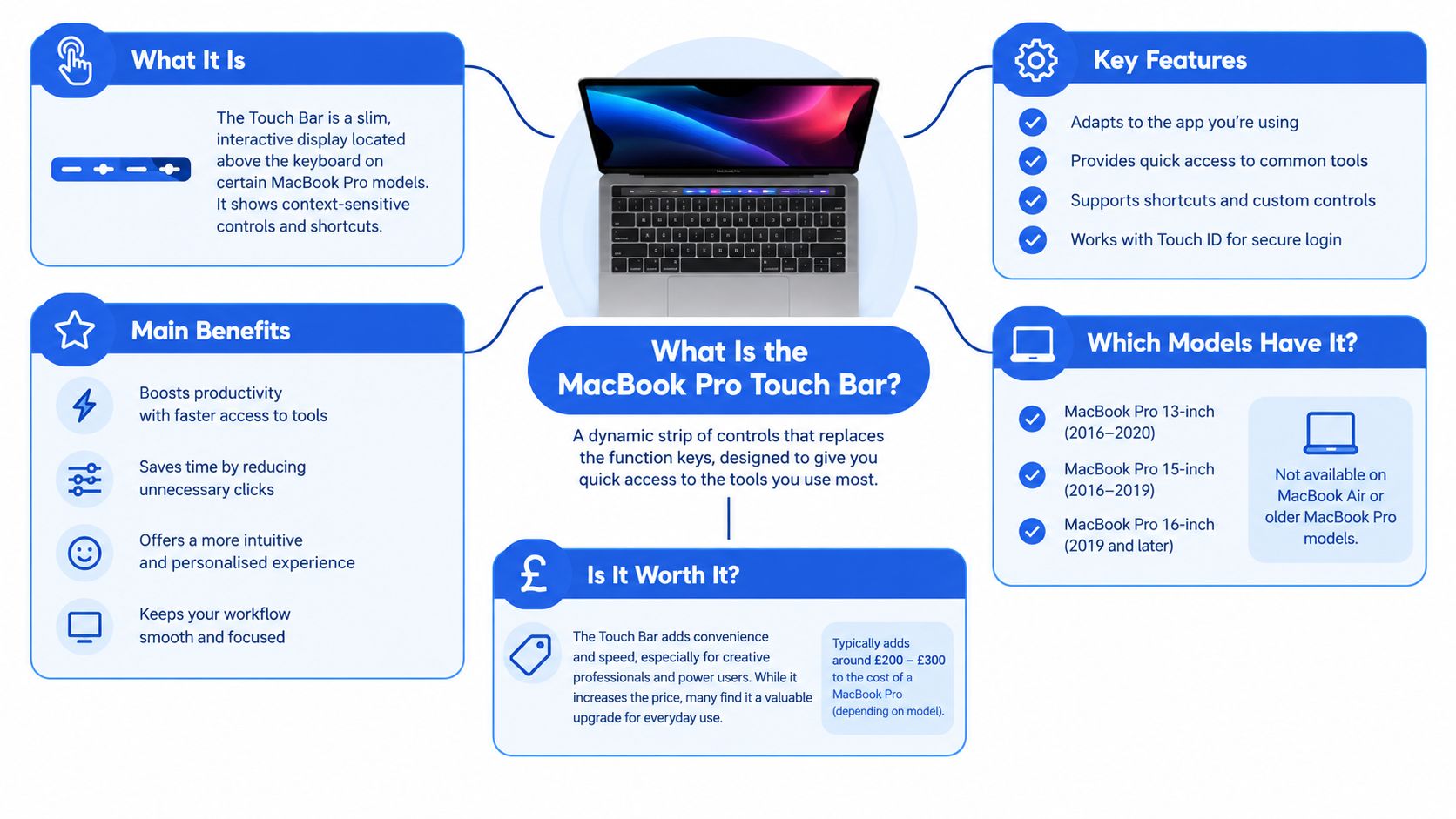
Touch ID sits at the strip's right-hand end on models that include it. You can use it for fingerprint authentication, including logging in and authorising Apple Pay transactions. It's a separate feature from the Touch Bar controls, so test both when looking at a used machine.
The Touch Bar isn't a second display for running apps, and it doesn't replace the keyboard or trackpad. If an app doesn't use it well, or if you prefer physical function keys, the strip may add little to your routine. It's best understood as an optional control surface, not the reason to choose a particular MacBook.
Pros and Cons of the Touch Bar
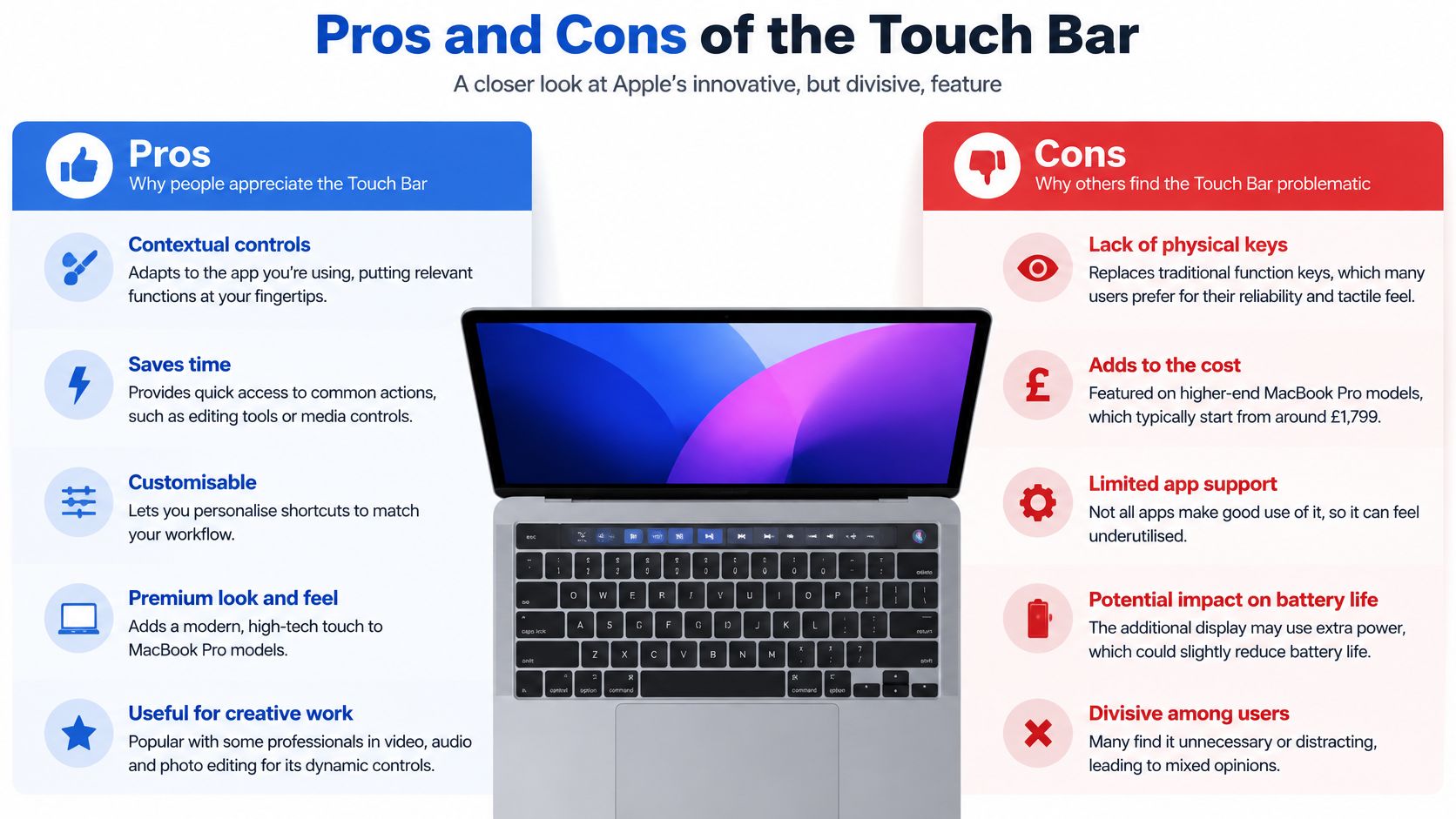
The Touch Bar's strongest point is convenience when its controls suit the app. You can tap a visible control instead of using a keyboard shortcut, and Touch ID can make sign-in and authentication feel quick. The uncluttered keyboard area also appealed to people who preferred a minimalist layout.
There's a practical trade-off, though. Physical function keys are easier to locate by touch, while the Touch Bar usually asks you to glance down. And where an app doesn't offer useful Touch Bar controls, the strip can feel like a replacement for keys you'd rather still have.
What works well
- Context-sensitive shortcuts: Controls can change with the open app, which may be handy in creative software and media applications.
- Touch ID: Fingerprint authentication is useful when it works reliably. It's worth testing enrolment and access, not just checking that the strip lights up.
- A clean layout: The design keeps the keyboard area visually simple.
What doesn't
- No tactile function row: You can't feel your way to a particular Touch Bar button in the same way you can with a physical key.
- Uneven app support: The experience varies by application, so some buyers may rarely use the strip.
- Repair risk: A fault can involve integrated parts rather than a simple interface issue. On models with a T2 Security Chip, unreliable Touch ID may point to a more involved sensor, logic-board or security-architecture problem.
Apple positioned the feature as a premium option in the original UK range. Its first Touch Bar MacBook Pro models launched on 27 October 2016; the 13-inch Touch Bar configuration started at £1,749 including VAT, compared with £1,449 for the 13-inch model without the feature. Those launch figures are useful context, not a guide to today's second-hand value. Apple's UK launch announcement sets out the original positioning.
Practical rule: Treat the Touch Bar as a nice-to-have. Don't pay a large premium for it over a better-supported or better-tested alternative.
Which MacBook Pro Models Have the Touch Bar
The Touch Bar appeared on selected MacBook Pro configurations, starting with Apple's redesigned 2016 range. It carried through later Intel models and remained on the 2020 M1 13-inch MacBook Pro. The presence of the strip doesn't tell you the machine's processor, memory, storage or security-chip setup, so confirm the full model details before comparing listings.
The table is a starting point, not a substitute for checking the machine itself. On macOS, open About This Mac and compare the displayed model and processor with the seller's description. Ask for the model identifier too, especially if the listing only says "MacBook Pro Touch Bar".
For a 2019 15-inch configuration, Apple described eight-core Intel processors with Turbo Boost frequencies up to 5.0 GHz. Its published comparison claimed up to twice the performance of a quad-core MacBook Pro and 40% more than a six-core model, but these were Apple's workload-dependent claims, not an independent benchmark. Apple's 2019 announcement provides the original context.
A useful example for comparison is the 2020 13-inch MacBook Pro listing. Check its exact processor before assuming it's the M1 version. The model year and the Touch Bar alone aren't enough to identify the configuration.
Our Experience Refurbishing This Model at Used Mobiles 4U
With a used Touch Bar MacBook, a clean casing doesn't tell you much about the condition of the parts that matter. One thing we regularly notice in refurbishment is that signs of heavy use tend to show up together: a worn keyboard, a battery that no longer holds charge well, or controls that behave inconsistently. Those checks matter more than a polished exterior.
Our technicians often see why a basic boot test isn't enough. We test Touch Bar responses across available controls, check Touch ID enrolment and authentication, try every USB-C port, and inspect charging behaviour and battery condition. We also check the keyboard and display, rather than assuming they're sound because the machine starts.
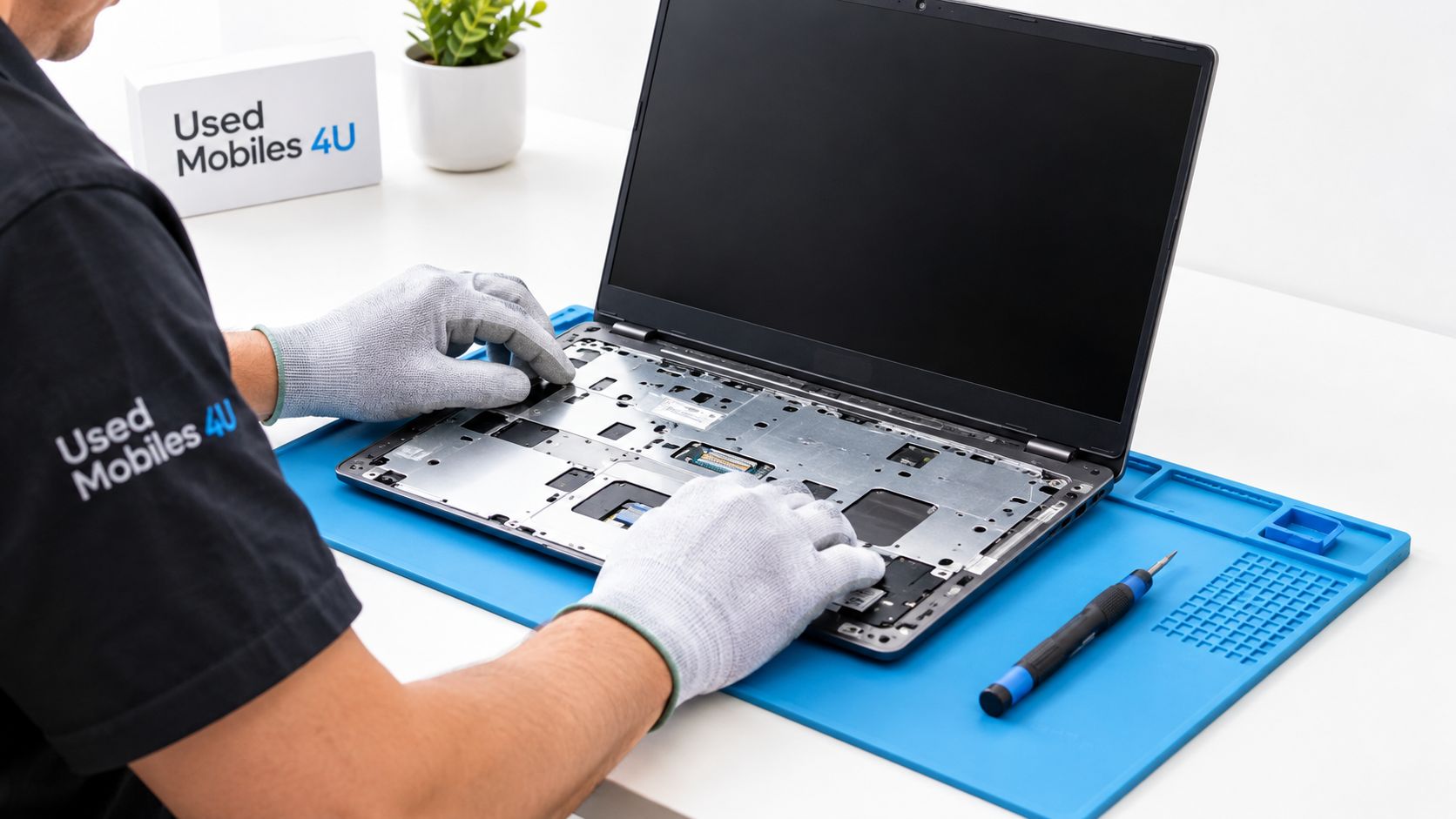
Cosmetic grading is useful, but it doesn't replace functional testing. A small mark may affect the grade without affecting how the laptop works. A Touch Bar or Touch ID fault is different: depending on the cause, it may require specialist work, and an integrated component problem can make an older machine uneconomic to repair.
What affects the repair decision
A battery issue and a logic-board fault aren't the same decision. The right repair depends on the model, the fault, the condition of the rest of the laptop and the repair option available. On an older machine, the cost and complexity of a top-case or board-level repair can outweigh the benefit of keeping it in service.
The 2017 13-inch model is a particular case for caution. iFixit gives it a repairability score of 1 out of 10 and identifies the screen, battery and logic board among the parts commonly replaced. That's a reason to assess its condition and repair options before purchase, not assume a worn battery will be a simple swap. iFixit's 2017 13-inch Touch Bar repairability information provides the model-specific detail.
Our refurbishment process explains how testing and grading fit into preparing devices for resale. For a Touch Bar model, the main takeaway is straightforward: buy condition and dependable testing, not a cosmetic label alone.
Is a Refurbished Touch Bar MacBook Pro Worth It
That depends on which generation you buy and what you need it to do. A refurbished Touch Bar MacBook Pro can still suit the right buyer, but the generations don't offer the same balance, and the cheapest option is rarely the best value once you factor in software support and repair costs.
For someone who works away from a charger, the 2020 M1 13-inch model is generally the stronger choice over the 2019 Intel 13-inch model. Apple lists both with a 58.2-watt-hour battery, but the advertised maximum wireless web-use figures differ sharply between the two generations (the battery section below has the exact numbers). These are maximums, not everyday guarantees, and battery age still matters.
Later Intel models remain useful for browsing, office work, study and lighter creative tasks. They vary substantially by processor and configuration, though, and a fast chip on paper tells you little about how a used machine handles sustained work. Check the exact screen size, processor, memory, storage and graphics before paying extra for a high-end configuration. Apple's 2018 MacBook Pro announcement describes the options offered at launch.
The oldest Intel models need more careful scrutiny. Some 2016–2017 A1706 models may not officially support macOS Sonoma, and a patched installation should be disclosed before sale. If a laptop can't run the software you rely on, a low upfront price won't make up for a shorter useful life. Verify official macOS support for the exact model, then check it against the banking, education or workplace software you depend on.
A listed example is the Apple MacBook Pro 13-inch (2017), i5, 128GB, Space Grey. Its listing describes a 2.3 GHz Intel Core i5, 8GB of memory, 128GB of storage and a Danish keyboard. Those details matter more to suitability than the Touch Bar itself.
Choose the 2020 M1 model if:
- Battery life matters: You often work away from a charger.
- You want a newer platform: You'd rather avoid a purchase decision built around an older Intel configuration.
Choose an Intel model if:
- Your software requires it: Check the precise app and macOS compatibility first.
- The configuration fits your work: Match the processor, memory and storage to the tasks you do.
From our side of the counter, the advice is simple: buy a Touch Bar MacBook only when the model, condition and warranty make sense together. Skip the oldest models if you need predictable software longevity, prefer simpler repairs or can't absorb an unexpected fault.
What to Check Before Buying a Used Touch Bar MacBook
Don't hand over money based on a seller's description or a laptop that powers on. Work through these checks in person where possible, or ask the refurbisher to confirm them in writing.
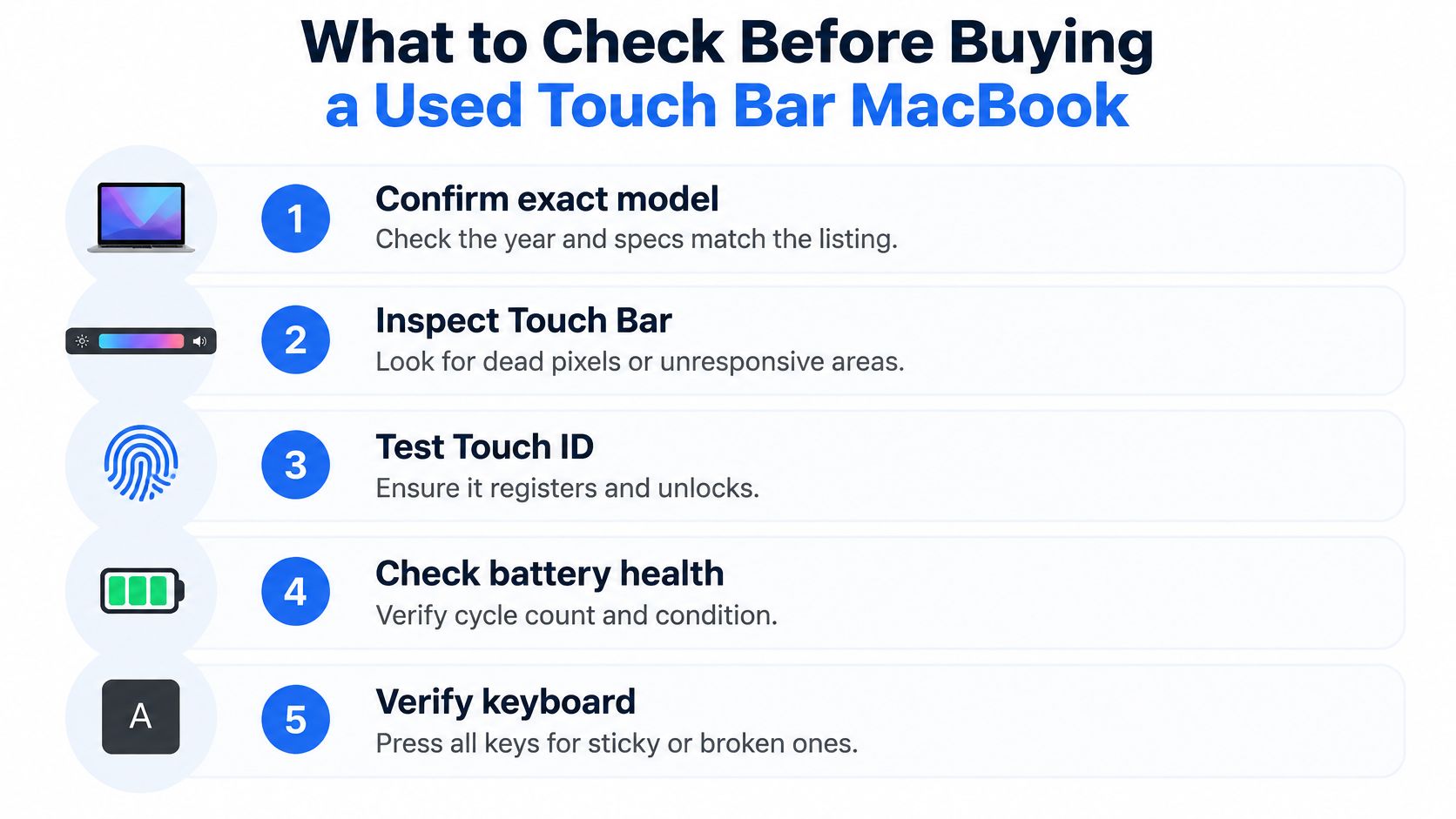
- Confirm the exact model: Check the year, model identifier, screen size and configuration. Make sure they match the listing.
- Test the Touch Bar: Try the visible controls and, where possible, app-specific controls. A strip that lights up may still have unresponsive areas.
- Enrol and test Touch ID: Confirm that it registers a fingerprint and authenticates. A working strip doesn't prove that Touch ID works.
- Check battery condition: Ask for the battery's condition and inspect it in macOS. Don't judge it by how long the machine stays on during a brief handover.
- Try the keyboard and ports: Press every key and test every USB-C or Thunderbolt port, along with charging.
Also confirm that the previous owner's account and Activation Lock have been removed. A fresh macOS setup is a useful handover check, followed by testing Touch ID again. For models with the T2 Security Chip, security features such as secure boot and encrypted storage make it especially important to verify that the Mac is properly reset and ready for its next owner.
A common example we see is a student drawn to a low-priced older model, then discovering their course software needs a newer officially supported macOS version. Check the exact software requirement before you buy. Ask about repair history, liquid damage, remaining warranty, battery condition and whether any replacement parts are non-genuine.
A refurbishment route gives you more clarity than a private sale when it includes a defined grade, functional checks and clear warranty and returns information. You can compare the available refurbished MacBook Pro options and weigh that reassurance against the lower upfront price of a machine with an unknown history.
Battery Life and Daily Use Across Generations
A battery that performs well in a brief handover can still struggle during a full day of work. The M1 model is rated for up to 20 hours of Apple TV app video playback, though real-world runtime varies with screen brightness, video calls, browser use and battery condition. Apple's M1 technical specifications set out its test conditions.
Processor generation matters too. An Intel model may suit a laptop that mostly stays at a desk, but frequent work away from a socket makes battery condition and day-to-day runtime more important. A healthy battery cannot close the performance and software-support gap between generations.
Check before you rely on it
Check the battery condition reported in macOS. Ask the seller to show that the laptop charges reliably, then try it unplugged with the sort of tasks you expect to do. Confirm the charger is compatible and that charging does not cut out when the cable moves.
Our guide to checking MacBook battery health explains what to inspect. A short test cannot confirm all-day battery life, so treat it as a basic check, not a guarantee. A worn battery can make a suitable Mac awkward to use; a good one does not make an older model a better choice for software it cannot support.
Frequently Asked Questions About the Touch Bar
Can the Touch Bar be replaced if it stops working
Sometimes, but the repair depends on what has failed and the exact model. A fault may involve more than the strip itself, especially if Touch ID is also unreliable. Ask a qualified repairer to diagnose it before deciding whether a repair is worthwhile.
Do all MacBook Pros have a Touch Bar
No. Apple introduced it on selected MacBook Pro models, and later ranges included configurations without it. Check the exact model rather than assuming that every MacBook Pro from a particular period has the feature.
Does the Touch Bar work with every app
No. What it offers depends on whether the app supplies Touch Bar controls. It can be useful in supported creative and media apps, but it won't make every programme easier to use.
Does a physical Escape key matter
It depends on how you work. If you use Escape frequently or prefer a fixed key you can find without looking, a Touch Bar model may feel less natural. Test the keyboard layout before buying.
Is a Touch Bar MacBook Pro still worth buying in 2026
It can be, if the exact model supports the software you need and the battery, Touch Bar, Touch ID and ports all pass inspection. Don't choose an older machine just because it's cheap if its software support or repair prospects don't suit your needs.
A sensible purchase comes down to the whole laptop, not one strip above the keyboard. Used Mobiles 4 U lists refurbished MacBook models with condition and configuration details, so compare those carefully against your software, battery and warranty requirements.
Written by James Waterston, with 24 years in the mobile phone industry, from customer service through to Sales Director of a global repair and recycling company. He's now run Used Mobiles 4 U for over 8 years. Connect with James Waterston on LinkedIn.
Meta description: MacBook Pro Touch Bar buying advice for UK refurbished shoppers. Compare generations, check battery health and Touch ID, and avoid costly repair surprises.
If you're comparing a Touch Bar MacBook, check the model, battery condition and warranty before deciding. Browse the tested and graded refurbished range at Used Mobiles 4 U and choose a laptop that fits your work, not just your budget.
Looking for a refurbished phone?
Shop professionally tested refurbished iPhones and Samsung phones with 18 month warranty, 30 day returns and free UK delivery.
Browse Refurbished Phones



