


Why Won’t iPhone CarPlay Connect or Stay Connected?

18/11/2026

7 Mins

An Apple CarPlay connection on an iPhone can fail because of a poor USB data connection, incomplete wireless pairing or blocked permissions. Start with a restart and the connection type before considering repairs or replacing your phone.
We recommend changing one thing at a time, then reconnecting to see what helped. Carry out every check whilst parked, starting with the sequence below.
The Short Version
- A phone that charges through the car’s USB port hasn’t necessarily established the data connection CarPlay needs.
- Wireless CarPlay needs both Bluetooth and Wi-Fi switched on, plus a car that supports wireless CarPlay.
- If only one app fails, test it separately, for example, check whether Maps works, before resetting the whole system.
How to Fix an iPhone CarPlay Connection: Quick Steps
We recommend this order, starting with a restart, as outlined in Apple’s car connection guidance.
- Restart your iPhone. In Spanish-language instructions, “Reiniciar el dispositivo” means “restart the device”, not an Apple menu label. Then open Settings > Bluetooth, switch it off, wait about five seconds and switch it back on.
- Restart the car’s infotainment system. Keep your iPhone unlocked and on its Home Screen whilst connecting, and select CarPlay on the dashboard if it doesn’t open automatically.
- For wired CarPlay, try another known-good data cable and a different CarPlay-capable USB port. Connect directly rather than through a hub or adapter.
- For wireless CarPlay, turn on both required wireless radios and put the car into its wireless or pairing mode.
- Make sure Siri is enabled and Screen Time restrictions haven’t blocked CarPlay.
- Remove the saved CarPlay connection and the car’s saved phone pairing, then set them up again.
- Back up your iPhone, install the latest compatible iOS update and update the stereo’s firmware using the manufacturer’s procedure.
Reconnect after each step. That helps separate a simple setup problem from a cable, handset or car-system fault.
Establish Compatibility Before Pairing
CarPlay requires a compatible car or aftermarket stereo and availability in your country or region. A Bluetooth connection or USB socket alone doesn’t establish compatibility; the car must support CarPlay.
Wired and wireless support are also separate. A car may support CarPlay through USB without supporting a wireless connection.
Apple’s compatible-models list is the starting point for an unfamiliar car. However, iPad and iPod touch don’t support CarPlay, even if they can connect to the stereo for other purposes.
CarPlay Ultra has an additional setup requirement: the iPhone needs a network connection to download supporting materials. An interrupted download during initial setup needs a working network connection before setup can finish.
Check the Cable and USB Port
Separate Charging From Data Transfer
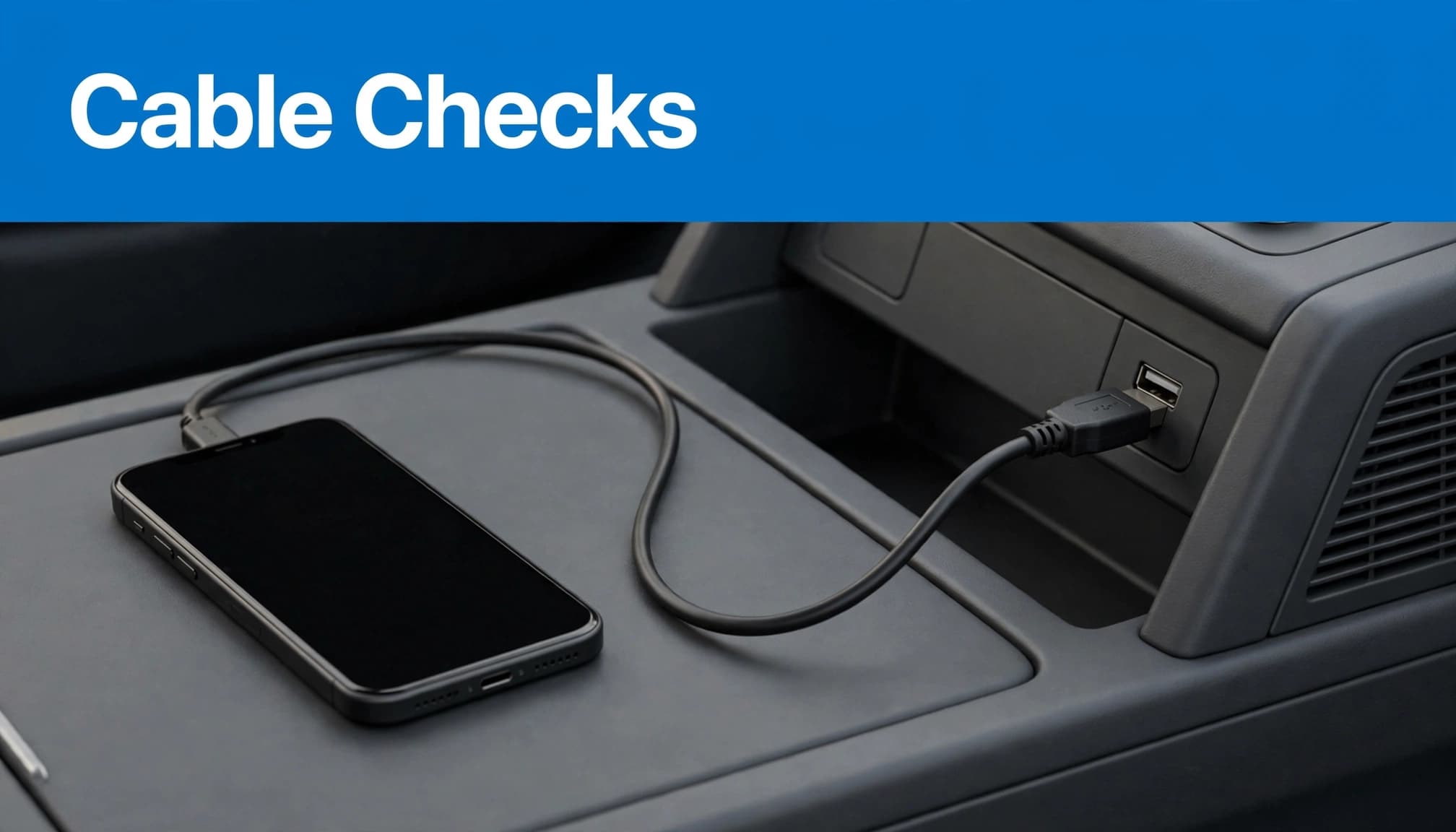
Wired CarPlay needs a working data connection. The charging symbol only proves that power is reaching the iPhone.
Use the car’s USB port marked with a CarPlay or smartphone symbol, where provided. Other sockets may supply power without supporting CarPlay. Then try a different cable that you know transfers data.
A useful further test is connecting the unlocked iPhone to your Mac. Accept the Trust prompt if it appears. If the Mac recognises the phone, that supports the cable and port working for data, although it doesn’t prove the car’s USB connection is healthy.
Look for an Unstable Physical Connection
Remove any case that prevents the plug seating fully. Then inspect the charging port for packed lint, visible damage or a loose connector.
A cable that works only when held at an angle needs investigation. Debris can prevent proper contact, but worn contacts can cause similar symptoms.
Charging successfully doesn’t prove that the cable or iPhone port can maintain the data connection wired CarPlay needs.
Don’t scrape the contacts with metal or put liquid into the port. Arrange an assessment for compacted debris or visible damage.
Restore Wireless CarPlay Pairing
Set Up the Wireless Connection Properly
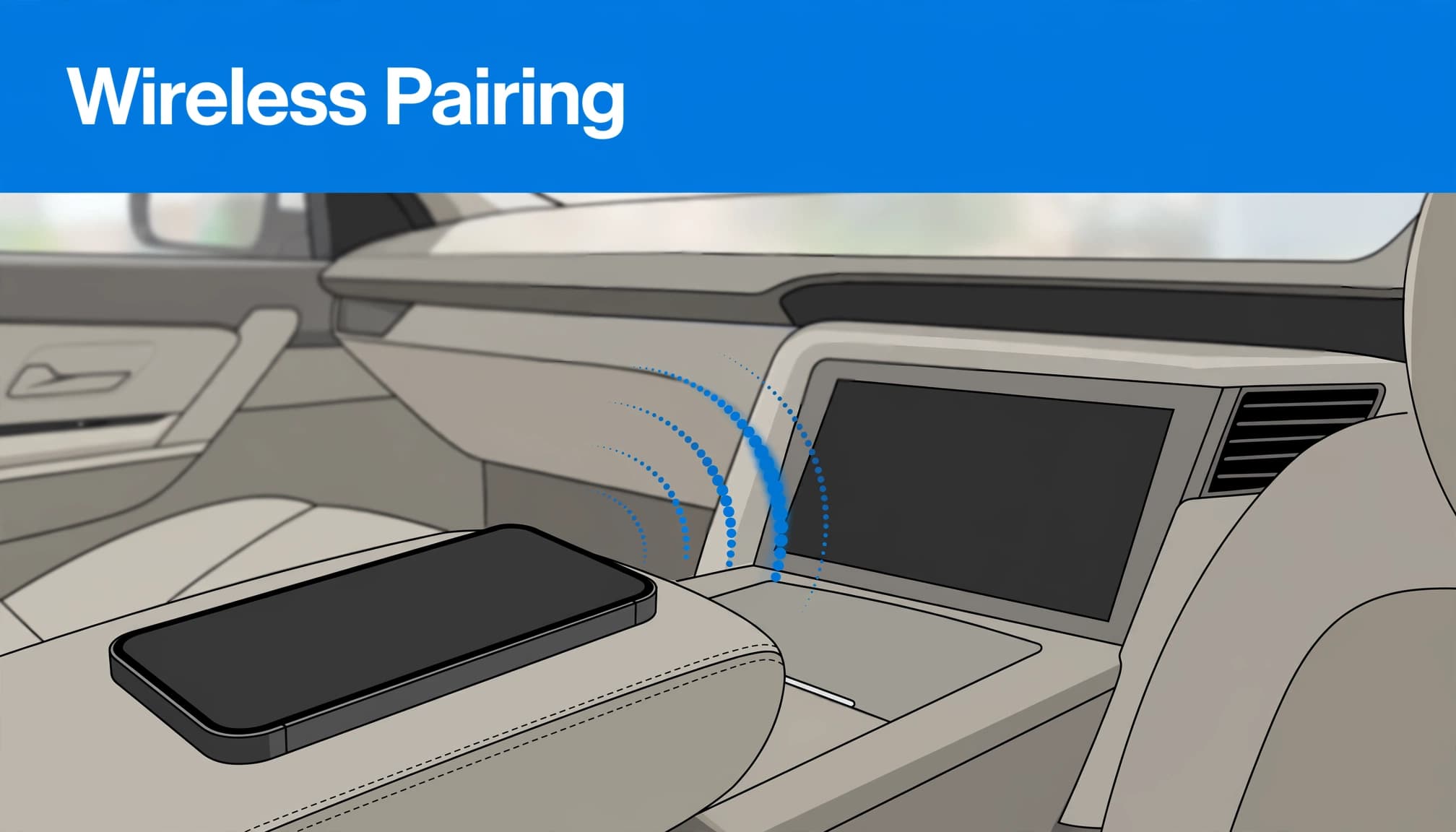
Turn on Bluetooth and Wi-Fi on your iPhone. Put the stereo into pairing mode, or press and hold its voice-command button. Use the steering wheel controls if the dashboard asks you to confirm pairing.
On the iPhone, open Settings > General > CarPlay. Under Available Cars, select your car and follow the pairing prompts.
Some cars that support both connection types offer wireless setup after the first USB connection. Accept the prompt to use the wireless connection on later journeys. Apple’s CarPlay setup instructions explain the different pairing routes.
Under Wi-Fi, tap the information button beside the CarPlay network and enable Auto-Join.
Clear Old Pairings and Competing Phones
If several phones have used the stereo, temporarily disconnect the others. Make sure the car selects your phone rather than reconnecting to another saved connection.
Apple also recommends giving the iPhone a different name. Find the Name option under About, rename the iPhone, then reconnect.
If pairing still fails, open Settings > General > CarPlay, select your car and tap Forget This Car. Delete the phone from the stereo too, then pair again.
For failures affecting ordinary hands-free calls as well, use our iPhone Bluetooth troubleshooting guide.
Review Permissions and Software Updates
Allow Siri and CarPlay Access
Siri needs to be enabled for CarPlay. Open the Siri settings on your iPhone, which may appear as Siri or Apple Intelligence & Siri depending on your software.
Next, open Screen Time > Content & Privacy Restrictions > Allowed Apps & Features. If restrictions are active, allow CarPlay. Older iOS versions may call this menu Allowed Apps.
If CarPlay connects initially but won’t reconnect after locking the phone, open General > CarPlay, select your car and enable Allow CarPlay While Locked.
These settings are part of Apple’s CarPlay troubleshooting advice.
Update Both Sides of the Connection
Follow Apple’s device-update guidance and back up the iPhone first. Then open Settings > General > Software Update and install the latest iOS version available for that handset.
The car’s software also needs checking. Install firmware supplied by the car or stereo manufacturer, following the update procedure in the car manual. Updating only the iPhone leaves the other side of the connection unchanged.
We wouldn’t erase an iPhone as an early troubleshooting step. A factory reset deletes its content and settings, so it requires a backup and a clear reason.
When CarPlay Opens but Apps or Sound Fail
Isolate the App Before Changing Pairing Settings
CarPlay displays supported iPhone apps rather than duplicating everything on your screen. Apple’s Music, Maps, Messages, Podcasts and Books apps cover common journeys. Supported options also include Spotify, Waze, WhatsApp, Amazon Music, Tidal and iHeartRadio.
If navigation fails in Maps, try another supported navigation app before changing the car pairing. If one audio app stays silent, try another. For example, play something in Apple Podcasts after Spotify fails.
When the second app works, update the affected app and contact its developer if the fault continues. Repeatedly deleting the car pairing is unlikely to resolve an app-only problem.
Separate Audio Routing From a Disconnection
If the CarPlay screen remains active, first make sure the stereo is using CarPlay as its audio source. Adjust the volume whilst the affected audio is playing.
Siri can have a separate volume level from music. Activate it using the steering wheel voice button or by holding the Home button on the CarPlay screen, then adjust the volume whilst Siri speaks.
If callers can’t hear you, compare a normal handset call with a CarPlay call. Our iPhone call microphone checks help distinguish a handset microphone problem from car audio routing.
Repair Bench Checks at Used Mobiles 4U
Our refurbishment checks include wired charging and data transfer. A handset accepting power hasn’t passed the full connection test.
Pocket lint can stop a plug seating correctly, whilst a connection that works only at one angle needs closer inspection. Cleaning can remove debris, but it can’t repair worn contacts. Cosmetic scratches matter less here than a secure, consistent connection.
For a second-hand iPhone, testing both charging and computer recognition is more useful than relying on appearance or cosmetic grade.
Wireless faults need the same separation. If the iPhone also loses Wi-Fi away from the car, our iPhone Wi-Fi dropout checks address that wider problem.
Before deciding whether to repair or replace an older iPhone, establish whether the fault follows the handset. Another iPhone working reliably in the same car is a stronger clue than CarPlay failing once.
CarPlay Connection FAQs
Why Does CarPlay Disconnect When the Cable Moves?
That points towards the physical connection. Try another known-good data cable first, then inspect whether the plug seats fully. If slight movement still causes repeated disconnections, arrange a port assessment rather than holding the cable in place.
Why Does Bluetooth Work but CarPlay Doesn’t?
Hands-free calling and CarPlay are different functions. Wired CarPlay can fail because of a cable or USB data problem whilst calls work normally. A wireless setup also needs Wi-Fi and a stereo that supports it.
What If Restarting the iPhone and Car Doesn’t Help?
Work through the cable, pairing, permissions and update checks above. Then compare another iPhone in the same car, or your iPhone in another compatible car if available. This helps identify which side needs further support or repair assessment.
Fix the Connection Before Replacing the Phone
A failed iPhone CarPlay connection doesn’t establish that the handset needs replacing. We recommend eliminating cables, pairing and permissions before paying for a repair.
If the fault follows your iPhone across known-good connections, arrange an assessment. If it stays with one car, focus on that stereo and its software. That distinction helps avoid replacing a working phone.
Looking for a refurbished phone?
Shop professionally tested refurbished iPhones and Samsung phones with 18 month warranty, 30 day returns and free UK delivery.
Browse Refurbished Phones