


How to Reformat a Laptop Safely: Back Up, Wipe and Reset

17/11/2026

10 Mins
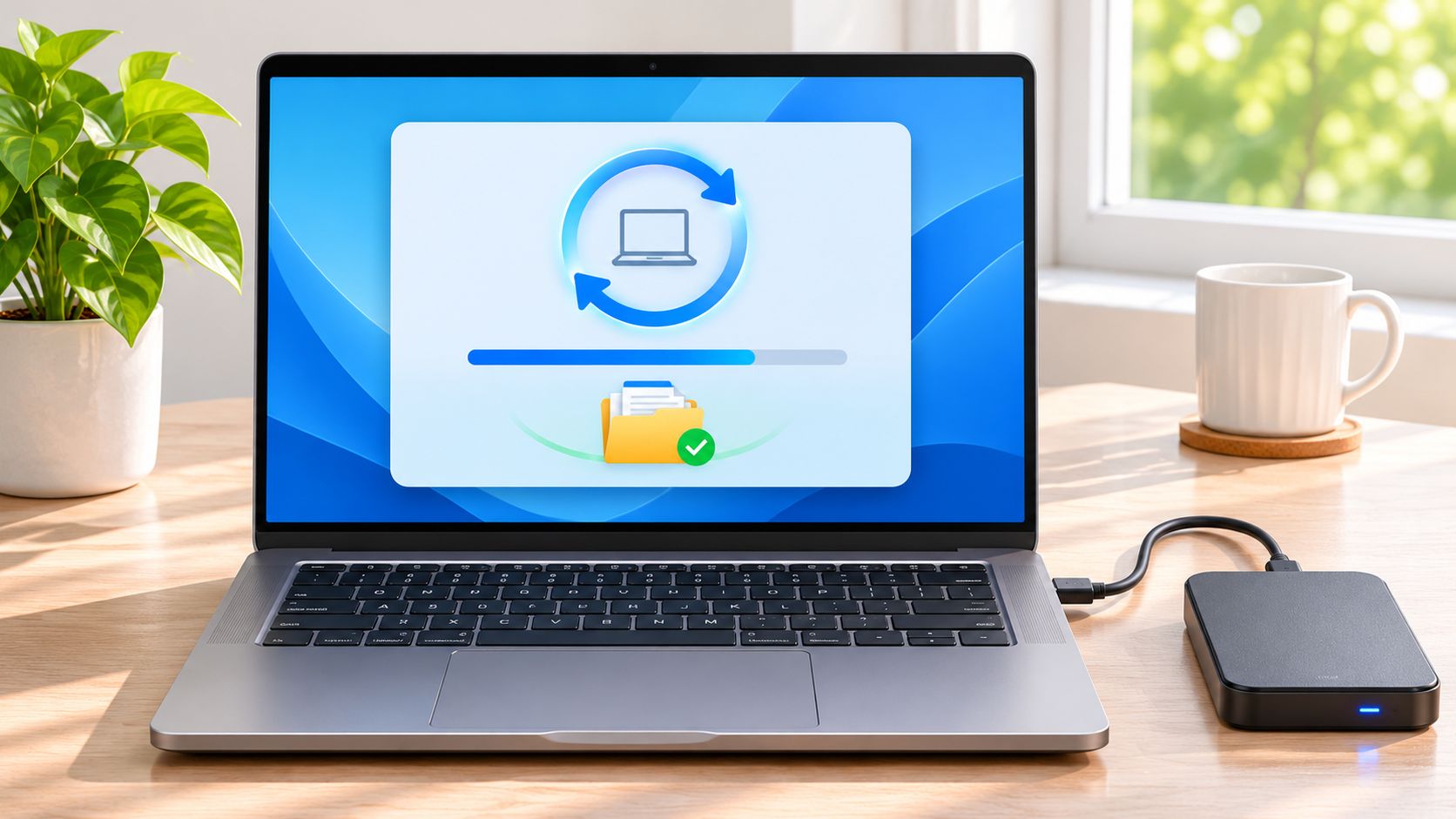
Deleting files, or emptying the Recycle Bin, does not reformat a laptop. A reformat is a reset or a reinstall of the operating system, and a tidy reset can still leave old files recoverable once the machine is sold or recycled. Keep a lighter reset if the laptop stays with you. Use a full wipe if it is leaving your hands.
The Short Version
- Back up first: Copy what you need, then open a few files and check they actually open.
- Sign out: Leave Microsoft, Apple, Google and licensed apps, and switch off Find My.
- Pick the full erase if anyone else will use the laptop. Keep my files is only for a machine you are keeping.
- Match the wipe to the drive. Overwrite a hard disk. Use the maker’s secure-erase tool on an SSD.
- Check Windows 10 before you reset an older PC. A working reinstall can still be an unsupported system.
Reset Routes for Windows, macOS and Chromebook
Knowing how to reformat a laptop starts with the system you actually run. There isn’t one button that fits Windows, macOS and ChromeOS. Back up, sign out, choose the full-erase option, and wipe the storage properly if the laptop is leaving you.
- Windows 11: Settings > System > Recovery > Reset PC. Full erase is Remove everything. Keep my files leaves personal data on the drive.
- Windows 10: Settings > Update & Security > Recovery > Reset this PC. Full erase is Remove everything. Check whether the PC is still supported before you reset it.
- macOS (recent versions): System Settings > General > Transfer or Reset > Erase All Content and Settings. That erase is the full option. Sign out of Apple ID and iCloud first.
- Chromebook (ChromeOS): Settings > Advanced > Reset settings > Powerwash. Powerwash is the full erase. Sign out of your Google account first.
Keep my files removes apps and settings and suits a laptop you are keeping after a software mess. Remove everything is the right choice for resale, a gift or recycling, because personal files, apps and settings go with the old setup.
Find your row, then do the backup steps before you touch Reset. A reset started on the wrong option, or without a checked copy of your files, is the mistake that is hardest to undo.
How to Back Up and Prepare Your Laptop
A reset removes local files and settings. Anything that exists only on the laptop can be difficult or impossible to get back. Microsoft advises copying valuable data somewhere other than the device before service, then checking that copy.
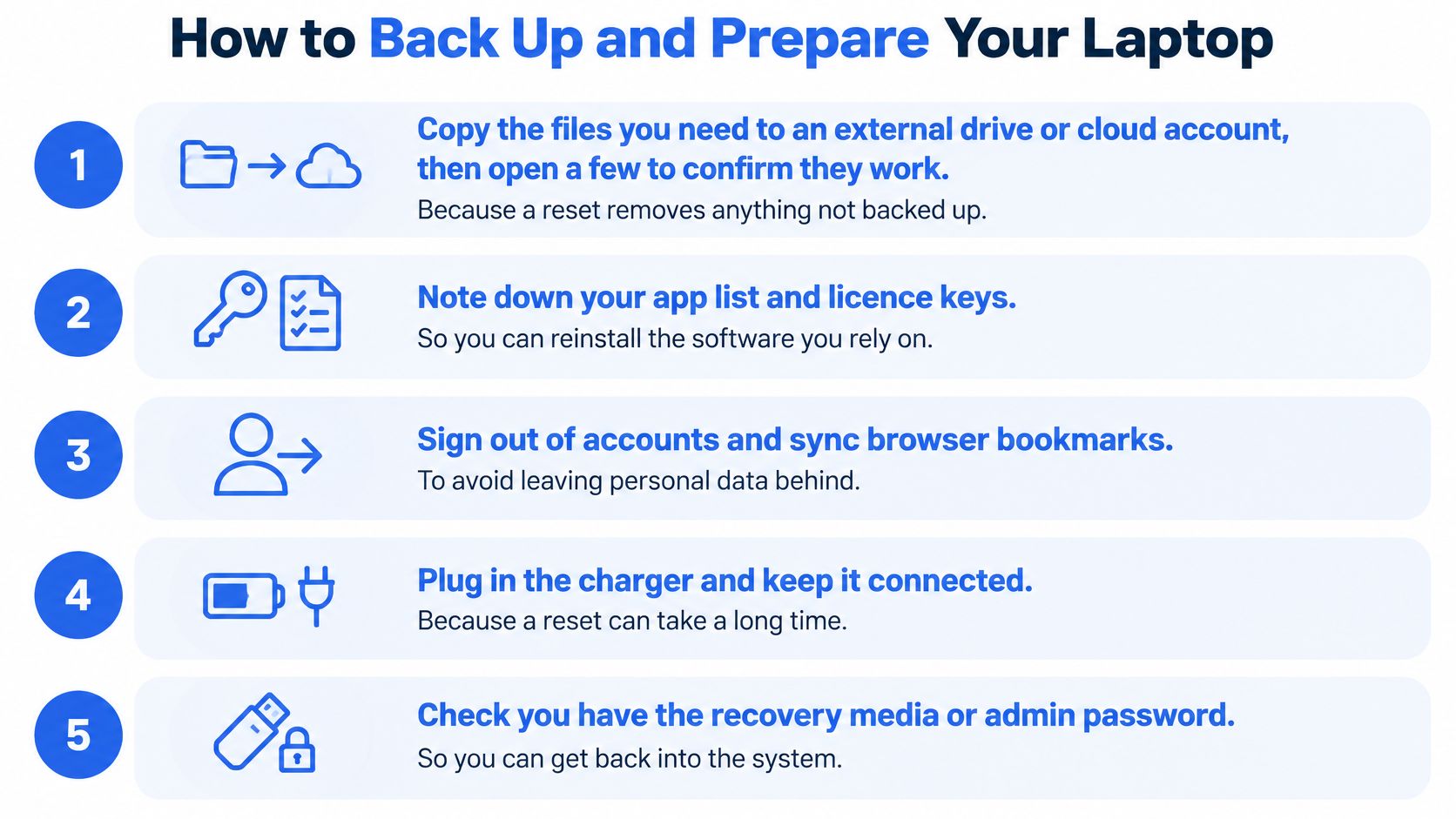
- Copy the files, then prove the copy. Put documents, photos and mail exports on an external drive or a cloud account you control. Open several files. A backup you have never opened is a guess.
- Note apps and licence keys. A reset strips installed software. Write down what you rely on, including Office, Adobe and any specialist tool, so you can put it back without hunting through old emails.
- Sign out and clear device locks. Sign out of Microsoft, Apple ID, iCloud, Google and any app that syncs or holds a licence. Turn off Find My or Find My Device. An activation lock blocks the next owner even after a clean-looking reset. Sync browser bookmarks before you sign out.
- Save recovery and licence details. If BitLocker shows a recovery key, store it off the laptop. Keep your Windows product key or Apple ID password somewhere you can reach after the drive is empty. You need these to get back in or to reactivate.
- Plug in the charger and leave it connected. A full reset can run for a long time. A flat battery halfway through can leave Windows or macOS half installed.
- See whether the drive is an SSD or a hard disk. On Windows, open Task Manager > Performance > Disk. That label changes the wipe you use later. Also confirm you have admin rights, recovery media or the firmware password.
- Unplug extras, then decide who keeps the laptop. Remove USB drives, SD cards and docks so the reset cannot touch them. If you are keeping it, Keep my files can be enough. If it is leaving, you will remove files and then wipe storage. Our data destruction notes explain why a quick format is not that wipe.
Practical rule: Formatting a disk only marks space as reusable. It does not scrub the old files. Do this preparation before any reset, because the wipe steps assume the backup and the sign-out are already done.
Our Experience Refurbishing This Model at Used Mobiles 4U
One thing we regularly notice is that a normal reset gets treated as a full clear-out. Our technicians often see browser logins, saved documents and work files that a recovery tool can still read after that reset. Devices are securely data-wiped before resale, and that step is never skipped. The secure data wipe removes previous-user data as part of refurbishment.
The drive type decides the method. The University of Edinburgh states that formatting only marks storage as available for reuse, so data may remain recoverable with specialist tools. Magnetic hard drives should be overwritten, ideally using multiple passes. SSDs and flash storage need the manufacturer’s secure-erase tool where one exists. On an encrypted SSD, deleting the encryption and recovery keys matters, and secure deletion or destruction is still the right extra step when the data is sensitive.
- Hard disk drive (HDD): Overwrite with multiple passes, using a full reset with drive cleaning or a dedicated overwrite tool. Use this on older laptops with spinning drives.
- SSD with a manufacturer secure-erase tool: Run that utility where one is available. This fits most current laptops with a branded SSD.
- Encrypted SSD: Delete the encryption and recovery keys, then run the full reset. This covers BitLocker, FileVault and device encryption.
- Highly sensitive or regulated data: Use physical destruction or a specialist service. Do not stop at a consumer reset for confidential business or regulated records.
A common example we see is a family laptop passed on after a standard reset, with a saved school account still trying to sync for the next person. No shop-floor reset is a forensic guarantee. If the files are regulated, send the machine to a specialist or destroy the drive.
What the bench log actually changes
Our technicians often see a laptop that shuts down or drains quickly after a reset, and the cause is battery wear rather than leftover software. We record battery condition before grading. Worn keyboards, loose charging ports and drives that throw read errors after a wipe are the faults that show up next. A cleanly wiped unit with an original battery and light cosmetic wear is a different machine from a heavily marked one with a tired battery. When the battery is poor or the drive is failing, we compare a replacement part with what the laptop is worth, then say plainly whether repair or replacement makes sense.
How to Reformat a Laptop on Windows, macOS and Chromebook
Back up and check that backup before any of the paths below. A wipe deletes what you did not copy.
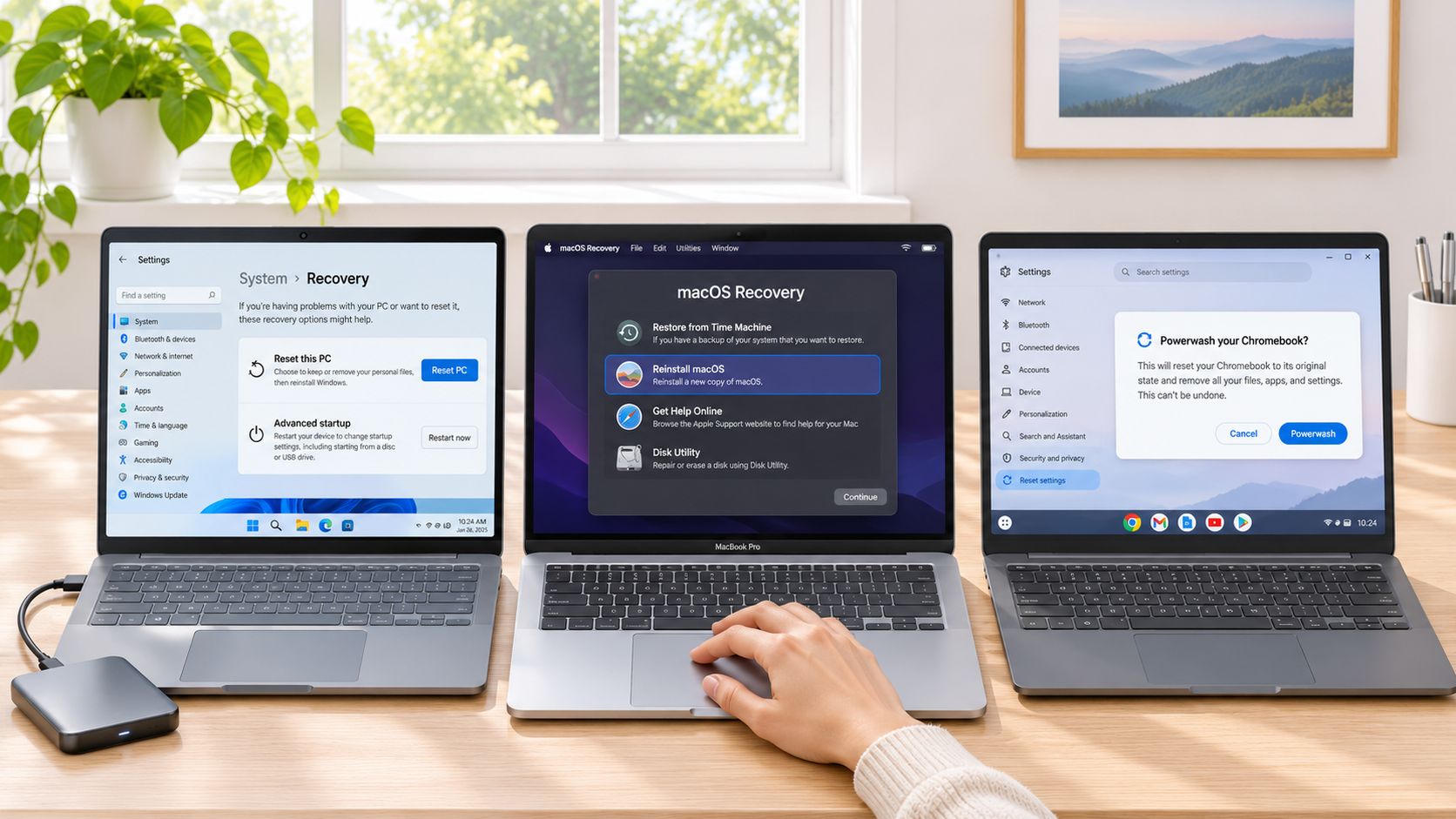
Windows 11 and Windows 10
Sign out of Microsoft and cloud accounts, connect mains power, and write down the recovery key if encryption is on. UK government factory-reset guidance says the full clean overwrites every drive sector before formatting. On a BitLocker or Device Encryption drive, deleting the encryption key can make the encrypted data practically unrecoverable.
- Open Start > Settings > System > Recovery. On Windows 10 use Settings > Update & Security > Recovery > Reset this PC.
- Select Reset PC, or Reset this PC, and choose Remove everything.
- Choose cloud download for the current build, or local reinstall if you are offline.
- Open additional settings and switch on the option to clean the drive fully, not a quick file removal.
- Confirm, wait, and stop at the first Windows setup screen so the next owner can configure it.
Keep my files retains user data and is the wrong choice for disposal or resale. Starting without a verified backup means the wipe removes data you cannot fetch back.
If Reset fails, the recovery partition is damaged, or you suspect malware, build a USB with Microsoft’s media creation tool and do a clean install. That path erases existing data and strips manufacturer customisations, so it is the thorough fallback. Steel City IT’s Windows reinstall advice is a useful companion when you are choosing that USB route over the built-in reset. Make and verify a full backup first, because a clean install clears the drive.
macOS
- Back up with Time Machine or iCloud, and confirm a few files open.
- Open System Settings > General > Transfer or Reset.
- Select Erase All Content and Settings, enter your password, and follow the prompts to sign out of Apple ID.
- Let the Mac restart into setup and leave it there for the next person.
Chromebook
- Sign out of your Google account.
- Open Settings > Advanced > Reset settings.
- Select Powerwash and restart. Local files on the Chromebook go. Files already in Google Drive stay in that account, which is why the sign-out matters.
Windows 10 Laptops and Unsupported Systems
A reset does not make an old Windows 10 laptop safe. Microsoft ended Windows 10 support on 14 October 2025. Those PCs no longer receive security fixes, software updates or technical assistance. You can restore a system that still boots and still be on software nobody is patching.
- Check Windows 11 eligibility with Microsoft’s PC Health Check app before you wipe.
- If it qualifies, back up, then reinstall Windows 11 using Remove everything. A clean installation replaces the system. An upgrade keeps the current setup and is a different job. Record activation and recovery details first.
- If it does not qualify but still runs well, keep it offline for limited use, or install a supported alternative only after you know drivers exist for that hardware.
- If the battery is poor or the hardware is old, replace it on a route that wipes the drive. A refurbished Lenovo ThinkPad is the sort of work and home laptop we prepare that way. In the Apple line, a Apple MacBook Air 13″ (2015) – i5, 256GB – Silver – Good is a mid-2015 13 inch model with a 1.6 GHz i5, 8GB memory and 256GB storage, plus a Danish keyboard that types like a UK layout with a few extra symbols.
What We Check Before Resale
The check that stops a sale is simple. If the laptop does not reach the setup screen with no old account waiting, it does not go out. A finished reset that still asks for the previous owner’s password has not finished.
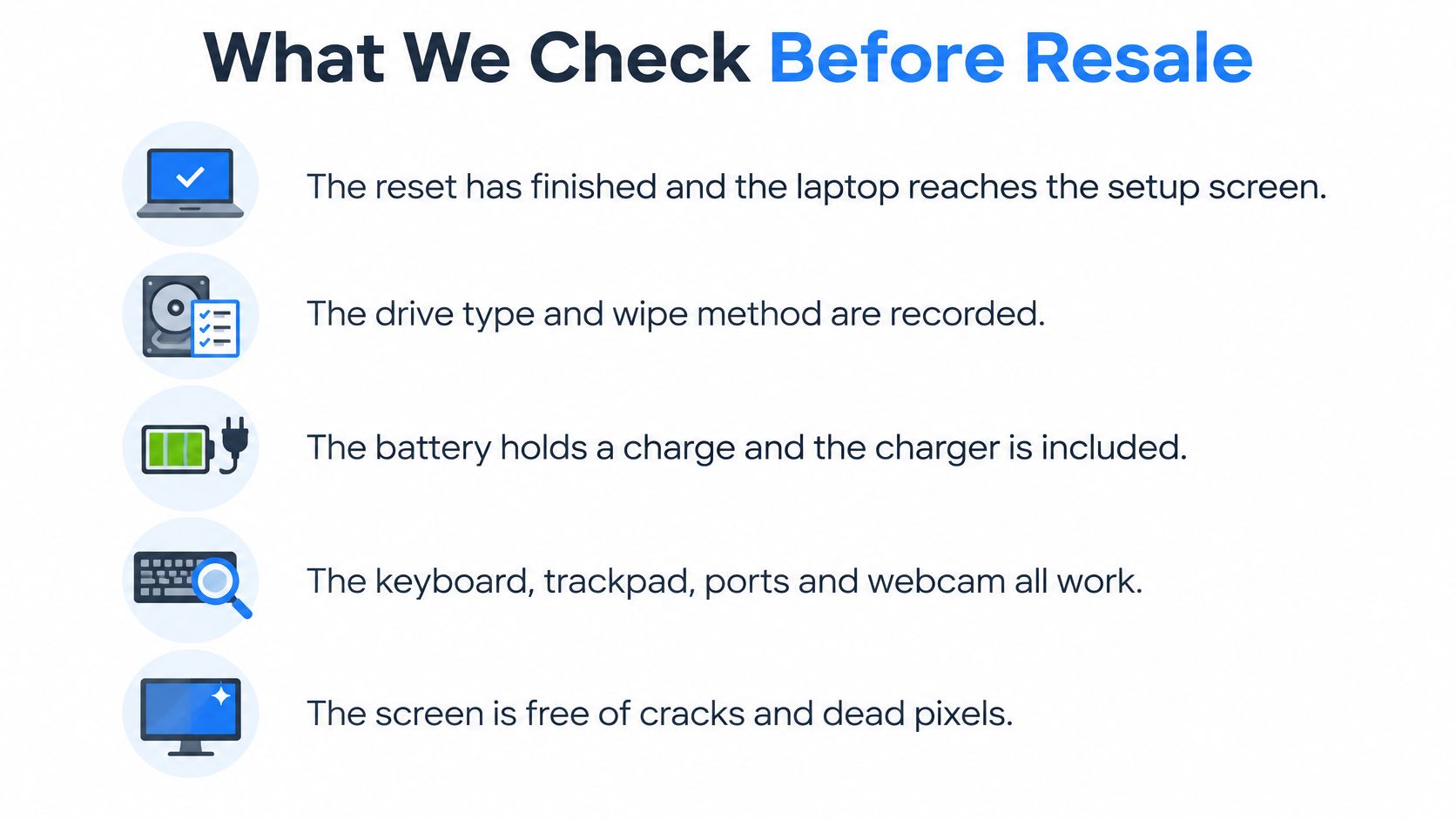
- Setup screen: The reset has completed and Windows, macOS or ChromeOS is waiting for a new owner.
- Drive and wipe: We log the drive type and the wipe method, so a hard disk was not treated like an SSD.
- Battery and charging: The battery holds charge and charging behaviour looks normal. The charger should be present if it was part of the listing.
- Controls and ports: Keyboard, trackpad, ports, Wi-Fi and webcam all work.
- Screen and grade: We record cosmetic grade honestly, including cracks, heavy marks and dead pixels.
- No leftover lock: Find My, a Microsoft account or a firmware password must not still be attached.
That list sits inside the same habit as our 10 step refurb check. A laptop that fails is repaired and retested, or it is taken off sale, which is how we already treat phones that miss functional, battery or condition standards. A battery that drains fast after a reset is usually an ageing battery, not a software fault. Check it before you resell the machine or decide to keep it.
Confirm the Wipe Before You Sell or Keep the Laptop
How to reformat a laptop comes down to one choice. A laptop you are keeping needs a standard reset, and Keep my files is acceptable once a verified backup exists. A laptop that is leaving needs Remove everything with the drive cleaned, then the storage-specific wipe for an HDD, an SSD or an encrypted drive.
That DIY path suits you if you can follow the menus, you have backed up, and you know whether the drive is an SSD or a hard disk. If you hold confidential business or regulated records, do not rely on a consumer reset. Use a specialist sanitisation service or physical destruction.
A common pattern is an owner who wipes the drive carefully and still forgets to sign out of a cloud account. Check that sign-out last, before the laptop changes hands.
If you are clearing a laptop rather than keeping it, our laptop trade-in process is the practical next step, and the same wipe question applies if you are also retiring a phone. I would only keep an older machine when the battery still holds up and the operating system is still supported. Otherwise replace it, and read the grade and battery health before you buy.
Written by James Waterston, 24 years in the mobile phone industry from customer service through to Sales Director of a global repair and recycling company. Now running Used Mobiles 4U for over 8 years. LinkedIn: James Waterston.
Used Mobiles 4 U tests devices, wipes previous-user data and grades what we sell, including refurbished phones and laptops for work, study and home. If a reset has shown your current machine is unsupported, tired or not worth another repair, browse graded stock with battery health shown before you buy. Visit Used Mobiles 4 U when you are ready to compare a replacement or hand a device in.
Looking for a refurbished phone?
Shop professionally tested refurbished iPhones and Samsung phones with 18 month warranty, 30 day returns and free UK delivery.
Browse Refurbished Phones