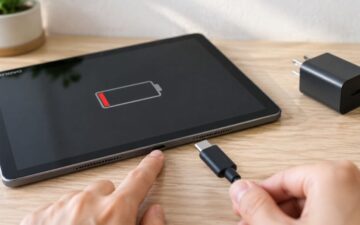
Lenovo Tablet Not Charging? What to Check and Fix
Most Lenovo tablets that won't charge need a compatible wall charger and a known-good cable tested first. If no charging icon appears after 10–15 minutes and the tablet still won't start after an overnight charge, stop troubleshooting and arrange service.
You're likely looking at a blank screen, swapping cables and wondering whether the tablet is dead. Don't assume the battery has failed: a weak adapter, worn cable or dirty port can produce the same symptoms.
Start With the Charger, Cable and Port
Start with the charging kit, not the tablet's internals. A USB-C connector only describes the shape of the plug. It doesn't guarantee that a charger supplies the power your Lenovo model needs, or that the cable is suitable. Lenovo tablets vary in their charging requirements, and some support USB Power Delivery while others don't. Check the exact model and its charging specification before treating any USB-C charger as interchangeable. Lenovo's tablet range and specifications illustrate why the model matters.
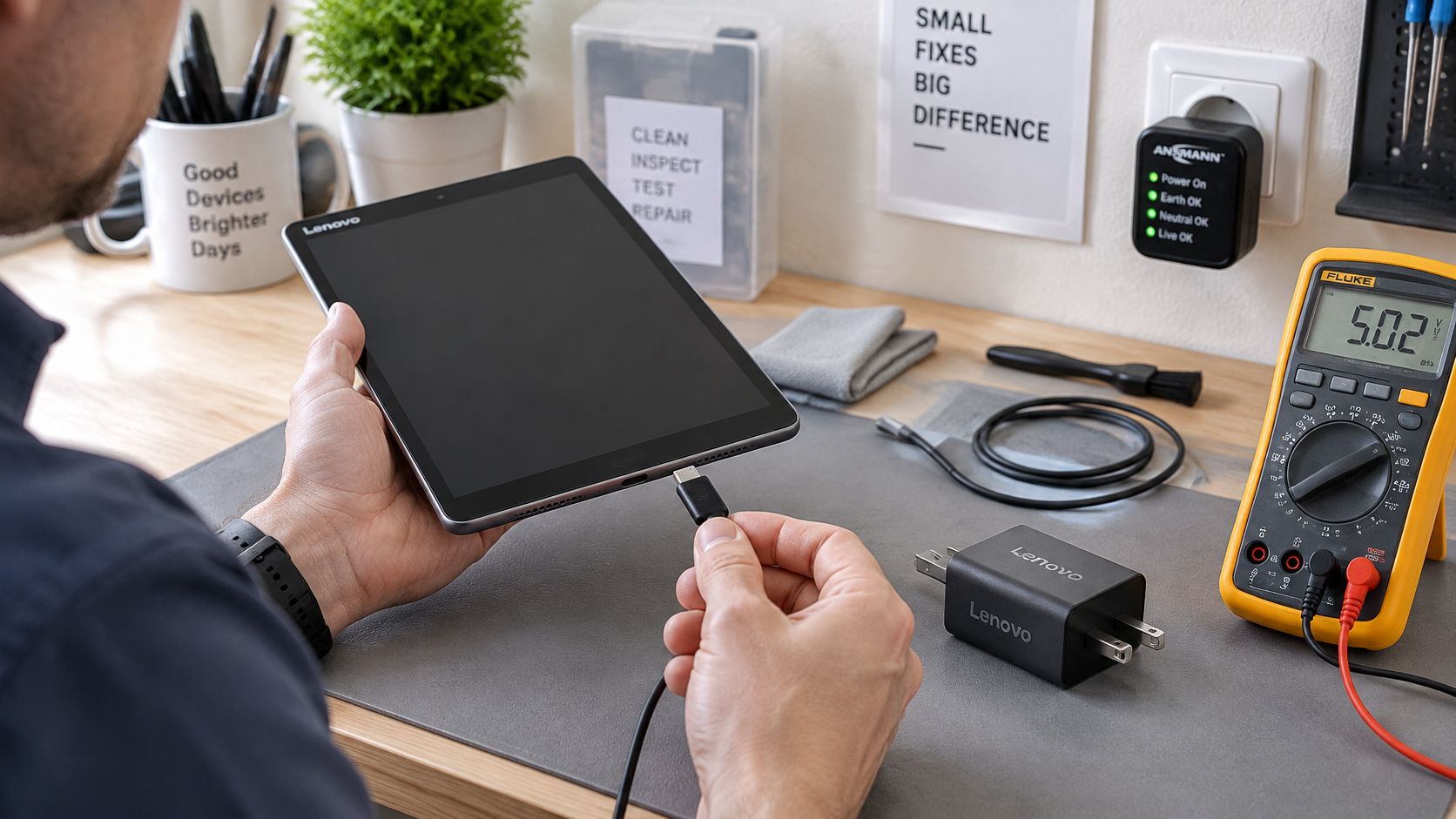
Look at the small print on the adapter. It lists output values, usually shown in volts and amps, and may include wattage. Compare those details with the requirements for your tablet. Lenovo recommends an output of approximately 5 V/2 A or higher for faster charging; a connector that fits but provides too little power may charge slowly, struggle while the screen is on, or appear not to charge at all. Lenovo's charging guidance advises using an appropriate charger rather than relying on low-output USB ports.
A laptop socket, car USB port or hub isn't a dependable first test. These can provide limited or inconsistent power, so connect directly to a known-working wall socket with the supplied Lenovo charger if you have it. If not, use a reputable, correctly rated adapter and cable. A compatible Android phone charger can be a useful comparison only if its output suits the tablet.
The UK's common-charger direction is USB-C, but that doesn't mean every tablet, cable and adapter is automatically compatible. The Government's common-charger proposal includes tablets and points towards USB-C, while the rules apply in Northern Ireland and the Government chose not to introduce equivalent rules in Great Britain. Check your Lenovo's actual port and power requirement rather than guessing from the plug shape. The UK Government's common-charger information sets out that distinction.
Before connecting anything, look for obvious damage to the cable ends, adapter or tablet port. If a connector is bent, cracked or unusually loose, don't force it. Put aside any suspect accessory and test with a known-good, correctly rated charger and cable.
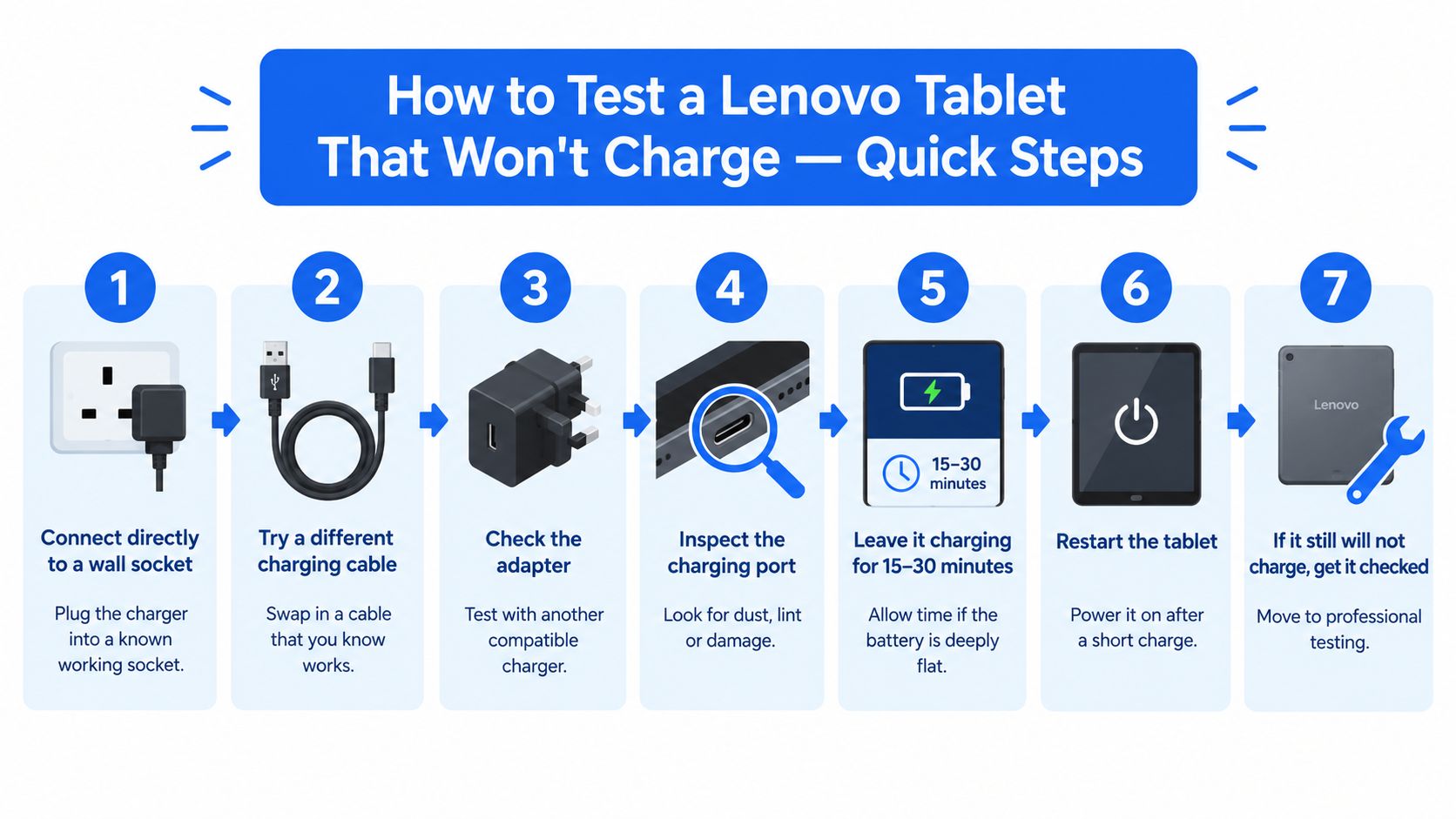
How to Test a Lenovo Tablet That Won't Charge, Quick Steps
Work through these checks in order. They're meant to identify a simple accessory or power issue before you pay for a repair, not to encourage opening the tablet.
-
Connect to a wall socket. Use a known-working socket and connect the charger directly, rather than using a laptop, car port or hub. Make sure the cable is seated properly at both ends.
-
Try another cable. Swap in a cable you know works with a compatible device. Check for fraying, bent ends or a plug that won't sit securely.
-
Test another compatible adapter and socket. Use a reputable charger with output suitable for your specific Lenovo model. Don't choose one just because it has a USB-C plug.
-
Inspect the charging port. Shine a light into it and look for lint, dust or visible damage. If you see loose debris, remove it gently with a soft brush or a wooden toothpick. Never use metal, and don't force anything into the port.
-
Leave it connected to charge. A fully discharged battery may need 10–15 minutes before a charging icon appears. Lenovo advises leaving some apparently empty tablets connected for up to 12 hours before considering service. Keep the tablet on a hard, flat surface and check it periodically.
-
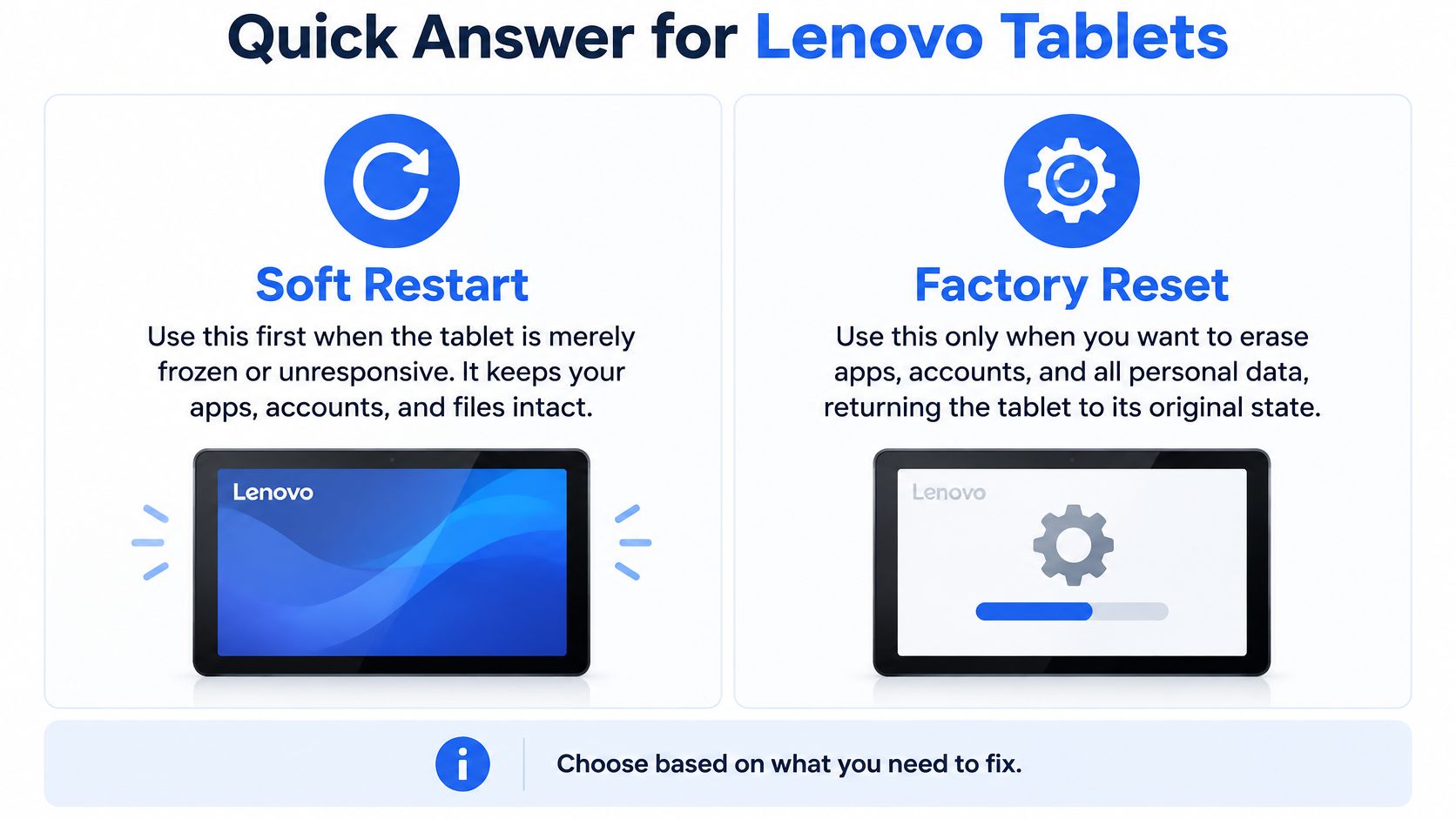
Try a controlled restart if it stays blank. If the tablet shows a charging light but the screen remains unresponsive, leave it connected to AC power for at least 30 minutes. On supported Lenovo models, hold Power and Volume Down for roughly 12 seconds, release both buttons, then try a normal restart. The button combination varies by model, so check the relevant Lenovo reset guidance before attempting it. A forced restart can interrupt unsaved work; back up first if the tablet can still be accessed.
-
Stop and arrange a service assessment. If there's still no charging indicator after 10–15 minutes, and the tablet won't start after an overnight charge with a compatible setup, send the tablet, cable and adapter for testing. Don't keep forcing a loose connector or attempt to open the battery enclosure.
What We Commonly See With Tablets That Will Not Charge
Charging symptoms can be misleading. A tablet that stays blank after you plug it in may just be fully discharged, while one that charges only when switched off may be receiving too little power to keep up with the screen or demanding apps.
-
No icon at first: A flat battery can take 10–15 minutes to show a charging symbol. Don't call it a failed battery just because the screen doesn't respond immediately. Lenovo also advises prompt charging when its low-battery warning appears, usually at around 15% remaining. Lenovo's battery and charging precautions explain that partial charging doesn't create a memory effect in lithium-polymer batteries, while repeatedly allowing them to run fully flat can shorten service life.
-
Slow or interrupted charging: A weak adapter or cable may not deliver enough power, particularly with the screen on. If charging behaviour changes when the tablet is switched off, suspect the charging kit before assuming the battery is defective.
-
A loose connection: A worn port or compacted lint can prevent a secure connection. A connector that moves around or only works at a particular angle points towards a physical connection problem, not normal battery behaviour.
-
No response after a long charge: If a suitable charger and cable make no difference after the advised charging period, a failed adapter, damaged port, charging-circuit fault or aged battery becomes more plausible. That's the point for proper testing, not another round of random accessories.
The UK Government's lithium-ion guidance says charging should follow the battery manufacturer's specifications and remain under the battery-management system's control. Its safety guidance is a good reason to avoid improvised battery bypasses or mismatched chargers.
Our Experience Refurbishing This Model at Used Mobiles 4U
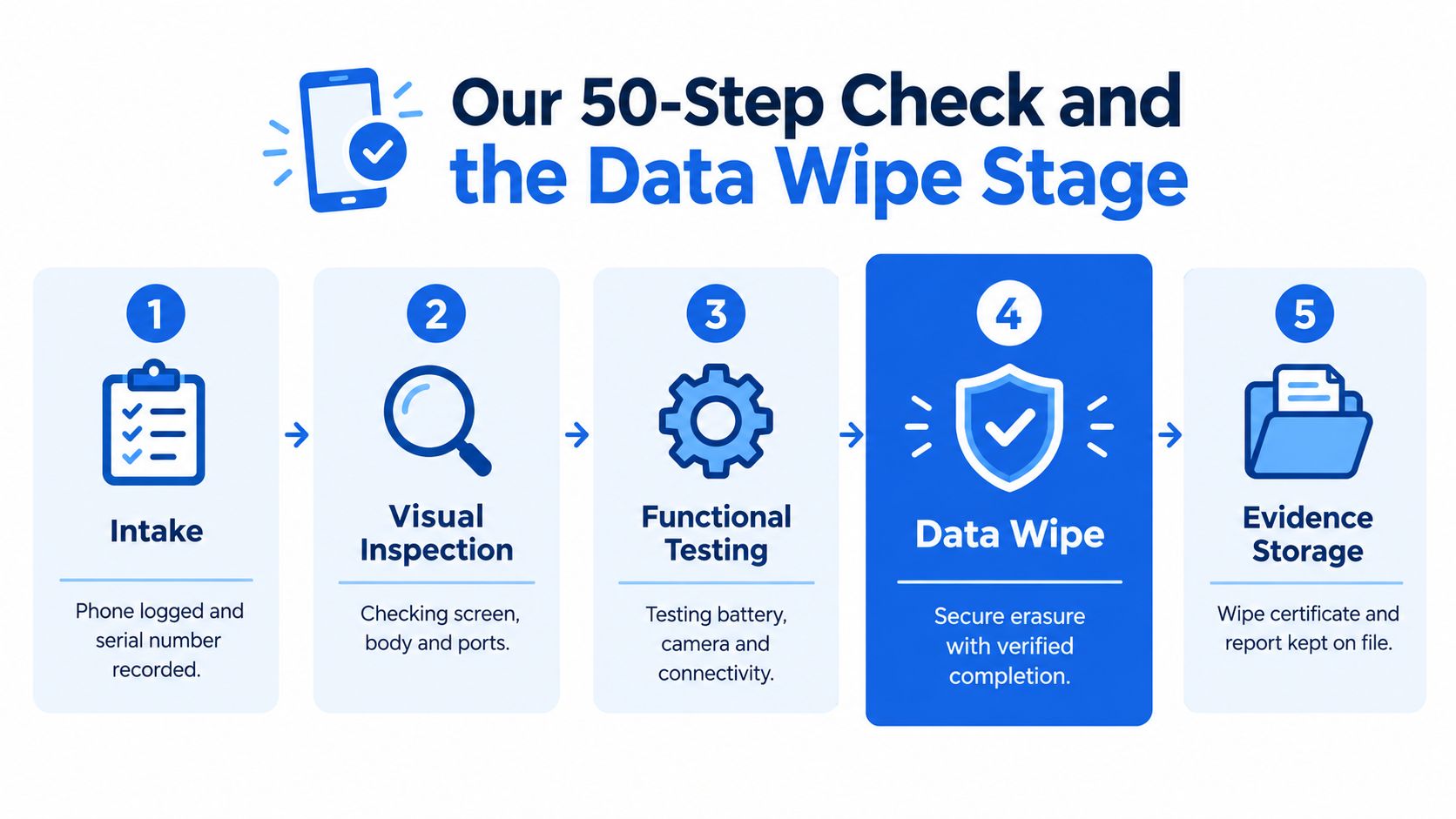
One thing we regularly notice with charging complaints is that the symptom alone doesn't identify the failed part. A tablet that won't charge on a low-output adapter can look just like one with a worn port, so our technicians check how it behaves with the original or correctly specified charger and a known-good alternative before drawing conclusions.
We also look closely at the charging socket. A port can collect debris, loosen through repeated use or show damage from a cable being pulled sideways. A cable that only works when it's held at an angle is a useful clue, but it isn't a reason to keep bending or forcing the plug. That can make a repair more difficult.
Battery condition matters too. The battery is considered alongside charging behaviour, not in isolation. If a tablet accepts power reliably but loses charge quickly or shuts down unexpectedly, the battery may be part of the problem. If the connection itself is intermittent, the port, cable or adapter may be the better lead. Technicians also check for signs of heavy use, such as worn connectors and general cosmetic damage.
Cosmetic grade and function aren't the same thing. A tablet can show visible wear yet charge correctly, while a device that looks tidy can still have an intermittent port fault. Refurbishment checks therefore include both appearance and operation, rather than treating a cleaner case as proof of better battery health.
Repair makes more sense when testing points to an isolated, serviceable fault and the rest of the tablet remains useful. Replacement deserves a closer look when the battery, charging system and general condition all raise concerns, or when the tablet no longer suits its owner's needs. For example, someone comparing a repair with a used household tablet might also consider a Lenovo Smart Tab M10 listing, while checking carefully what accessories are included.
Repair or Replace? Choose Based on What Has Failed
A confirmed cable or adapter fault doesn't justify replacing the tablet. A damaged port may be repairable too, but get a proper assessment before deciding: the same symptom can come from more than one component, and an estimate is more useful than guesswork.
Choose repair if:
- The fault is isolated to a cable, adapter or worn charging port.
- The tablet still does the jobs you need and has no other serious damage.
- It's still covered by a warranty. Check the applicable terms and follow the provider's claim process. Used Mobiles 4U's repair and warranty information is a starting point for questions about its own devices.
Choose replacement if:
- The battery is swollen, visibly damaged or otherwise unsafe to use.
- The tablet remains unresponsive after the overnight charging test with compatible equipment.
- A repair quote approaches the value of a suitable refurbished alternative, especially if the device has other faults as well.
A careful repair assessment can prevent a usable tablet from being discarded. UK analysis cited in the repair context reports that 14% of electrical and electronic equipment was diverted for reuse, compared with 53% recycled. The figures underline why it's sensible to establish whether a device can be reused before treating it as waste. Lenovo's service guidance gives a practical stopping point for a charging complaint: if no icon appears after the initial check and the tablet still won't start after an overnight charge, submit the device and its charging accessories for service.
If the tablet no longer meets your needs, a phone may be a separate replacement choice rather than a direct tablet equivalent. For example, the Refurbished iPhone 15 128GB Black – Excellent is a black, fully tested, SIM-free phone with an 18-month device warranty. It suits someone who wants an understated phone for work, travel and everyday use, but it won't replace a tablet's larger screen.
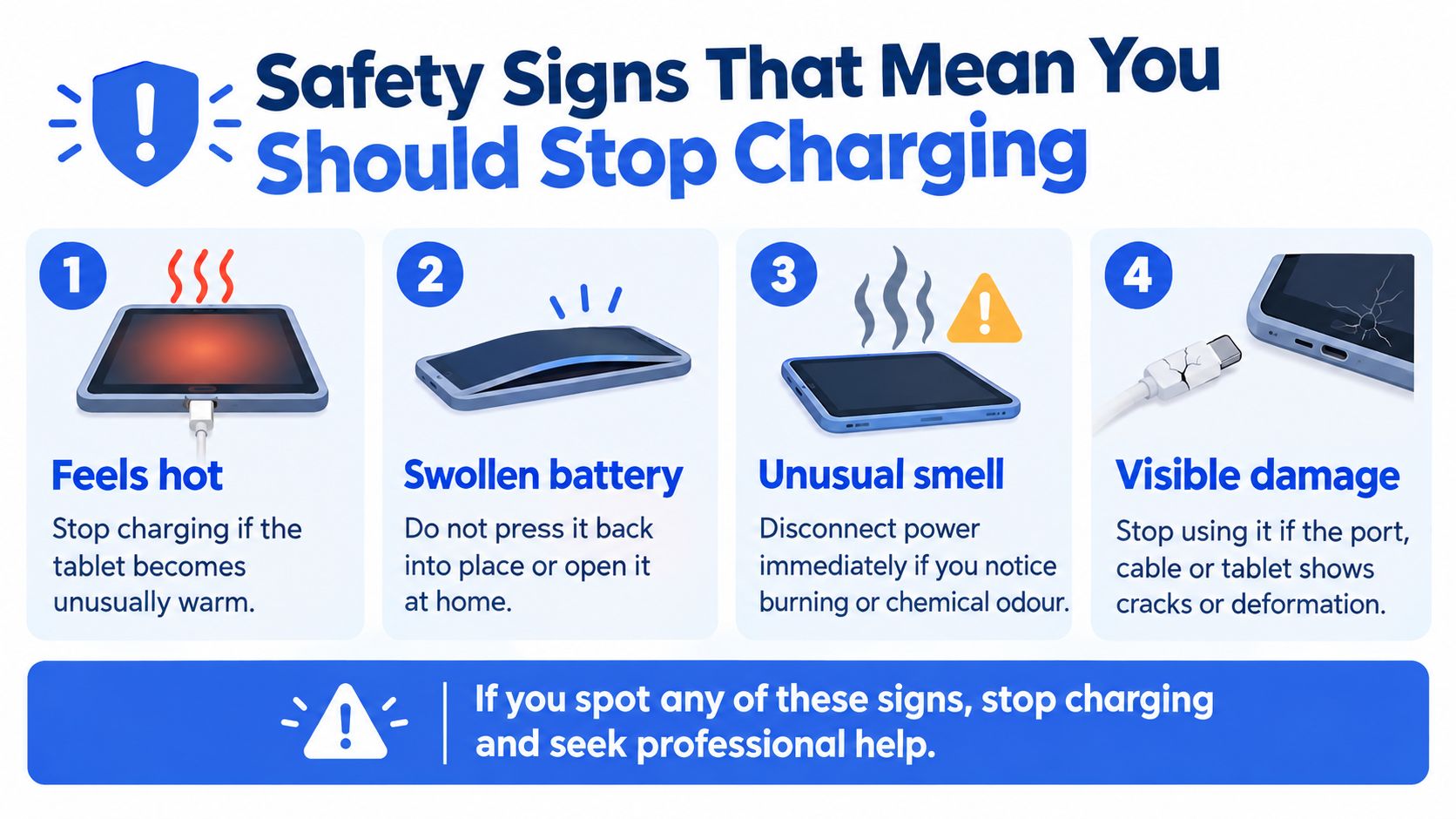
Safety Signs That Mean You Should Stop Charging
A hot, swollen or damaged tablet isn't a DIY charging problem. Stop charging and arrange professional assessment. Don't press a swollen battery back into place or open the device at home.
- Unusual heat: Stop if the tablet becomes unusually hot while charging. Disconnect it if safe, and don't leave it plugged in to see whether it settles.
- Swelling or deformation: Stop using the tablet. Don't squeeze the case, press the battery down or try to remove it yourself.
- Abnormal smell: Treat a burning or chemical odour as a warning. Disconnect power if it's safe to do so and move away from the device.
- Visible damage: Don't charge a damaged battery, cracked connector or visibly deformed tablet. A loose socket may need repair; battery damage needs professional attention.
If the device is safe to handle, keep it away from heat and combustible materials while you seek advice. Don't use a high-output charger as a workaround, bypass the battery-management system or keep testing a damaged connector. UK fire-service guidance advises using the correct charger, charging on a hard, flat surface, keeping the device visible and never charging a damaged battery. Cheshire Fire and Rescue Service's lithium-ion safety advice sets out those precautions.
Is a Repair or Replacement Worth It for You?
Repair is usually the sensible choice when a compatible charger or cable resolves the problem, or a technician confirms a serviceable port fault and the tablet otherwise works well. It's also worth checking any applicable warranty before paying for work yourself.
Replacement becomes more practical when testing points to a failing battery or internal charging fault, the tablet remains dead after the advised charge, or the repair would leave you with an old device that still struggles with everyday tasks. Don't decide from the charging icon alone; a professional assessment can distinguish a repairable connection issue from a broader fault.
This advice suits owners who can test accessories safely and want to avoid paying for a repair before checking the basics. It doesn't suit anyone dealing with swelling, unusual heat, a burning smell or visible battery damage. In those cases, stop charging and leave the device to a qualified technician. Don't open a sealed battery enclosure or force a damaged port.
My verdict is straightforward: test the charging kit first, repair an isolated fault, and replace the tablet when the confirmed repair no longer makes practical sense. If you're comparing replacement options, Used Mobiles 4U lists tested, graded refurbished devices; check the specific product details and warranty before choosing. If the Lenovo still matters to you, get the tablet and its charging accessories assessed before writing it off.
Written by James Waterston, with 24 years in the mobile phone industry, from customer service through to Sales Director of a global repair and recycling company. James has run Used Mobiles 4U for over 8 years. Connect with James Waterston on LinkedIn.
Meta description: Lenovo tablet not charging? Check the charger, cable and port, learn when to stop troubleshooting, and decide whether repair or replacement makes more sense in the UK.
If your Lenovo tablet still won't charge after these checks, visit Used Mobiles 4U to compare refurbished devices or find a route to have faulty kit assessed. Check the condition and warranty details before choosing a replacement.